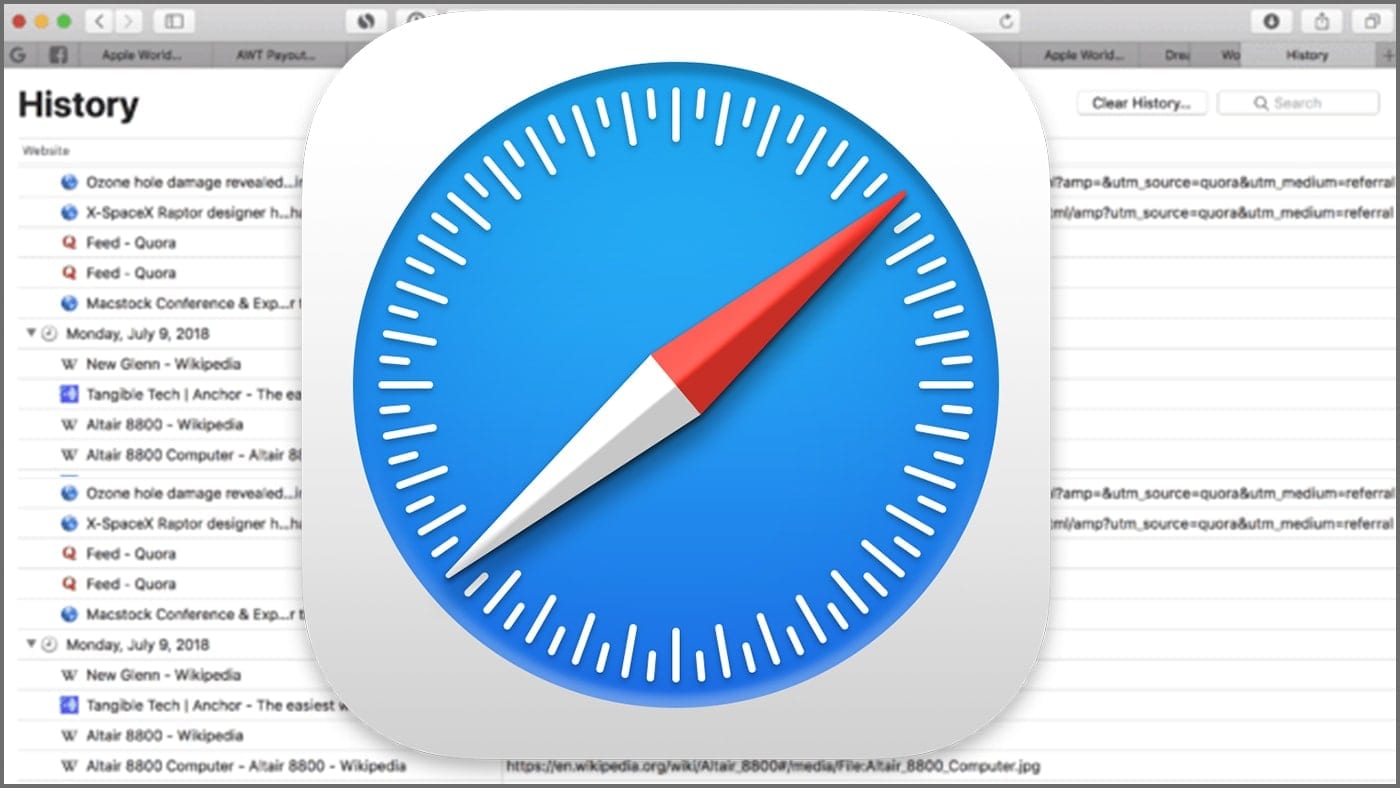
You can delete a single page or delete specific pages from the history list in the Safari web browser in macOS on a Mac. It’s helpful to keep things uncluttered, easy to accomplish, and only takes a few steps.
- Launch Safari.
- Select “Show All History” in the History menu or press ⌘-Y.
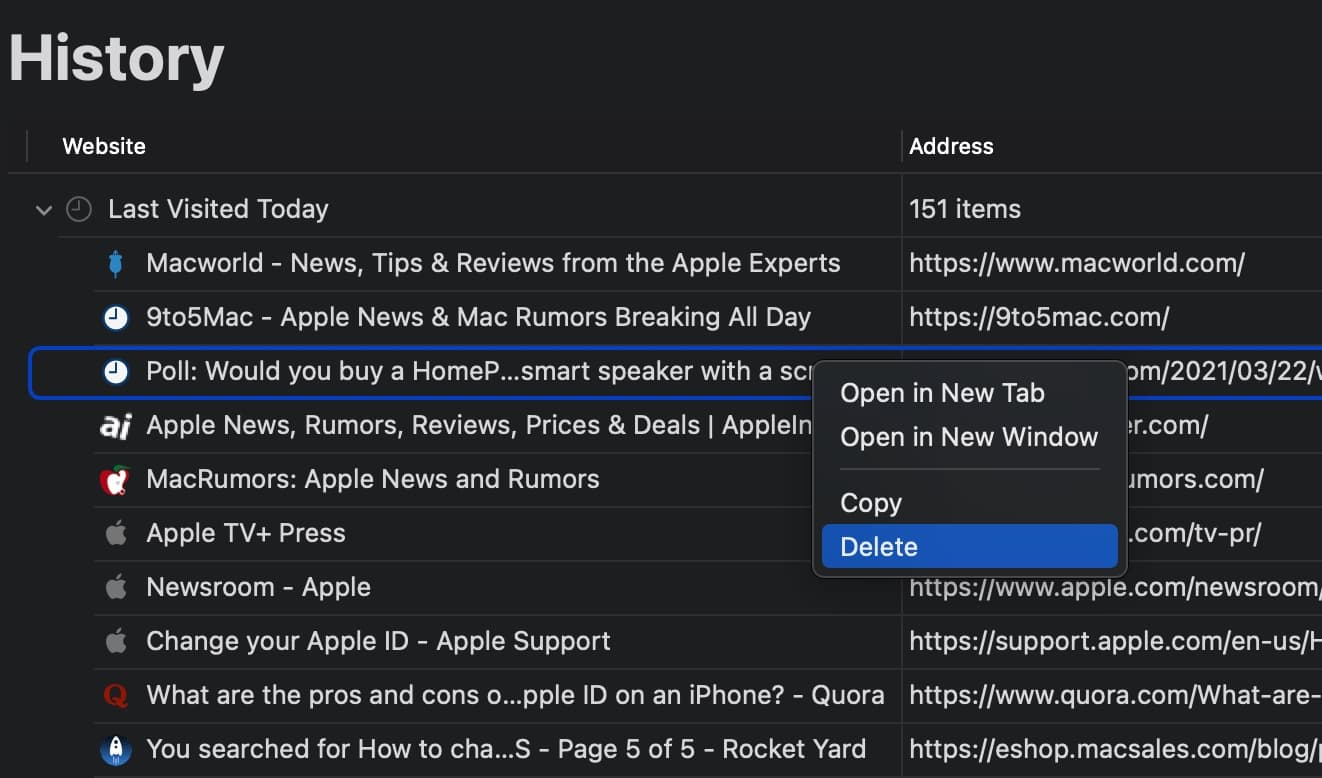
- Find the page you want to remove.
- Hold down the Control key while pressing the left mouse button.
- Choose Delete from the contextual drop-down menu. You can also right-click on an entry and select Delete.
That’s all you need to do to delete specific pages from your Safari browing history on a Mac!
Related Links
- Recovering Deleted Safari Browsing History on a Mac
- How to Clear Your Safari Browsing History on a Mac
- How to Turn On (And Off) Pop-Up Blockers for a Website in macOS Safari
- Ensuring Privacy When Using the Mac Safari browser
- How to Delete an Email Account in the Mac Mail App