Matias
Folding Keyboard For Mac or PC
Mac / PC / Bluetooth
The ultimate keyboard for your laptop or iPad
Full-size & portable.
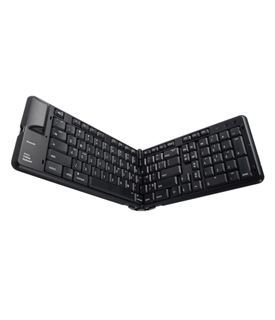
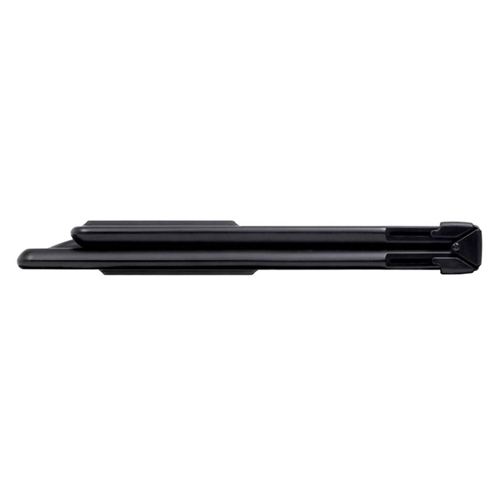
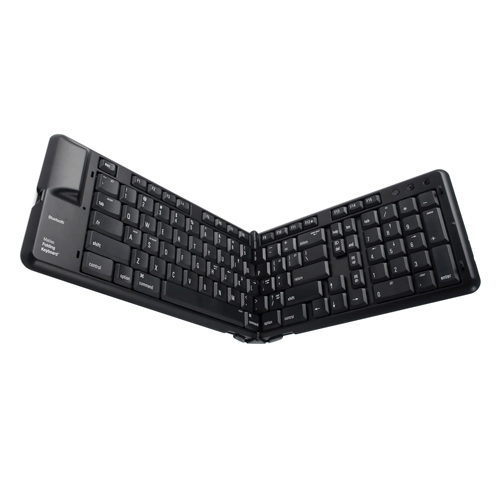
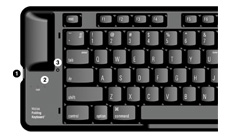
The Matias Folding Keyboard is a full-size Bluetooth Keyboard that folds in half for travel. Small enough to fit in your laptop bag, it's the ultimate keyboard for laptop users.
Comfortable, tactile feel.
High-quality dome switches give the keyboard a responsive, tactile feel, with enough resistance to hold the weight of your hands. This reduces long term fatigue and makes it a lot more comfortable to use.
Fast FN key.
Matias has taken your laptop's Fn key and injected some brains into it.
The Matias Fn key allows quick and easy access to keys that normally require a long reach - Arrow keys, Page Up, Page Down, Delete, and others can now be typed right from home row, without moving your hand.
Of course, you can still type those keys the normal way, but using Fn is faster - and it works on the main keyboard and the number pad.
Enhanced Number Pad.
A Tab key on the number pad allows one-handed number entry into forms and spreadsheets, leaving your other hand free to hold or flip through information being entered.
Pump up (or down) the volume.
The keyboard also has the standard volume controls: Volume Up, Volume Down, and Mute - as well as function keys, page navigation keys, and cursor keys.


 1-800-275-4576