Free shipping available on orders $99 & up!
  • Business Icon For Business & More icon arrow
    • Creative, Production & PostCreative, Production & Post
    • Corporate & EnterpriseCorporate & Enterprise
    • Higher EducationHigher Education
    • State, Local & K-12 EducationState, Local & K-12 Education
    • House of WorshipHouse of Worship
    • Systems IntegratorSystems Integrator
    • HealthcareHealthcare
    • Federal, State & Local GovernmentFederal, State & Local Government
    • Join Today!

      Already registered? Sign In

  • Region: US/Intl icon arrow
    • Select your preferredcountry / region:

    • USA RegionUSA + International
    • Canada RegionOWC Canada

    • Experience local shipping options and optimized product inventory for your region.

  • Phone Icon1-800-275-4576
  • Intl: 1-815-338-8685
MacSales.com Powered By OWC
Site Search
  • Blog
  • Support
  • Account
    • Hello, Sign In
    • My Account
    • Order Status
    • Write A Review
    • Warranty & Returns
  • Cart
MacSales.com Powered By OWC
  • Support
  • Chat Contact
  • Account
    • Hello, Sign In
    • My Account
    • Order Status
    • Write A Review
    • Warranty & Returns
  • Cart
  • Specials & Featured
  • Rocket Yard Blog
  • Chat
  • Support
      • Shop All
        • Internal Drives
        • External Drives
        • Apple & Macs
        • Docks & Connectivity
        • Cards & Readers
        • Batteries
        • Software & Apps
        • Cables & Adapters
        • Memory
        • PCIe Expansion
        • Specials & Featured

        '08 Mac Pro Memory
        Where you put it is just as important as how much you have.

        For quite some time now, the rule of thumb for RAM has pretty much been “buy as much as you can afford.” For the most part, this axiom still rings true - the more RAM you put in, the more apps you can run without hitting speed-sapping Virtual Memory, and there’s always the many graphics and video applications that will make use of as much RAM as you can throw at it.

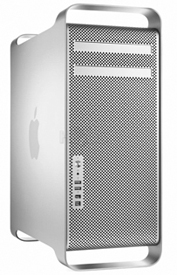
        With the new 8-core Mac Pros, however, a new angle is added to the story - while amount of RAM is important, the speed of the RAM’s throughput is determined mostly by its arrangement within the riser cards.

        Buy Mac Pro Memory

        The Test & Results

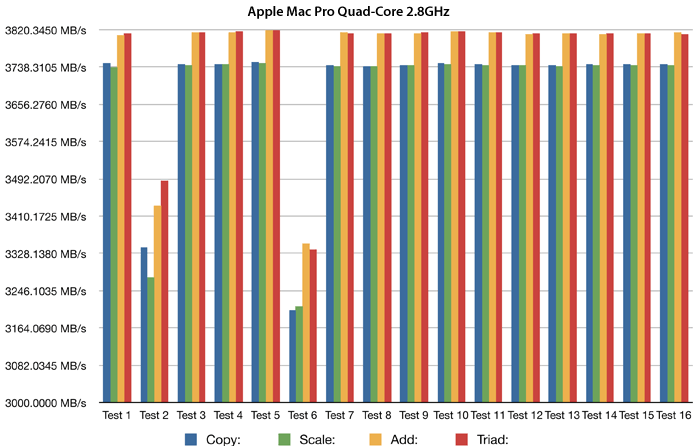
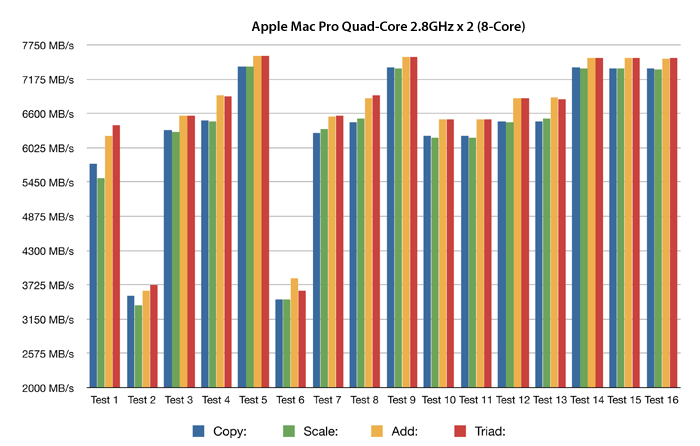
        We tried sixteen different RAM amounts and configurations and tests were performed with a special 64-bit parallel multi-threaded version of the STREAM benchmark test created by the author of Geekbench to squeeze out the maximum throughput of the memory bus as provided to us by Rob-ART from Bare Feats. This utility measures the data throughput of the memory in this configuration.

        We ran these tests on a Quad-core 2.8GHz Mac Pro as well as an 8-Core Mac Pro. Both systems were running Mac OS X 10.5.1 of a Seagate Barracuda 7200.10 SATA hard drive.

        Each test was run 3 times and the score averaged to get the results here.


        Test 1 2.0GB - Stock 1GB x 2 as factory installed (1 in each riser)
        Test 2 2.0GB - Stock 1GB x 2 - but move to a single riser as pair set.
        Test 3 4.0GB - 1GB x 2 set in each riser
        Test 4 6.0GB - 1GB x 2 by 2 in top riser, 1GB x 2 in lower riser
        Test 5 8.0GB 1GB x 2 by 2 in both risers
        Test 6 4.0GB - 2GB x 2 in top riser.
        Test 7 8.0GB - 2GB x 2 in each riser
        Test 8 12.0GB - 2GB x 2 by 2 in top riser, 2GB x 2 in lower riser
        Test 9 16.0GB 2GB x 2 by 2 in both risers
        Test 10 6.0GB - 1GB x 2 in top Riser, 2GB x 2 in lower riser
        Test 11 6.0GB - 2GB x 2 in top Riser, 1GB x 2 in lower riser
        Test 12 10.0GB - 1GB x 2 + 2.0GB x 2 in top riser, 2GB x 2 in lower riser (1GB modules in first bank)
        Test 13 10.0GB - SAME, but but the 2GB x 2 in the first bank, the 1GB x 2 in 2nd bank for top riser and 2GB x 2 stays same location in lower riser
        Test 14 14.0GB - 1GB x 2, 2GB x 2 top riser, 2GB x 2 x 2 in lower
        Test 15 14.0GB - 2GB x 2 x 2 in upper riser, 2GB x 2 + 1GB x 2 in lower
        Test 16 32.0GB - 4GB x 2 x 2 in each riser

        For those of you who would like some actual numbers, rather than pretty pictures, here's the numeric results for the above tests.

        Apple Mac Pro Quad-Core 2.8GHz   Apple Mac Pro Quad-Core 2.8GHz x 2 (8-Core)
        Test Number Copy: Scale: Add: Triad: Test Number Copy: Scale: Add: Triad:
        Test 1 3748.6183 3739.1427 3810.0313 3813.8800 Test 1 5764.9737 5523.0643 6234.8397 6406.1677
        Test 2 3342.9967 3276.4490 3434.3340 3489.2450 Test 2 3557.8340 3386.0613 3638.5320 3731.8933
        Test 3 3745.4020 3744.2990 3815.1040 3816.1840 Test 3 6325.6223 6295.0763 6569.4580 6572.7113
        Test 4 3746.2163 3744.9243 3816.7903 3818.3033 Test 4 6493.1743 6472.7440 6907.7313 6900.9593
        Test 5 3749.4567 3748.8847 3820.3450 3820.3143 Test 5 7401.4793 7394.3813 7564.3737 7567.6273
        Test 6 3204.5660 3213.7275 3350.3650 3338.0910 Test 6 3487.5500 3482.2867 3840.3800 3633.0567
        Test 7 3742.8463 3741.3373 3815.5267 3813.1193 Test 7 6276.5393 6339.1263 6558.7633 6566.6807
        Test 8 3741.4547 3741.9737 3813.7287 3813.9877 Test 8 6452.5523 6515.5377 6865.9967 6908.2280
        Test 9 3743.7570 3744.1140 3813.6000 3815.2487 Test 9 7372.9293 7357.2517 7551.6867 7550.5900
        Test 10 3747.0003 3745.5483 3819.0933 3817.8597 Test 10 6236.8267 6204.1720 6504.1637 6499.7777
        Test 11 3746.7103 3744.3163 3816.3487 3816.2360 Test 11 6235.1697 6203.5933 6505.8653 6501.2593
        Test 12 3743.8863 3743.8003 3812.3857 3814.3633 Test 12 6479.1223 6454.3520 6860.5300 6861.2713
        Test 13 3743.0697 3741.8660 3813.1977 3812.9170 Test 13 6478.8353 6522.3830 6879.8513 6849.1743
        Test 14 3745.3140 3743.0413 3812.2550 3814.2687 Test 14 7373.6830 7362.4393 7546.0083 7544.1547
        Test 15 3746.2357 3744.4813 3813.9507 3813.9757 Test 15 7368.5000 7358.9343 7544.3360 7544.9477
        Test 16 3745.5933 3743.8980 3816.4183 3812.2800 Test 16 7354.8907 7346.7993 7529.7743 7534.6460

        Obviously, the 8-core Mac Pro outscored the Quad-core's throughput by almost double. This makes sense; there are twice as many cores to do the processing. What is more significant, though, are the peaks and drops in the 8-core, showing that placement of the RAM does have an effect how fast the data moves through.

        Not surprisingly, the best performance came when all four banks were filled with identical pairs of RAM. When the upper and lower pairs match, interleaving gives an additional performance boost.

        Also of note were the worst performing configurations - having just a single pair installed in the top riser, rather than one on each riser, like Apple ships them. With this configuration, the speeds plummeted on both the Quad-core and the 8-core models.


        So what does this all mean?

        While that old chestnut of "More RAM = Better Performance" still rings true, these tests show that by installing your RAM in matched sets of 4 (One pair on top and one pair below), you can get some extra speed out of the deal. In situatons where data throughput is premium, but your budget is small, four smaller modules will ultimately give you more performance than a single pair adding up to the same amount.

        Helpful Links
        • About Us
        • DIY Install Videos
        • Join our Affiliate Network
        • Where to Buy
        • Accessibility Statement
        • Sustainability is Good Business
        • Join the OWC Team
        • Media+Newsroom
        • Privacy Promise
        • MacSales.com for Business
        Join the OWC Newsletter

        Join hundreds-of-thousands of tech enthusiasts across the planet and gain access to specials, clearance, and holiday savings on the OWC upgrades, drives, and docks everyone loves.

        Newsletter Subscription

        Please enter a valid email address.

        • bbb
        © 2000-2026 Other World Computing, Inc., All Rights Reserved. Site Terms Guest ID:
        Your Privacy Choices
        This item has been added to your cart