







In previous articles, I’ve spoken at length about window management utilities on the Mac. For years, third party utilities have devised creative solutions to bring proper window management to the Mac. With macOS Sequoia, Apple finally joined the party by incorporating several basic window management options into macOS.
But, as useful as window management features are (and they are quite useful!), it’s merely a band-aid for what I believe is a bigger issue: window layout management.
Let me explain.
When I am designing, for example, I have a specific set of application windows open (Photoshop, Illustrator, Eagle, etc.), each arranged in a particular way on my Mac’s display. When I switch tasks from designing to writing, I require a different set of applications (Word, Drafts, Finder, etc.), each of which are arranged in a specific way on my Mac’s display.
In this example, I am using my Mac in two different modes: Design and Writing. Switching between each mode requires manually launching and arranging application windows to my liking before I can work. This “housekeeping” takes about 10 to 30 seconds each time I switch modes. Imagine “housekeeping” multiple times during the week, with additional modes added into the mix; the set-up time really starts to add up.
What I needed is a tool that can save my often-used window layouts, so that I can quickly switch between modes. Moom, by Many Tricks Software, offers this option, in addition to its robust window management capabilities. The application can be downloaded as a trial version, allowing users to test its capabilities before committing to a purchase.
When Moom is installed, it lives as an application and as a Mac menubar item.
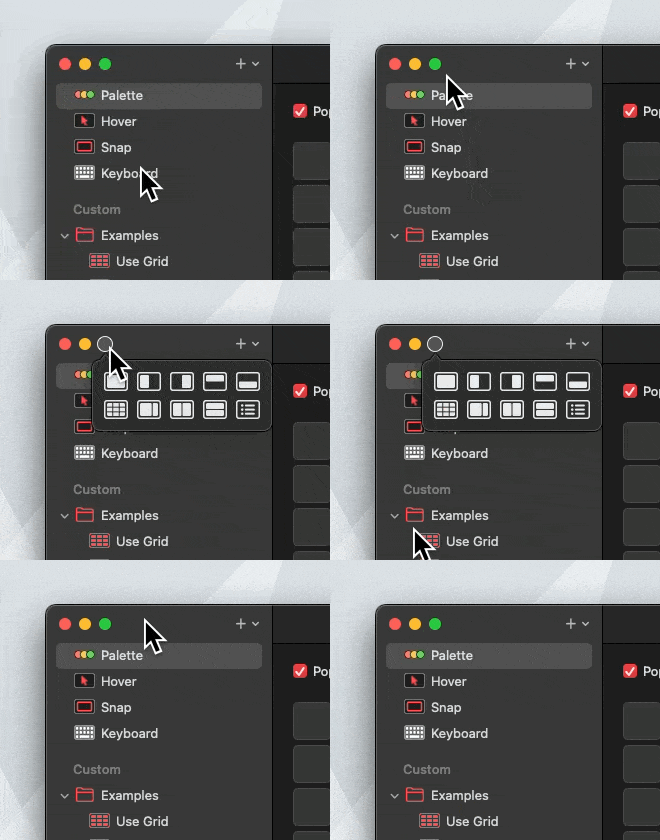
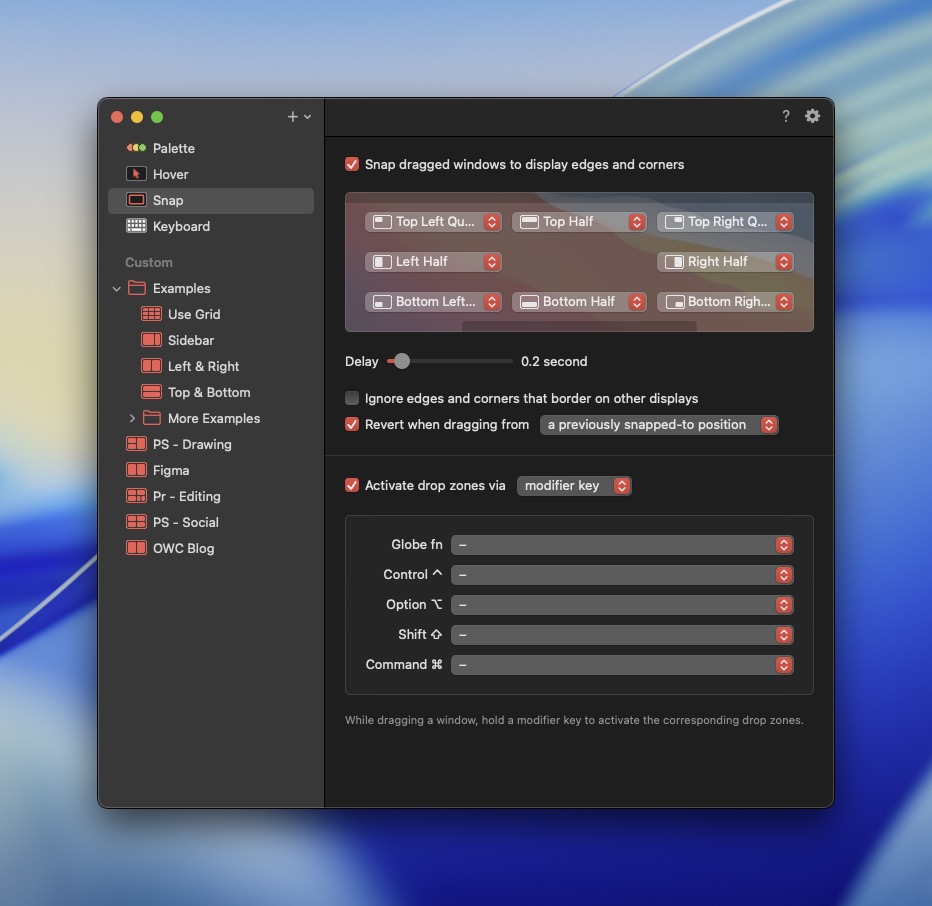
Let’s take a deeper dive to see how Moom works. For brevity, I’m glossing over Moom’s window management capabilities and focusing purely on its Saved Layouts feature. Moom offers many more window management options when compared to macOS’s offerings. For example, if you have more than one display connected to your Mac, Moom will let you move a window from one display to another. Window management can be accomplished in one of two ways: through a visual pop up palette that appears on the green “traffic light” for an open window, or via keyboard shortcut. Additionally, Moom includes an option for snapping windows to a specific section of your Mac’s display. Simply drag a window into a snap region and the window will snap into position. In my testing, Moom’s window management tools work as described.
Now for my favorite Moom feature: Saved Layouts.
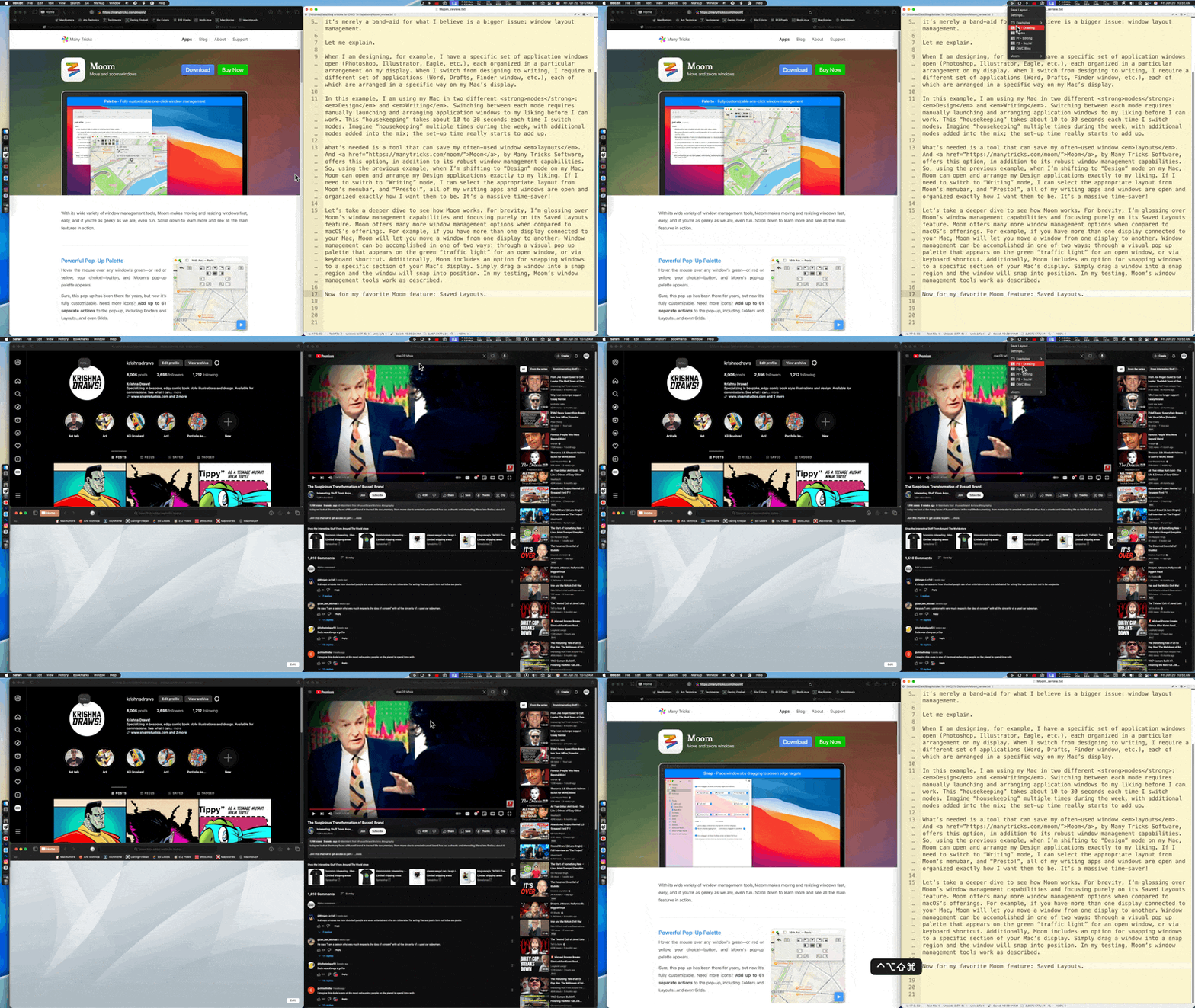
To begin, I first arranged my application windows on my Desktop to reflect my “Design” mode. Using the Moom menu bar, I chose “Save Layout…”. I then renamed the layout to “Design”. I repeated these steps for my “Writing” mode and other modes I find myself working in throughout the day.
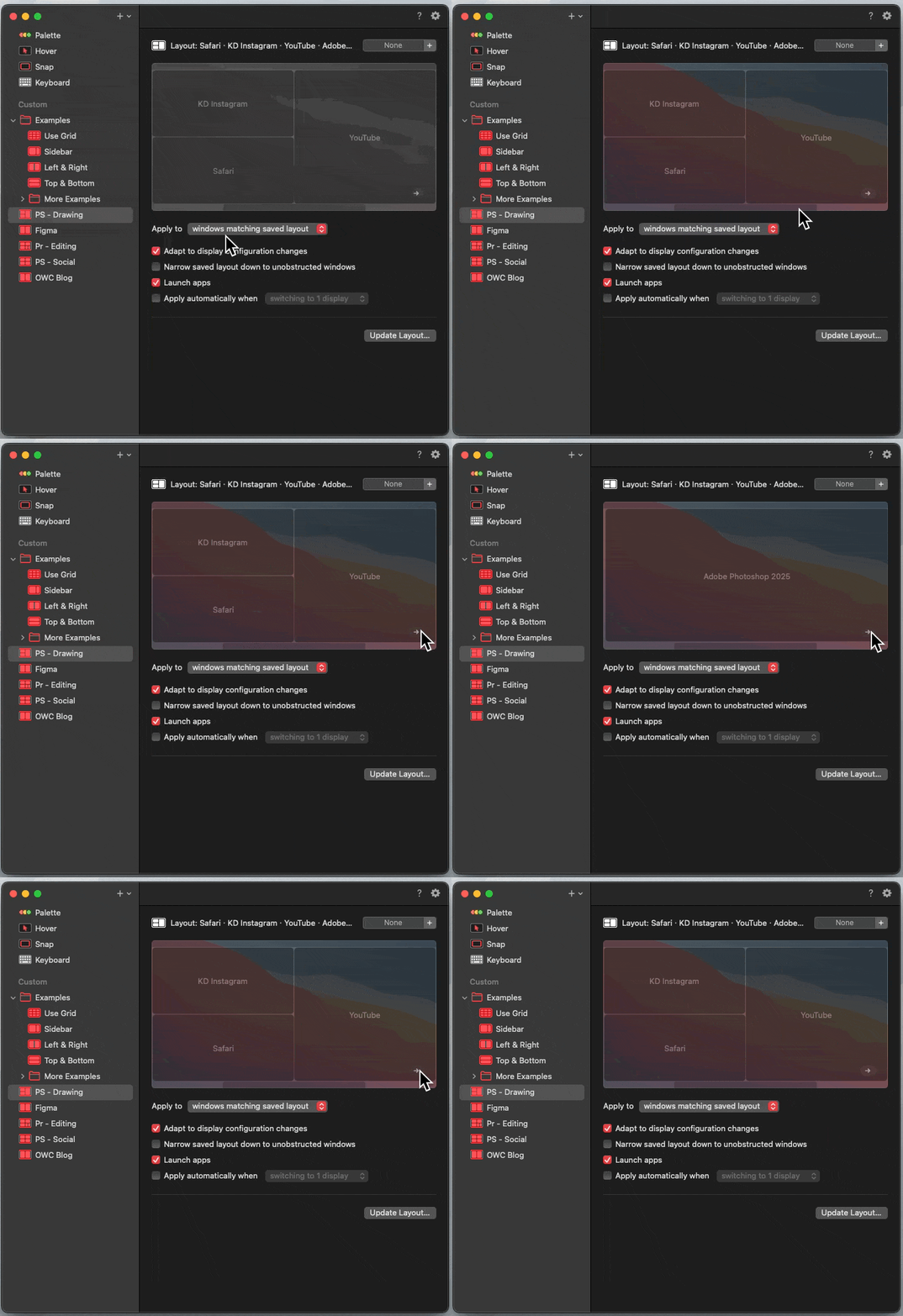
Selecting the “Design” layout, Moom opens and arranges my Design applications exactly as I configured. Switching to my “Writing” layout from Moom’s menubar opens and organizes my application windows exactly as set up. What a massive time-saver!
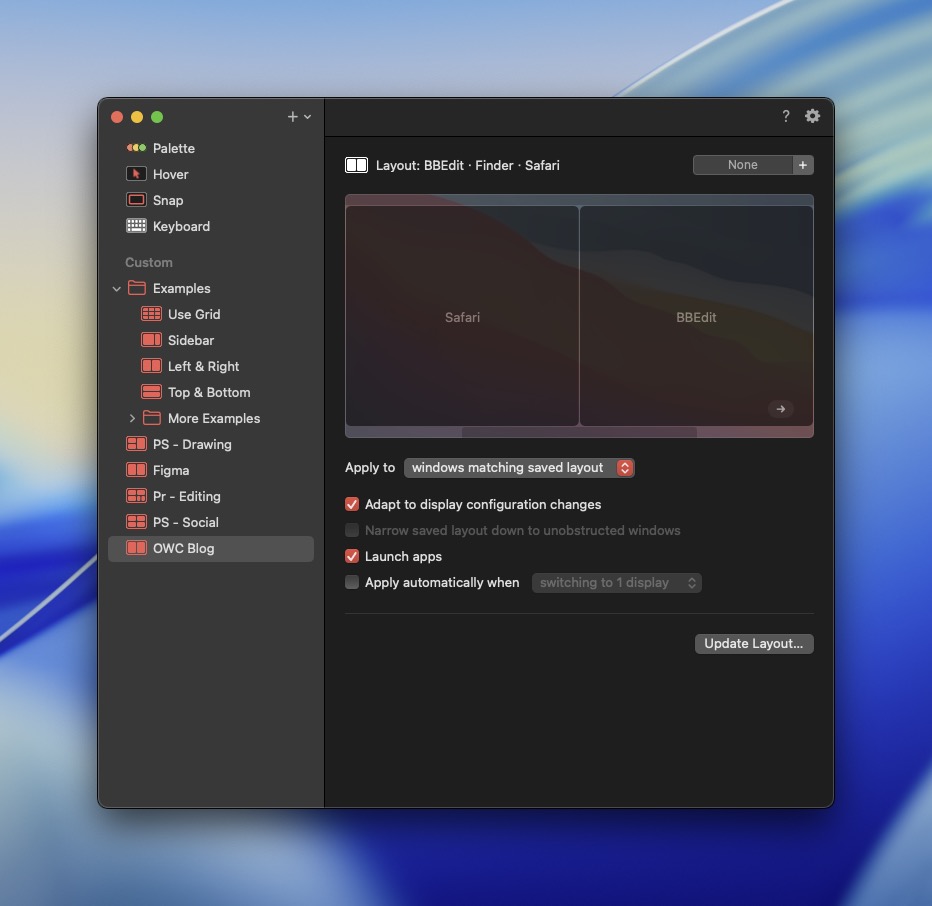
Moom works on single and multi-display setups. I have three displays, at three different sizes / resolutions attached to my Mac mini and have various application windows configured across them. Moom correctly remembers what’s on each display and how each app window is arranged. If a layout needs to be revised, Moom provides the user with two options: Merge and Replace. The Merge option will add to the existing saved layout. Replace simply overwrites your previously saved layout.
I’ve tested Moom on two different Apple Silicon Mac setups, both connected two multiple displays. Moom did a great job of arranging my application windows. There are some caveats, which are worth noting.
First and foremost, Moom cannot send windows to other spaces (desktops). This is due to the fact that Apple does not have a public programming interface that developers can use to access Spaces.
Secondly, Moom cannot remember Finder window paths. So, if a Finder window is configured as part of your layout, you’ll have to navigate to the appropriate folder in the Finder manually. (Alternatively, you can save your favorite folders in the Finder sidebar…)
Finally, it would be nice if Moom included an option to quit applications when switching to a different layout.
If you use Stage Manager, you’ll be pleased to know that Moom works with it. Of note, Stage Manager thumbnails will be hidden, if a Moom window extends into that region. Hovering your mouse near the edge of your screen will make your Stage Manager thumbnails visible. However, now that I’m using Moom regularly, I no longer need Stage Manager.
If you’re looking for an app that provides added window management capabilities and saved window layouts, Moom delivers. The developer provides a generous trial option, wherein users can use Moom’s features 200 times. In my view, that’s plenty of time to see if the app meets your needs. (I purchased Moom well before my trial ended, as I could immediately see productivity gains when using it.)
Moom sells for $15 and includes a year’s worth of free updates. I’m late to the Moom party, but now that I’ve used it for some time, I find it to be a great timesaver. Instead of managing windows, I can focus on getting my work done. And isn’t that why we use Macs in the first place?








How does Moom compare to BetterTouchTool?
Good question! I haven’t used BetterTouchTool, so I’m not sure how the two stack up.