X

Send us a Topic or Tip

Have a suggestion for the blog? Perhaps a topic you'd like us to write about? If so, we'd love to hear from you! Fancy yourself a writer and have a tech tip, handy computer trick, or "how to" to share? Let us know what you'd like to contribute!

Thanks for reaching out!

Rocket Yard

Tech Tips

Tech tips and how to’s. All the great, timeless reference articles we have.

Safari icon with a sunburst background

How to Print a Webpage Without Ads and Backgrounds on a Mac

We recently received a comment from a reader regarding the difficulty he had printing articles from the Rocket Yard blog. Well, it wasn’t difficult in the sense that hitting ⌘P was too much work. The problem was that there were all sorts of extraneous unwanted junky-things that would print right along with what he really wanted – the content. Ads, menus, backgrounds, and footers are but a few of the offending items that get in the way of a good, clean read. Not only can they make for a messy read later on, but they are also ink-hogs. And nobody likes ink-hogs.
Hey, Siri with "What can I help you with?"

How to Enable ‘Hey, Siri’ in macOS Catalina

To use Siri, Apple’s “personal digital assistant,” on your Mac, you can click on the icon in the upper right corner of your screen to activate it. But wouldn’t it be nice if, like on an iPhone and Apple Watch, you could simply say “Hey, Siri” to fire it up? You can, though it takes a few steps.

Can of spam crossed out with a red circle and text saying "say no to spam"

Spam Control: Chapter 3 – Blocking or Reducing Spam Email on iOS/iPadOS Devices

So far in this series on spam control, we've covered the basics of what spam is and why it's bad, then followed up with methods of reducing spam text messages. Today we're going to dive into how to block spam email (or at least try to reduce the quantities of spam) using your iOS (iPhone or iPod touch) and iPadOS devices. The series concludes next week with an article on spam control for macOS. Ready? Grab your iPhone, iPod touch, or iPad, and let's get to work.

Mac PDF icon with magnifying glass on a transparent background

How to Use 🔎 Quick Look in macOS (Leopard and Later)

macOS Quick Look is a wonderful feature. Introduced on June 11, 2007, along with Mac OS X 10.5 Leopard. Quick Look can preview files such as Pages, Keynote, Numbers, Microsoft Office, PDFs, HTML, QuickTime readable media, plain text, and RTF text documents, and RAW camera images.

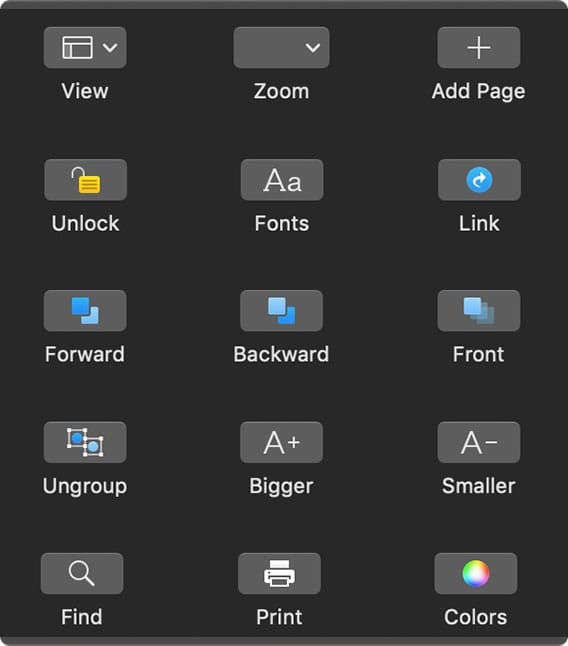
Touch Bar options for Pages

How to Customize MacBook Pro Touch Bar

Some of Apple’s MacBook Pros (including the 16-incher) and the most recent MacBook Air come with the controversial Touch Bar. Some folks don't like it, but I'm a fan. If you are, too, you can customize it. If you’re not...

macOS Finder logo with Tips logo

10 Fantastic Mac Finder Tips

They may not all be fantastic, but these 10 Finder tips can help you become a master of Finder finesse. The Finder, of course, is the main way you find, organize, and make use of files on your Mac. These...

1 152 153 154 318
Page 153 of 318