


 1-800-275-4576

OWC 11-Port Thunderbolt Dock
Troubleshooting Guide
Preface - Scope of this Guide and Confirming macOS Compatibility
This guide is intended only for macOS computers. The product in this guide may support mobile devices and Windows computers, however this guide is only written to support macOS computers. If you are seeking support for something other than macOS, please contact Tech Support.
Before going through any of the specific issues it is best to confirm the computer being used with the device is compatible. At the time of writing this guide the 11-Port Thunderbolt Dock has the following requirements for its host computer:
Minimum macOS: 11.1
Computer connection: Thunderbolt 3 or later, USB-C, and USB4
A quick note about data backup
To ensure that your files are protected and to prevent data loss, we strongly suggest that you keep two copies of your data: one copy on your computer and a second copy on an external drive or another storage medium, such as an optical backup, or on a cloud service. Any data loss or corruption while using OWC products is the sole responsibility of the user, and under no circumstances may OWC, its parents, partners, affiliates, officers, employees, or agents be held liable for loss of the use of data including compensation of any kind or recovery of the data.
The Dock is Not Powering on (OWC LED not on)
- Inspect the Power Plug Connection
- Disconnect and reconnect the power plug at the back of the dock.
- Ensure the plug fits snugly with firm resistance and minimal wiggle.
- If the plug feels loose or unstable, please contact Tech Support. A short video showing the connection may help expedite assistance.
- Inspect the Wall Connection
- Unplug the power brick from the wall outlet.
- Check the plug for looseness or instability.
- If the dock is under warranty and the plug is faulty, contact Tech Support for warranty work.
- Check the Power Cable
- Trace the power cable from the dock all the way to the wall outlet, check for any nicks, cuts, or kinks.
- If any damage is found, the power adapter should be replaced. Note: Physical damage is not covered under warranty, but replacements are available for purchase.
- Try a Different Outlet
- If using a surge protector or UPS, bypass it and plug the power adapter directly into a wall outlet. If the dock works directly in the wall outlet, but not through the surge protector or UPS, please contact the manufacturer of the surge protector or UPS to troubleshoot it.
- Confirming Dock Functionality Without LED. Even if the LED doesn’t light up, the dock may still be operational. To verify:
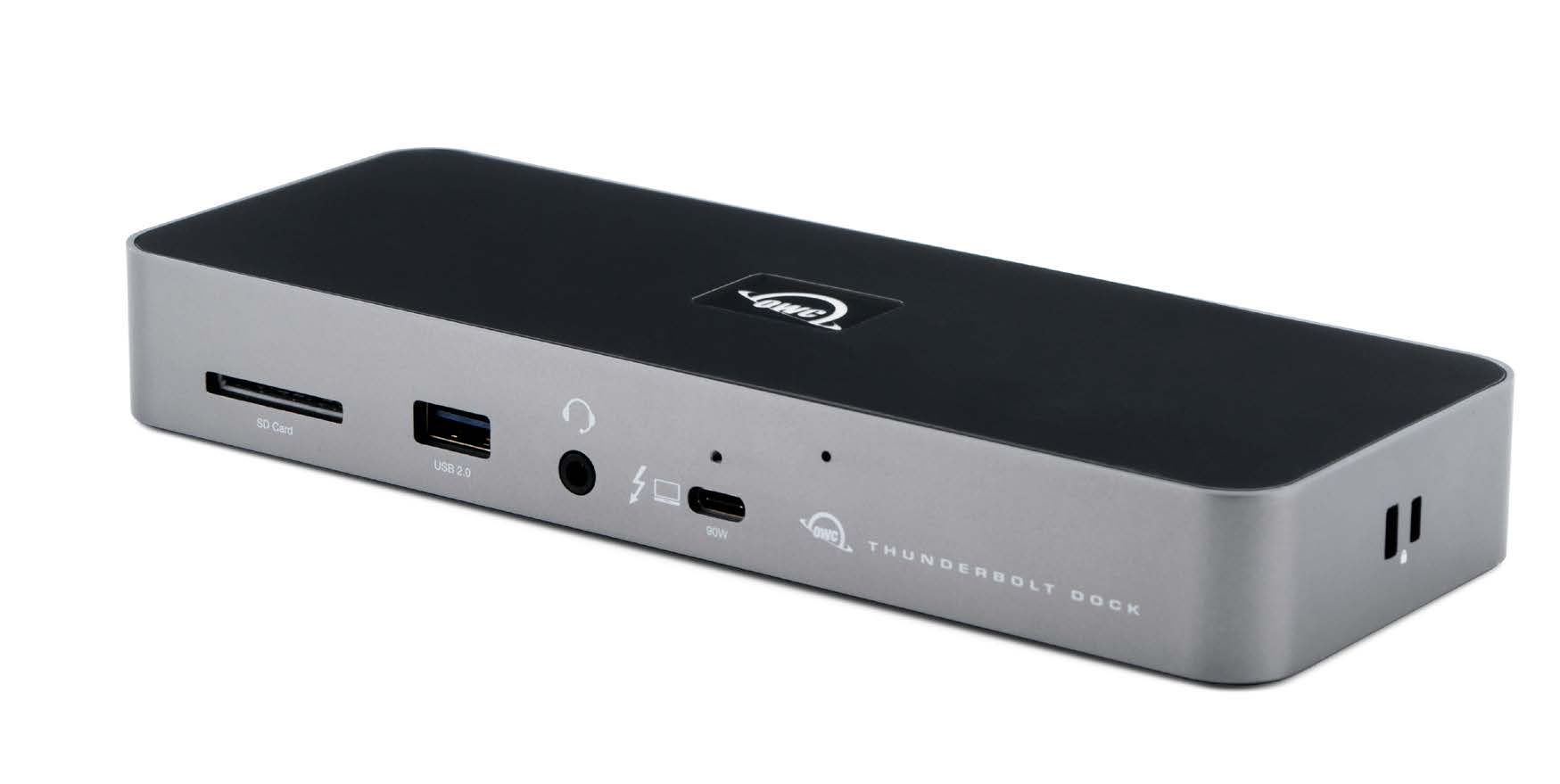
- Begin by connecting a USB-C, USB4, Thunderbolt 3, 4, or 5 cable from the dock’s host port (the front Thunderbolt port with a laptop icon next to it) to the computer.
- The System Information application needs to be opened. From Finder, click on the “Go” menu in the menu bar and then select “Utilities.” System Information will be found in the window that opens.
- Select Thunderbolt/USB4 from the sidebar.
- Look under Thunderbolt Bus for the 11-Port Thunderbolt Dock. If the dock appears in System Information, it is functioning properly and can be used as normal.
- If the dock is working but the LED is not and it’s under warranty, you may request warranty work by contacting Tech Support.
- If the dock is working but the LED is not and it’s not under warranty, the LED is not serviceable and cannot be repaired or replaced. You can continue using the dock without the LED indicator.
The Dock is Not Detected or Fully Functional
Note: Thunderbolt 3 to Thunderbolt 2 adapters not supported as a host computer connection.
Note: The dock can only be connected to one computer at a time. The rear Thunderbolt (USB-C) ports are for connecting devices, not for host computer connections.
- Computer to Dock connection confirmation
- Ensure the dock is connected to the computer via the front Thunderbolt host port, marked with a display icon. This is the designated host port.
- Check the OWC LED Indicator
- No LED = Dock may not be receiving power.
- Please follow the steps in the The Dock is Not Powering on (OWC LED not on) section above
- Blue LED = Power and active data connection.
- The dock should be functioning as normal. If no devices are connected but you want to confirm the dock is recognized:
- The System Information application needs to be opened. From Finder, click on the “Go” menu in the menu bar and then select “Utilities.” System Information will be found in the window that opens.
- Select "Thunderbolt/USB4" from the sidebar.
- Look under "Thunderbolt Bus" for the 11-Port Thunderbolt Dock. If the dock appears in System Information, it is functioning properly and can be used as normal.
- If the dock is not seen please skip down to step 3
- The dock should be functioning as normal. If no devices are connected but you want to confirm the dock is recognized:
- White LED = Power is connected, but no data connection.
- This generally indicates a cable or port issue
- No LED = Dock may not be receiving power.
- Try a different known good USB-C, Thunderbolt 3, 4, or 5 cable
- If the LED is white, test with another known good Thunderbolt, USB4, or USB-C cable to rule out a faulty connection.
- Reset & reconnect
- Shut down the computer.
- Disconnect all devices from the dock and unplug the power brick from the wall.
- Turn the computer on.
- Reconnect the dock’s power.
- If the LED remains white please contact Tech Support.
- If you're using an Intel-based Mac, perform an SMC reset and PRAM reset to help resolve hardware detection issues.
- Test devices one by one. Connect devices to the dock one at a time to identify if a specific item or port is causing the issue.
- If a specific device is experiencing an issue, if possible, test it on the other ports on the dock to confirm it is the device and not the individual port
- If the specific device is not functioning, please contact the manfacturer of the device for support
- If a specific port is not functioning, please contact Tech Support.
Specific Ports Not Working
If your dock isn’t functioning properly, start by following the steps in the “Dock Not Detected or Fully Functional” section. Once you've confirmed the dock is powered and connected, you can test individual ports and features to isolate the issue.
Test Other Ports - To determine if the issue is limited to a specific port:
- Use the correct port
- Ensure the dock is connected to the computer via the front Thunderbolt host port, marked with a display icon. This is the designated host port.
- Try connecting common devices like a keyboard, mouse, or external drive to other USB ports.
- Use known working Thunderbolt or USB-C devices in the dock’s hub ports.
- If other ports work, the issue may be isolated to one connection. Check below for specific port troubleshooting:
SD Media Reader - If the SD card reader isn’t working:
- Try a different SD card.
- If a certain SD card is not working with the dock please contact the manufacturer of the SD card for support.
- Confirm the card is properly seated.
- When inserting the card, it should feel like a gentle resistance, then a smooth, quiet glide until it settles firmly into place.
- It should be secure with no wiggle.
- If inserting the SD card feels wrong and/or the SD card has an excessive wiggle to it, please contact Tech Support. If possible, please have a video of the issue.
- The Disk Utility application needs to be opened. From Finder, click on the “Go” menu in the menu bar and then select “Utilities.” Disk Utility will be found in the window that opens.
- If available, click on the “View” menu in the menu bar and select “Show All Devices”
- Within Disk Utility look to see if the SD card is listed on the left side
- If the SD card is not seen within Disk Utility please contact Tech Support.
Ethernet Port - If the ethernet port isn’t functioning:
- Confirm the ethernet cable is securely connected. Make sure the ethernet cable's locking tab is seated.
- Try a different Ethernet cable or port on your router.
- If possible, test the dock on another computer
- If the dock works on another computer but not on the original, please contact the computer manufacturer for support
- If possible, use another ethernet adapter to confirm the issue is rooted in the dock
- If the connection still has issues with another adapter, please contact your ISP or router manufacturer for additional support.
- If the issue persists, please contact Tech Support.
Combo Audio Port - If you're experiencing issues with the combo audio port:
- Open System Preferences by clicking on the Apple menu in the top left corner of the screen and then selecting "System Preferences". Within System Preferences, select "Sound" and confirm that "USB Audio" is selected as the input/output device.
- If "USB Audio" is present, make sure the volume sliders are appropriately set.
- If "USB Audio" is not present, restart the computer and look again. If "USB Audio" is still not showing up and the dock is under warranty, you may request a return for warranty work
- If using powered speakers or a microphone, turn the power off and back on the speakers or microphone.
- Unplug and firmly reseat the audio cable (Note: if using powered speakers, power down the speakers first). When inserting the audio cable there will be a few bumps while inserting, with a final firmer click once fully seated.
- Try a different audio cable and/or audio device if available.
- If one audio device works while another doesn't, clean the audio cable plug (male plug not the female port on the dock) using a damp (not wet) microfiber towel or cotton swab with 70%+ rubbing alcohol. Let it dry before reconnecting.
- If there are no bumps and/or no final click when fully seated, please contact Tech Support. Having a photo or video of the audio cable and insertion process would expedite the troubleshooting.
- Try a different audio cable and/or audio device if available.
USB-A Ports - USB-A ports aren’t working:
- If the device not working is a bus-powered device (no wall power plug) or charger, install the OWC Dock Ejector software.
- The Dock Ejector software enables the high power driver so the USB-A ports on the dock provide more power.
- Test with a simple device like a wired keyboard or mouse.
- If a certain device is found to be not working, please contact the device manufacturer for support
- If a keyboard and mouse is not working and the dock is under warranty you may request a return for warranty work.
- For external drives, the Disk Utility application needs to be opened. From Finder, click on the “Go” menu in the menu bar and then select “Utilities.” Disk Utility will be found in the window that opens.
- Within Disk Utility, if available, click on the “View” menu in the menu bar and select “Show All Devices.”
- Look to see if the external drive is listed on the left side
- If the external drive is seen, click on the drive name on the left side, then on the upper right of the Disk Utility window click on "mount." If the issue persists please contact the manufacturer of the drive for further support.
- If the external drive is not seen within Disk Utility please contact Tech Support.
- Look to see if the external drive is listed on the left side
- Within Disk Utility, if available, click on the “View” menu in the menu bar and select “Show All Devices.”
Thunderbolt / USB-C Hub Ports:
Confirm Connection Type
- Check whether a USB-C, USB4, or Thunderbolt cable and/or port on the computer is being used to connect the dock.
- Important: Thunderbolt devices (indicated by a ⚡️ Thunderbolt icon on the device) will not work if the dock is connected via USB-C instead of Thunderbolt or USB4.
- Ensure the cable is connected to the front Thunderbolt host port - the front USB-C port with the display icon.
- Check whether a USB-C, USB4, or Thunderbolt cable and/or port on the computer is being used to connect the dock.
- Thunderbolt/USB4 Connection
- Test each Thunderbolt port with a known working Thunderbolt, USB4, or USB-C device (e.g. an external hard drive).
- If a certain device is found to not be working, please contact the manufacturer of the device for support.
- If one port fails while others work and the dock is under warranty you may request a return for warranty work.
- Test each Thunderbolt port with a known working Thunderbolt, USB4, or USB-C device (e.g. an external hard drive).
USB-C Connection
- Test each USB-C port with a known working USB-C device (e.g. an external hard drive)
- If a certain device is found to not be working, please contact the manufacturer of the device for support.
- If one port fails while others work and the dock is under warranty you may request a return for warranty work.
- Test each USB-C port with a known working USB-C device (e.g. an external hard drive)
Free Support Chat
Our free award-winning support team is ready to answer all of your questions. Technical support is available Monday - Friday: 9AM - 6PM. Customer Support & Sales is available Monday - Friday: 9AM - 6PM. Support is unavailable on U.S. Federal holidays. Talk to a human today.