


 1-800-275-4576

MAXPower eSATA 6G RAID PCle 2.0 Controller Card
User Manual
Part 1: Introduction
MAXPower eSATA 6G RAID PCle 2.0 Controller Card
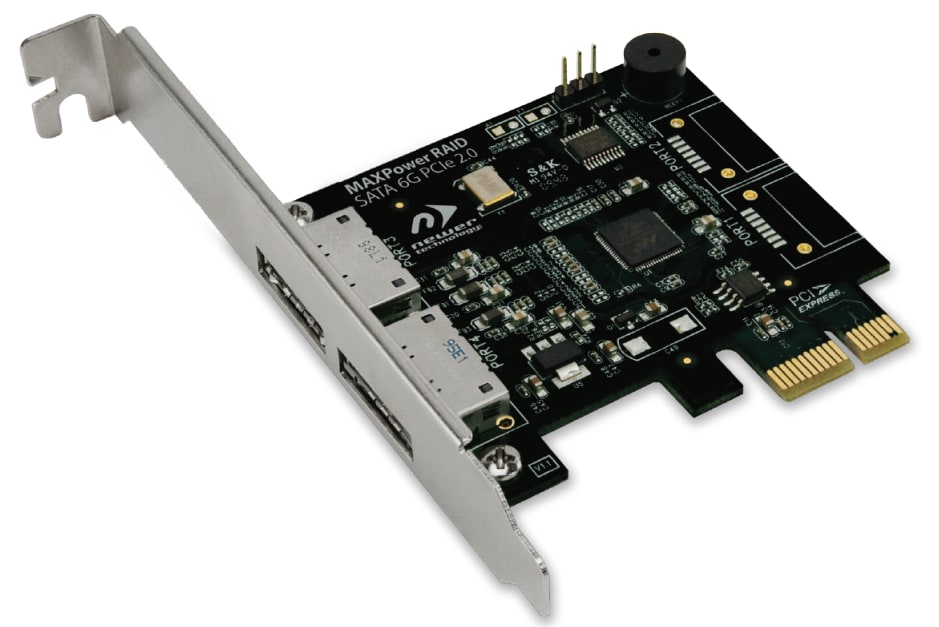
Utilizing the latest eSATA 6Gb/s technology, the MAXPower eSATA 6G RAID card is the ideal choice for high-speed, efficient, low-cost, RAID capable connectivity for the Mac or PC.
MAXPower eSATA 6G RAID Features:
- PCle 2.0 x1 (500MB/s bandwidth)
- Compatible with PCle 1.0 (250MB/s bandwidth)
- Two eSATA 6GB/s ports (600MB/s per port*0
- eSATA Hot Plug Support
- Port Multiplier support for up to 10 drives
- RAID level 0, 1, 5, 10, SPAN and individual drive support
- Convenient browser-based management
- SHI (Storage Health Inspector) for the monitoring and reporting of drive health
- Compatible with SATA based hard disk drives and solid state drives
- 3 year warranty
* SATA 6GB/s speeds (600MB/s) will be limited by the PCle x1 bandwidth (500MB/s total for x1 PCle 2.0 or 250MB/s total for x1 PCle 1.0)
What is eSATA 6Gb/s?
eSATA stands for External Serial Advanced Technology Attachment. eSATA 6Gb/s (revision 3.0) is the latest SATA standard at the time of this printing, and provides data transfer rates up to 6Gb/s (600MB/s) for external storage devices.
What is RAID?
RAID stands for Redundant Array of Independent Drives. Put simply, this means taking multiple matching drives and arranging them together to achieve large storage space, speed, data protection, or any combination of the three. The MAXPower eSATA 6G RAID PCle 2.0 Controller Card supports RAID 0, 1, 5, and 10 levels as well as supporting JBOD (SPAN and individual drive modes).
RAID 0 "Stripe"
Speed & Large Storage
Speed: Data is alternated across two or more drives to gain speed by essentially distributing the workload.
Protection: No built-in protection.
Capacity: Usable space is the combined capacity of all the drives.
RAID 10 "Mirror + Stripe"
Fast, Large & Protected Storage
Speed: Combines a pair of RAID 1" Mirrored" sets by using RAID 0 "Stripping" to gain speed.
Protection: There are two RAID 1 "Mirrored" sets used in order to tolerare 1-2 drives failing depending on which drives they are.
Capacity: Usable space is half of the combined capacity of all the drivers used.
RAID 1 "Mirror"
Protected Storage
Speed: No speed benefits gained.
Protection: One drive can go down and all data will still be accessible.
Capacity: One drive worth of usable space out of the two total drives used.
RAID 5 "Stripe & Protection"
Optimized Speed, Capacity, & Protection
Speed: Data is striped like in a RAID 0, so significant speed gains are seen.
Protection: Utilizes mathematical parity to achieve data protection while taking up a minimum of space.
Capacity: All but one drive worth of capacity is usable. In a four drive RAID 5 array, there is three drives worth of usable space.
Part 2: System Requirements & Installation
System Requirements
Mac®
Hardware: Intel-based Mac with available PCle 2.0 or 1.0 slot*
Operating System: Mac OS X 10.5 and later
PC
Hardware: Any computer with available PCle 2/0 or 1.0 slot*
Operating System: Windows® 2000/XP/2003 and later
* Maximum PCle x1 bandwidth is 500MB/s total for PCle 2.0 and 250MB/s total for PCle 1.0
Hardware Installation
Before Installing the MAXPower eSATA 6G RAID card...
- Make sure computer is turned off and unplugged from its power source
- Take appropriate electrostatic discharge precautions:
Attention
OBSERVE PRECAUTIONS FOR HANDLING ELECTROSTATIC SENSITIVE DEVICES
Your computer is a static-sensitive device. It is susceptible to invisible damage if not protected during installation.
We recommend proper grounding by using a grounding strap. Make sure to work in a clean and static-free area, and avoid wearning clothing that retains static charges.
For more information, please visit: http://www.newertech.com/static
Step 1 - Open the computer systems chassis and locate an unused PCle 2.0 or 1.0 slot (x1, x4, x8, or x16).
Step 2 - Remove the PCle slot cover.
Step 3 - Gently insert the MAXPower card into the PCle slot and secure the bracket to the computer chassis.
Step 4 - After installing the MAXPower card attach any eSATA storage devices to the card and start your computer.
Step 5 - Once you have installed the MAXPower card into your computer, start your computer and insert the Driver & Software Installation Disc to install the necessary drivers for your computer operating system.
Driver & Software Installation
Your NewwerTech MAXPower eSATA 6G RAID Card comes with a disc containing the drivers and software for Mac and Windows. For the latest drivers and installation sofrware visit: http://www.newertech.com/support.
Mac OS X
Once you have instalkled the NewerTech MAXPower eSATA 6G RAID Card and booted your Mac, follow there instructions to install the drivers and the NewerTech Web Manager software:
- Insert the NewerTech MAXPower eSATA 6G RAID Card Install Disc into your Mac and navigate to the "Mac OS X" folder.
- Double-click on the "Newer_Controller_mac_XXXXXX.dmg" file to mount the disc image containing the Mac OS X software and drivers.
- Double-click on the installer package labled "MAXPower_eSATA_6G_RAID" to start the installation process.
- Follow the on-screen steps to complete the installation process. After install has complete, you will be prompted to restart your computer. You will need to restart in order to use the NewerTech MAXPower eSATA 6G RAID Card.
Windows 7/Vista/2008
After starting your computer with the NewerTech MAXPower eSATA 6G RAID Card installed, Windows will display the "New Hardware Found" notification in the taskbar, which will state that the "Device driver software was not successfully installed"
To install the drivers:
- Click on the Windows Start menu and right click on "Computer" and select "Properties" which will launch the System screen.
- Click on "Device Manager" on the left side of the window to launch Device Manager.
- Under the "Other Devices" category, the MAXPower RAID Card will appear with a yellow warning symbol.
- Right click on the MAXPower RAID Card and select "Update Driver Software..." to start the driver installation.
- Click on "Browse my computer for driver software"
- Browse to the NewerTech MAXPower eSATA 6G RAID Card Install Disc.
- From within the install disc, browse to "...\Windows\Drivers\Windows7_Vista_20018" and click "OK".
- Click "Next"
- When asked: "Would you like to install this driver software?" select "Install".
- Reboot your computer when prompted to complete the installation of the NewerTech MAXPower eSATA 6G RAID Card.
To install the NewerTech Web Manager Software:
- From the NewerTech MAXPower eSATA 6G RAID Card Install Disc, browse to "...\Windows\WebGUI" and double-click on "Setup.exe" to launch the installer.
- Follow the installer to complete the installation.
- Restart your computer.
Windows XP/2003/2000
After starting your computer with the NewerTech MAXPower eSATA 6G RAID Card installed, Windows will display the "New Hardware Found" notification in the taskbar, which will state that the "Device driver software was not successfully installed".
To install the drivers:
- Click on the Windows Start menu and right click on "Control Panel" and double-click "System" which will launch the System screen.
- Click on "Hardware" tab then click the "Device Manager" button.
- Under the "Other Devices" category, the MAXPower RAID Card will appear with a yellow warning symbol.
- Right click on the MAXPower RAID Card and select "Update Driver Software..." to start the driver installation.
- Click on "Browse my computer for driver software"
- Browse to the NewerTech MAXPower eSATA 6G RAID Card Install Disc.
- From within the install disc, browse to "...\Windows\Drivers\Windows XP_2003" and click "OK".
- Click "Next"
- When asked: "Would you like to install this driver software?" select "Install".
- Reboot your computer when prompted to complete the installation of the NewerTech MAXPower eSATA 6G RAID Card.
To install the NewerTech Web Manager Software:
- From the NewerTech MAXPower eSATA 6G RAID Card Install Disc, browse to "...\Windows\WebGUI" and double-click on "Setup.exe" to launch the installer.
- Follow the installer to complete the installation.
- Restart your computer.
Part 3: Management
NewerTech Web Manager
The NewerTech Web Manager is an easy-to-use utility to set up RAID arrays, manage connected drivesm view storage health status, and view information about your connected storage.

Access
The NewerTech Web Manager can be accessed from any web browser* on the computer being used by entering the following address into the address bar: https://localhost:7402/
When prompted for a username and password, enter the following:
- Username: admin
- Password: admin
The username and password can be changed at any time from within the Web Manager.
*Browser must support XML (e.g Safari, Firefox, Chrome, Internet Explorer, etc.)
Device Management
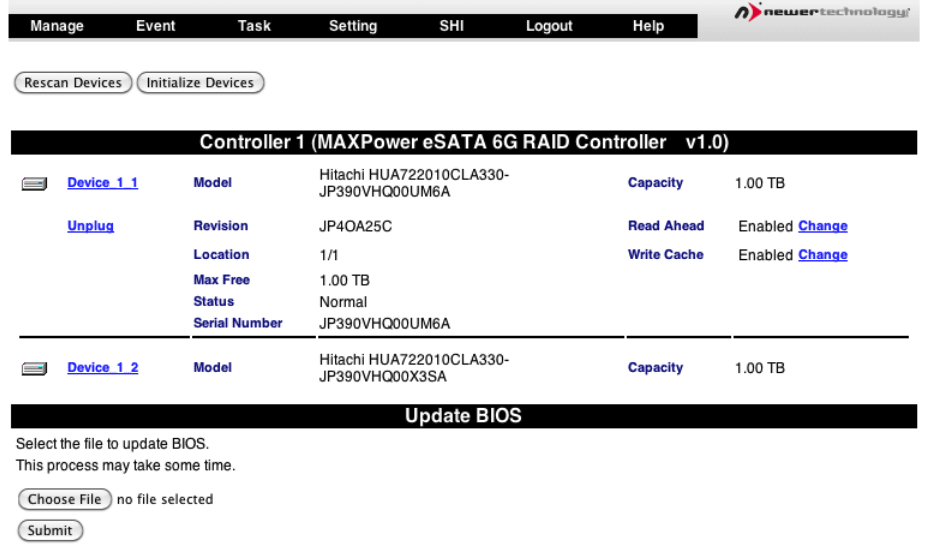
Click on the "Manager" menu item and select "Device" to enter the Device Management screen.
Changing Device Settings
Depending on the features of the drives ouyou are using, you can adjust settings such as Read Ahead, Write Cache, TCQ, and NCQ.
Initializing Devices
Initializing a drive writes necessary RAID configuration information to the drive to prepare it for inclusion in a RAID array and/or spare pool.
Important
Initializing a drive will destroy existing data!
Drives will be initialized automatically as part of the RAID array creation process, but it is recommended to initialize a drive before including it into a spare pool.
Rescanning for Devices
If a drive is connected to the controller while in the Device Management screen, click "Rescan Devices" to have the Web Manager recognize the connected drive.
Unplugging Devices
To properly disconnect a drive from the controller card, click on the drive to be removed and then click "Unplug" to allow the drive to be physically disconnected from the controller card.
If a drive is included in a RAID array, the entire RAID array will need to be unplugged from the Array Management screen before physically disconnecting the array or drive within the array. See the "Unplugging an Array" on Array Information Window for more information.
Array Management
The Array Management screen acts as the Web Manager's home screen, but to access it from any other screen click on the "Manage" menu item and select "Array" to enter the Array Management screen.
Creating a RAID Array
To create a RAID array, click on the "Create Array" button in the "Logical Device Information" section. Once the "Create Array" screen has loaded, configure the following settings to create the RAID array:
For optimal performance, always use matching drives in a RAID array.
- Matching size
- Matching speed
- Matching manufacturer
- Matching part number
Important
Creating an array will destroy existing data!

1. Array Type
Select the RAID level you want to use. See What is RAID? of the manual for RAID type explanations.
Select "JBOD (Volume)" if you want to use a single drive or want to do a concatenation/spanning of drives.
2. Array Name
Name the array for identification within the Web Manager. The volume name will be created after you format the created array.
3. Initialization Method
- Quick Initialization - Skips the full/initialization of the array and allows for a volume to be created. This is not usually recommended and is only acceptable for use with new drives that have not had data previously written to them.
- Foreground - The RAID will fully initialize before a volume can be created and the array utilized. This may take hours.
- Background - Allows a volume to be created and utilized while the RAID initialization is conducted in the background.
4. Cache Policy
- Write Back - Writes to the array are cached, which will result in higher performance but data loss may occur in the event of a power failure.
- Write Through - Writes to the array are always passed to the drives and subsequent reads may still be completed from the cause if necessary.
5. Block Size
A smaller block size results in faster small file reads and writes.
A larger block size results in faster large file reads and writes.
6. Available Disks
Select the available drives you want to use in your RAID array.
7. Create
Click on “Create” to build the array. A pop-up notification will display with the creation confirmation.
After the array has initialized, depending on the initialization method chosen, the array will be passed to the operation system to be formatted as a volume for use.
Array Information Window
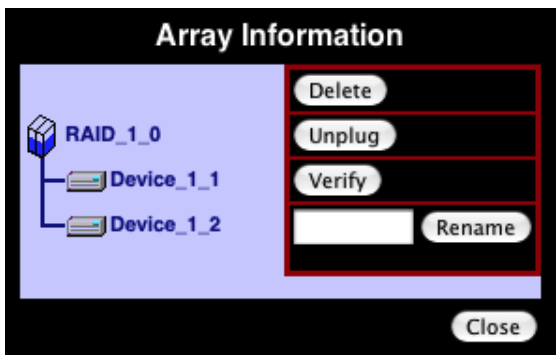
To manage a RAID array after it has been created, you need to access the Array Information window of the array you wish to manage. From within the Array Information window you can unplug, verify, delete, rename, rebuild, and expand/migrate an array.
To access the Array Information window, click on the “Maintenance” link for the array you wish to manage.
Unplugging an Array
To properly disconnect a RAID array from the controller card, you must access the Array Information window and click “Unplug”.
If an array is physically disconnected without clicking “unplug” an alarm will sound.
Verifying an Array
Verification can only be done on RAID arrays that have data redundancy (data protection).
- RAID 1 & RAID 1/0 - The verify process compares the data of one mirror with the other.
- RAID 5 - The verify process calculates RAID5 parity and compares it to the parity data on the array.
In general, verification also checks each sector on a driver for any errors or problems. Periodic verification of an array allows the drive firmware to take corrective action on any problem areas of a drive to assist in minimizing the occurrence of uncorrectable read and write errors.
For instructions on how to schedule periodic verification, see Tasks.
Deleting an Array
Do delete an array, click on the “Delete” button from within the Array Information window. A pop-up window will ask you to confirm the array deletion. Click “OK” to continue with the deletion or “Cancel” to cancel the deletion.
Renaming an Array
To change the name of an array, enter the desired name into the empty field next to the “Rename” button and then click on “Rename” button.
Rebuilding an Array
When a redundant array becomes degraded and enters a “Critical” state, it will need to be rebuilt.
Rebuilding generally occurs automatically when it is needed, but if the rebuild process has been previously aborted, it will need to be restarted.
To start/restart a rebuild click the “Rebuild” button in the Array Information windows of the degraded away.
Expanding/Migrating an Array
By utilizing Online Capacity Expansion (OCE) and Online RAID Level Migration (ORLM) techniques, it is possible to migrate a RAID array from one RAID level to another and also expand the capacity of the array without taking the array offline or deleting the existing data.
Warning!!!
Use on Mac OS X will destroy existing data!
Due to a limitation in Mac OS X which will require the migrated and/or expanded array to be reformatted, it is only recommended to use the OCE/ORLM feature with Windows systems.
Spare Pool Management
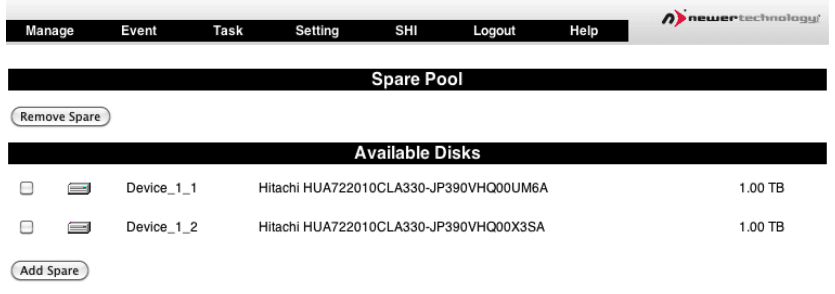
The purpose of a spare pool is to have drives in reserve to instantly take the place of any failed drives in a redundant RAID array such as RAID 1, RAID 1/0, and RAID 5 arrays. This allows rebuilds to start instantly in order to minimize the risk of data loss.
To access the Spare Pool Management screen, click on the "Manage" menu item and select "Spare Pool".
To add a drive to the Spare Pool, select an available drive from the "Available Disks" section and click on the "Add Spare" button.
Events
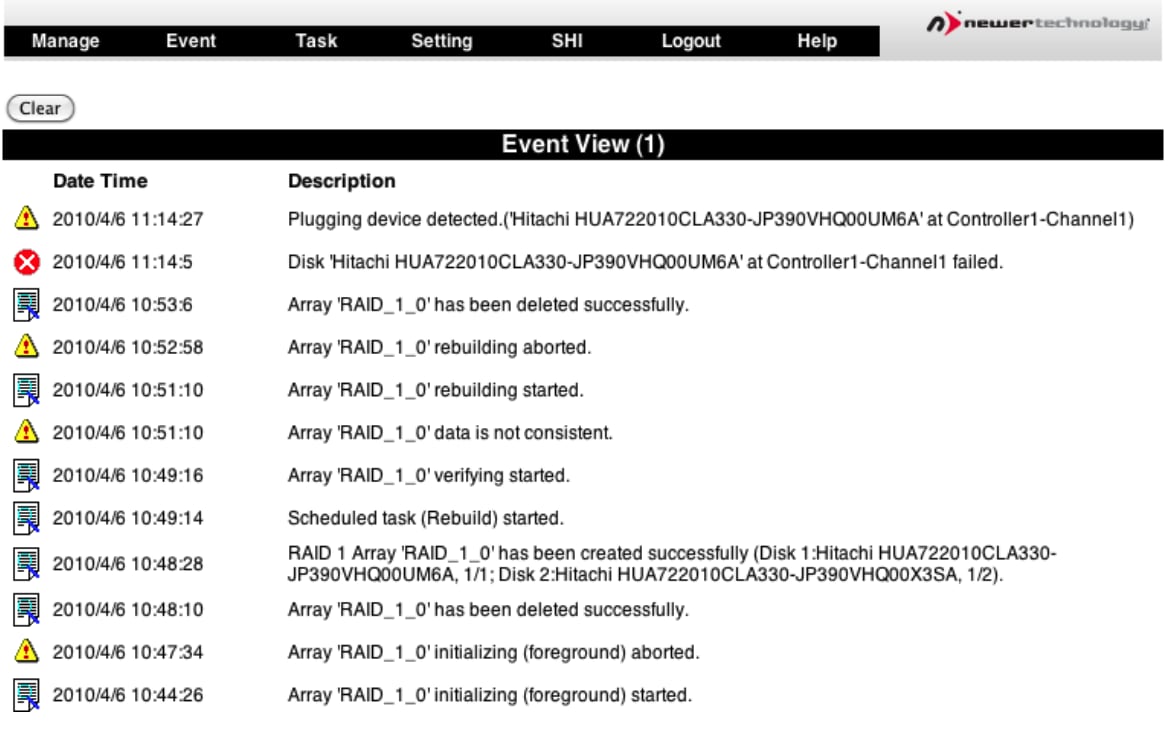
The NewerTech Web Manager software will automatically log all events that occur on the MAXPower controller card.

Indicates general information and general occurrances.

Warning of minor occurrences and issues. These include plugging of devices into the card and minor issues such as inconsistent data that can be easily fixed by a verify or rebuild.

Warns of major occurences and problems such as failed drives and improper disconnections of drives and arrays.
Tasks
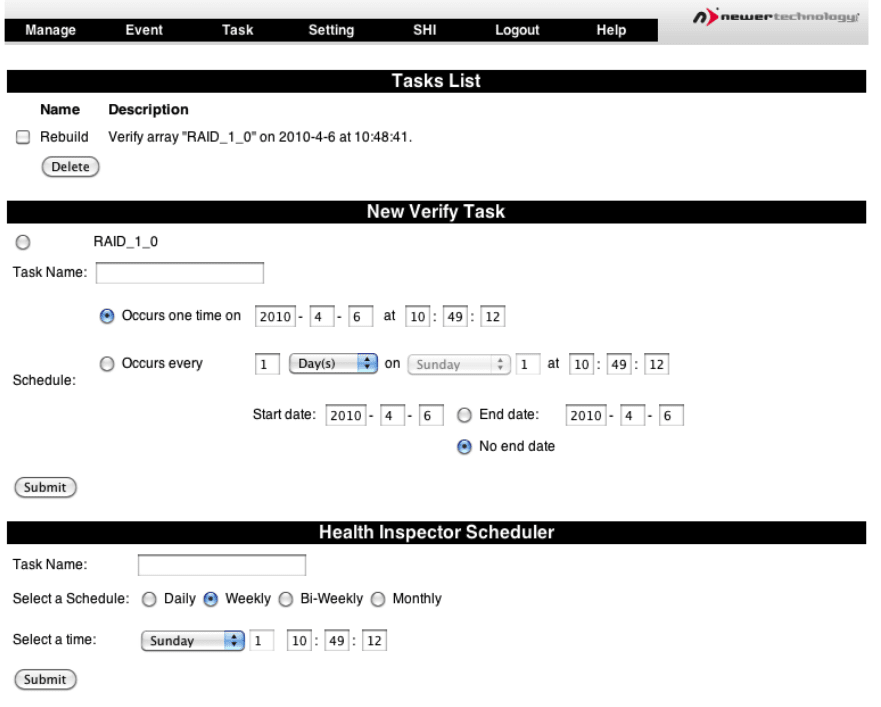
The NewerTech Web Manager has a built-in scheduling system to run background rebuilds, verifications, integrity, and health checks to the attached arrays and drives.
To enter the task scheduling systems, click on "Task" menu item.
Health Inspector Scheduler
The Health Inspector Scheduler is always visible in the Task screen of the Web Manager to check drive temperatures, bad sector counts, and any other errors that may been reaching high levels. If any problems are found, a warning event will be created and logged. If you have set the email notification for warnings in the "Settings" section, you will receive an email notification.
New Verify Task Scheduler
The New Task Scheduler is only visible when redundant RAID arrays are present and is used to schedule times to run background verifications and rebuilds of arrays.
Tasks List
Once a Verify or Health Inspector task is created, it will appear in the "Tasks List" section. To delete a scheduled task, select the checkbox next to the task and click on the "Delete" button.
SHI (Storage Health Inspector)
The NewerTech Web Manager has a built-in health monitoring system to allow for monitoring of drive characteristics and S.M.A.R.T status attributes. To access, click on the "SHI" menu item.
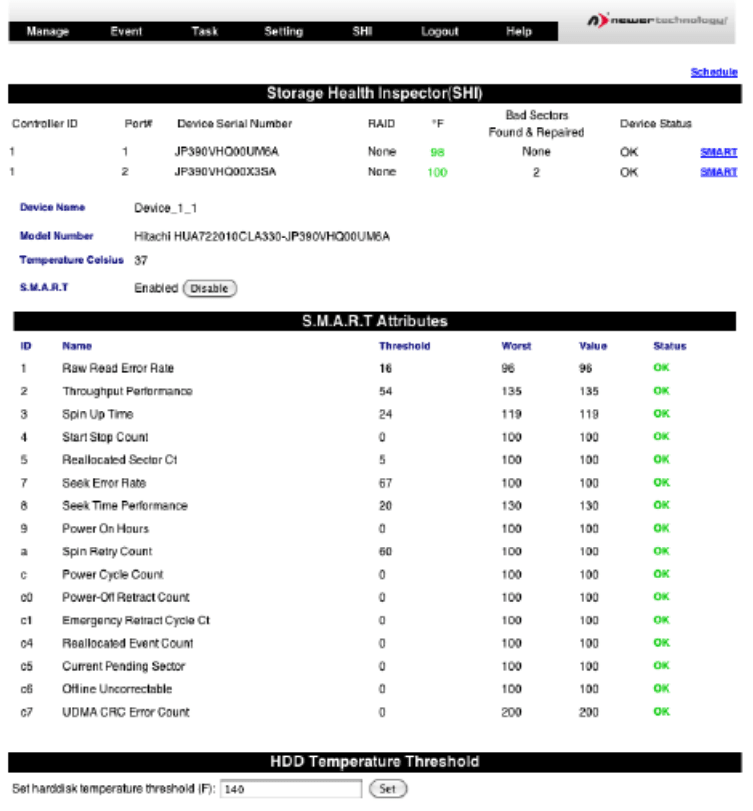
Self-Monitoring, Analysis, and Reporting Technology (S.M.A.R.T.) is a monitoring system built into drives to monitor different health attributes to assist in warning of potential problems before catasrophic failure can occur. To view the S.M.A.R.T status attributes of an attached drive, click on "SMART" to expand the attributes for viewing.
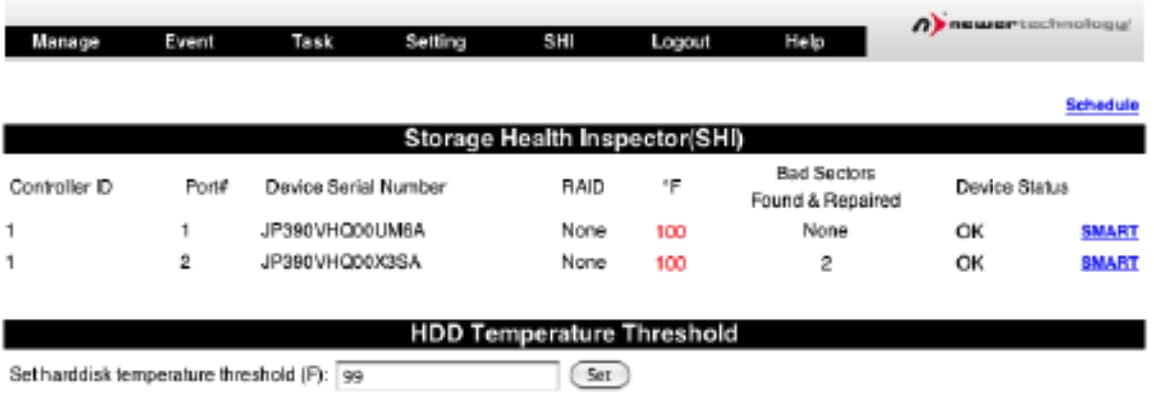
Within the SHI section of the Web Manager, you can also set the temperature warning threshold for attached drives. Certain drives have different maximum operating temperatures, so always check your specific drives before changing the threshold setting. If a temperature exceeds the threshold, it will turn from green to red.
SHI will also display the number of bad sectors found and repaired. Having a small number is acceptable, but if the number continually grows or the number turns red, it is strongly recommended to replace the drive.
Settings
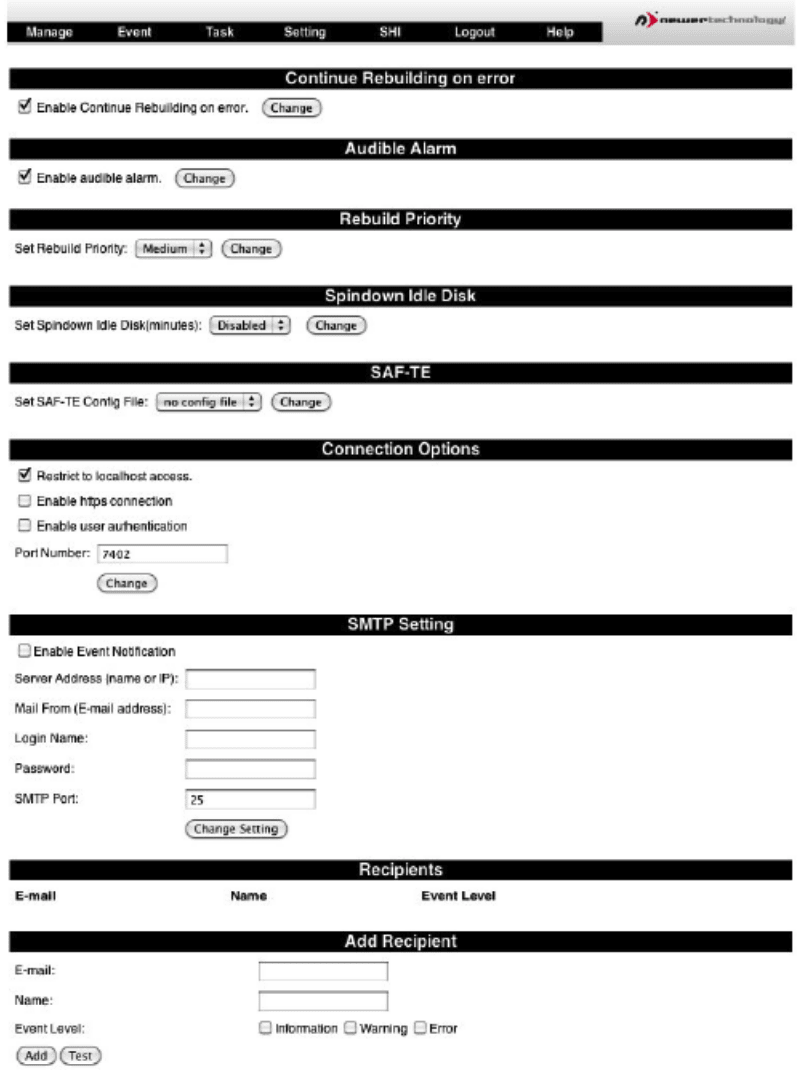
General configuration settings for the NewerTech MAXPower eSATA 6G RAID controller card can be set in the settings page by clicking on the "Setting" menu item.
- Continue Rebuilding on Error - enabling this allows the controller to keep rebuilding the array as much as possible even if there are read errors occurring on the source drives.
- Audible Alarm - enables and disables the audible alarms for major events.
- Rebuild Priority - sets the rebuild priority grade with the higher the priority providing the fastest rebuild times, but slowing down any access that occurs during the rebuild.
- Spindown Idle Disk - sets the time in minutes for hard disk drives to spin down when not being used.
- SAF-TE Settings - configures SAF-TE settings for SAF-TE activated enclosures.
- Connection Options - sets options for accessing the Web Manager. Restricting to localhost only allows access while on the computer that the controller card is installed into. A secure https connection can be enabled along with authentication using/setting a username and password. The controller card's listening port can be changed if there are cards installed with the same access port specification.
- SMTP Setting / Recipients / Add Recipient - enter SMTP (outgoing) mail server setting here to allow notification and warnings to be sent to email recipients. You can add multiple recipients and choose level of events that are sent to each email recipient.
Part 4: Troubleshooting & FAQ
Troubleshooting Tips
If a connected storage device is not recognized after connecting it:
First try unplugging the eSATA cable from the MAXPower eSATA 6G RAID card and then plugging it back in. If the device is still not recognized, keep the storage device turned on the connected via eSATA to the MAXPower eSATA 6G RAID card and restart your machine. Please contact Technical Support for further assistance.
If the MAXPower eSATA 6G RAID can is not being recognized by the computer:
First make sure the card is seated completely in the PCIe slot by reviewing the Hardware Installation steps. If the card is still not recognized, try installing the card into a different PCIe slot. If the card is still not recognized, please contact Technical Support for assistance.
FAQ
Does the MAXPower eSATA 6G card support booting?
Booting from the MAXPower eSATA 6G RAID card is not currently supported for Mac. On PC's BIOS booting to RAID is supported.
FCC Certification Information
FCC Part 15 Class B Radio Frequency Interference Statement
This equipment has been tested and found to comply with the limits for a Class B digital device, pursuant to part 15 of the FCC Rules. These limits are designed to provide reasonable protection against harmful interference in a residential installation. This equipment generates, uses and can radiate radio frequency energency and, if not installed and used in accordance with the instructions, may cause harmful interference to radio communications. Howerever, there is no guarantee that interference will not occur in a particular installation. If this equipment does cause harmful interference to radio or television reception, which can be determined by turning the equipment off and on, the user is encouraged to try to correct the interference by one or more of the following measures:
- Reorient or relocate the receiving antenna
- Increase the separation between the equipment and receiver
- Connect the equipment into an outlet on a circuit different from that to which the receiver is connected.
- Consult the dealer or an experienced radio/TV technicial for help.
Modifications not expressly approved by the manufacturer could void the user's authority to operate the equipment under FCC rules.
This device complies with part 15 of the FCC Rules. Operation is subject to the following two conditions:
- this device may not cause harmful interference, and
- this device must accept any interference received, including interference that may cause undesired operation.
European Union Compliance Statement This Information Technologies Equipment has been tested and found comply with the following European directives:
- European Standard EN55022 (1998) Class B
- European Standard EN55024 (1998)
Free Support Chat
Our free award-winning support team is ready to answer all of your questions. Technical support is available Monday - Friday: 9AM - 6PM. Customer Support & Sales is available Monday - Friday: 9AM - 6PM. Support is unavailable on U.S. Federal holidays. Talk to a human today.