


 1-800-275-4576

Voyager
User Manual
Introduction
Thank you for purchasing the Newer Technology Voyager SATA Hard Drive Docking Solution. This guide will help you familiarize yourself with the basic functions of the Voyager.
Package Contents
- Newer Technology Voyager SATA Hard Drive Docking Solution
- Power Adapter & Cable
- eSATA Cable
- FireWire 800 (IEEE 1394b) Cable
- FireWire 400 (IEEE 1394a) Cable
- USB 2.0 Cable
- Instruction Manual
Ports & Interfaces
Familiarize yourself with the connections on your Voyager SATA Hard Drive Docking Solution. You will use these when using Voyager to mount hard drives on your desktop.
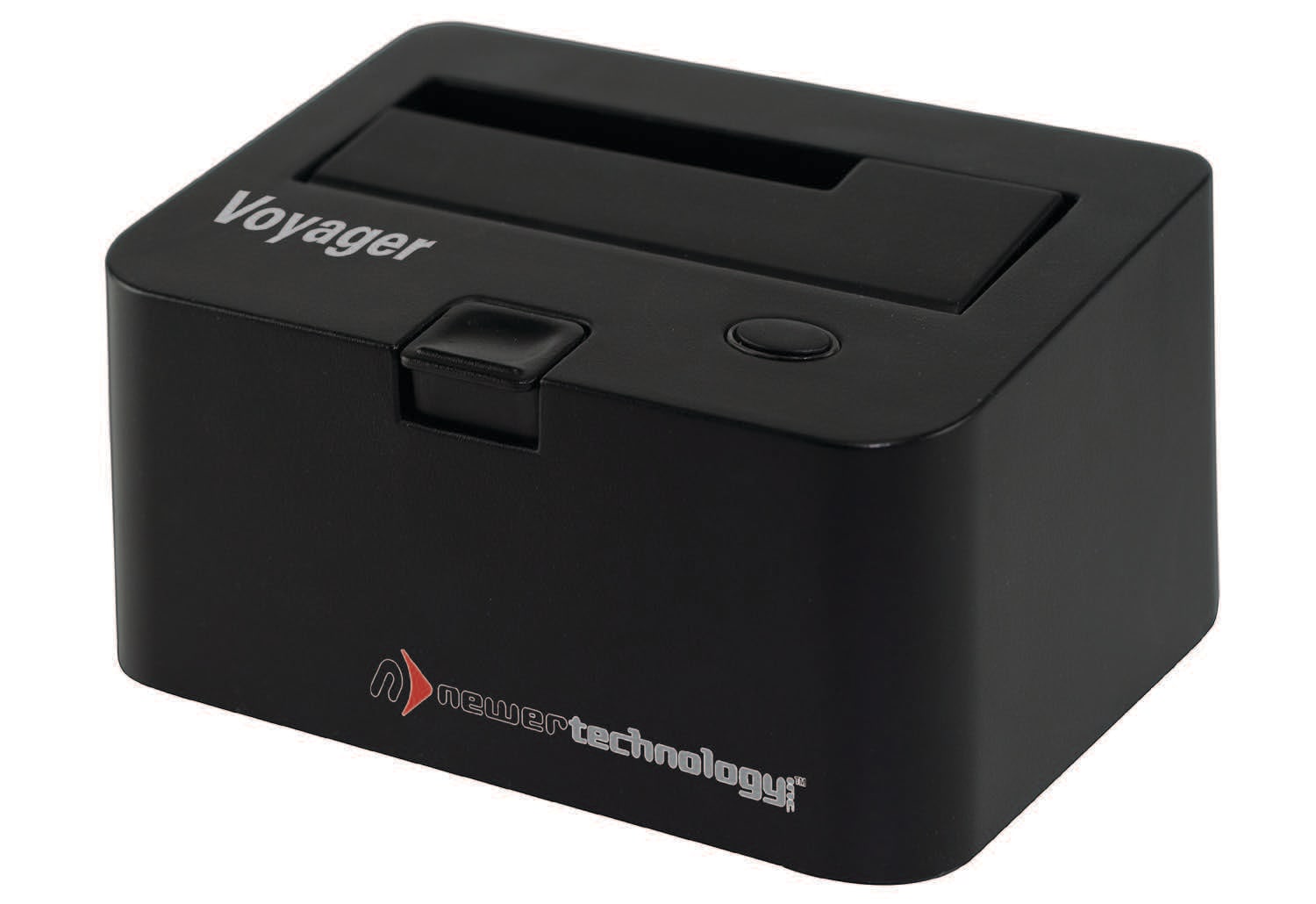
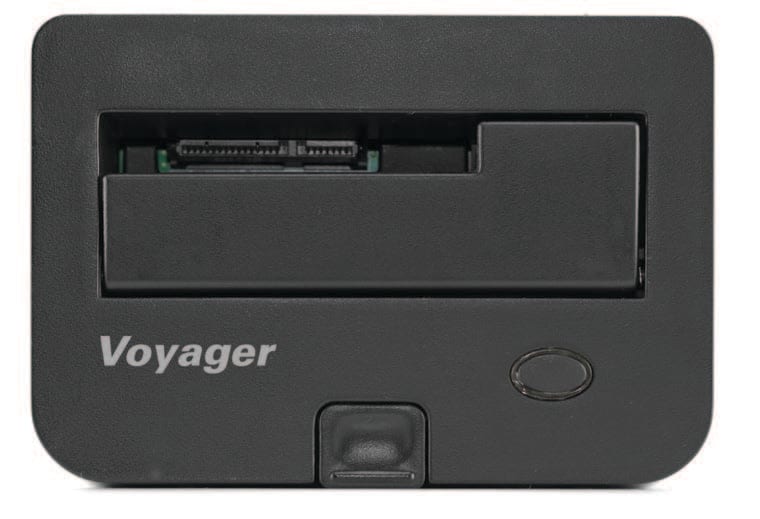
Top View
1. 2.5” & 3.5” SATA I/II Drive Connector
2. Hinged Flap for 3.5” Drive Access
3. Power Button/LED
4. Hard Drive Eject Button
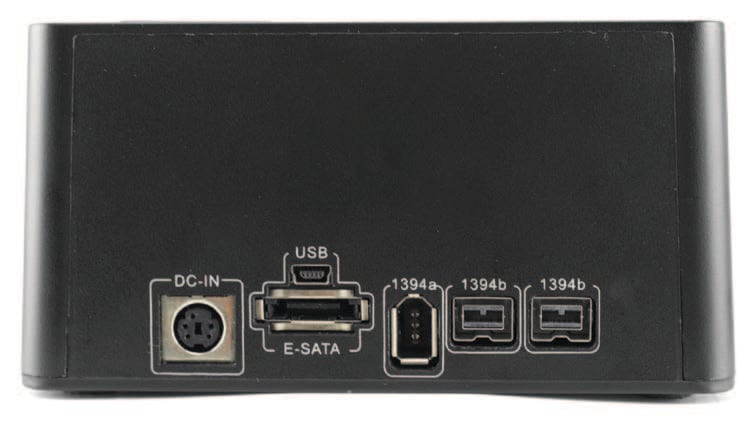
Rear View
5. Power Receptacle
6. USB 2.0/1.1 Mini-B Port
7. eSATA Port
8. FireWire 400 Port
9. Two FireWire 800 Ports
Usage Instructions
Attaching to Your Computer
Connecting Voyager to a Macintosh or a Windows computer is a very straightforward procedure.
1. Plug the AC power cord into the wall and into the DC transformer.
2. Plug the DC cord into the Voyager’s power receptacle.
3. Connect Voyager to your computer via one of the four connections supported by your computer: eSATA, FireWire 800, FireWire 400, or USB 2.0.
Attaching a Drive
1. Make sure Voyager is turned off by pressing the power button until the blue power LED is not illuminated.
2. Insert your SATA hard drive into the base, as shown below.
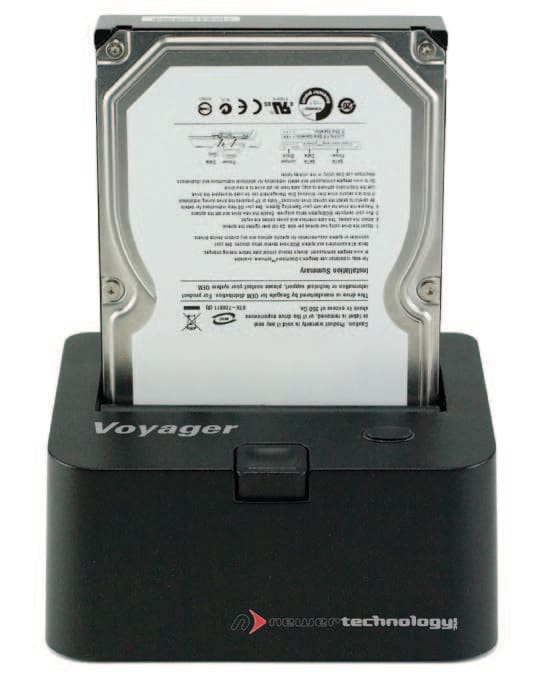
3.5” SATA Drive
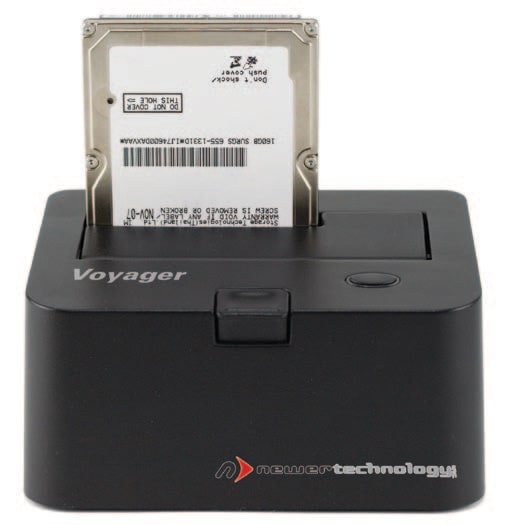
2.5” SATA Drive
3. Press the Power Button to turn Voyager on.
Using a Hard Drive Docked in Voyager
Macintosh
If the drive has been previously formatted or has data on it, an icon for the drive will show on the Desktop, and you may use it like you would any other external drive.
If you are using a new drive that has not previously been formatted, an alert box should appear, giving you the option to initialize the drive.
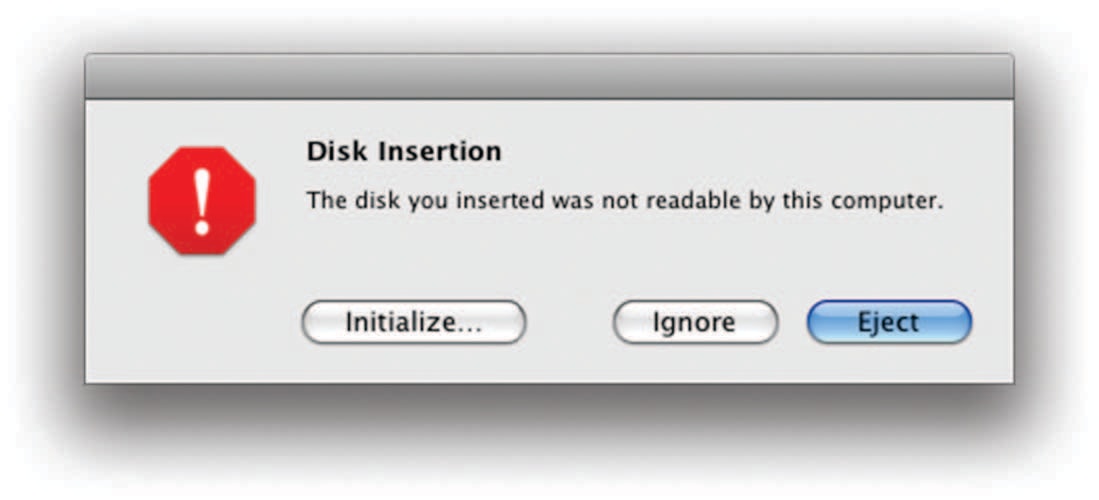
Clicking the “Initialize…” button will take you to Disk Utility. If you click one of the other buttons, and later change your mind, you can find Disk Utility in Applications>Utilities>Disk Utility.
In Disk Utility, you may erase the drive by selecting it from the list of drives on the left side of the window, then clicking on the “Erase” tab on the right.
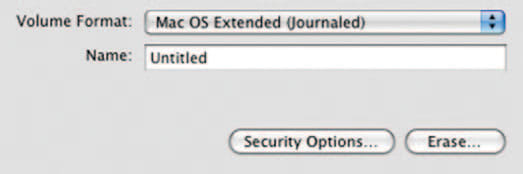
You will be given an option for the type of formatting you want. The default “Mac OS Extended (Journaled)” option will work acceptably for most instances. The “Name” field is where you can enter the drive’s new name.
Once you have selected a volume format and a name, click the “Erase…” button. You will be asked if you are sure you want to erase all data on the drive. If you are sure, click the “Erase” button on the dialog box. After a moment, your drive’s icon will appear on the Desktop, and you will be able to use it like any other external drive.
Windows
Special drivers are not required for use with Windows 98SE & higher. If the drive has been previously formatted, the drive will appear under “My Computer” as an external device, and you may use it like any other external drive.
If the drive is not visible under My Computer, it may not be formatted in a way that Windows can recognize. In order to use this drive with your Windows system, you will need to reformat it, keeping in mind that reformatting a drive will erase any data that currently resides on it.
Each version of Windows has a slightly different way of formatting a drive. Step by-step instructions for each Windows version are available at the web site for NewerTech’s distributor, Other World Computing, in their online Tech Center. http://eshop.macsales.com/tech_center/harddrives.cfm
Warranty Registration & Support
You can register your Voyager SATA Hard Drive Docking Solution at NewerTech’s Web site: http://newertech.com/tech_support/ntwty.php
VOYAGER trademark used under a license from the owner of U.S. Registration No. 3,089,301. All rights reserved.
©2008-10 Newer Technology, Inc. All Rights Reserved
Free Support Chat
Our free award-winning support team is ready to answer all of your questions. Technical support is available Monday - Friday: 9AM - 6PM. Customer Support & Sales is available Monday - Friday: 9AM - 6PM. Support is unavailable on U.S. Federal holidays. Talk to a human today.