


 1-800-275-4576

OWC Mercury Express
Owner’s Manual
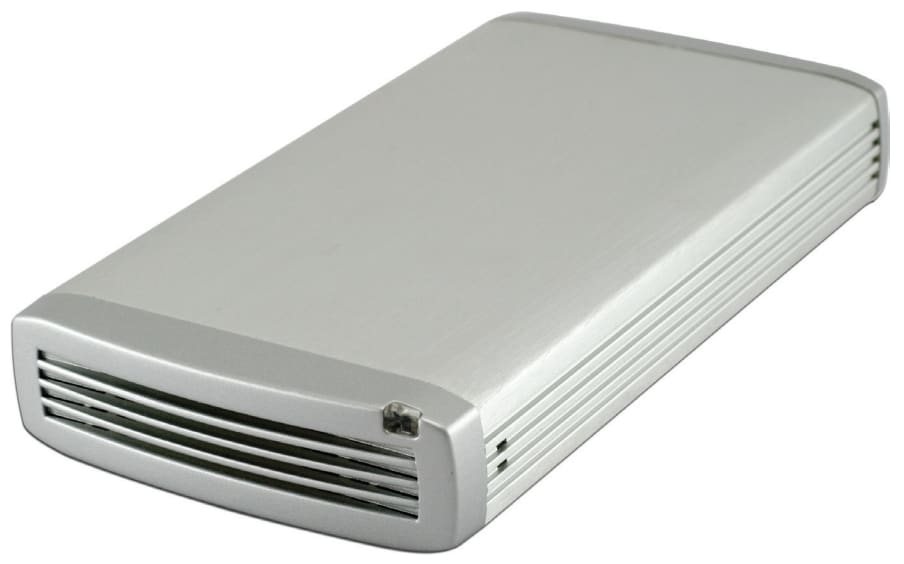
We thank you for your purchase of your new OWC Express hard drive and are happy to provide you with one of the newest, fastest, and easiest ways to add mass storage to your computer.
For more information about FireWire and USB 2.0 please visit our tech center at http://eshop.macsales.com/tech_center
Before starting, if your new OWC Mercury Expres Hard Drive is delivered under extreme hot or cold conditions, you should allow the contents of the package to reach room temperature prior to use.
Treat your new OWC Mercury product just like you do your computer - keep it dry, out of direct sunlight, clean, and avoid static electricity.
Installation / Setup Instructions
Macintosh Software Installation:
Mac OS X - FireWire or USB 2.0: - Drivers not required. Proceed to Hardware Installation.
Mac OS 8.6-9.2.2 - FireWire: Insert the HDST CD and follow the instructions provided by the installer. You may need to install Apple’s FireWire drivers, see the tech center for details.
Mac OS 8.6-9.2.2 - USB 1.1: You will need to download USB Mass Storage Support from Apple at:
http://docs.info.apple.com/article.html?artnum=60394
Mac OS 8.6-9.2.2 does not support USB 2.0.
Windows Software Installation:
Windows - 98SE & Higher - FireWire: Drivers not required for FireWire. For use with Windows 98SE or ME, it may be necessary to select the drive in the device manager and specify it as a removable drive. Windows 2000/XP users will have to create a signature for the drive in the Computer Management control panel.
Windows - 98SE - USB 2.0: Install the drivers on the included CD-ROM to use USB 2.0 storage device. The same notes for FireWire apply for removable drives.
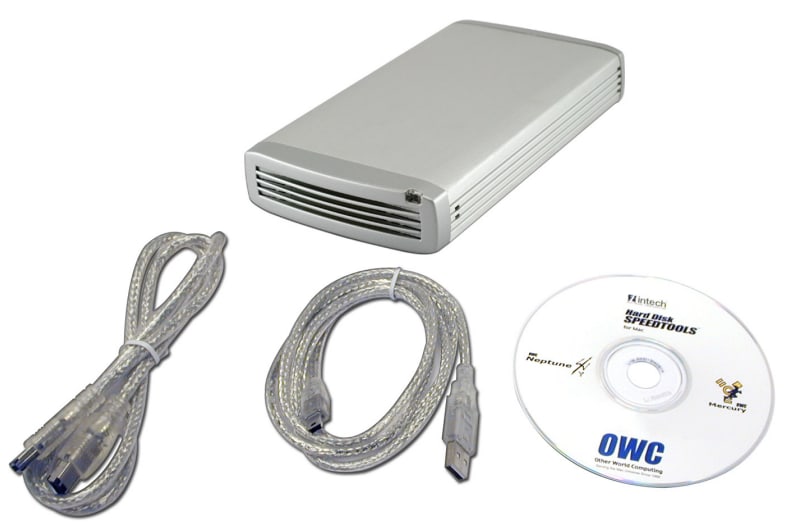
Unpack your new OWC Mercury Express drive and examine it’s contents.
Familiarize yourself with the connections on the back of the OWC Mercury Express drive - you will need to use these to connect your new drive to your computer.
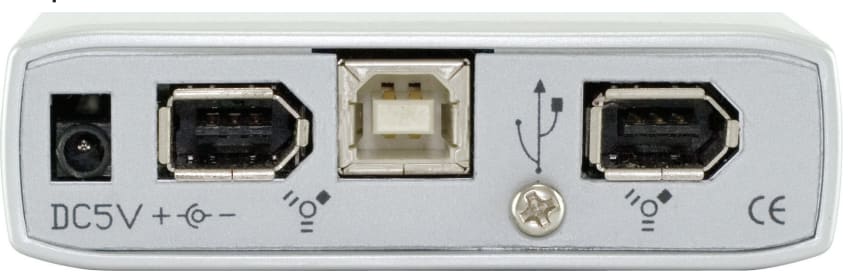
There is no power switch on the OWC Mercury Express drive, to power off the drive, you need to physically pull the cord out of the DC power port, or unplug the Firewire or USB cable from the back of the drive.
Hardware Installation:
Installation of the hardware is a very straightforward procedure on any
computer.
- Plug the DC transformer into the wall and the hard drive. (not included, and optional - may be used bus powered with FireWire, AC/ DC transformer is not required.)
- Plug the FireWire or USB cable into the hard drive.
- Plug the other end of that cable into the appropriate port in the computer.
- Power on the OWC Mercury Express drive. You’re all set!
To disconnect or unhook your OWC Mercury hard drive, follow these important steps to properly dismount your drive.
Windows Systems (all versions): If you wish to disconnect your OWC Mercury drive without shutting down your computer, you need to stop the device with the “Unplug or Eject Hardware” icon, located on the right side of the system tray. Your drive is now safe to power off and unhook.
Macintosh Systems (all versions): If you wish to disconnect your OWC Mercury drive without shutting down your computer, simply drag the OWC Mercury drive icon to the trash can on the desktop (or, in the dock using Mac OS X). Your drive is now safe to power off and unhook.
Share your Mac formatted drive with your PC using MacDrive (optional purchase)
After installing MacDrive, your HFS+ Macintosh volume will mount as if the drive were formatted in a native Windows format. MacDrive allows you to use your OWC Mercury hard drive on either platform without having to reformat or re-initialize the volume. We highly recommend this software for anyone that is sharing data in a cross platform environment.
Reformatting your OWC Mercury Hard Drive
To reformat or re-initialize your OWC Mercury hard drive, please visit our website and follow the directions for the OS you wish to format the drive with. http://eshop.macsales.com/tech_center/fwhdd.cfm
Free Support Chat
Our free award-winning support team is ready to answer all of your questions. Technical support is available Monday - Friday: 9AM - 6PM. Customer Support & Sales is available Monday - Friday: 9AM - 6PM. Support is unavailable on U.S. Federal holidays. Talk to a human today.