


 1-800-275-4576

OWC Mercury Helios FX eGPU Information for Windows
Overview
External graphics using AMD® or NVIDIA® GPUs is supported by most Thunderbolt™ 3 PCs. Make sure the BIOS and Thunderbolt software are up-to-date, and that the PC is running 64-bit Windows 10 (v1709 or later). If you are not sure the system can support external graphics, please follow the Software and Firmware Checks section below.
IMPORTANT: make sure your computer has a Thunderbolt 3 port and not a standard USB-C port; the Helios FX is not compatible with standard USB-C host connections. Check the PC manufacturer’s official specifications if you are unsure. Additionally, make sure to use the .5m 40Gbps Thunderbolt 3 cable that shipped with the Helios FX, or an equivalent Thunderbolt 3 cable (the cable plugs will have the Thunderbolt logo and the number 3 silk-screened on them).

Software and Firmware Checks
If you are unsure about the compatibility of the host PC, these steps can help verify if the computer will work with the Helios FX.
1. Check the BIOS version. Type ‘msinfo32.exe’ in the Windows 10 search bar. In the data that is displayed, check the ‘BIOS Version/Date’ field. BIOS versions that were released July 1, 2017 or later work the best.

2. If you have an older BIOS, check the manufacturer’s support pages for available updates to the specific PC model. If updates are available, follow the manufacturer’s instructions to install the update.
3. Make sure the Windows 10 installation is version 1709 or later by typing ‘winver.exe’ in the Windows 10 search bar. If you are running an older version of Windows 10, choose Settings > Update & Security > ‘Check for updates’ to download and install the latest recommended Windows 10 updates.
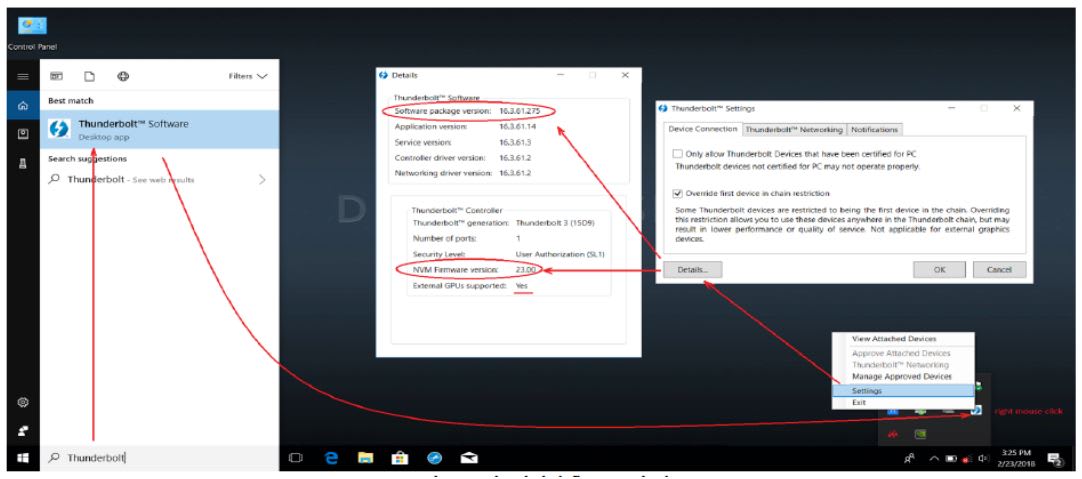
4. Check the Thunderbolt driver version. Type ‘Thunderbolt’ in the Windows 10 search bar. This should cause a Thunderbolt icon to appear in the lower-right corner of your screen (see below). Right-click on that icon and choose ‘Settings’ or ‘About,’ depending on your driver type. Click the ‘Details’ button in the dialog that appears. From the Details window, check the ‘Software Package Version’ — versions 16.3.61.275 or later are recommended for eGPU usage. Earlier versions may not work as expected or at all. Leave the Details window open.
5. Check the Thunderbolt firmware version. In the Details window look for the “NVM Firmware version” — versions 23 or higher are recommended. Earlier versions may not work as expected or at all.
Setting up the Helios FX
1. Select a compatible GPU card using the latest OWC GPU Compatibility Chart (version R4 as of June 1, 2018).
2. Install your chosen GPU into the Helios FX using the included Quick Start Guide.
3. At the end of the assembly process the power and host data cables are connected. Once you power the Helios FX on, you should see a message in the bottom-right corner of the screen notifying you that a new Thunderbolt device has been attached. Click OK.
4. A second Thunderbolt message will appear called ‘Approve Thunderbolt Devices.’ From the pop-up menu choose ‘Always Connect’ and then click OK. Afterward, if you double-click the Thunderbolt icon near the bottom-right corner of the screen, a dialog should appear that lists the Helios FX as an attached device.
5. Go to the AMD or NVIDIA web site to find the appropriate driver for the GPU. Download and install the driver according to the instructions provided.
6. Check again that the Helios FX is detected by your computer. Type ‘Device Manager’ in the Windows 10 search bar, then open the ‘Display Adapters’ tab. The eGPU should appear without any warnings or caution icons. If so, the Helios FX is ready to use!
Note: when you are finished using the eGPU, find the AMD or NVIDIA icon near the bottom right-corner of the screen, open the item and choose to ‘Eject’ the Helios FX. Once this is done you can safely power down the unit and disconnect the cables as needed.
If you are having trouble with these steps or other issue relating to your Helios FX, please contact our customer support team. IMPORTANT: in some cases the applications you are using may not be optimized for eGPU use. In those cases the only remedy is to request eGPU support from the application developer. OWC is unable to support software-related issues.
Free Support Chat
Our free award-winning support team is ready to answer all of your questions. Technical support is available Monday - Friday: 9AM - 6PM. Customer Support & Sales is available Monday - Friday: 9AM - 6PM. Support is unavailable on U.S. Federal holidays. Talk to a human today.