


 1-800-275-4576

OWC Mercury Pro CD-RW & DVD-RW
Owner’s Manual
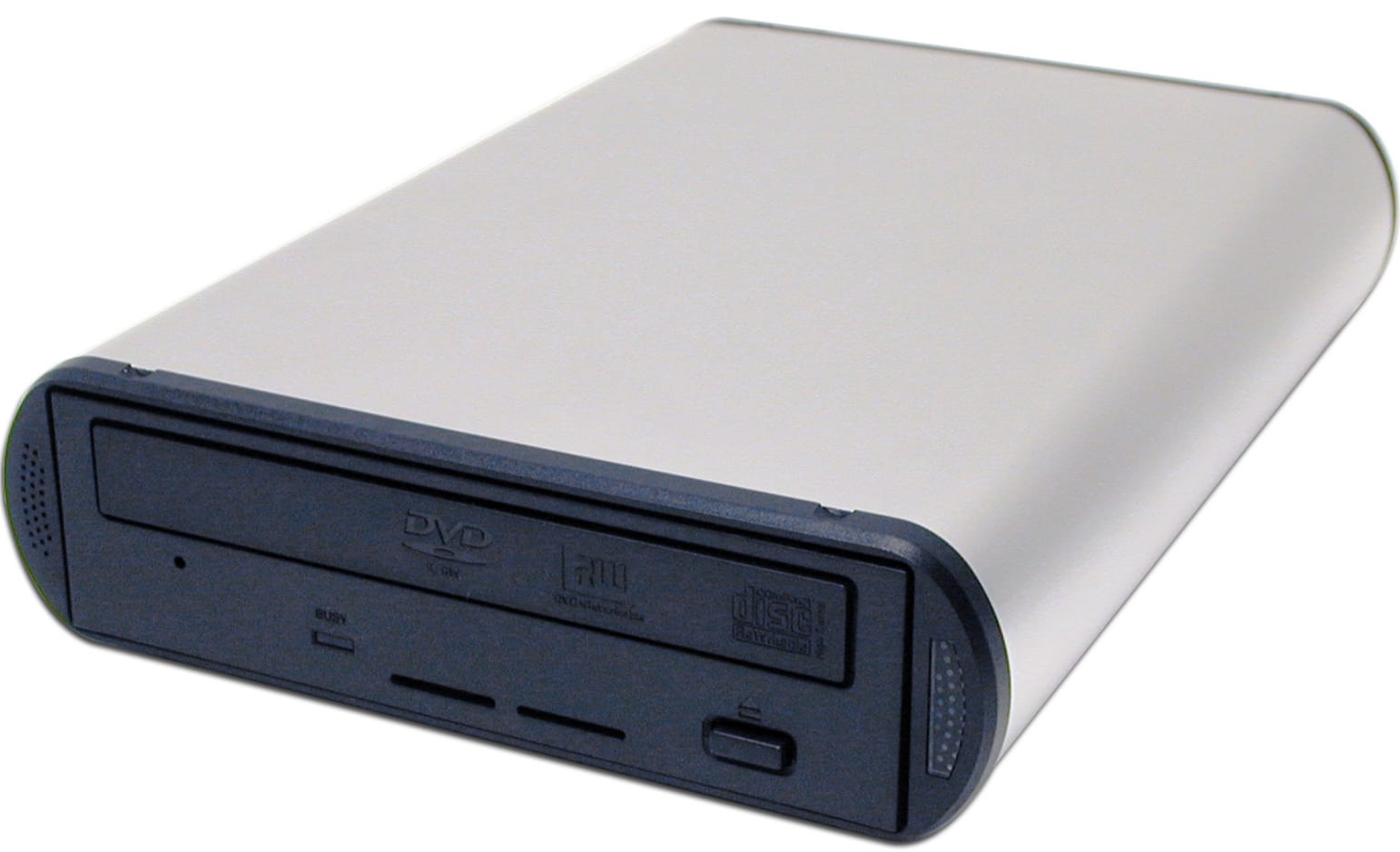
Welcome to the world of recordable media, brought to you by Other World Computing!
We thank you for your purchase of your new OWC Mercury Removable FireWire/USB 2.0 drive and are happy to provide you with one of the newest, fastest, and easiest ways to add mass storage to your computer.
For more information, please visit our tech center at http://eshop.macsales.com/Tech/index.cfm
Installation / Setup Instructions
Before starting, if your new OWC Mercury Removable Drive is delivered under extreme hot or cold conditions, you should allow the contents of the package to reach room temperature prior to use.
Treat your new OWC Mercury product just like you do your computer - keep it dry, out of direct sunlight, clean, and avoid static electricity.
Macintosh Software Installation:
Mac OS 9.1-X: Install the included software, following the on screen directions.
Reboot and proceed to hardware installation.
Windows Software Installation:
Windows - 98SE & Higher: Software not required for installation. Movie creation & burning software for DVDs & CDs is available separately here: http://eshop.macsales.com/Catalog_Page.cfm?Parent=455&Title=Media&Template=
General Usage Tips
If your OWC Mercury CD-RW or DVD-RW does not show up using the recording software or the Apple System Profiler, you may need to install FireWire Drivers. For more information about this, visit the tech center for details. http://eshop.macsales.com/Tech/index.cfm
Unpack your new OWC Mercury drive and examine it’s contents.
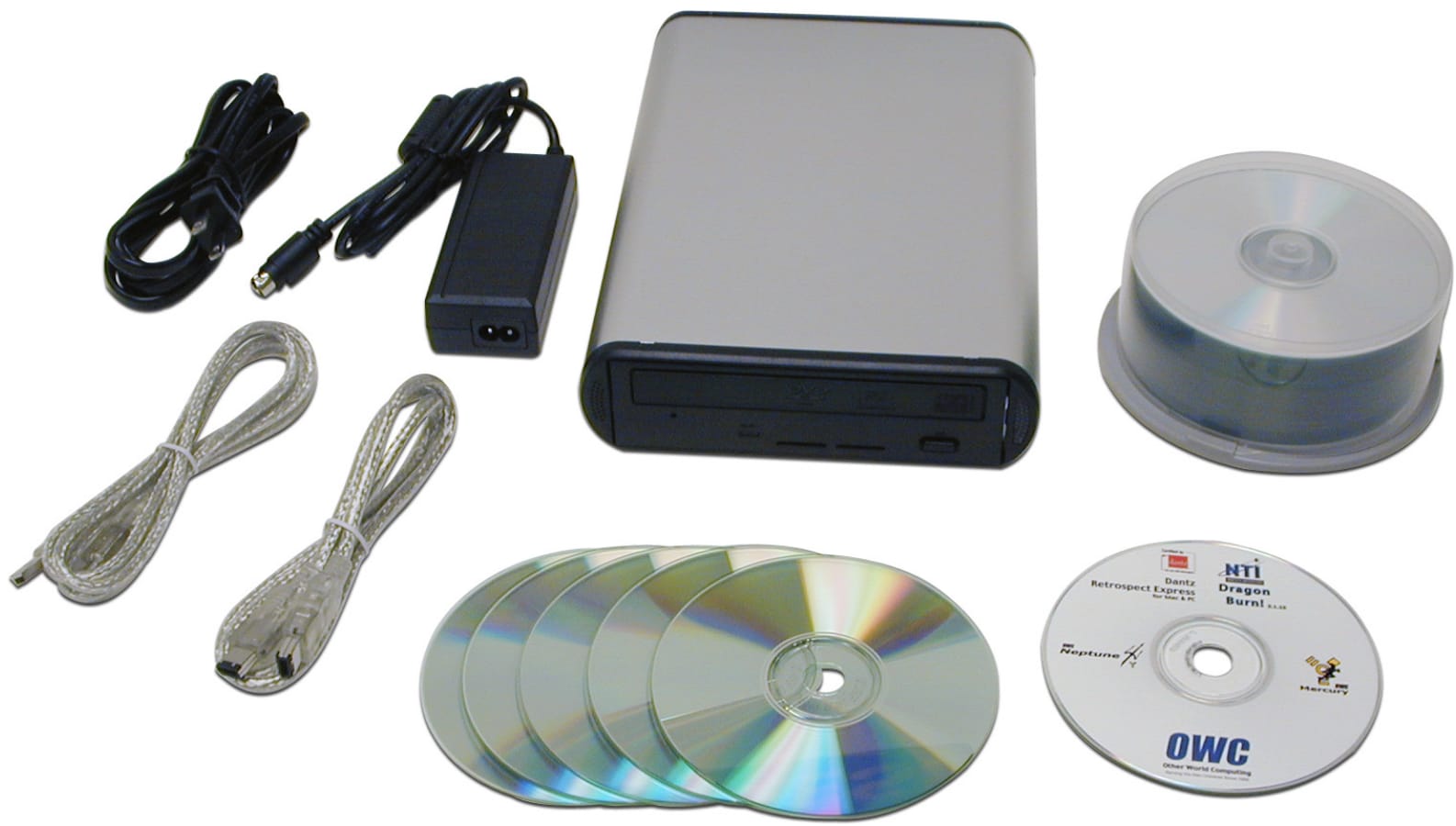
Contents may differ from items shown. Please refer to your invoice for exact contents of some bundles.
Familiarize yourself with the connections on the back of the OWC Mercury drive - you will need to use these to connect your new drive to your computer.
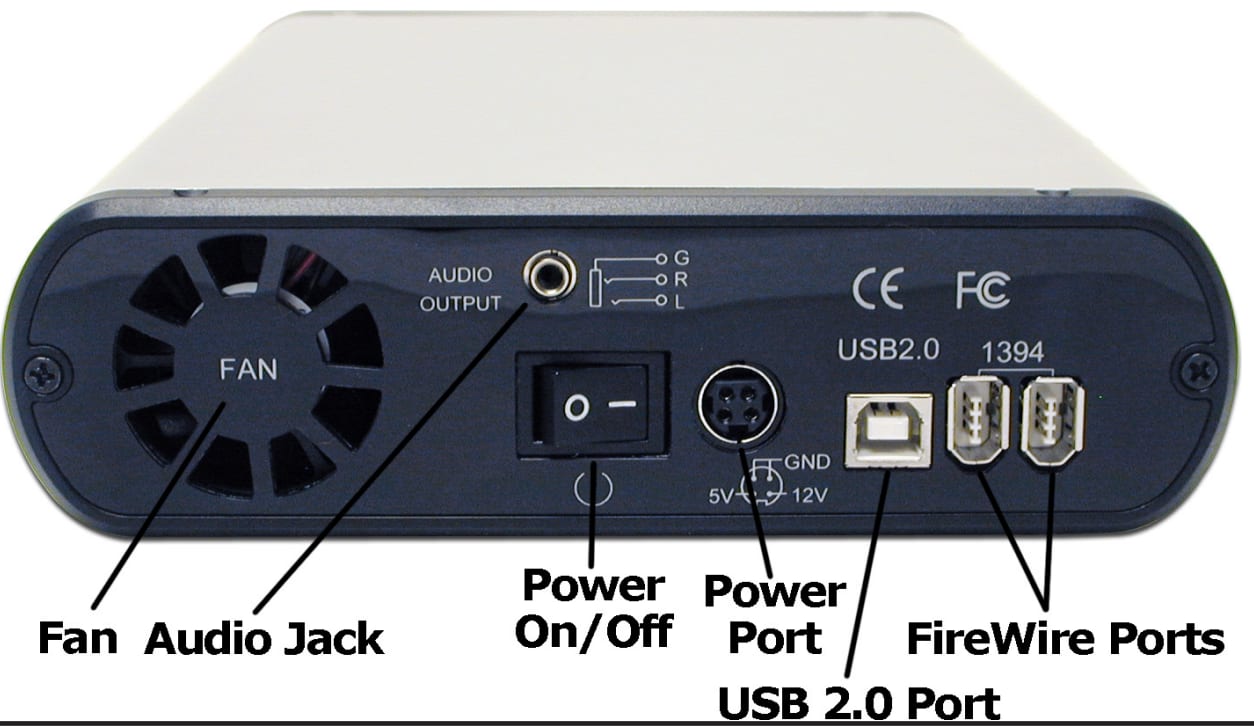
Hardware Installation:
- Plug the AC power cord into the wall and to the DC transformer.
- Plug the DC cord into the removable drive.
- Plug the FireWire or USB cable into the removable drive.
- Plug the FireWire or USB cable into the computer’s FireWire or USB 2.0 port. (You may only use one port at a time, FireWire or USB 2.0)
- Power on the OWC Mercury Removable! You’re all set!
Bundled Software Installation
To install and use any software bundled with this OWC Mercury FireWire solution, please follow the directions on the CD-ROM for each program you wish to install.
iDVD 5 (iLife 2005) Compatibility
Apple iLife 2005’s iDVD 5 is fully compatible with external DVD-R drives such as the OWC Mercury Pro DVD-R.
PatchBurn
To use this drive with Apple’s iApps, such as iTunes, and iDVD, it may be necessary to install Christian Moeller’s freeware PatchBurn software.
For the current Mac OS X 10.3 version, download it here: http://www.macsales.com/patchburn
for the current Mac OS X 10.2 version, visit http://patchburn.de
Free Support Chat
Our free award-winning support team is ready to answer all of your questions. Technical support is available Monday - Friday: 9AM - 6PM. Customer Support & Sales is available Monday - Friday: 9AM - 6PM. Support is unavailable on U.S. Federal holidays. Talk to a human today.