


 1-800-275-4576

OWC Mercury Pro “Quad Interface” Removable
Owner's Manual
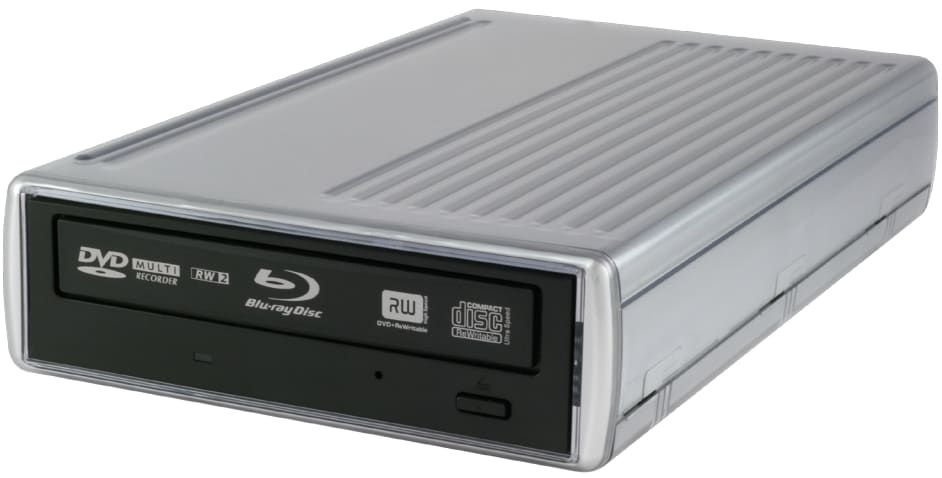
Welcome to the world of recordable media, brought to you by Other World Computing!
We thank you for your purchase of your new OWC Mercury Removable Quad Interface drive and are happy to provide you with one of the newest, fastest, and easiest ways to add removable storage to your computer.
For more information, please visit our tech center at http://eshop.macsales.com/tech_center/index.cfm
Installation / Setup Instructions
Before starting, if your new OWC Mercury Removable Drive is delivered under extremely hot or cold conditions, you should allow the contents of the package to reach room temperature prior to use. Treat your new OWC Mercury product just like you do your computer - keep it dry, out of direct sunlight, clean, and avoid static electricity.
The OWC Mercury Removable drive is designed to work out of the box with your favorite software applications, on both a Mac or on a PC.
If you are using a Mac, the OWC Mercury Removable drive will work with iTunes, DiscBurn, and iDVD without installing additional software as long as you are using Mac OS X 10.4 or later. If you are using a version of the Mac OS earlier than 10.4, you will need to install software to enable burning with these applications. See the Troubleshooting section for that software.
The OWC Mercury Removable is also designed to work with 3rd party burning software, such as Roxio Toast, NTI DragonBurn, and other popular shareware/freeware burning software.
Using Windows or Linux? The OWC Mercury Removable works great with Nero, and many other popular burning utilities.
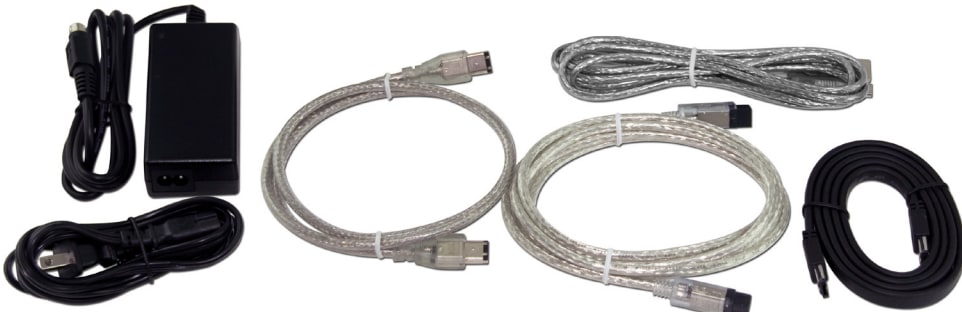
Unpack your new OWC Mercury Removable Quad Interface drive and examine it’s contents.
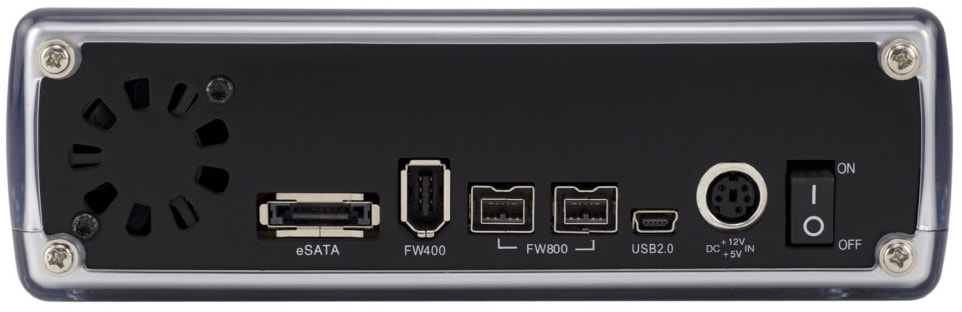
Familiarize yourself with the connections on the back of the OWC Mercury drive - you will need to use these to connect your new drive to your computer.
Hardware Installation:
- Plug the AC power cord into the wall and to the DC transformer.
- Plug the DC cord into the removable drive.
- Connect the eSATA, FireWire 400, 800 or USB 2.0 cable - appropriate for the interface your computer supports, into the drive and computer.*
- Power on the OWC Mercury Removable Quad! You’re all set!
* OWC recommends the use of a high-speed interface for Blu-Ray burning, such as FireWire 800 or eSATA.
eSATA: To use the drive with the eSATA interface, the device would need to be hooked up at the time of booting the computer for the drive to be recognized.
Also note; you cannot hook more than one interface up to the OWC Mercury Removable Quad at a time. You can, however, use the drive as a FireWire passthrough device.
Tech Support Tip:
Have a disc stuck and it won’t eject? Use the Emergency Eject Hole – Insert a straightened paper clip and push to eject the tray if the load/eject button does not work.
In normal operation, the eject button should always be used to open the tray. If you must use the emergency eject hole, make sure the drive power is turned off and wait until disc rotation has stopped.
Software Options with some OWC Mercury Removable Drives:
Burning software is included with some versions of the OWC Mercury Removable. Depending on the version you purchased, you may receive NTI DragonBurn, or Roxio Toast Titanium. Both of these software packages have user guides built into them.
Archival Backup is possible using software to back up your data. Some OWC Mercury Removable drive bundles include software such as Prosoft Data Backup or Novastor NovaBackup - follow their instruction manuals to archive your data on one or more discs.
Hardware Options with some OWC Mercury Removable Drives:
Lightscribe Direct-to-Disc Labeling is offered on some models of OWC Mercury Removable - if your drive is equipped with this feature, the included CD has applications and drivers on it and software to create your own custom labels, and also instructions on using that software.
Blu-ray Disc Burning is offered on some models of OWC Mercury Removable. Blu-ray works just like DVD, except with a much greater capacity.
Free Support Chat
Our free award-winning support team is ready to answer all of your questions. Technical support is available Monday - Friday: 9AM - 6PM. Customer Support & Sales is available Monday - Friday: 9AM - 6PM. Support is unavailable on U.S. Federal holidays. Talk to a human today.