


 1-800-275-4576

OWC Thunderbolt 5 Dual 10GbE Network Dock
Support Manual
Introduction
1.1 System Requirements
Operating System & Hardware
Works with any Thunderbolt 5 | Thunderbolt 4 | Thunderbolt 3 (Mac Only) | USB4 equipped:
- Mac: macOS 14.x or later
- Thunderbolt 5 systems require macOS 15.3.x or later
- Thunderbolt 3 systems require macOS 15.x or later
- Intel based systems require macOS 15.x or later
- PC: Windows 11 or later
- Linux: Latest version of Ubuntu recommended
1.2 Package Contents
- (1) OWC Thunderbolt 5 Dual 10GbE Network Dock
- (1) 0.7M (28”) Thunderbolt Cable
- (1) 90W External Power Supply and Power Cable
- (1) Getting Started QR insert for OWC Thunderbolt 5 Dual 10GbE Network Dock
- OWC Dock Ejector for Mac and Windows (digital download)
- User Guide for OWC Dock Ejector (digital)
- 2 Year OWC Limited Warranty
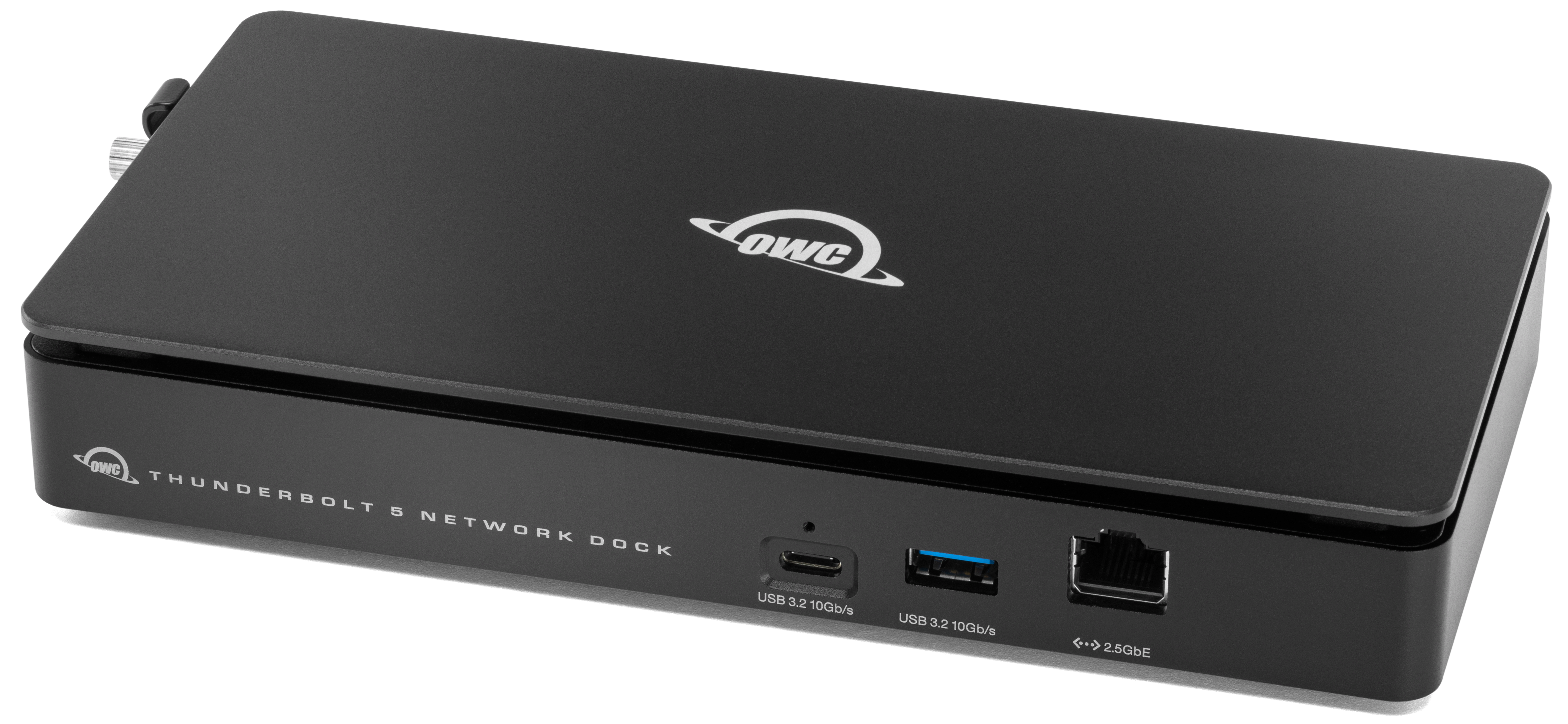
1.3 Front View
A. (1) USB 3.2 Gen 2 (10Gb/s) Type-C port – Supports USB devices with a Type-C connection.
B. (1) OWC ClingOn-ready cable stabilizer mount – Affix ClingOn to help prevent accidental cable disconnections (sold separately).
C. (1) USB 3.2 (10Gb/s) Type-A Port - Utilize the latest USB devices and accessories.
D. (1) 2.5GbE Ethernet port: Left LED will show Green for 100M/1G/2.5G connections. Right LED will show green for an established link and blink green during network activity.

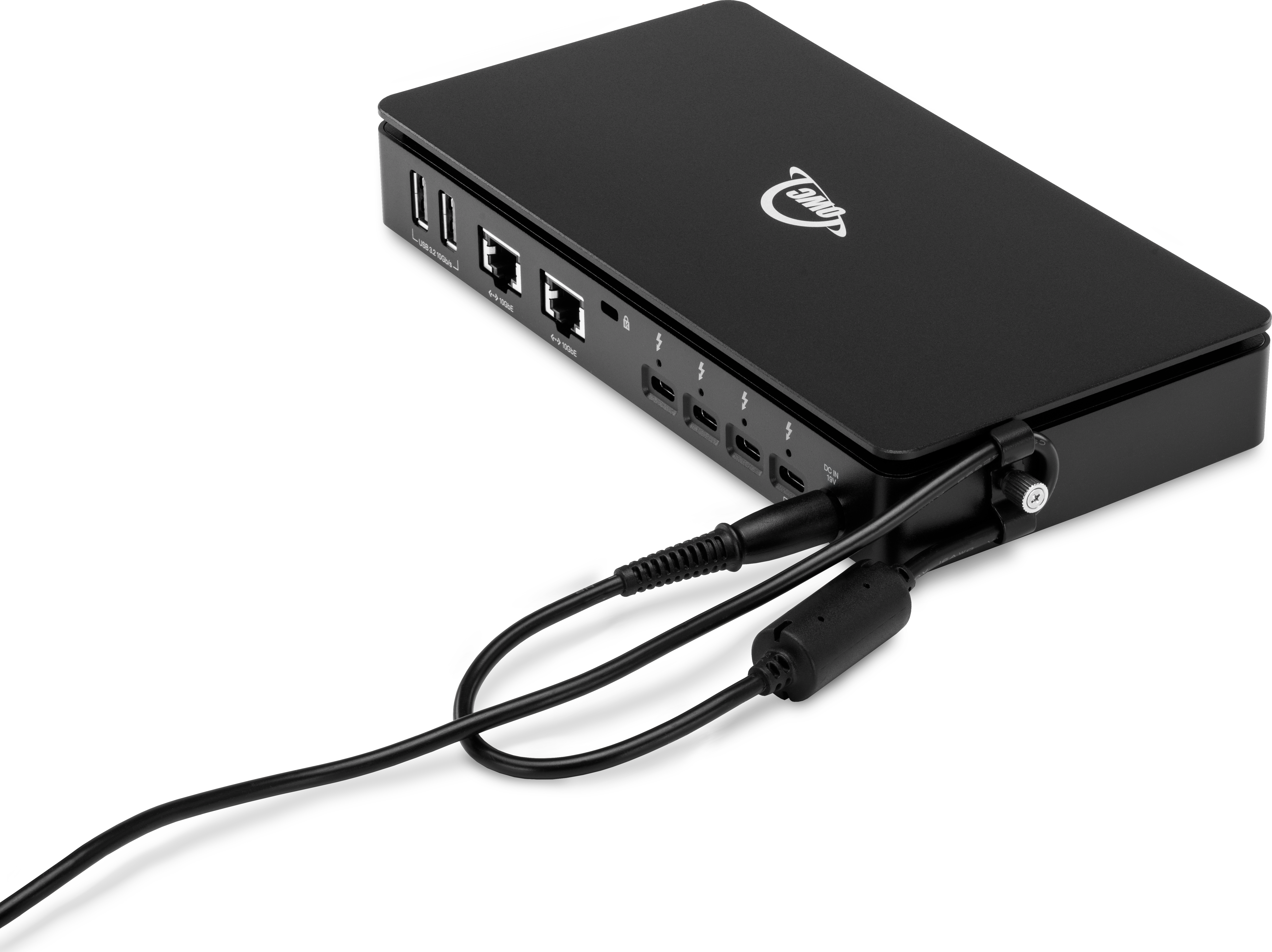
1.4 Rear View
A. (2) USB 3.2 Gen 2 (10Gb/s) Type-A ports – Supports USB devices with a Type-A connection.
B. (2) 10GbE Ethernet ports: Left LED will show Green for 100M/1G/2.5G/5G connections & Orange for a 10G connection. Right LED will show green for an established link and blink green during network activity.
NOTE: Ethernet-compatible hardware components and cabling rated for 10Gb/s (Cat 5e cable minimum, Cat 6 or later strongly recommended) are required to ensure optimal 10GbE performance
C. (1) Kensington Security slot – Attach a Kensington Security lock.
D. (4) OWC ClingOn-ready cable stabilizer mount – Affix ClingOn to help prevent accidental cable disconnections (sold separately).
E. (3) 15W Thunderbolt 5 Ports – Up to 80Gb/s bi-directional data speed and up to 120Gb/s display bandwidth.
F. (1) Thunderbolt 5 Host Port – Connect to Thunderbolt host. Up to 80Gb/s bi-directional data speed and up to 120Gb/s display bandwidth.
G. (1) DC IN 20V 90W (4.5A) Power Port - Connect barrel 12V power cable to power the device.

1.5 Side View
A. (1) Power Cable Clamp – Secure power cable slack.

Getting Started
2.1 Device Setup
- This section describes the process of connecting the OWC Thunderbolt 5 Dual 10GbE Network Dock.
1. Plug the power cable into the OWC Thunderbolt 5 Dual 10GbE Network Dock DC IN power port located on the back. Connect the power adapter into a power outlet.
2. Connect the included Thunderbolt cable into the Thunderbolt 5 Host Port located on the back and into a system.
3. Download appropriate device drivers. Review information in Section 2.2 "Device Drivers".
4. Connect other devices to the appropriate ports on the dock. All connected devices will be available immediately for use on the system.
- Networking Use Case: Connect one 10GbE port to a NAS storage device. Connect the second 10GbE port to a dedicated AV network. Connect the 2.5GbE port to an office LAN or internet. Each connection runs through a dedicated NIC, so there’s no bandwidth allocation or security risk between connected devices and systems.

2.2 Device Drivers
Mac Users
- A software driver is required to enable Apple Super Drive, Apple USB Keyboard, and enables high power support for charging and powering USB bus powered devices.
- The driver is included in the OWC Dock Ejector software download package.
- NOTE: Connect an Apple SuperDrive directly to a USB port if the device doesn't respond when connected through an external display or USB Hub.
- The driver is included in the OWC Dock Ejector software download package.
- NOTE: OWC Dock Ejector for Mac includes USB charge support driver in version 1.1.9. The current version of OWC Dock Ejector (version 2.0.2) has the USB charge support driver disabled. Users can not charge or bus power devices over external powered USB ports at high power.
- Users should roll back OWC Dock Ejector by uninstalling version 2.0.2 and downloading version 1.1.9 if the USB charge support driver is needed. Please review Section 2.2 “Uninstall OWC Dock Ejector” in the OWC Dock Ejector Support Manual for instructions.
PC & Linux Users
- The OWC Thunderbolt 5 Dual 10GbE Network Dock has three ethernet ports. Two different chipsets are used based on the ethernet port. Windows & Linux users require a driver download and installation for each individual chipset.
- 10GbE Ethernet Port chipset: Marvell (AQC113)
- 2.5GbE Ethernet Port chipset: Realtek (RTL8156BG)
Marvell Driver Download Instructions
1. Downloaded the required driver by visiting Marvel Public Driver Downloads.
2. Filter the available drivers by selecting the following for the available sections:
- Category: Marvell Public Drivers
- Platform: Windows or Linux
- Part Number: AQC113
3. Locate and download the appropriate "Marvell AQtion Driver" from the listed available options.
- NOTE: The "Marvell AQtion Firmware Updater Utility" is not required and should not be downloaded.
4. Access the downloaded driver folder and launch the Marvell AQtion Installer.
Realtek Driver Download Instructions
- Visit Realtek Driver Support and download the appropriate driver based on the operating system version currently in use.
- Complete the on-screen instructions provided by the download to complete the driver installation.
- Chipset: Realtek (RTL8156B)
2.3 Power Cable Clamp
1. Loosen the thumb screw securing the Power Cable Clamp.
2. Loop and feed the power cable slack through the loosened clamp.
3. Tighten the thumb screw to secure the Power Cable Clamp.
Device Management
3.1 Unmounting Volumes
- To ensure no data is lost during normal use, always eject or unmount the corresponding volume(s) from your operating system before powering off the device. Unmounting options are provided below.
OWC Dock Ejector
- This application safely ejects all volumes connected to the OWC Thunderbolt 5 Dual 10GbE Network Dock with a single click, adding peace of mind to fast-paced mobile workflows. To install this app, please follow the steps below.
- NOTE: Enables support for the Apple Super Drive, Apple USB Keyboard, and charging for iPad 1/2/3 generation devices on the dock’s ‘high-power’ ports. This application includes a driver that enables support for these devices and charging functions.
- Download the installer file for Mac or Windows: go.owc.com/dockejector
- Launch the installer and follow the prompts. No restart is required.
- Once the app is running the OWC Drive Ejector icon will appear in the macOS menubar, or, System Tray on Windows. Clicking on the icon will provide options to unmount connected volumes.
- Full user manual can be viewed by visiting go.owc.com/dockejector/manual
Manually Unmounting Volumes
macOS
- Drag the icon for the device you wish to unmount to the trash can; OR
- Right-click the device icon on the desktop, then click “Eject”; OR
- Highlight the device on your Desktop and press Command-E.
Windows
- Go to the System Tray (located in the lower right corner of your screen). Click on the “Eject” icon (a small green arrow over a hardware image).
- The notification Safe To Remove Hardware displays and the hardware device disappears from the Safely Remove Hardware and Eject Media menu. The hardware device can be safely removed
- If the Safely Remove Hardware and Eject Media icon isn't visible, Eject the drive by clicking the ‘Show hidden items’ menu in the Taskbar, then clicking ‘Safely Remove Hardware and Eject Media’, and last select the ‘Eject’ option for this volume
3.3 Usage Notes
Driver Details
- Mac Users: A software driver is required to enable Apple Super Drive, Apple USB Keyboard, and enables high power support for charging and powering USB bus powered devices.
- The driver is included in the OWC Dock Ejector software download package. Please download and install if high powered USB port support is needed.
- Windows & Linux Users: Downloading and installing a Realtek driver and Marvell Driver is required for enabling proper network function.
- Please visit Realtek Driver Support and download the appropriate driver based on the operating system version currently in use. Complete the on-screen instructions provided by the download to complete the driver installation.
- Please visit Marvell Driver Support and download the appropriate driver by filtering the available options through selecting the following (Category: Marvell Public Drivers | Platform: Windows or Linux | Part Number: AQC113).
Network Details
- Ethernet-compatible hardware components and cabling rated for 2.5Gb/s (Cat 5e cable minimum, Cat 6 or later strongly recommended) are required to ensure optimal 2.5GbE performance.
- Data is not accessible for drives that are connected to the RJ45 (2.5GbE) Ethernet Port. The OWC Thunderbolt 5 Dual HDMI Dock does not support Network Attached Storage (NAS) function over the Ethernet interface
- Router and/or Network Switch must support AVB.
- macOS link aggregation Mac User Guide instructions
Display Details
- Thunderbolt 5 is capable of supporting up to two external displays from a single system host port dependent on the host system’s capability. Thunderbolt 5 external display support includes up to three 8K displays @ 60Hz, or two 8K @ 120Hz, or three 4K displays @ 144Hz. Display support, including available resolution and refresh rates, is dependent on host hardware and drivers.
- Please review the Apple silicon External Display Support support article for more details regarding performance how many external displays can be connected to an Apple silicon Mac system.
- Higher refresh rates (above 60Hz) may require DSC (Display Stream Compression) support on the monitor. DSC support is required for 6K and 8K resolutions.
Additional Details
- Does not contain built-in storage.
- Manage real-time AV workflows over IP including:
- AVB
- Dante
- Please contact Dante Support with any support needs.
- NDI
- Please contact NDI Support with any support needs.
- Connected Thunderbolt and USB connected external drive solutions may remain powered on for a short duration of up to 10 minutes when the host system is asleep/powered off or when the dock/hub is physically disconnected from a system. Connected external drive solutions may get warm as they remain powered on. The temperature remains within a normal operation range and has no short or long-term effects on the device, drive, or performance.
- OWC Envoy Pro Elektron and OWC Envoy Pro FX devices remain powered on when the host system is asleep/powered off or when the dock/hub is physically disconnected from a system. These devices may get warm as they remain powered on however, the temperature remains within a normal operation range and has no short or long-term effects on the device, drive, or performance.
Support Resources
4.1 Troubleshooting
- OWC Thunderbolt 5 Dual 10GbE Network Dock isn't recognized by the host:
- Verify the OWC Thunderbolt 5 Dual 10GbE Network Dock is securely connected to the host.
- Connect the OWC Thunderbolt 5 Dual 10GbE Network Dock to a different host port or different host.
- Users experiencing slow read/write speeds should consider checking and changing the Windows disk removal policy. Please review the support article Storage Solutions: OWC Disk Performance for more detail.
- Host system charging is not supported by design.
- We are very sorry If issues continue to occur. Please know that OWC support is here to help.
- Contact information for our support can be found in Section 4.4 "Contacting Support".
- Please have your serial number ready which is located on the back of the OWC Thunderbolt 5 Dual 10GbE Network and printed on the original packaging.
- Contact information for our support can be found in Section 4.4 "Contacting Support".
4.2 Online Resources
Downloads
- OWC Dock Ejector
- Realtek Driver Support Page (Windows & Linux Users)
- Marvell Driver Support Page (Windows & Linux Users)
Product Detail Pages
- OWC 11-Port Thunderbolt 5 Dock Support Guide Page
- OWC 11-Port Thunderbolt 5 Product Lander
- OWC Dock Ejector Product Lander
Support Manuals
Support Articles
- OWC Thunderbolt 5 Dual 10GbE Network Dock Driver (Windows & Linux Users)
- Storage Solutions: OWC Disk Performance (Windows and Linux Users)
- Apple silicon External Display Support (Mac Users)
4.3 About Data Backup
- To ensure that your files are protected and to prevent data loss, we strongly suggest that you keep two copies of your data on either your internal drive or another storage medium, such as an optical backup, or on another external storage unit. Any data loss or corruption while using the OWC Thunderbolt 5 Dual 10GbE Network Dock is the sole responsibility of the user, and under no circumstances may OWC, its parents, partners, affiliates, officers, employees, or agents be held liable for loss of the use of data including compensation of any kind or recovery of the data.
4.4 Contacting Support
4.5 About This Manual
The images and descriptions may vary slightly between this manual and the unit shipped. Functions and features may change depending on the firmware version. The latest product details and warranty information can be found on the product web page. OWC’s Limited Warranty is not transferable and
General Use Precautions
- To avoid damage, do not expose the device to temperatures outside the following ranges:
- Environmental (Operating)
- Temperature (ºF): 41º — 95º
- Temperature (ºC): 5º — 35º
- Environmental (Non-Operating)
- Temperature (ºF): -4º — 140º
- Temperature (ºC): -20º — 60º
- Environmental (Operating)
- Always unplug the device from the electrical outlet if there is a risk of lightning or if it will be unused for an extended period-of-time. Otherwise, there is an increased risk of electrical shock, short-circuiting, or fire.
- Protect your device from excessive exposure to dust during use or storage. Dust can build up inside the device, increasing the risk of electrical shock, short-circuiting, or fire.
- Do not block any ventilation openings on the device. These help to keep the device cool during operation. Blocking the ventilation openings may increase the risk of electrical shock, short-circuiting, or fire.
Safety Precautions
- Use proper anti-static precautions when handling this device. Failure to do so can increase the risk of electrical shock or short-circuiting.
- Never expose your device to rain, or use it near water, or in damp wet conditions. Never place objects containing liquids on the device, as they may spill everywhere and into the openings. This will increase the risk of electrical shock, short-circuiting, fire, or personal injury.
- To avoid any risk of electrical shock, short-circuiting, fire, or dangerous emissions, never insert any metallic object into the device.
- Please cease use of the device and contact OWC Support if it appears to be malfunctioning.
Terms & Conditions of Sale
Warranty
OWC’s products are subject to OWC’s Terms & Conditions of Sale located at Terms of Sale or other applicable terms. The OWC Thunderbolt 5 Dual 10GbE Network Dock comes with a 2-Year Limited Warranty. Additional warranty information can be viewed by visiting Hardware Warranties.
Changes
The material in this document is for information purposes only and subject to change without notice. While reasonable efforts have been made in the preparation of this document to assure its accuracy, OWC, its parent, partners, affiliates, officers, employees, and agents assume no liability resulting from errors or omissions in this document, or from the use of the information contained herein. OWC reserves the right to make changes or revisions in the product design or the product manual without reservation and without obligation to notify any person of such revisions and changes.
FCC Statement
Warning! Modifications not authorized by the manufacturer may void the user’s authority to operate this device.
NOTE: This equipment has been tested and found to comply with the limits for a Class B digital device, pursuant to Part 15 of the FCC Rules. These limits are designed to provide reasonable protection against harmful interference in a residential installation. This equipment generates, uses and can radiate radio frequency energy and, if not installed and used in accordance with the instructions, may cause harmful interference to radio communications. However, there is no guarantee that interference will not occur in a particular installation. If this equipment does cause harmful interference with radio or television reception, which can be determined by turning the equipment off and on, the user is encouraged to try to correct the interference by one or more of the following measures:
- Reorient or relocate the receiving antenna.
- Increase the separation between the equipment and receiver.
- Connect the equipment to an outlet on a circuit different from that to which the receiver is connected.
Copyrights and Trademarks
© 2023 Other World Computing, Inc. All rights reserved. OWC and the OWC logo are trademarks of New Concepts Development Corporation, registered in the U.S. and/or other countries. Mac and macOS are trademarks of Apple Inc., registered in the U.S. and other countries. Thunderbolt and the Thunderbolt logo are trademarks of Intel Corporation in the U.S. and/or other countries. Other marks may be the trademark or registered trademark property of their owners.
No part of this publication may be reproduced, stored in a retrieval system, or transmitted in any form or by any means, electronic, mechanical, photocopying, recording or otherwise, without the prior written consent of OWC.
Free Support Chat
Our free award-winning support team is ready to answer all of your questions. Technical support is available Monday - Friday: 9AM - 6PM. Customer Support & Sales is available Monday - Friday: 9AM - 6PM. Support is unavailable on U.S. Federal holidays. Talk to a human today.