


 1-800-275-4576

OWC USB-C Quad HDMI 4K Display Adapter
Support Manual
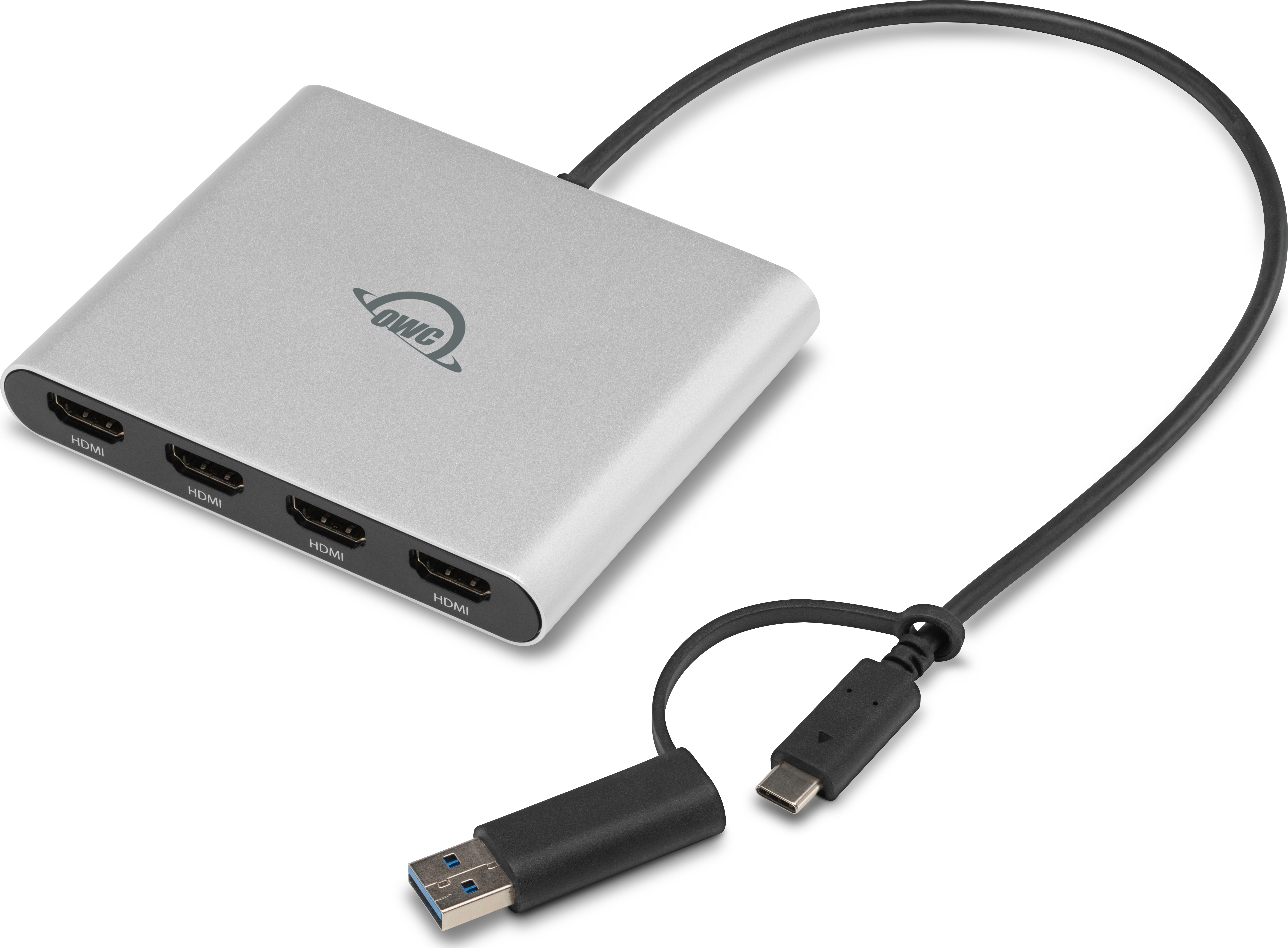
Introduction
1.1 System Requirements
Operating System & Hardware
- Works with any USB-C | Thunderbolt (USB-C) | USB-A equipped:
- Mac: macOS 11.x and later
- PC: Windows 10 and later
- Linux: current version recommended
- ChromeOS: current version recommended
Drivers
- Mac: requires downloading the DisplayLink Manager application
- Windows: requires downloading this DisplayLink driver
- Linux: requires downloading this DisplayLink driver
- Chrome: requires downloading this DisplayLink driver
1.2 Package Contents
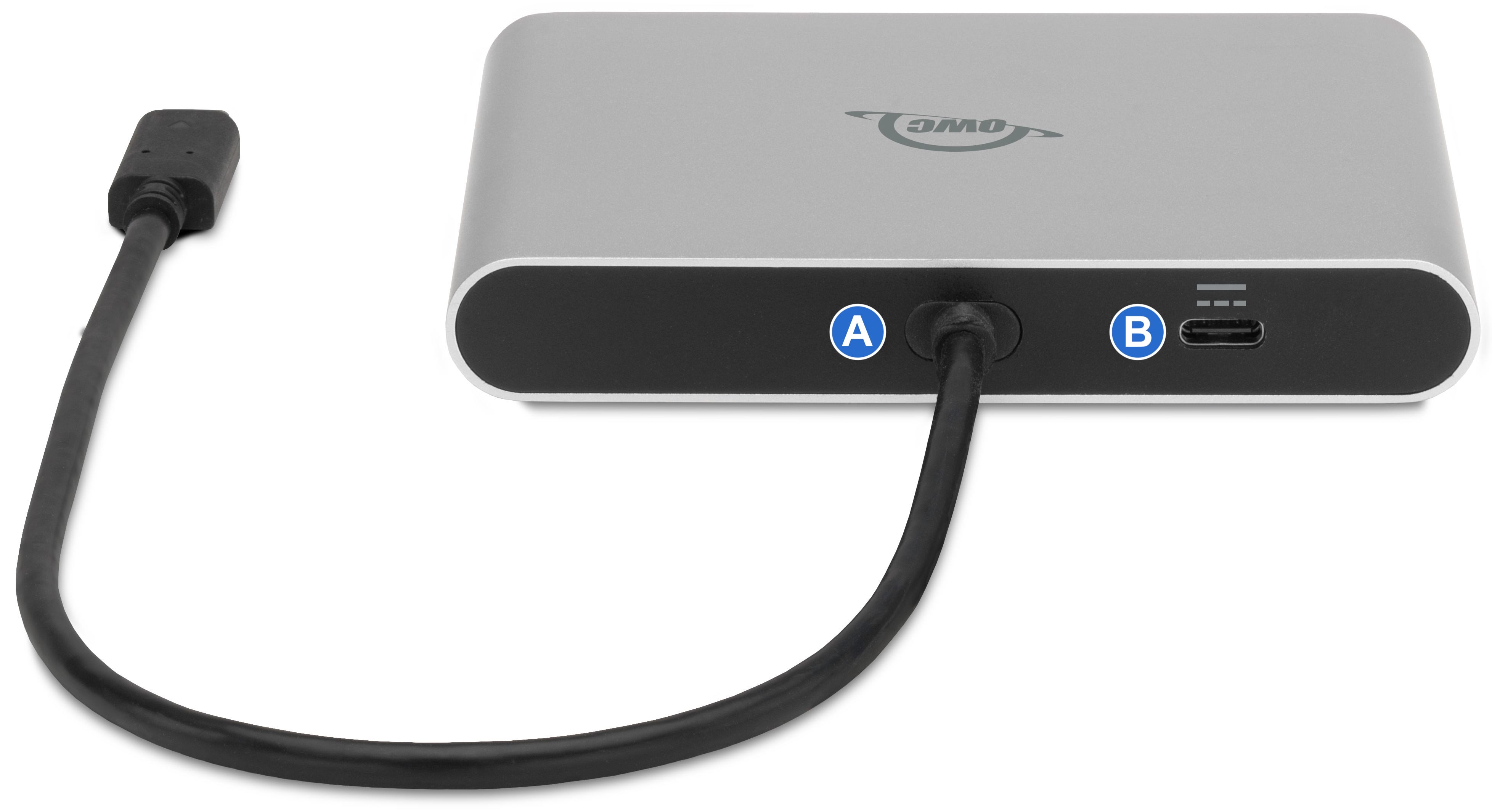
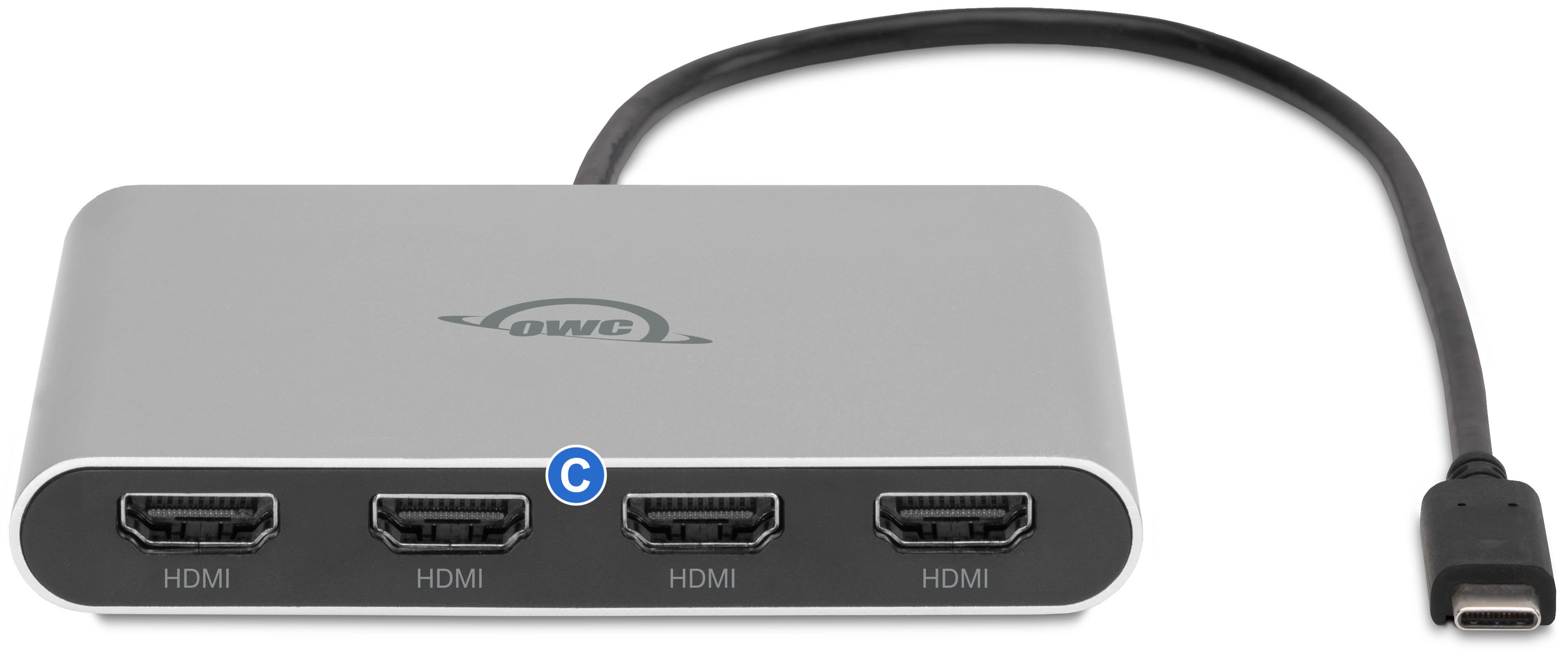
1.3 Overview
A. (1) Integrated USB Type-C cable
- Connect to any Mac, PC, or Chromebook with USB-C or Thunderbolt (USB-C).
- Includes tethered USB-C to USB-A adapter
B. (1) 90W USB Type-C power pass-through port
- Connect a USB Type-C power adapter to charge the host system
- NOTE: USB Type-A connections do not support power pass-through
C. (4) HDMI 2.0 ports
- Connect up to four HDMI display cables
- (4) External Displays - 4K @ 60Hz (3840 x 2160)
Getting Started
2.1 Device Setup
- This section describes the process of setting up the OWC USB-C Quad HDMI 4K Display Adapter.
Driver Requirement
1. Download and install the appropriate driver based on the host computer and operating system:
2. Mac Users: The DisplayLink Manager application must remain open for the connected displays to be recognized. This application can be set to automatically launch after login.
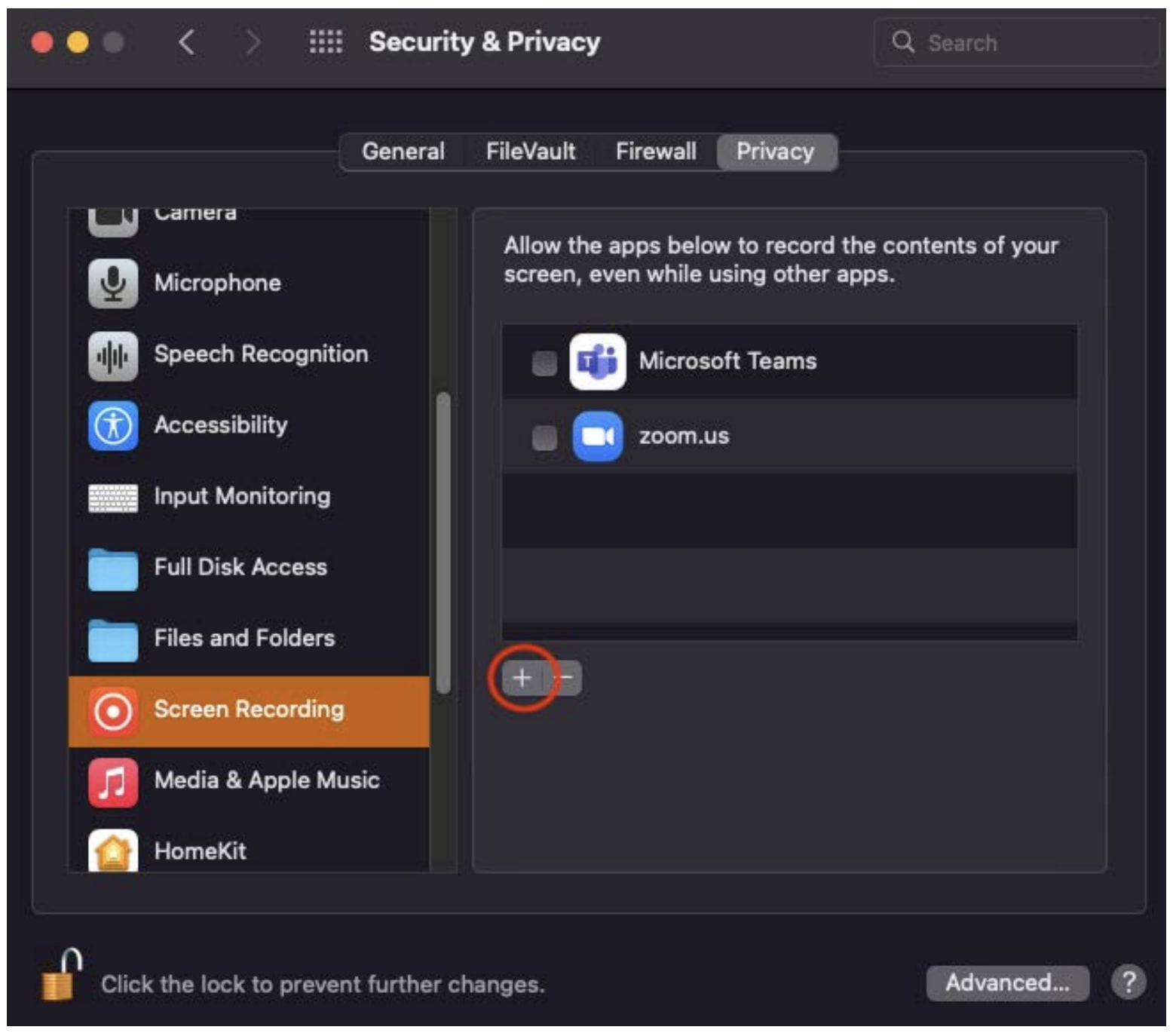
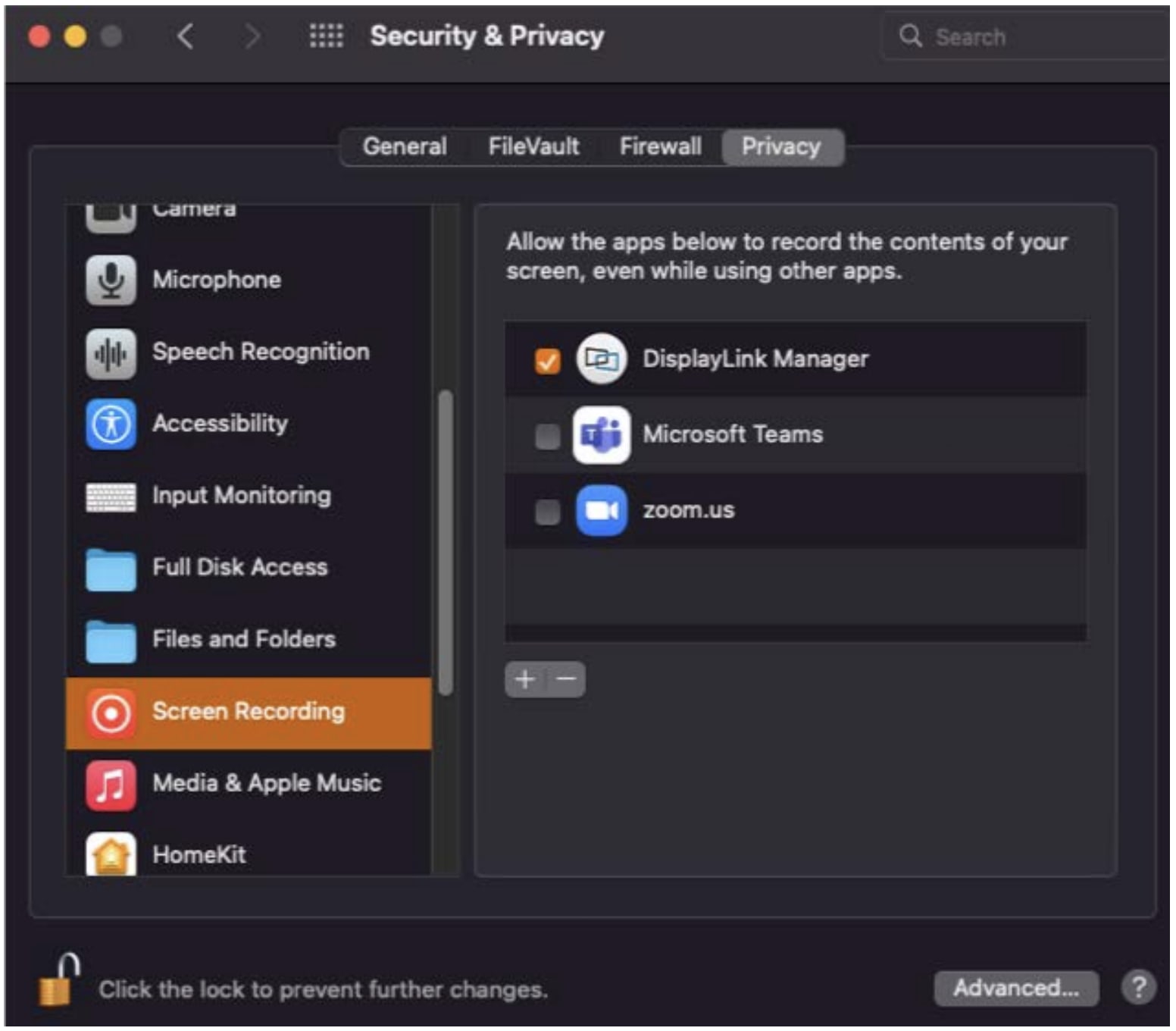
3. Mac Users: Screen recording with the DisplayLink Manager will need to be allowed. Allowing screen recording is required for the displays to be recognized by the host.
- Go to System Preferences > Security & Privacy.
- If the lock at the bottom left of the pane is locked, click it and enter your administrator password to unlock the preference pane.
- In the left column of the Privacy tab:
- Choose "Screen Recording" from the available options.
- Click on + to add an application.
- Select "Applications".
- Select "DisplayLink Manager".
- Select "Open".
Connecting Device
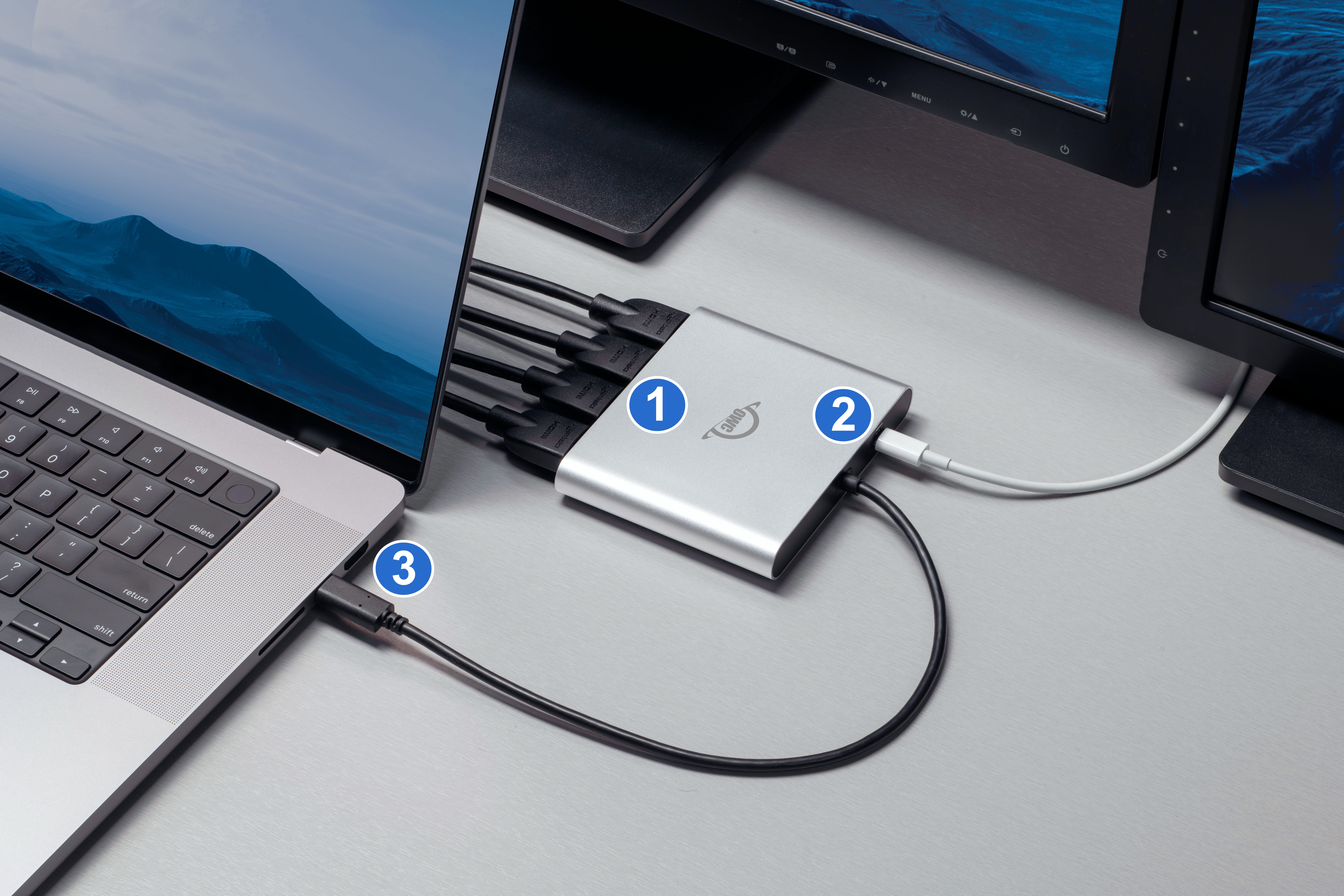
1. Connect up to (4) HDMI display cables to the OWC USB-C Quad HDMI 4K Display Adapter.
2. Optional: Connect a USB Type-C power adapter into the OWC USB-C Quad HDMI 4K Display Adapter.
3. Connect the OWC USB-C Quad HDMI 4K Display Adapter to a compatible system.

Device Management
3.1 Usage Notes
- macOS Users: The driver is incorporated with the DisplayLink Manager application.
- macOS Users: The connected displays will not be recognized by the host if the DisplayLink Manager application is not open.
- Dual display support, including available resolution and refresh rates, is dependent on host hardware and drivers.
- Please review the Apple silicon External Display Support support article for more details regarding how many displays can be connected to an Apple silicon Mac system.
- Apple Intel-based Mac models and Thunderbolt 4 PCs can support up to two displays at up to 4K @ 60Hz.
- Displays that do not have Display Stream Compression (DSC) will experience lower refresh rates.
- Please review the Apple silicon External Display Support support article for more details regarding how many displays can be connected to an Apple silicon Mac system.
- USB Type-A connections do not support power pass-through.
Support Resources
4.1 Troubleshooting
- Verify the USB-C cable is securely connected between the OWC USB-C Quad HDMI 4K Display Adapter and system.
- Connect the OWC USB-C Quad HDMI 4K Display Adapter to a different system.
- Mac Users: Ensure the DisplayLink Manager application is open if the connected displays are not recognized by the host.
- Ensure the proper driver for DisplayLink adapters is installed if the connected displays are not recognized by the host.
- Power pass-through will not function if the adapter is connected over USB-A.
- Check power input to the monitors if not recognized by the host. Trying a different HDMI cable my resolve any display connection issues.
- We are very sorry If issues continue to occur. Please know that OWC support is here to help.
- Contact information for our support can be found in section 4.3 "Contacting Support".
- Please have your serial number ready which is located on the bottom of the OWC USB-C Quad HDMI 4K Display Adapter and printed on the original packaging.
- Contact information for our support can be found in section 4.3 "Contacting Support".
4.2 Online Resources
- OWC USB-C Quad HDMI 4K Display Adapter Product Page
- OWC USB-C Dual HDMI Display Adapter Support Guide Page
- DisplayLink Driver Installers
4.3 Contacting Support
4.4 About This Manual
The images and descriptions may vary slightly between this manual and the unit shipped. Functions and features may change depending on the firmware version or driver version, if applicable. Please visit the product web page for the most recent product information. OWC’s Limited Warranty is not transferable and subject to limitations.
General Use Precautions
- To avoid damage, do not expose the device to temperatures outside the following ranges:
- Environmental (Operating)
- Temperature (ºF): 41º — 95º
- Temperature (ºC): 5º — 35º
- Environmental (Non-Operating)
- Temperature (ºF): -4º — 140º
- Temperature (ºC): -20º — 60º
- Environmental (Operating)
- Always unplug the device from the electrical outlet if there is a risk of lightning or if it will be unused for an extended period-of-time. Otherwise, there is an increased risk of electrical shock, short-circuiting, or fire.
- Protect your device from excessive exposure to dust during use or storage. Dust can build up inside the device, increasing the risk of electrical shock, short-circuiting, or fire.
Safety Precautions
- Use proper anti-static precautions when handling this device. Failure to do so can increase the risk of electrical shock or short-circuiting.
- Never expose your device to rain, or use it near water, or in damp wet conditions. Never place objects containing liquids on the device, as they may spill everywhere and into the openings. This will increase the risk of electrical shock, short-circuiting, fire, or personal injury.
- To avoid any risk of electrical shock, short-circuiting, fire, or dangerous emissions, never insert any metallic object into the device.
- Please cease use of the device and contact OWC Support if it appears to be malfunctioning.
Terms & Conditions of Sale
Warranty
OWC’s products are subject to OWC’s Terms & Conditions of Sale located at Terms of Sale or other applicable terms. The OWC USB-C Quad HDMI 4K Display Adapter comes with a 1-Year Limited Warranty. Additional warranty information can be viewed by visiting Hardware Warranties.
Changes
The material in this document is for information purposes only and subject to change without notice. While reasonable efforts have been made in the preparation of this document to assure its accuracy, OWC, its parent, partners, affiliates, officers, employees, and agents assume no liability resulting from errors or omissions in this document, or from the use of the information contained herein. OWC reserves the right to make changes or revisions in the product design or the product manual without reservation and without obligation to notify any person of such revisions and changes.
FCC Statement
Warning! Modifications not authorized by the manufacturer may void the user’s authority to operate this device.
NOTE: This equipment has been tested and found to comply with the limits for a Class B digital device, pursuant to Part 15 of the FCC Rules. These limits are designed to provide reasonable protection against harmful interference in a residential installation. This equipment generates, uses and can radiate radio frequency energy and, if not installed and used in accordance with the instructions, may cause harmful interference to radio communications. However, there is no guarantee that interference will not occur in a particular installation. If this equipment does cause harmful interference with radio or television reception, which can be determined by turning the equipment off and on, the user is encouraged to try to correct the interference by one or more of the following measures:
- Reorient or relocate the receiving antenna.
- Increase the separation between the equipment and receiver.
- Connect the equipment to an outlet on a circuit different from that to which the receiver is connected.
Copyrights and Trademarks
© 2025 Other World Computing, Inc. All rights reserved. OWC, and the OWC logo are trademarks of New Concepts Development Corporation, registered in the U.S. and/or other countries. Mac and macOS are trademarks of Apple Inc., registered in the U.S. and other countries. Thunderbolt and the Thunderbolt logo are trademarks of Intel Corporation in the U.S. and/or other countries. Other marks may be the trademark or registered trademark property of their owners. No part of this publication may be reproduced, stored in a retrieval system, or transmitted in any form or by any means, electronic, mechanical, photocopying, recording or otherwise, without the prior written consent of OWC.
Free Support Chat
Our free award-winning support team is ready to answer all of your questions. Technical support is available Monday - Friday: 9AM - 6PM. Customer Support & Sales is available Monday - Friday: 9AM - 6PM. Support is unavailable on U.S. Federal holidays. Talk to a human today.