


 1-800-275-4576

OWC USB4 Hub
Support Manual
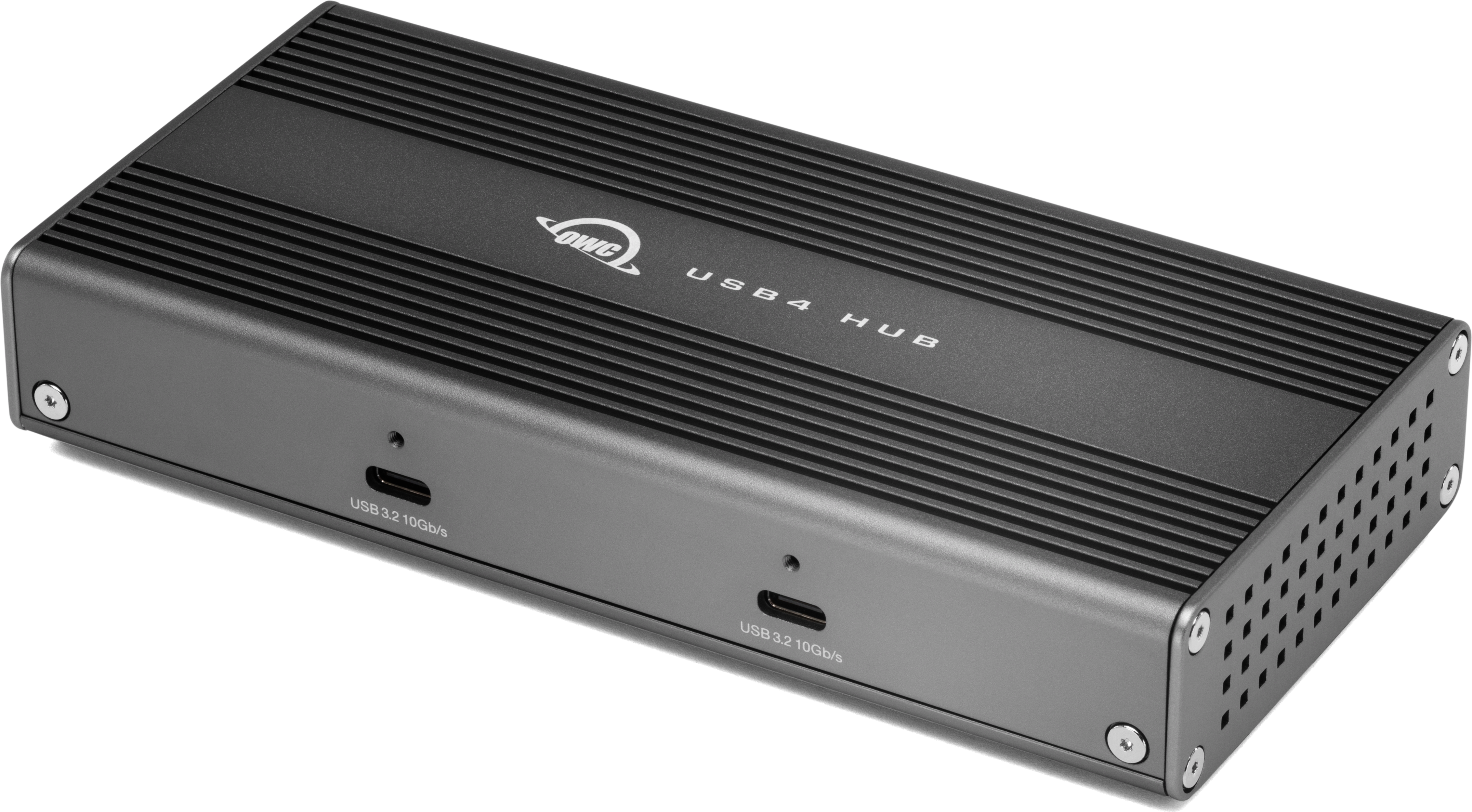
Introduction
1.1 System Requirements
Operating System & Hardware
Works with any Thunderbolt 5 | Thunderbolt 4 | Thunderbolt 3 (Mac Only) | USB4 equipped:
- Mac: macOS 15.x or later
- PC: Windows 11 or later
- Chromebook: current Chrome OS version recommended
- Modern iPad Pro: current iPadOS version recommended
- Linux: current Ubuntu version recommended
1.2 Package Contents
- (1) OWC USB4 Hub
- (1) USB4 40Gb/s Cable
- (1) External Power Supply (100W, +20V, 5A)
- (1) US Power Cable (3-Prong IEC C5)
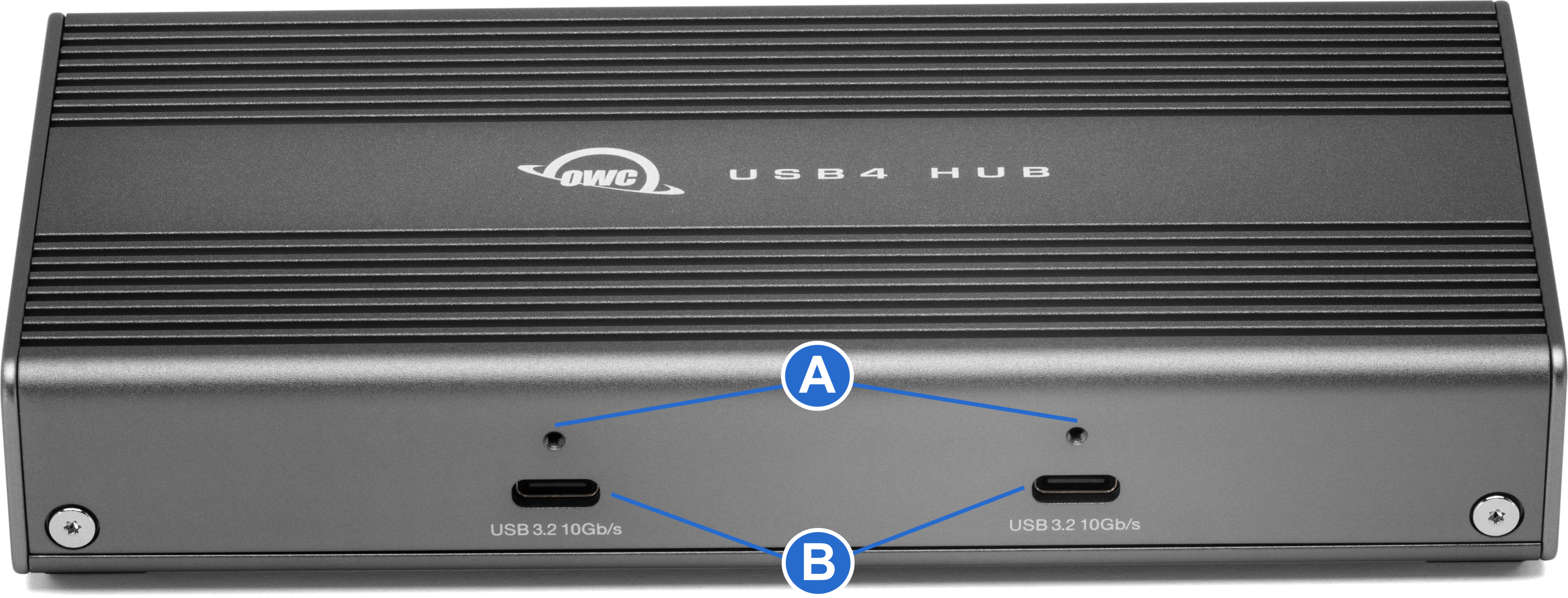
1.3 Front View
A. (2) OWC ClingOn-ready cable stabilizer mounts – Affix ClingOn to help prevent accidental cable disconnections (sold separately)
B. (2) USB 3.2 Gen 2 (10Gb/s) Type-C ports – Connect USB peripheral devices.
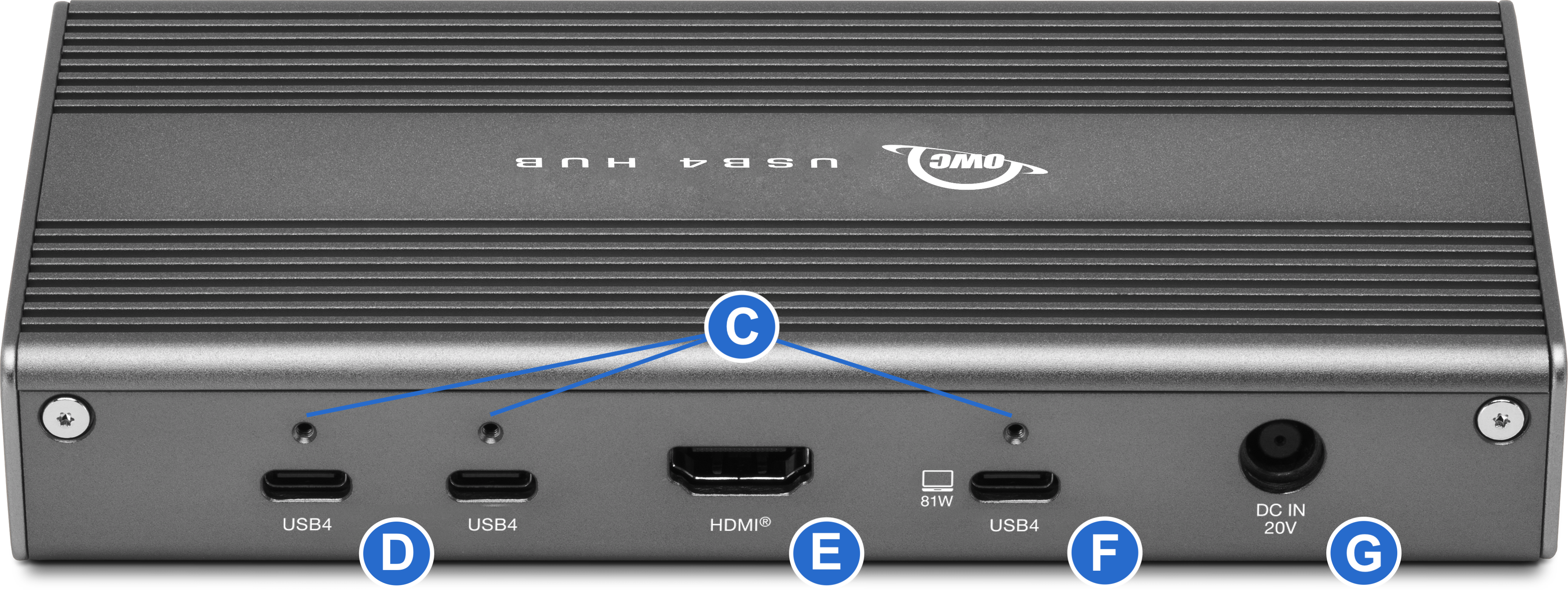
1.4 Rear View
C. (3) OWC ClingOn-ready cable stabilizer mounts – Affix ClingOn to help prevent accidental cable disconnections (sold separately)
D. (2) USB4 Ports – Connect compatible Thunderbolt 3 or later | USB-C devices.
E. (1) HDMI 2.1 Port - Connect compatible HDMI devices
F. (1) USB4 81W Host Port - Connect to a compatible host
G. (1) DC IN 21V Power Port – Connect the included 100W power supply.
- AC Input: 100-240V, 50/60Hz 1.5A | DC Output: 20V/5A | Wattage: 100W
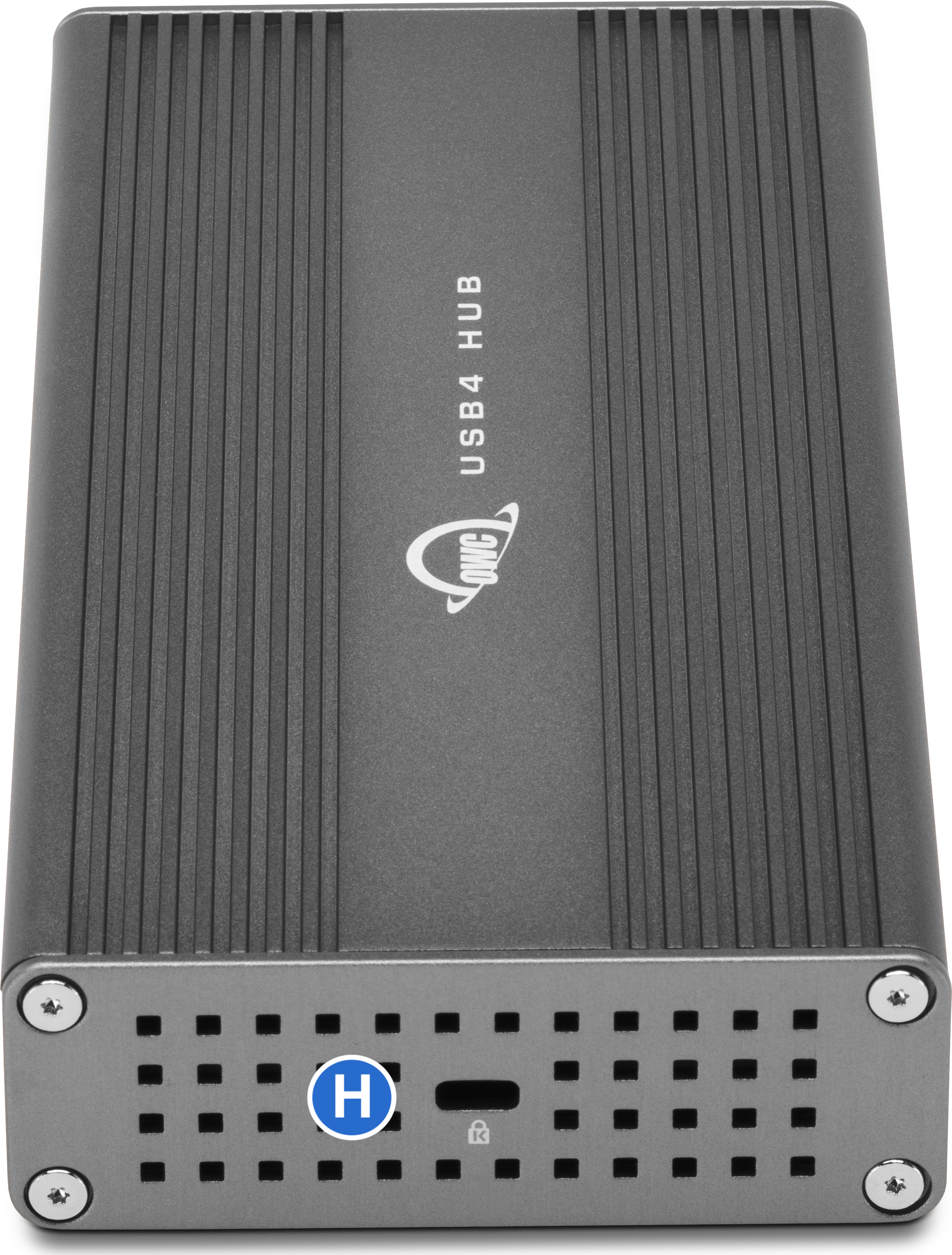
1.5 Side View
H. (1) Kensington Nano Security Slot – Connect a Kensington security tether.
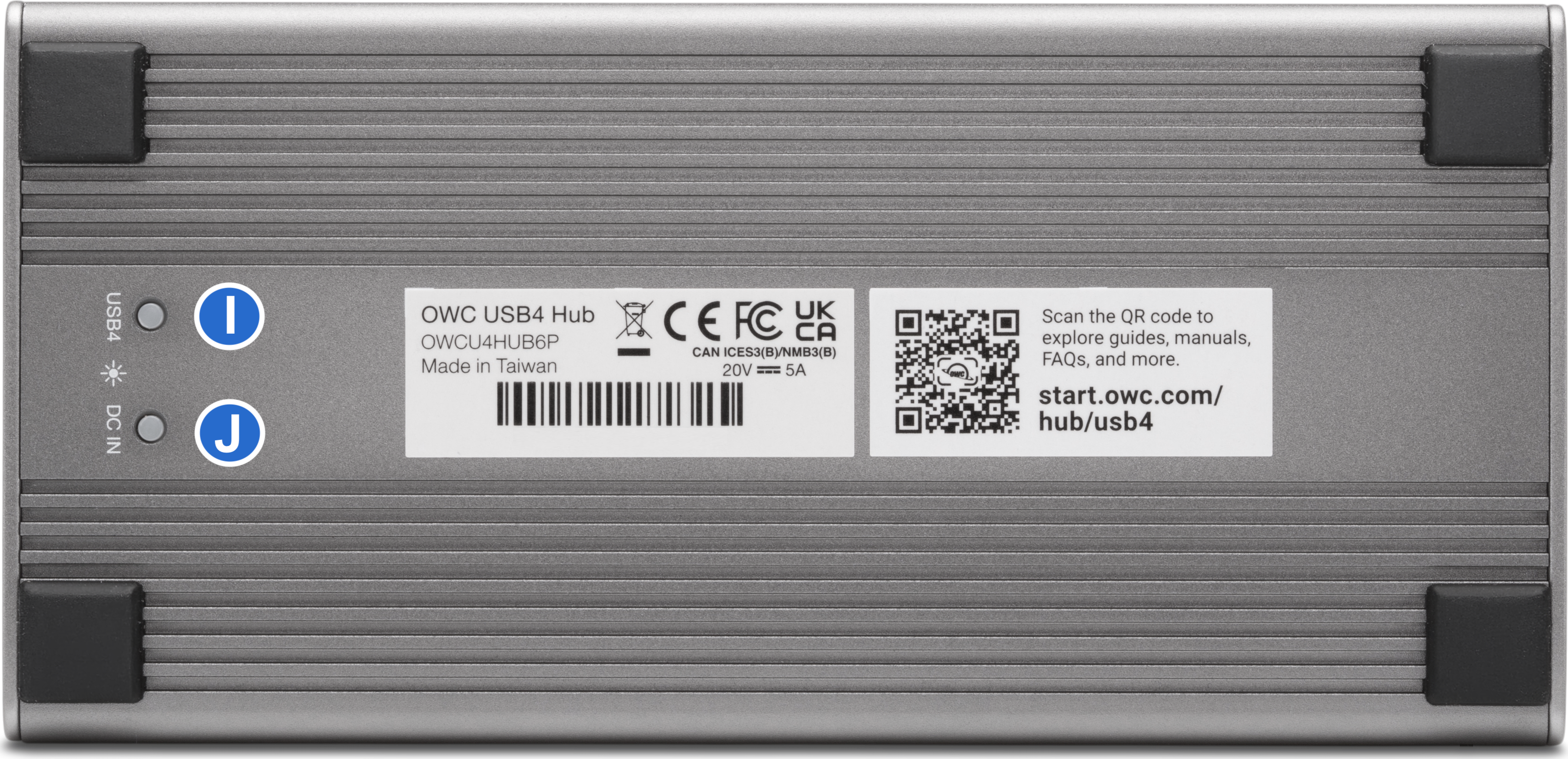
1.6 Bottom View
I. (1) Data Status LED -
- Solid Blue = Data Access Established
J. (1) Power Status LED -
- Solid White = Power Established
Getting Started
2.1 Device Setup
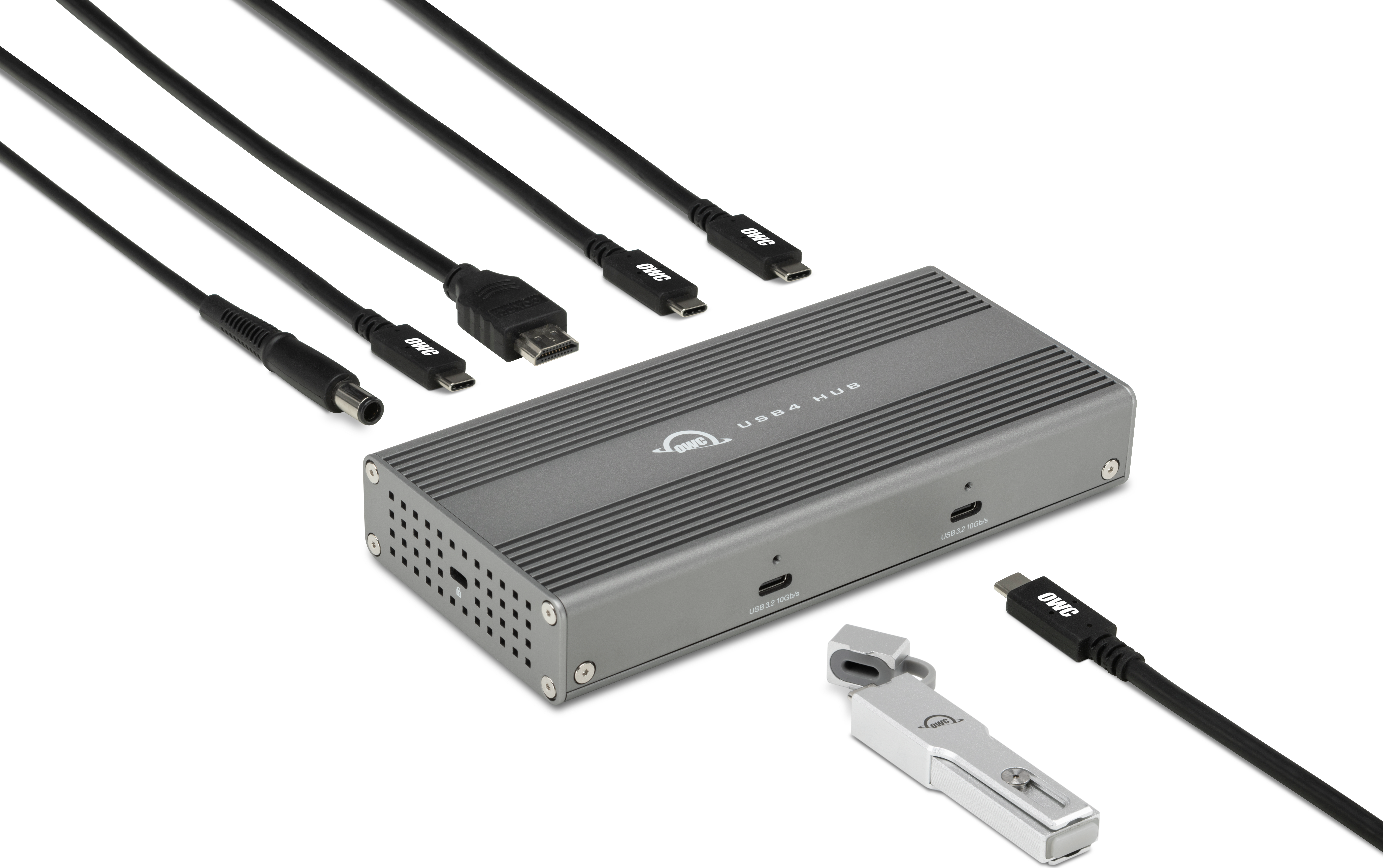
This section describes the process of connecting the OWC USB4 Hub.
- Plug the power cable into the OWC USB4 Hub DC IN power port located on the back and into a power outlet. The Power Status LED will illuminate a solid white.
- Connect the included USB4 cable into the USB4 Host Port located on the back of the OWC USB4 Hub and into a system. The Data Status LED will illuminate a solid Blue
- Connect other devices to the appropriate ports on the dock.
Mac Users: To enable support for the Apple Super Drive, Apple USB Keyboard, and high powered USB charging, please install OWC Dock Ejector for Mac.
Device Management
3.1 Unmounting Volumes
To ensure no data is lost during normal use, always eject or unmount the corresponding disk(s) from your operating system before powering off the device. Unmounting options are provided below.
OWC Dock Ejector
- This application safely ejects all volumes connected to the OWC USB4 Hub with a single click, adding peace of mind to fast-paced mobile workflows. To install this app, please follow the steps below.
- NOTE: Enables support for the Apple Super Drive, Apple USB Keyboard, and high powered USB charging.
- Download the installer file for Mac or Windows.
- Launch the installer and complete the prompts. No restart is required.
- An OWC Dock Ejector icon will appear in the macOS menubar, or System Tray on Windows, once the app is running.
- Clicking on the icon will provide options to unmount connected volumes.
- Please review the Support Manual for OWC Dock Ejector for more details.
Manually Unmounting Volumes
macOS
- Drag the icon for the device you wish to unmount to the trash can; OR
- Right-click the device icon on the desktop, then click “Eject”; OR
- Highlight the device on your Desktop and press Command-E.
Windows
- Windows 10 build 1809 (October 2018) or later:
- Eject the drive by clicking the ‘Show hidden items’ menu in the Taskbar, then clicking ‘Safely Remove Hardware and Eject Media’, and last select the ‘Eject’ option for this volume.
- Windows 10 build 1803 and earlier:
- Go to the System Tray (located in the lower right corner of your screen). Click on the “Eject” icon (a small green arrow over a hardware image).
- A message will appear, detailing the devices that the “Eject” icon controls, i.e., “Safely remove...” Click on this prompt.
- You will then see a message that says, “Safe to Remove Hardware.” It is now safe to disconnect the device from the computer.
3.2 External Display Resolution
- One External Display: Connected with Downstream HDMI 2.1 or USB4 Port.
- Higher refresh rates (above 60Hz) require DSC (Display Stream Compression) support on the monitor.
- USB4 supports DP Alt Mode
|
Connection Methods |
Resolution |
Video Display Frequency |
|---|---|---|
|
Downstream |
|
|
|
Downstream |
|
|
Two External Displays: Connected with Downstream HDMI 2.1 and USB4 Port.
- Higher refresh rates (above 60Hz) require DSC (Display Stream Compression) support on the monitor.
- USB4 supports DP Alt Mode
|
Connection Methods |
Resolution |
Video Display Frequency |
|---|---|---|
|
Downstream |
|
|
|
Downstream |
|
|
3.3 Usage Notes
- All ports support hot-plugging. To ensure no data is lost, always eject or unmount any connected storage devices from your operating system before disconnecting them from your hub (or before disconnecting the hub from the host computer).
- The OWC USB4 Hub power supply is 100W. The power delivery supplied to the host system will vary between 81W and 50W based on the power delivery supplied to other devices connected to downstream ports.
- Mac Users: To enable support for the Apple Super Drive, Apple USB Keyboard, and high powered USB charging, please install OWC Dock Ejector for Mac.
- It is possible to connect other types of displays such as HDMI and DisplayPort to an available USB4 Port, so long as you have the appropriate USB-C display adapter (e.g. a USB-C to HDMI cable, or a USB-C to DisplayPort cable).
- The OWC USB4 Hub is capable of supporting up to one 8K display @ 60Hz over HDMI 2.1, or one 4K display @ 240Hz over USB4, or one 8K display @ 60Hz and one 4K display @ 240Hz. Display support, including available resolution and refresh rates, is dependent on the display and host system capabilities.
- Please review the Apple silicon External Display Support support article for more details regarding performance how many external displays can be connected to an Apple silicon Mac system.
- Higher refresh rates (above 60Hz) require DSC (Display Stream Compression) support on the monitor.
- NOTE: Apples's Pro 6K XDR Display is not supported. Apple recommends connecting the included Thunderbolt 3 Pro Cable (2 m) to the Thunderbolt 3 port on your display and a Thunderbolt 3 port directly on your Mac, not daisy-chained through another Thunderbolt 3 device or hub.
Support Resources
4.1 Troubleshooting
- If your host system does not recognize the OWC USB4 Hub when it is connected:
- Verify the USB4 40Gb/s Cable (included) is securely connected between the OWC USB4 Hub and host system.
- Connect the OWC USB4 Hub and host system with a different USB4 cable.
- Connect the OWC USB4 Hub to a different host system.
- Verify the USB4 40Gb/s Cable (included) is securely connected between the OWC USB4 Hub and host system.
- Windows users experiencing slow read/write speeds should consider checking and changing the Windows disk removal policy.
- Please review the support article Storage Solutions: OWC Disk Performance for additional details.
- We are very sorry If issues continue to occur. Please know that OWC support is here to help.
- Contact information for our support can be found in Section 4.4 "Contacting Support".
- Please have your serial number ready which is located on the bottom of the OWC USB4 Hub and printed on the original packaging.
4.2 Online Resources
Support Manuals:
Support Articles:
Downloads:
Product Pages:
- OWC USB4 Hub Product Page
4.3 About Data Backup
To ensure that your files are protected and to prevent data loss, we strongly suggest that you keep two copies of your data on either your internal drive or another storage medium, such as an optical backup, or on another external storage unit. Any data loss or corruption while using the OWC USB4 Hub is the sole responsibility of the user, and under no circumstances may OWC, its parents, partners, affiliates, officers, employees, or agents be held liable for loss of the use of data including compensation of any kind or recovery of the data.
4.4 Contacting Support
4.5 About This Manual
The images and descriptions may vary slightly between this manual and the unit shipped. Functions and features may change depending on the firmware version. The latest product details and warranty information can be found on the product web page. OWC’s Limited Warranty is not transferable and
General Use Precautions
- To avoid damage, do not expose the device to temperatures outside the following ranges:
- Environmental (Operating)
- Temperature (ºF): 32º - 95º
- Temperature (ºC): 0º - 35º
- Environmental (Non-Operating)
- Temperature (ºF): (-4)º - 140º
- Temperature (ºC): (-20)º - 60º
- Environmental (Operating)
- Always unplug the device from the electrical outlet if there is a risk of lightning or if it will be unused for an extended period-of-time. Otherwise, there is an increased risk of electrical shock, short-circuiting, or fire.
- Protect your device from excessive exposure to dust during use or storage. Dust can build up inside the device, increasing the risk of electrical shock, short-circuiting, or fire.
- Do not block any ventilation openings on the device. These help to keep the device cool during operation. Blocking the ventilation openings may increase the risk of electrical shock, short-circuiting, or fire.
Safety Precautions
- Use proper anti-static precautions when handling this device. Failure to do so can increase the risk of electrical shock or short-circuiting.
- Never expose your device to rain, or use it near water, or in damp wet conditions. Never place objects containing liquids on the device, as they may spill everywhere and into the openings. This will increase the risk of electrical shock, short-circuiting, fire, or personal injury.
- To avoid any risk of electrical shock, short-circuiting, fire, or dangerous emissions, never insert any metallic object into the device.
- Please cease use of the device and contact OWC Support if it appears to be malfunctioning.
Terms & Conditions of Sale
Warranty
OWC’s products are subject to OWC’s Terms & Conditions of Sale located at Terms of Sale or other applicable terms. The OWC USB4 Hub comes with a 2-Year Limited Warranty. Additional warranty information can be viewed by visiting Hardware Warranties.
Changes
The material in this document is for information purposes only and subject to change without notice. While reasonable efforts have been made in the preparation of this document to assure its accuracy, OWC, its parent, partners, affiliates, officers, employees, and agents assume no liability resulting from errors or omissions in this document, or from the use of the information contained herein. OWC reserves the right to make changes or revisions in the product design or the product manual without reservation and without obligation to notify any person of such revisions and changes.
FCC Statement
Warning! Modifications not authorized by the manufacturer may void the user’s authority to operate this device.
NOTE: This equipment has been tested and found to comply with the limits for a Class B digital device, pursuant to Part 15 of the FCC Rules. These limits are designed to provide reasonable protection against harmful interference in a residential installation. This equipment generates, uses and can radiate radio frequency energy and, if not installed and used in accordance with the instructions, may cause harmful interference to radio communications. However, there is no guarantee that interference will not occur in a particular installation. If this equipment does cause harmful interference with radio or television reception, which can be determined by turning the equipment off and on, the user is encouraged to try to correct the interference by one or more of the following measures:
- Reorient or relocate the receiving antenna.
- Increase the separation between the equipment and receiver.
- Connect the equipment to an outlet on a circuit different from that to which the receiver is connected.
Copyrights and Trademarks
© 2026 Other World Computing, Inc. All rights reserved. OWC and the OWC logo are trademarks of New Concepts Development Corporation, registered in the U.S. and/or other countries. Mac and macOS are trademarks of Apple Inc., registered in the U.S. and other countries. Other marks may be the trademark or registered trademark property of their owners.
No part of this publication may be reproduced, stored in a retrieval system, or transmitted in any form or by any means, electronic, mechanical, photocopying, recording or otherwise, without the prior written consent of OWC.
Free Support Chat
Our free award-winning support team is ready to answer all of your questions. Technical support is available Monday - Friday: 9AM - 6PM. Customer Support & Sales is available Monday - Friday: 9AM - 6PM. Support is unavailable on U.S. Federal holidays. Talk to a human today.