1-800-275-4576

Created on: February 1, 2016
Last updated: November 9, 2020
NOTICE: this article references products which are no longer sold by MacSales.
NewerTech sells two different versions of the same MAXPower 4-port USB / eSATA PCIe host adapter. Part number NWTMXPCIEL2ESU3 requires a driver and runs on Mac OS X versions 10.6 - 10.8.2. There is also a version that does not require a Mac driver — NWTMXPCIE2E2U3 — which runs on 10.8.3 and later. You need to match the correct version to your operating system and therefore occasionally you may need to verify which version you have installed. This article describes how to do that using the System Profiler (10.6) or System Information (10.7 and later) application.
1. Hold down the Option key and click the Apple menu. Choose "System Profiler" if you're using 10.6.x or "System Information" if you're using 10.7 or later.
2. Click the sidebar item that says "PCI Cards". This will display all recognized PCIe devices in your Mac Pro.
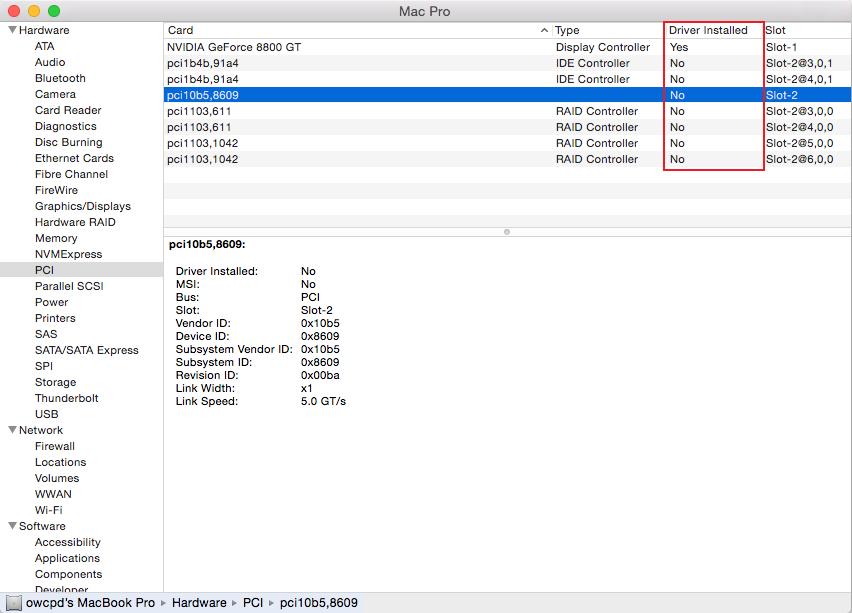
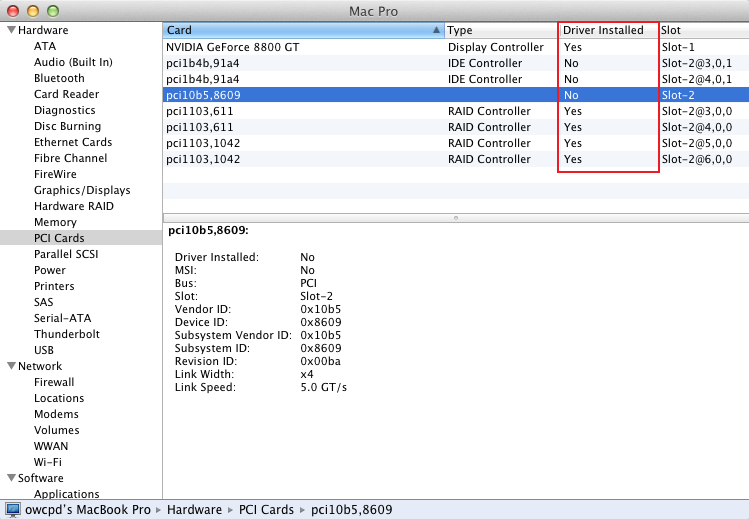
3. Note the right portion of the window is split into two sections. The top section lists several items related to your PCIe card including a column that shows "Driver Installed" (highlighted in red on the screenshots below). This column is important to identifying your card type. The lower section also has important information but you can ignore the "Driver Installed" item in this location. More important is the "Link Speed" item, for reasons that are described below.
4. Check the scenario screenshots below and compare them to what you see on your screen with your MAXPower card installed, in order to identify your combination of OS X and card type, and to verify that your setup is supported.
IMPORTANT: note that many of the line items for the PCIe card are identified as being in the same Slot (e.g. in the first scenario below, Slot-4). This is how you know the items in question are a part of the same card. The important thing to remember is whether the shot in the scenario matches the one on your screen. The controller names and types are secondary.
If you are still having trouble identifying your card or getting the card to work afterward, please contact our Technical Support team at 800-275-4576.
Scenario 1: The Driverless Card (NWTMXPCIE2E2U3) Installed in a Mac Pro with 10.8.3 or later (supported), but in a low bandwidth (PCIe 1.0) slot. This will work but it negatively impact affect performance. Note the "Link Speed" in the lower panel.
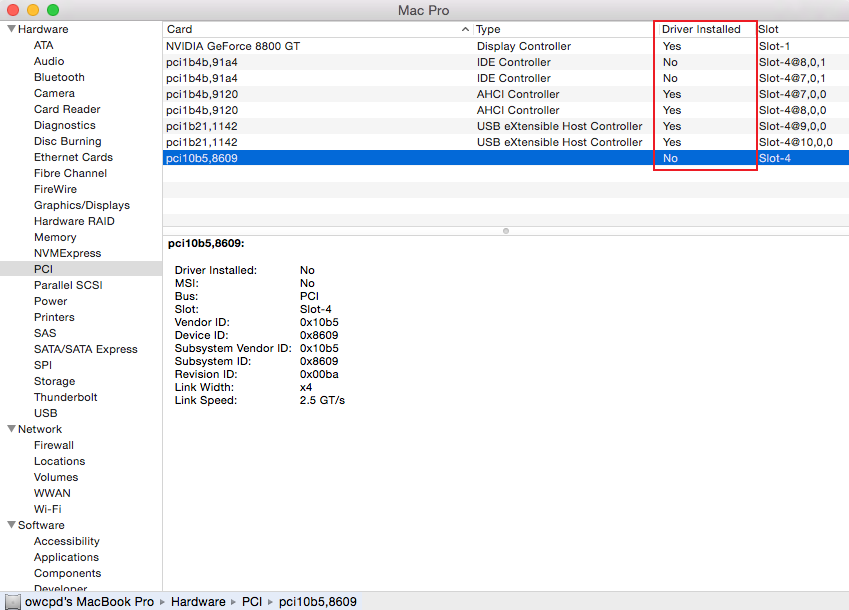
Scenario 2: The Driverless Card (NWTMXPCIE2E2U3) Installed in a Mac Pro with 10.8.3 or later (supported), but in a high bandwidth (PCIe 2.0) slot. This will provide the best possible performance. Note the "Link Speed" in the lower panel.
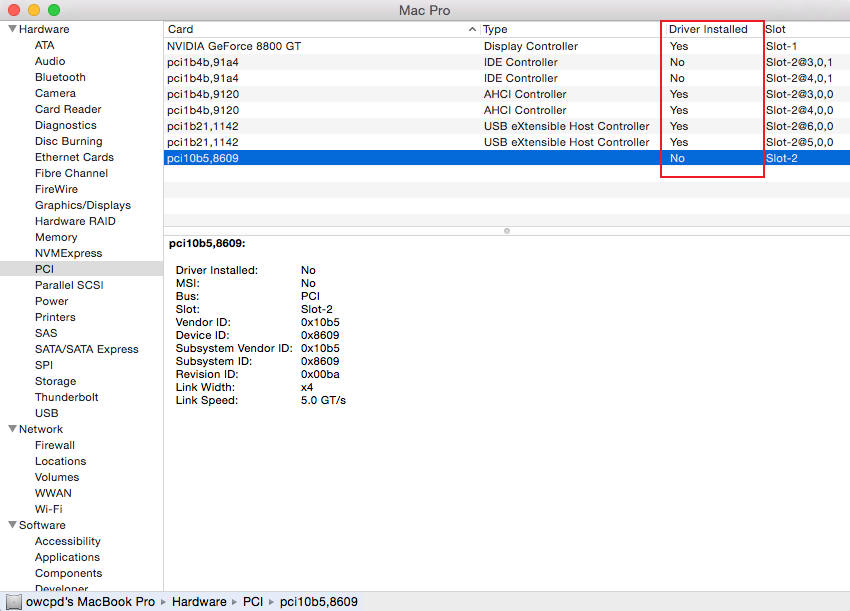
Scenario 3: The Driverless Card (NWTMXPCIE2E2U3) Installed in a Mac Pro with 10.8.2 or earlier (not supported). Depending on the version of OS X you have, you may see only two items that say "yes" under "Driver Installed", or potentially no items.
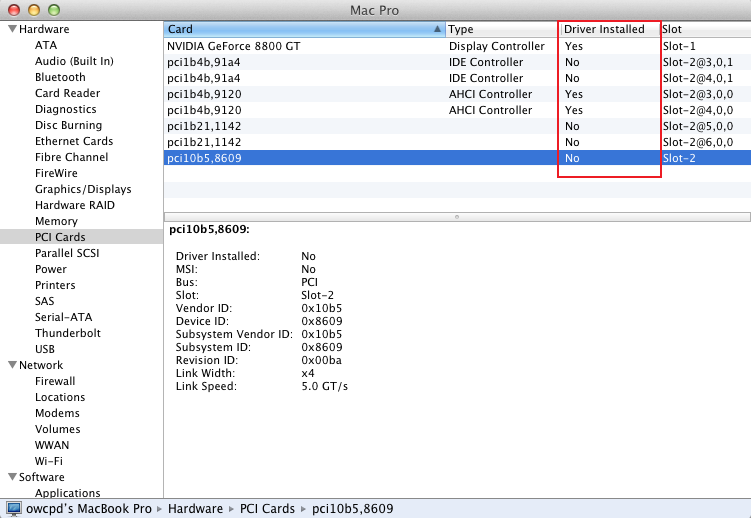
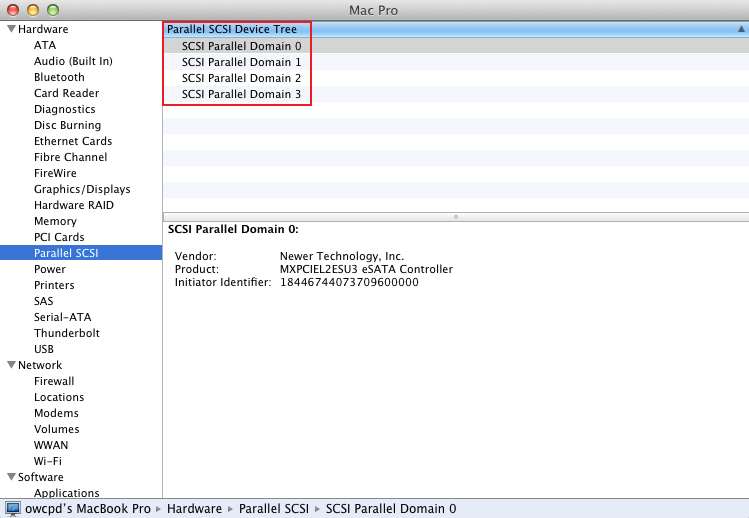
Scenario 4: The card which requires a driver (NWTMXPCIEL2ESU3), installed in a Mac Pro with 10.8.2 or earlier (supported). Note in this case that you will also see information in the "Parallel SCSI" section (second screenshot below). In this example the card is also installed in the proper slot to give maximum bandwidth, similar to Scenario 2.
Scenario 5: The card which requires a driver (NWTMXPCIEL2ESU3), installed in a Mac Pro with 10.8.2 or earlier, but without a driver (not supported). Note the "Driver Installed" column lists "No" for all of the items in Slot 2 (where the card was installed in this example). Click here to download the driver.
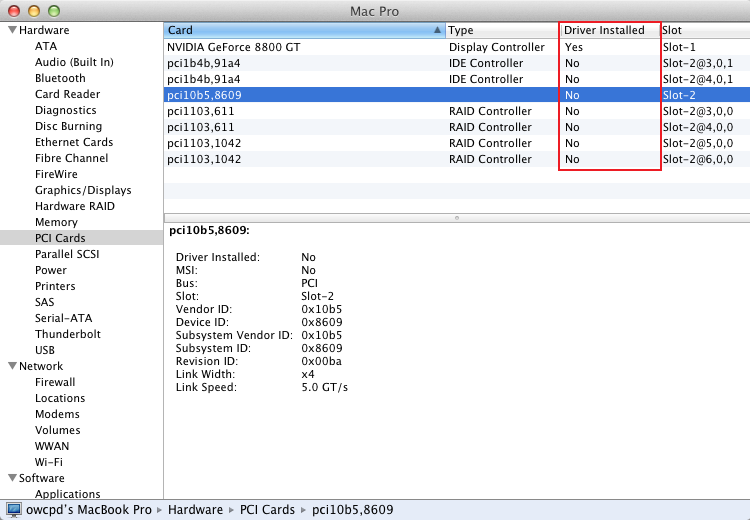
Scenario 6: The card which requires a driver (NWTMXPCIEL2ESU3), installed in a Mac Pro with 10.8.3 or later (not supported).