






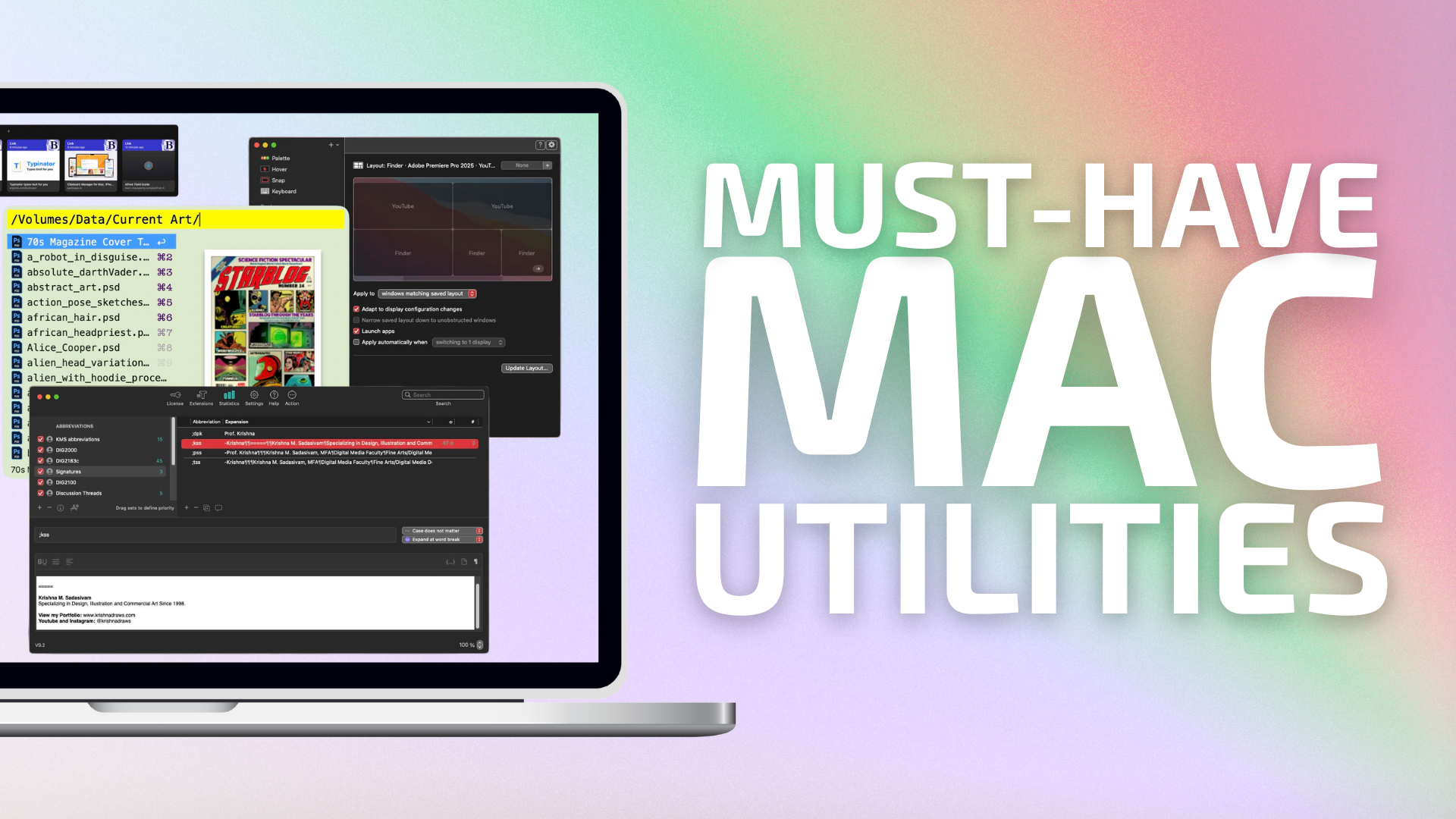
Everyone seems to like lists. But that ones that are most interesting, in my view, are the ones that are highly opinionated. This list is no different. You may not agree with my picks, but they are specific to how I use my Mac. A good list will generate conversation, and that’s the spirit of my intent.
Below is a highly curated list of the five Mac utilities I install on every new Mac. In making this list, I forced myself to consider what I absolutely need to use to make the most of my day-to-day computing. No fluff. No junk.
Just the absolute basics.
Put another way: without these utilities, my macOS experience would be akin to running in the sand: doable, but painfully so. So, without further ado, let’s get into it.
Alfred

Alfred (version 5) is a powerful, free macOS launcher, and blows Apple’s own Spotlight right out of the water. I use Alfred for just about everything: launching applications, performing quick calculations and unit conversions, navigating through files and folders and much, much more. Coupled with the paid Alfred PowerPack, Alfred allows me to quickly search my Mac’s menu bar, mute/unmute my Mac’s microphone, and much, much more. These days, Alfred feels a little dated in terms of its looks, even with its ability to customize the launcher’s overall user interface (UI). However, its functionality remains rock solid, and that’s why it stays on the list. As a brief aside, I highly recommend David Spark’s Alfred Field Guide. It helped me really unlock Alfred’s true potential as a productivity powerhouse.
Paste
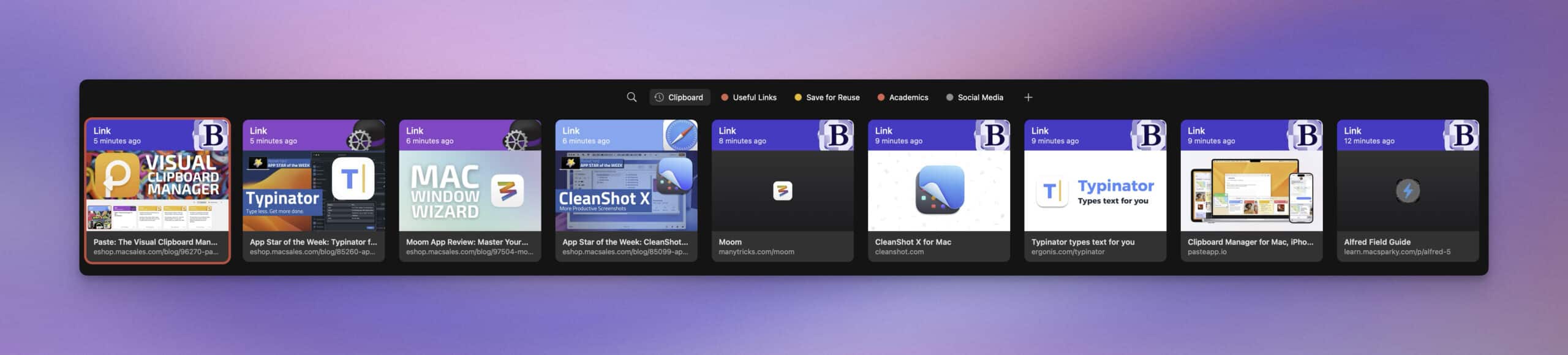
Paste ($30US/year) is a comprehensive, visual clipboard manager that syncs across all of my Apple devices. Not only can I access clipboards across my Mac, iPhone and iPad, I can also save, mark and organize my clipboard items for later use. There are other Mac clipboard managers, but Paste’s ease of use and visual approach make it the clipboard manager to beat, in my opinion.
Typinator

Typinator (v9.2) is a powerful text expansion tool, designed specifically for macOS. If you find yourself typing the same sentence or phrase over and over again, save it in Typinator, and assign each item as a custom keyboard shortcut. Personalize your boilerplate responses by adding custom variables, for items like first names or phone numbers. Unlike other text expansion utilties, Typinator can be purchased stand-alone, without subscription.
CleanShot X

CleanShot X (v4.8) rethinks the process of taking screenshots and screen-recording in macOS. Quickly capture, edit and convert your recordings locally or save them to the cloud if you are sharing them with others. CleanShot X includes plenty of beautiful annotation tools, so your screenshots will always look great. I use CleanShot X nearly every day. Put another way: my YouTube channel wouldn’t exist if it weren’t for CleanShot X’s screen recording option.
Moom

Moom greatly expands your Mac’s window management by offering saved window layout options. Moom makes it easy to quickly switch between different tasks on your Mac. Each task includes saved applications and their corresponding window layouts, which means I can focus on the work at hand instead of managing my windows. Every time I use Moom, I’m saving 3 minutes.
Each of these Mac utilities save me time by reducing / eliminating friction in my day-to-day work flow. With them, I can focus on high-level tasks instead of micro-managing my Mac. I can’t fathom using a Mac without them. Period.








My #1 utility I can’t live without is Default Folder. Now some Apple apps no longer use the standard system file dialog, but for those that do, this provides immediate access to locations and auxiliary services (like file renaming) I use all the time. I’m not sure when I started using this, at least 20 years ago, and possibly 30 years….
The very few times I’ve needed help, the developers have been responsive.
Default Folder is indispensable. I agree, David.