






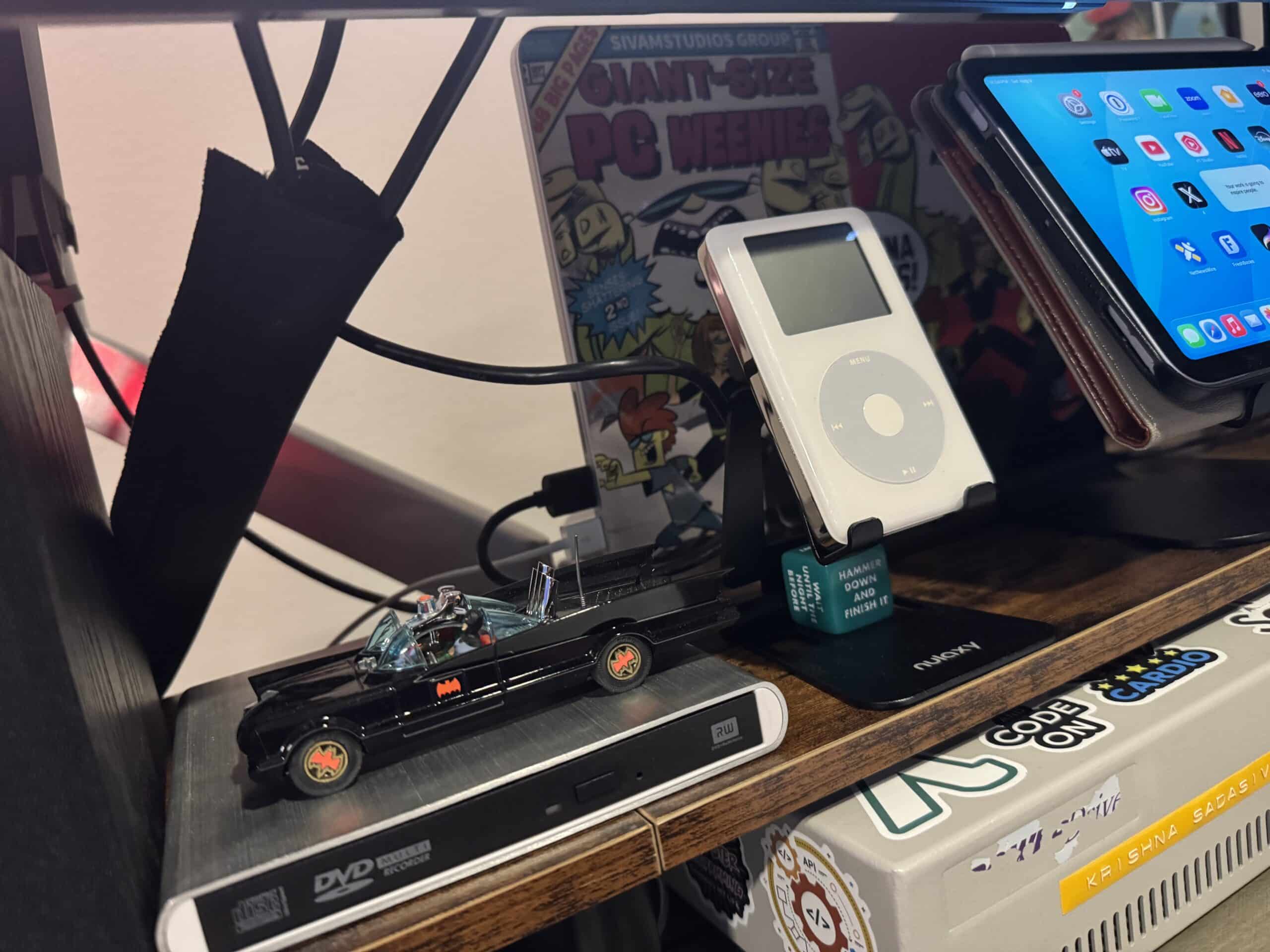
For the past 30 days, I’ve been using Fedora KDE Plasma (a Linux distribution) on a mid-2014 13” MacBook Pro with 8GB of RAM and 1TB solid state NVME drive. I selected this particular flavor of Linux due to its overall robustness and ease of use.
Why Linux? For starters, the mid-2014 MacBook Pro no longer receives software updates from Apple. And the last version of macOS that this Mac laptop supported (Big Sur) was so painfully sluggish, it was practically unusable. While this MacBook Pro is more than a decade old, it still looks good. A few years ago, I replaced its battery and swapped out the anemic internal 256GB SSD for a beefier 1TB upgrade.
Linux has made considerable strides in the last 10 years. According to statcounter, as of July 2025, Linux represents about 3.9% of the desktop operating market share world wide. That number may sound insignificant, but macOS is only 4.91% by comparison.
Contrary to what Apple or Microsoft marketing messages may suggest, old computers still have a lot of life left in them. Many people discard perfectly usable computers, because they can’t run the latest flavors of macOS or Windows. Linux breaks that limitation: it represents the best of both worlds: you can run the latest version of Linux on older hardware. And best of all, Linux is free!
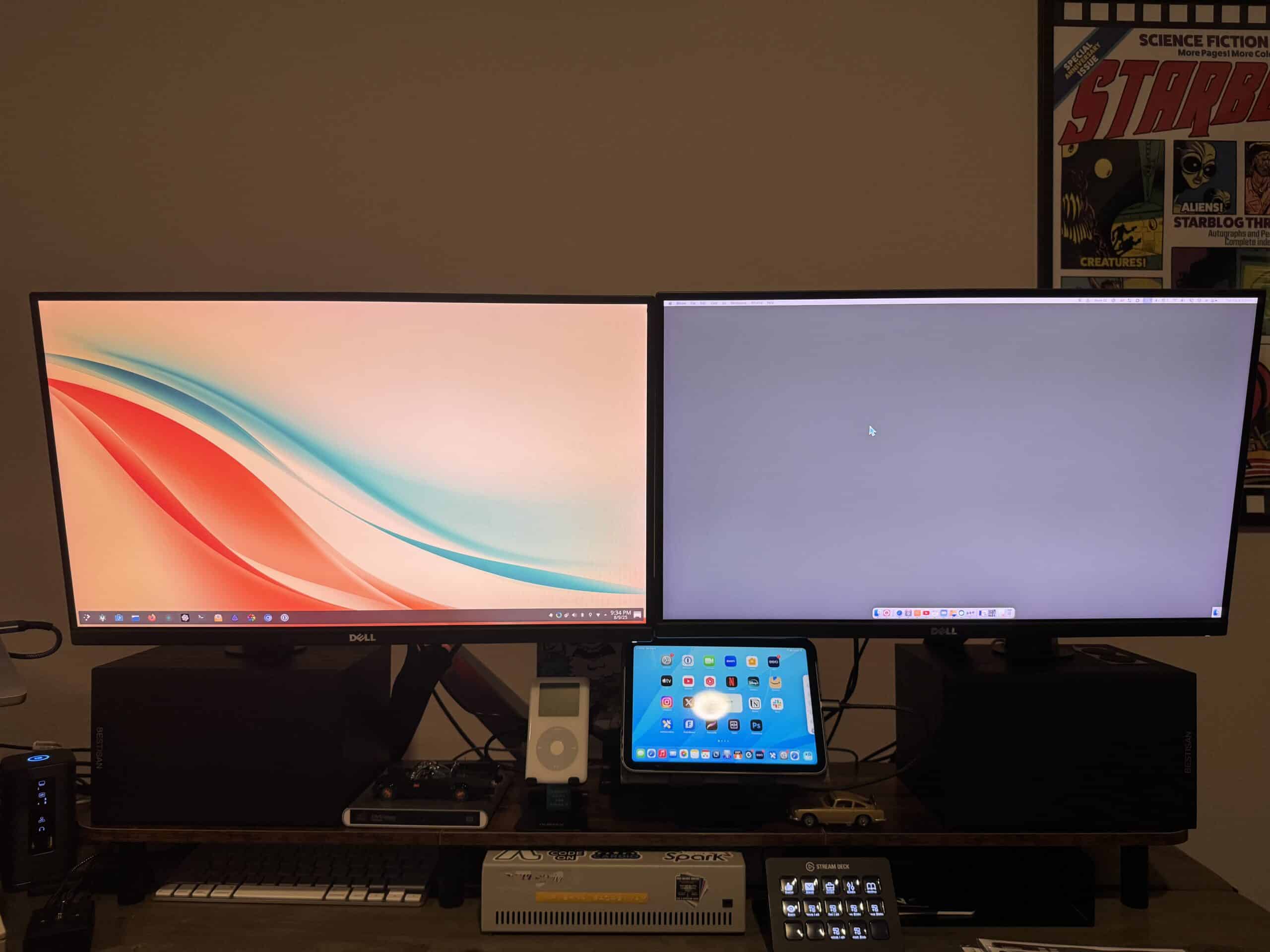
The elephant in the room when it comes to Linux is software, particularly Adobe software. If you fancy running Photoshop on Linux, you’re going to be disappointed. And if you heavily rely on automation tools like Keyboard Maestro and Hazel, you’re out of luck. But if you use your computer for simple to moderate word processing, surfing the web, watching movies, organizing photos and other basic tasks, Linux might be the answer.
Although other Linux distros are equally capable, I believe that Fedora KDE Plasma is a good choice if you’re running an Intel Mac. It’s easy to install, stable, customizable, free and private. That means there are no ads and your data belongs to you.
Installing Fedora is a two part process. First, you must download the Fedora KDE Plasma ISO file and flash it onto a USB drive. I recommend using BalenaEtcher for flashing the ISO. In my case, I downloaded the ISO file on my M1 MacBook Pro, popped in a USB flash drive, and used BalenaEtcher to write the ISO file to it.
Before installing Linux, I strongly recommend making a bootable back-up of the contents on your old Mac’s drive using SuperDuper or Carbon Copy Cloner. Installing Linux will effectively erase your entire macOS drive and all of your applications and files.
When the USB drive is fully flashed, eject it and pop it into the Mac you want to install Linux on. Make sure your Mac is off first. Power on the Mac and hold down the Option key. This will let you select the flash drive as your boot drive. From there, Fedora Linux will boot up. If you like, you can run it directly off the USB drive to kick in the tires and test it out. When you’re ready to install the OS onto your computer, follow the prompts to select the destination for the install.
My Fedora KDE Plasma install went very smoothly, with only one notable hiccup: WiFi. Because Broadcom has its own proprietary drivers for macOS, they cannot be included with Fedora KDE Plasma. As such, I had to first connect my MacBook Pro to a USB to Ethernet cable to establish Internet connectivity.

Then, using Konsole (a Terminal application for KDE Plasma), I needed to type in a few lines of code to install the necessary Broadcom drivers. (Don’t let that scare you. By and large you can install software in a point-and-click way using the included Discover app.)
Once I rebooted the laptop, Wifi worked and I was ready to explore my new Linux environment. Fedora KDE Plasma easily recognized my peripherals, including my Macbook Pro’s keyboard, my Logitech MX Master 3S mouse and my Brother laser printer. With the basics out of the way, I turned my attention to exploring the OS.
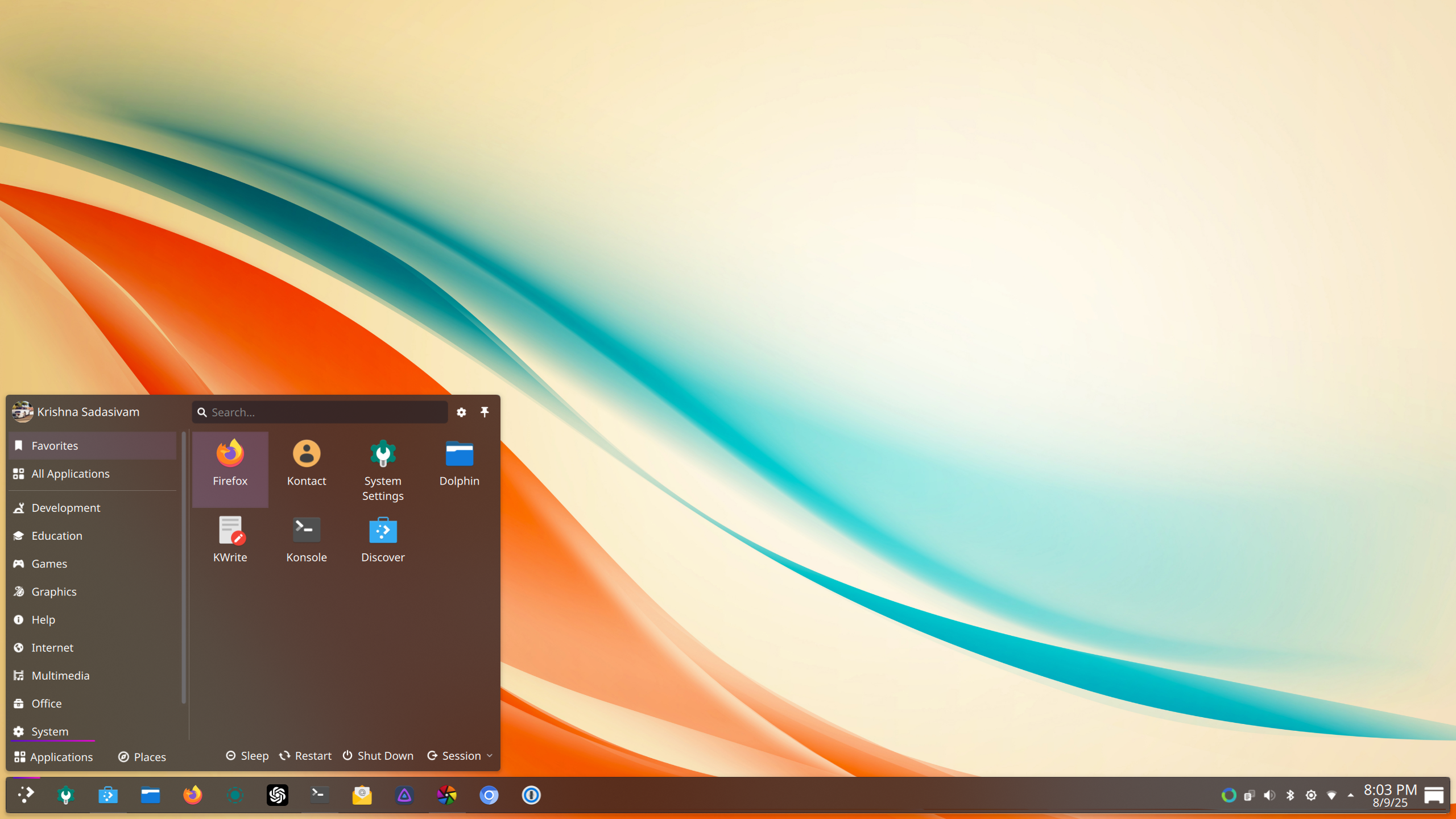
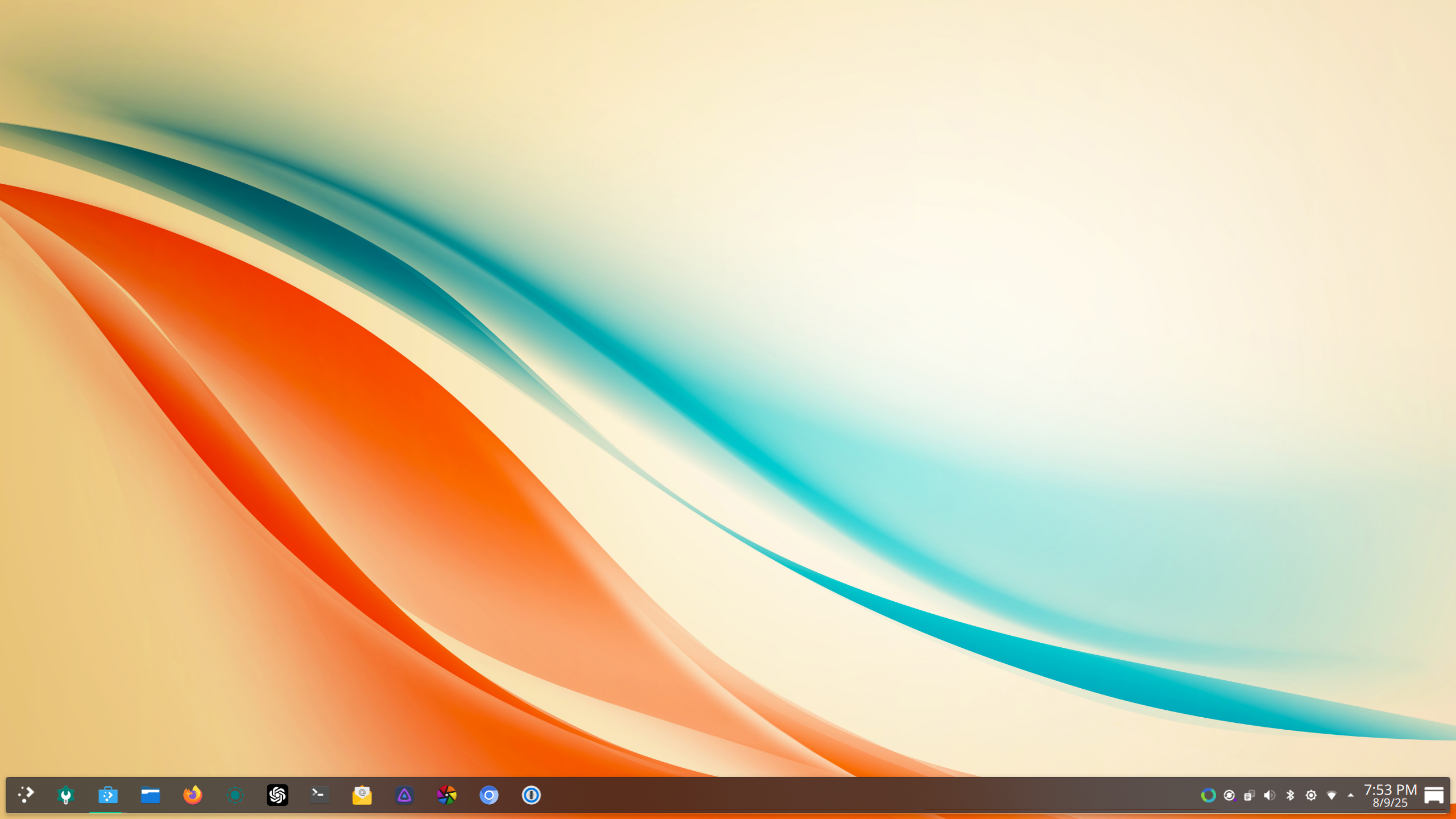
Visually, the KDE Plasma desktop is clean and crisp, and superficially shares a similar look to Windows 11. For example, there’s a Start menu and a Dock. But that’s where the similarities end. KDE Plasma lets you configure just about every aspect of the operating system.

KDE Plasma includes an app called Discover, which serves as an App Store. In Discover, you can find and install applications and even perform updates to your system.
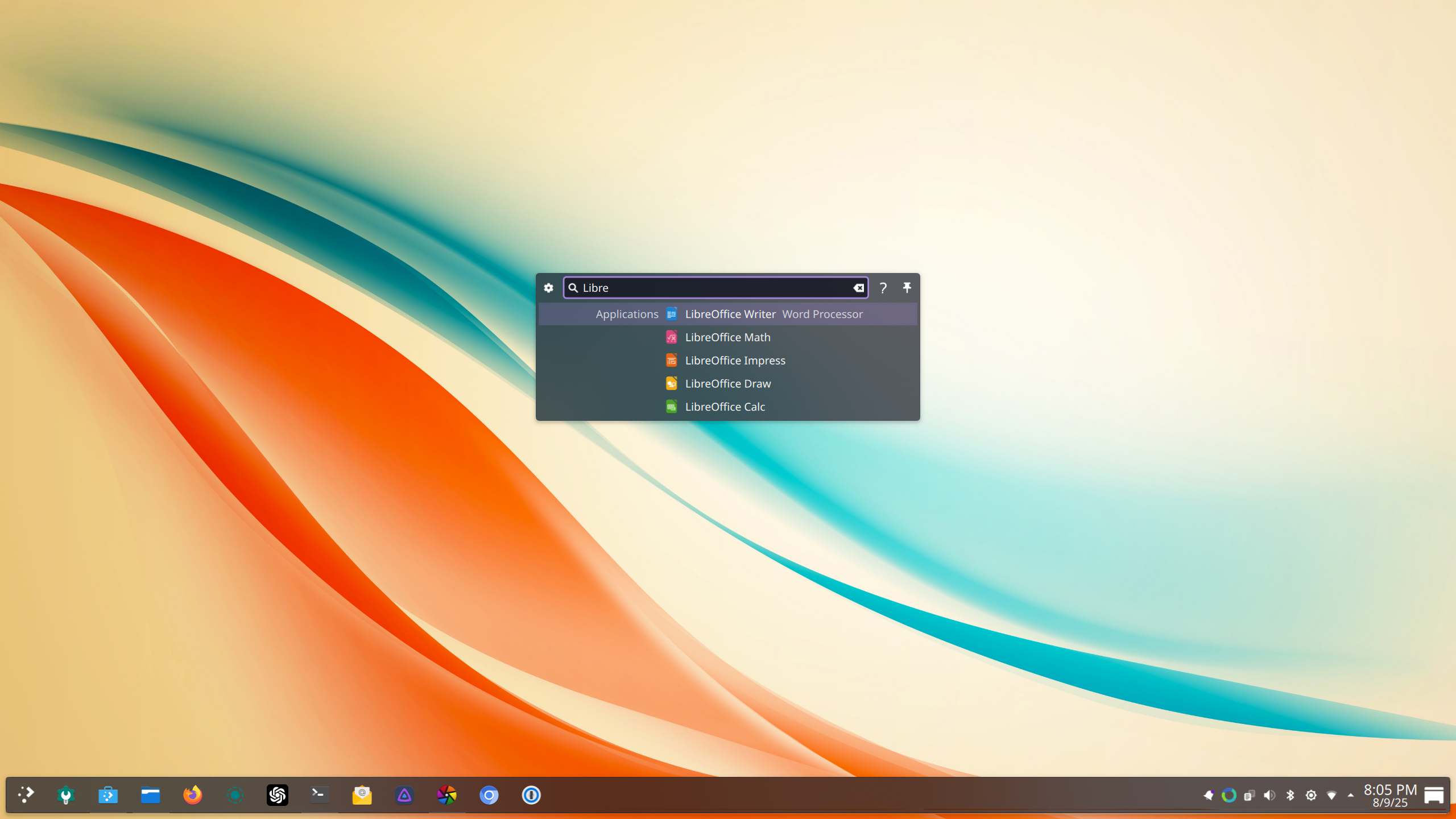
A few of my must-have KDE Plasma applications include:
1Password: my favorite password manager
LocalSend: an application that lets me share my files between my devices
DarkTable: a photo viewer / editor
Synergy: for sharing one keyboard and mouse between two computers

Using Fedora KDE Plasma has been pleasant and has given my aged 13” MacBook Pro a new lease on life. What’s particularly remarkable is how performant it is on an almost 11 year old laptop. Suffice it to say, I’m encouraged by what I’m finding in the open source space, and will continue to explore what Linux has to offer. Do you use Linux? If so, which distribution do you use? Share your experience in the comments below.




I put Mint Linux LMDE6 on my 2007 iMac using it for about 6 months. Previously tried Ubuntu (ugly), Elementary (very pretty), and ChromeOS Flex (too Googlely).
With Mint everything works: wifi, webcam, printer/scanner, sound. Only issue is standby messes up the video card and requires a reboot. Sleep works fine. Apparently standby save the current state and is more energy efficient than sleep. It is a known issue with non-Mac intel machines as well.
The 2007 iMac has 4GB ram, an OWC 120GB SSD, and no internal DVD/CD drive (dead and removed when SSD was installed). The external OWC DVD works fine but it needs to be connected to USB port on boot. Mint won’t find if you plug it in after boot. There is a command line which can be used in Terminal to mount it.
Using Firefox and Chrome browsers, all my bookmarks and passwords sync. iCloud apps open fine in Firefox. If Photoshop is important to you, try GIMP, which is free in the app repository and very compatible.
I’ve been running Linux Mint on my 2017 iMac 18,3 quite happily for probably 9 months. Slight hiccup with the built in sound (proprietary driver issue), but there is an individual that provided a patch I’ve been using successfully. (You could also just use USB or Bluetooth speakers instead). It’s been fun to download and play some windows-only games, as well as find some of the neat open source software to mess around with.