My approach to automation is as follows: If I’m performing the same task five or more times per week, it needs to be automated. I’m a busy guy and I like to save time. Computers are supposed to help me do that, right?
It just so happened that I had yet another routine task that required automation. Case in point: My online accounting software includes an option for me to upload receipts. When I purchase an item, I’ll either (a) take a picture of the receipt on my phone and send it over to my Mac via AirDrop or (b) I’ll take a screenshot of the emailed invoice using Cleanshot X. (I mostly do the latter.)
The only problem with capturing a screenshot of a purchase invoice is that the resultant file will be given a generic filename, usually in the form of: CleanShot 2025-08-23 at 17.27.09@2x.jpg.
This isn’t particularly useful, considering that these receipts are ultimately stored in the same folder on my Mac.
Prior to automation, I would manually rename each file. Over time, I found the process not only repetitive, but downright annoying.
Life would be so much better if I could have my Mac read the contents of the screenshot and rename itself to include both the vendor’s name and the date. For this task, I employed Hazel. Hazel version 6 supports Optical Character Recognition (OCR), so it can read the contents of an image.
Hazel performs tasks based on rules you assign to specific folders. The following rules would need to be applied to my Screenshots folder, where the screenshots of my invoices reside. When making rules in Hazel, it’s important to think like a computer. It’s not difficult, but computers need to be explicitly told what to do, in very specific terms.
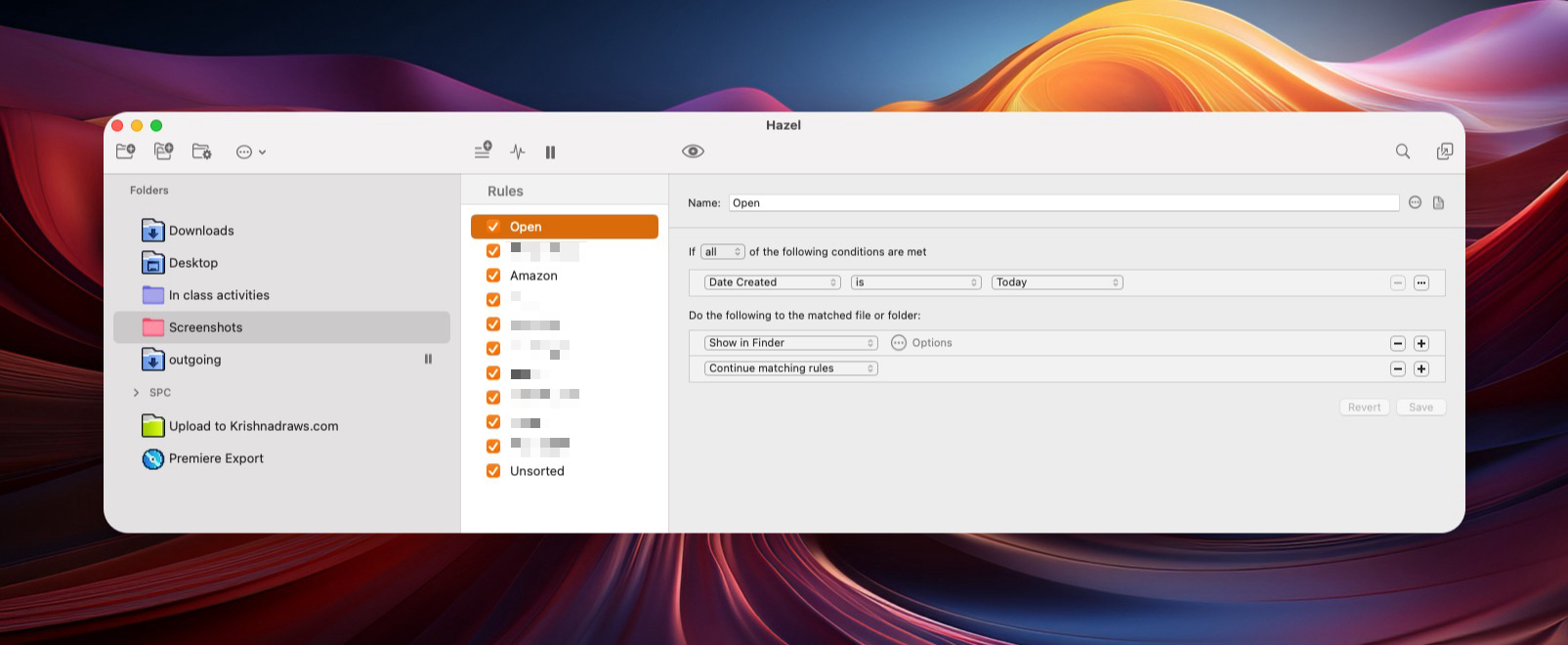
The first Hazel rule I created was simple: open the Screenshots folder when a new screenshot is added. Typically ALL of my Cleanshot X screenshots are saved into the Screenshots folder.
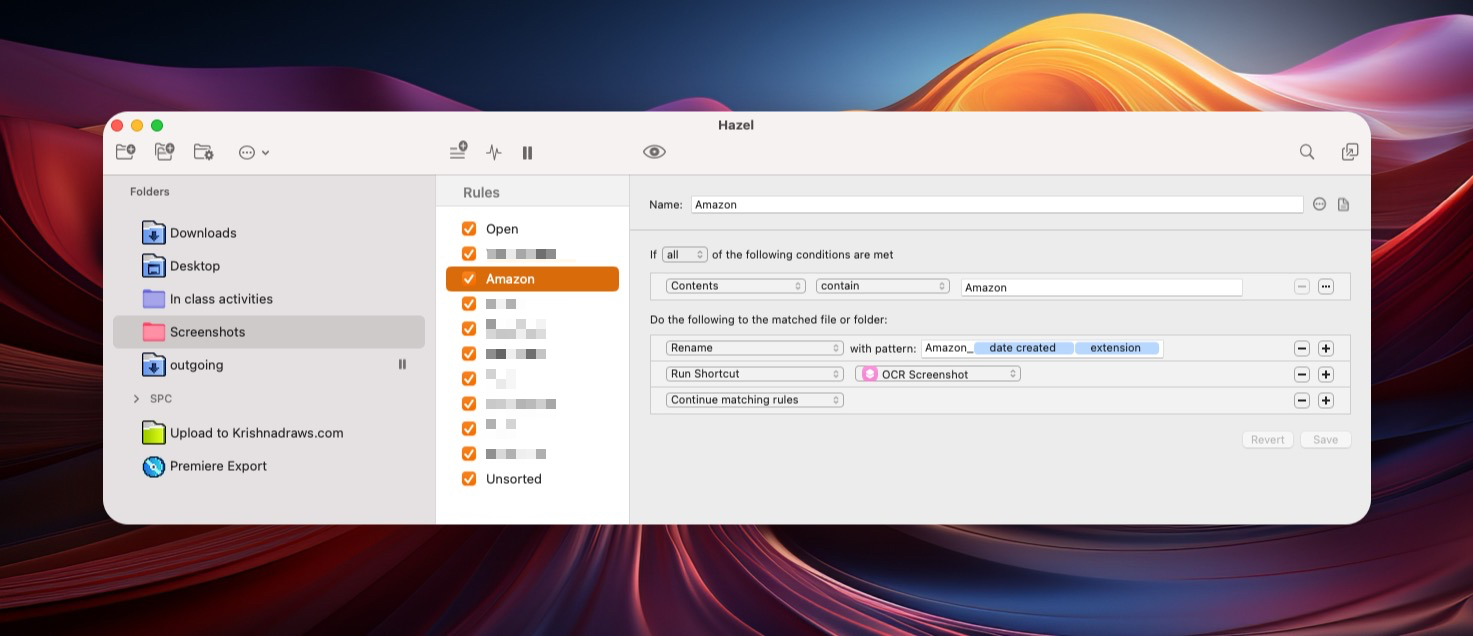
Next, I made a rule for one of my vendors: Amazon. For this rule, I have Hazel process the contents within the screenshot of an Amazon invoice, looking for the word “Amazon”. If Hazel detects the word “Amazon” inside the screenshot, the program will automatically rename the file with the prefix Amazon followed by the date that the screenshot was created, and keep the appropriate file extension (usually .jpg).
If the vendor is NOT Amazon, I include an option for Hazel to continue checking against other rules within the Screenshots folder, in case the receipt is from a different vendor.
I have several “regular” vendors I use throughout the year. Each vendor has its own rule set up inside Hazel. (To make those rules, I copy/paste/modify to tailor the rule to the vendor in question. Besides, adding a new vendor rule is easy enough.
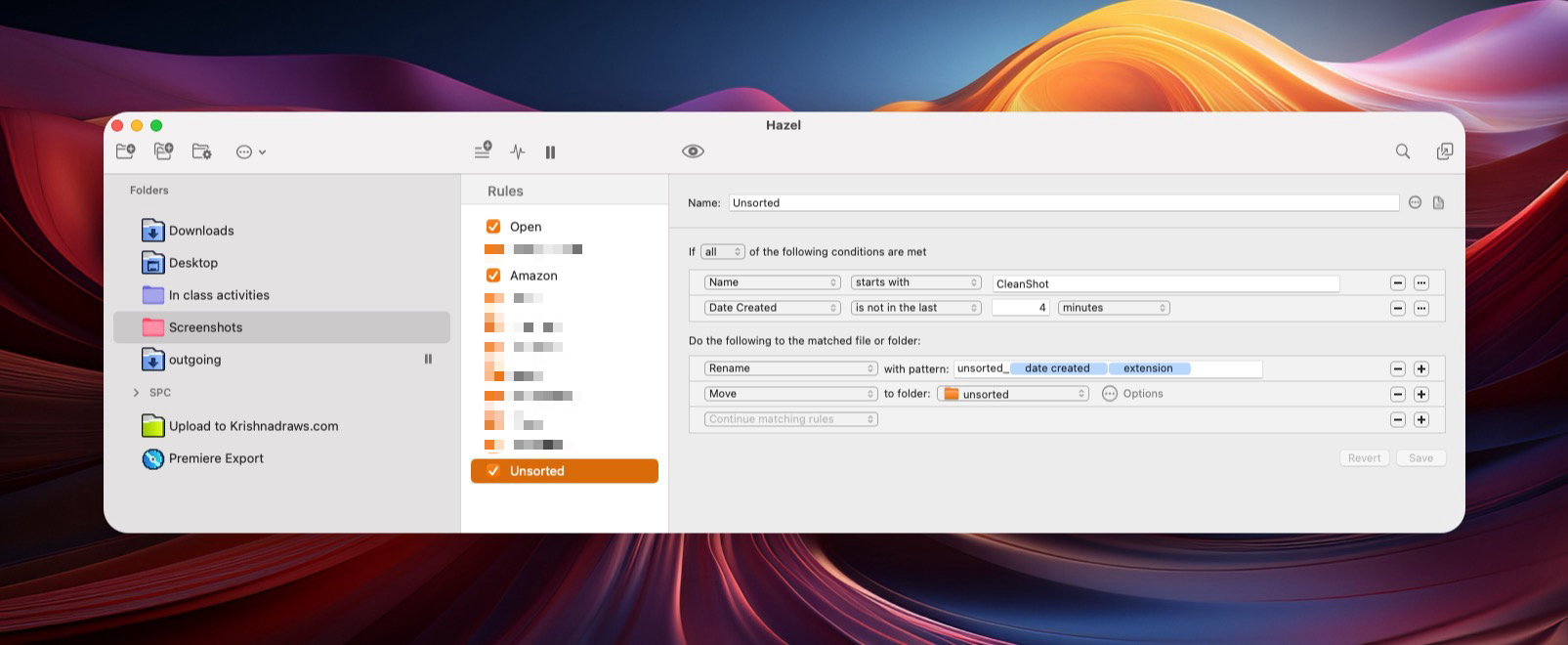
If my Hazel rules do not match with any of the vendor rules I have already set up, then Hazel will rename the file to Unsorted and places it in a sub-folder called Unsorted inside my Screenshots folder.
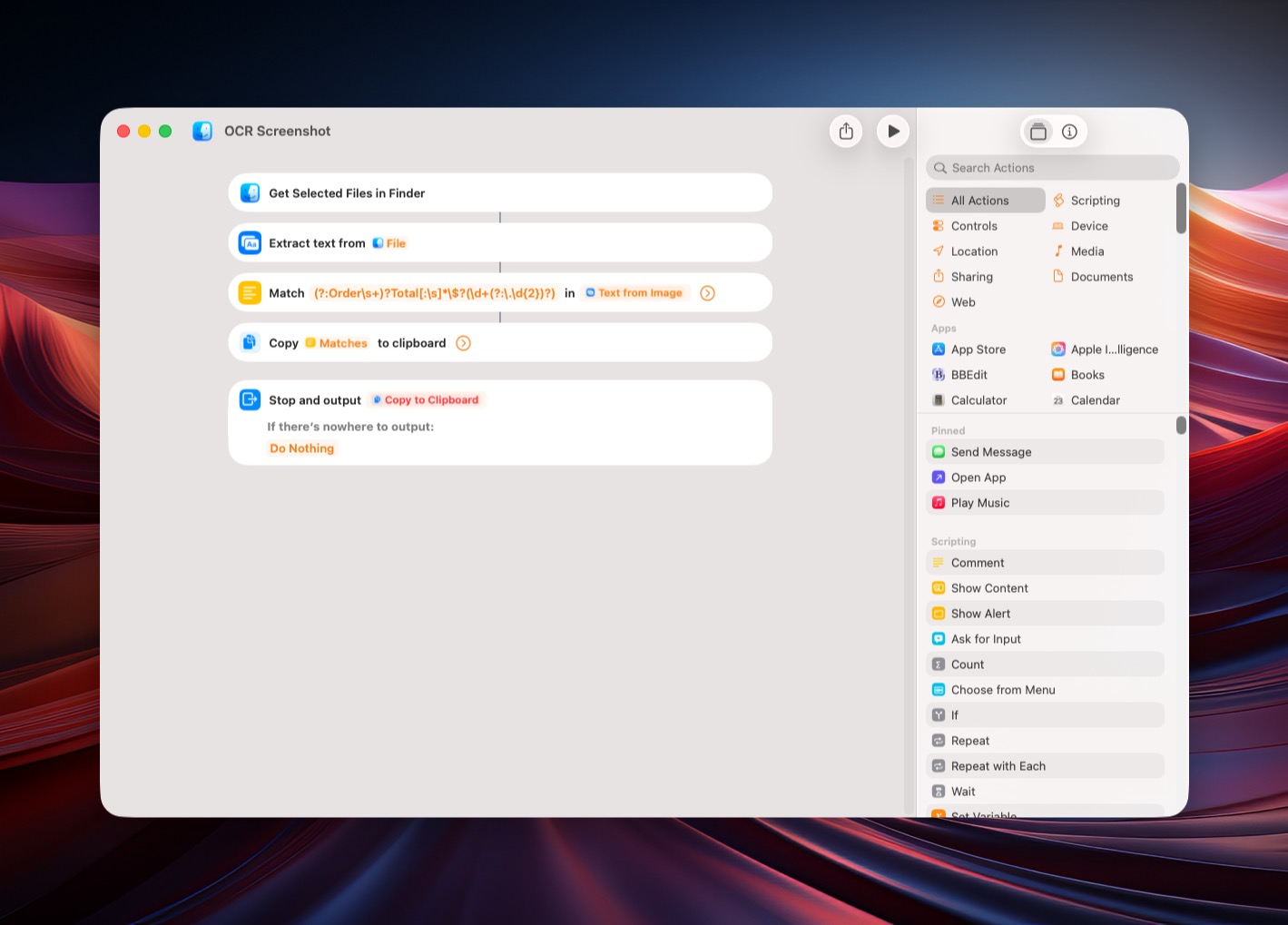
Additionally, each vendor rule includes a “Run Shortcut” command, which, when executed, will run the “OCR Screenshot” Shortcut on the screenshot, looking for the words “Order Total: $”. If it finds that string in the screenshot, the Shortcut will copy the contents of the value next to that text string into the Mac’s clipboard, so that I can conveniently paste it into my accounting software.
While these Hazel rules aren’t bullet-proof, they work really well for the vendors I use on a regular basis. Because I’m not manually processing these receipts, I’m saving time. The main limitation of my Hazel vendor rules is that the invoice screenshots must be taken on the same day as the invoice is received, or the filename date will not match what’s listed on the invoice. This isn’t a problem for me, as I always take a screenshot within a few hours of receiving such an invoice.
Do you use automation on your Mac? If so, what are some common tasks you automate? Let me know in the comments below.