One of the many conveniences macOS offers is the ability to automatically open applications when you login. But that convenience comes at the price of potential clutter.
My 14” M1 Macbook Pro has nearly 30 different apps that have been enjoying such privilege. But, truthfully, did I still need all of those apps to open at login? Were there any items that I could do without?
To answer those questions, I removed all of the “Open at Login” applications inside System Settings > General > Login Items and Extensions and then immediately rebooted my Mac. To remove items from the list, select them and click the – (minus) button.
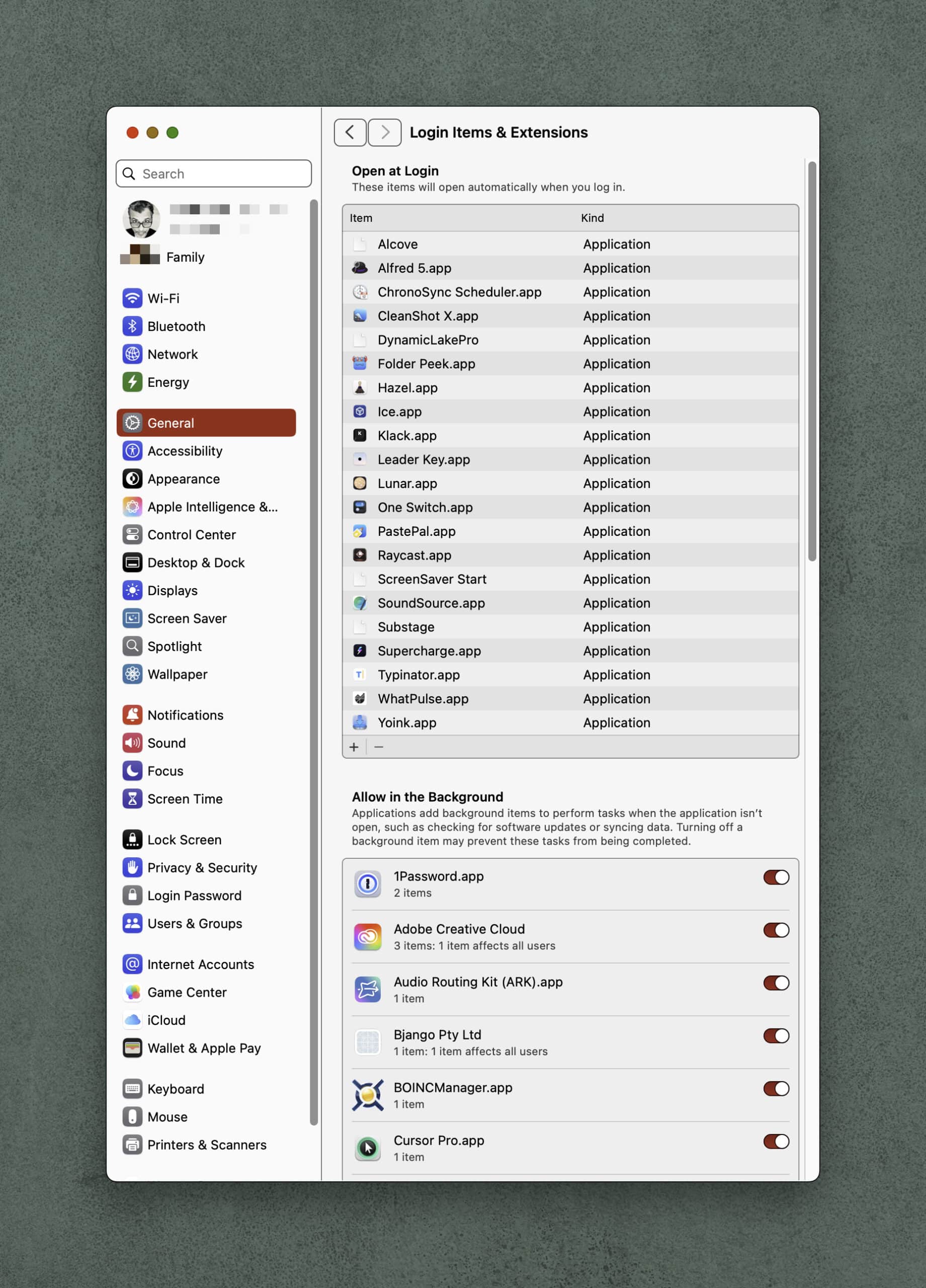
When logging back in, I immediately added frequently used apps such as Alfred, Raycast, Moom, SoundSource, WhatPulse and DisplayLinkManager back to the Open at Login list. As for the other applications that were previously on my login list? I’ll continue to use my Mac throughout the next few weeks and see what which apps need to be added back in.
It’s a good idea to periodically check which apps you’ve granted to open at login. Some apps will request permissions to be placed back on the list, while others will inexplicably add themselves back in without asking you. (I’m looking at you, Microsoft Sharepoint.)
In my own audit, I discovered that there were several apps previously on my login list that were rarely used. Such apps do not need to be given “open at login” permission.
Limiting the number of Login Items can help your Mac in a number of ways. It can improve your Mac’s performance, enhance startup speed, and potentially clear up any software conflicts that may be occurring during startup.
With Apple’s new macOS Tahoe here and many of you contemplating upgrading, now is as good a time as any to start pruning files / apps and optimize your Mac in preparation. Removing unneeded “open at login” items is a good first start.