






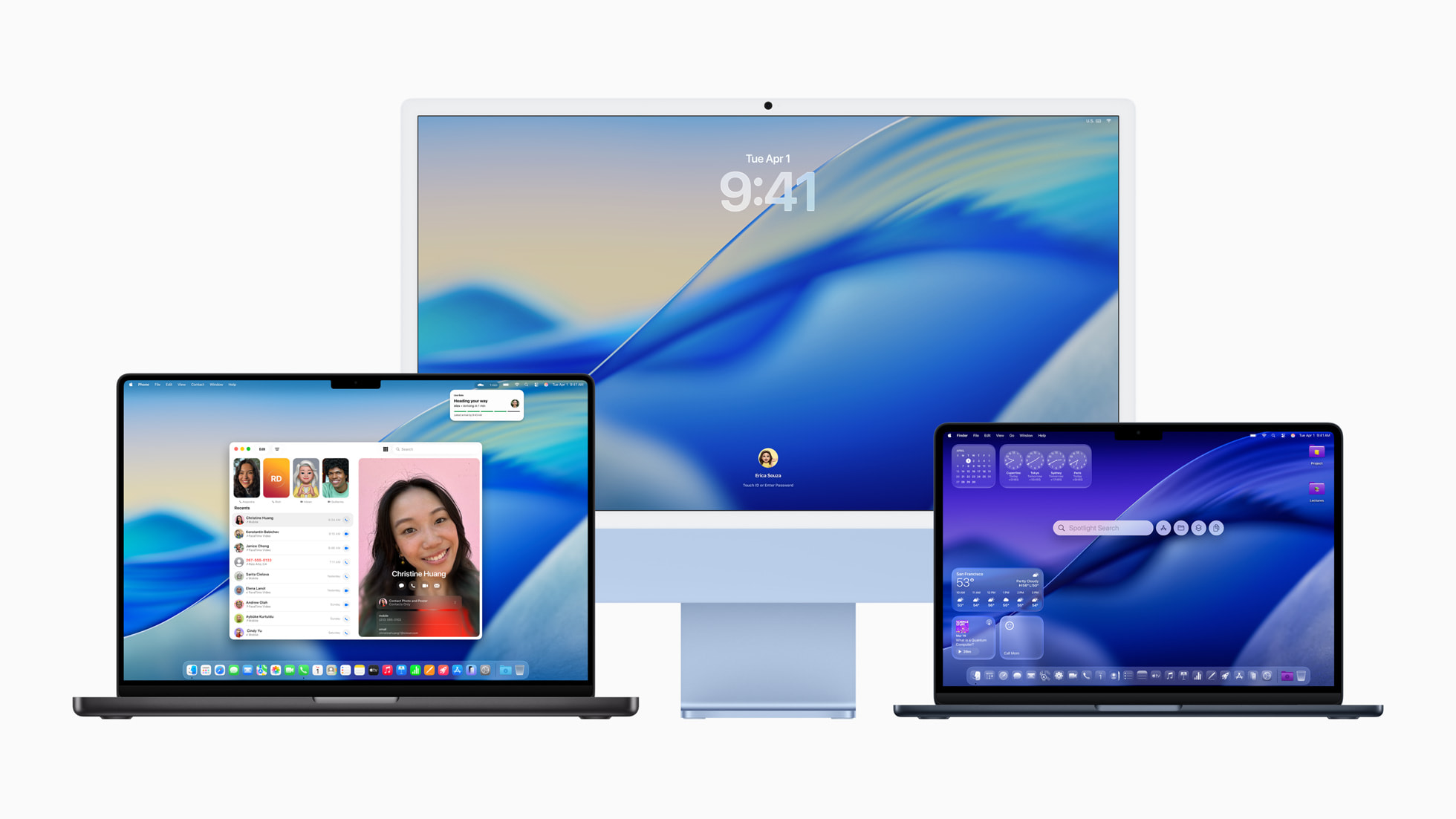
Apple has released macOS 26 Tahoe today, bringing a fresh look and a pile of genuinely useful upgrades to the Mac. Below you’ll find a quick, safe way to update, a concise tour of the biggest changes, and a roundup of first-day impressions from reviewers we trust.
How to update safely
Before you hit Install, give yourself a smooth landing:
- Back up your Mac. Time Machine is the easiest path: Apple menu → System Settings → General → Time Machine → Add Backup Disk (connect an external drive like the OWC Envoy first).
- Plug in and clear space. Keep your Mac on power (for notebooks) and make sure you’ve got ample free storage.
- Update: Apple menu → System Settings → General → Software Update and follow the prompts. If you prefer, you can enable Automatically keep my Mac up to date for future releases.
What’s new in macOS 26 Tahoe
Liquid Glass design
Tahoe adopts Apple’s new Liquid Glass language across toolbars, icons, and widgets. Expect more translucency, depth, and subtle motion—plus an all-new transparent menu bar that helps the screen feel larger. Apple’s updated Control Center is more configurable, and you can personalize folder, app icon, and widget colors.
Spotlight’s biggest upgrade ever
Spotlight gets new browsing views (Apps, Files, Actions, Clipboard) and Quick Keys—short character strings that trigger actions like sending a message or creating a calendar event. It’s a major boost for keyboard-driven users.
Continuity superpowers
A new Phone app on Mac brings your iPhone recents, favorites, and voicemail to the desktop—now with Call Screening and Hold Assist. Live Activities from iPhone can appear in your Mac menu bar; click one to dive deeper with iPhone Mirroring.
Shortcuts + Apple Intelligence
Shortcuts can tap directly into Apple’s on-device intelligence models to automate deeper, more complex tasks—many of which run privately on the Mac.
Desktop widgets (finally, for real)
Widgets can live directly on the desktop and many third-party apps are ready on day one—great for glanceable info throughout the day.
First impressions: what reviewers are saying
- Spotlight and automation are the stars. In his review at Six Colors, Jason Snell calls Tahoe “the broadest and most productivity-focused update in years,” highlighting the new Spotlight with a built-in clipboard history and action shortcuts, plus deeper Shortcuts automation that can even hit AI models.
- The design is striking—but mixed on Mac. Six Colors finds Liquid Glass tasteful in places (Photos, Safari) yet “a net loss” on the Mac overall because many toolbars feel more flat than glassy—and legibility can suffer depending on background content.
- Try these features first. 9to5Mac suggests starting with getting comfortable with tth new Liquid Glass touches, then trying out the desktop widgets, and revamped Spotlight.
- A few day-one hiccups. 9to5Mac also notes intermittent issues in the release candidate period—like momentary Dock/Spaces freezes and erratic Spotlight results—suggesting ultra-mission-critical users might wait for macOS 26.1.
- The Verge’s take: In its hands-on coverage, The Verge describes Liquid Glass on Mac as a more more muted implementation than what was done on iPhone, with praise for the Safari implementation and an overall vibe of “good update, divisive design flourishes.”
Should you update today?
If you’re excited about the new Liquid Glass look, Spotlight’s new power, desktop widgets, or Continuity enhancements—and you’re comfortable installing day-one releases—Tahoe looks like a worthy upgrade. If your Mac is a production workhorse and you lean heavily on Spaces, the Dock, or Spotlight, you may prefer to wait for the first point release. Either way, back up first, then enjoy exploring the new features at your own pace.
Quick checklist after installing
- Open Spotlight and try Cmd+1/2/3/4 to jump between Apps, Files, Actions, and Clipboard.
- Visit Control Center settings to choose which controls live in the menu bar.
- Add a couple of desktop widgets (Calendar, Reminders) and test third-party ones you rely on.
- Launch the new Phone app and try Call Screening/Hold Assist from your Mac.
- Build a Shortcut that uses Apple Intelligence for a daily task—Tahoe’s best tricks are the ones you automate.
Other Topics You Might Like:
 Beyond the AI Hype: The Boring Updates We Actually Want in macOS 16 at WWDC 2025
 First Wave of Apple Intelligence Features Now Available on Mac, iPhone, and iPad
 Apple Appears to Use Its Own SSD, Controller in New 12” MacBook
 Apple’s ‘Spring Forward’ Event: What’s Expected, And What Could Surprise Us






It’s GARBAGE. It changes the keyboard and when you try to log on if you don’t notice the changed keyboard and change it back to US, your password won’t work and you will be locked out. It’s VERY frustrating. And there’s no reason at all for the keyboard to change. Apple needs to FIX THIS.
Is Music.app on Mac OS updated? Current version is 1.5.6.11 (I see/suffer from a couple chronic bugs in Music.app, at least one is a regression failure.)