It’s only natural that we accumulate things over our lifetime. Quietly, almost innocuously, these items of all variety creep into our lives. And before we know it, our garages are filled to the brim with stuff we didn’t even know we had.
Our Macs are no different. Over time, applications, data, fonts, libraries and other files and folders slowly, but surely, encroach on our Mac’s storage space. And, if we’re not careful, we can find ourselves running out of room.
While, to some extent, we can prune files and data on our own, it’s easy to miss the big picture. To use an analogy: it’s akin to cleaning out a closet that we use daily, while not realizing the attic above it contains mountains of hidden clutter.
Enter DaisyDisk, a Mac application that was designed to help Mac users determine what’s taking up disk space and aid in reclaiming it. DaisyDisk is the creation of Oleg Krupnov and Taras Brizitsky, who were working with large files and wanted an easy way to manage them. They couldn’t find a good solution, so they built their own.
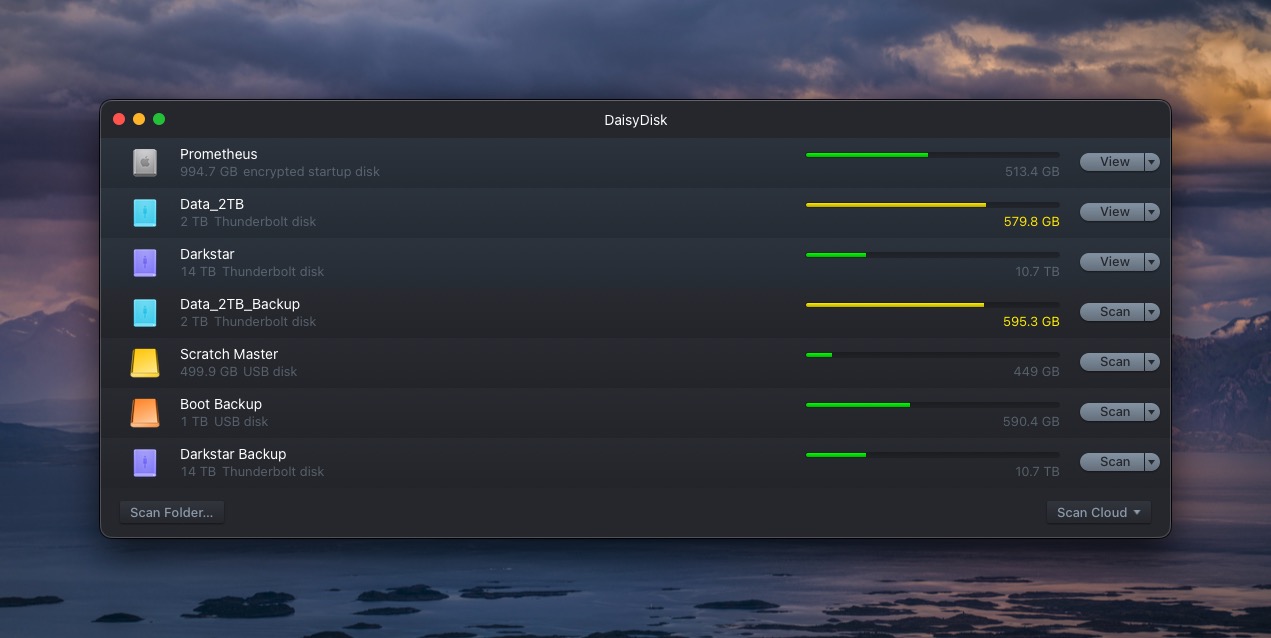
When DaisyDisk launches, it presents a list of all of the storage devices connected to your Mac. Next to each drive is a visual bar that shows how much used /free space exists. Each visual bar is color coded: green, yellow, or red. As a drive fills up over time, this bar can go from green to yellow to red.
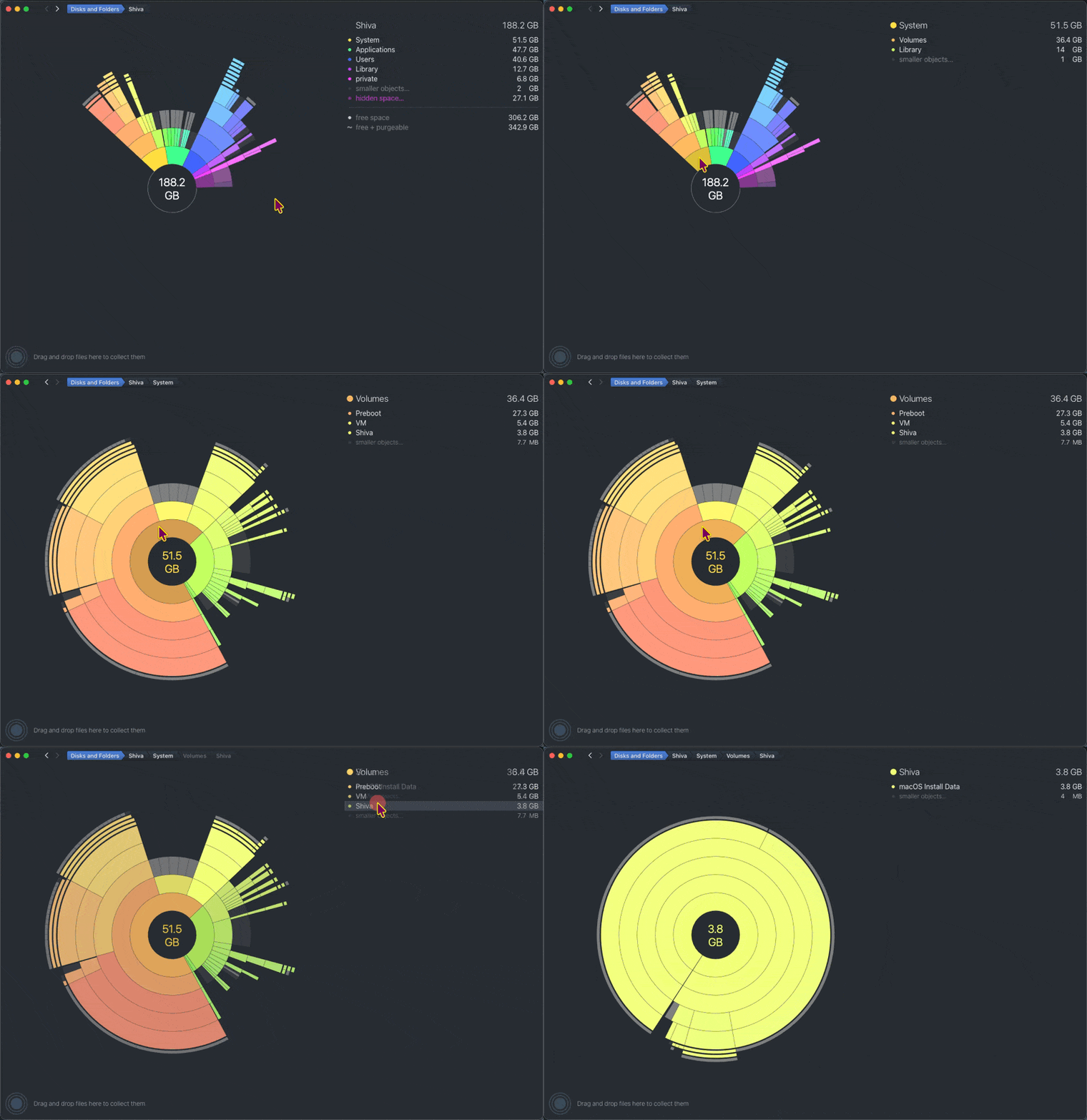
Clicking “Scan” on your boot volume, for example, will present the user with a visual representation of the data, organized as a set of concentric rings. Sections of the ring are color coded based on the type of data it represents.
For example: Yellow represents System, Green represents Applications and so on. The biggest space-takers are positioned closest to the center of the ring. The longer the block, the more space it is taking on your storage device.
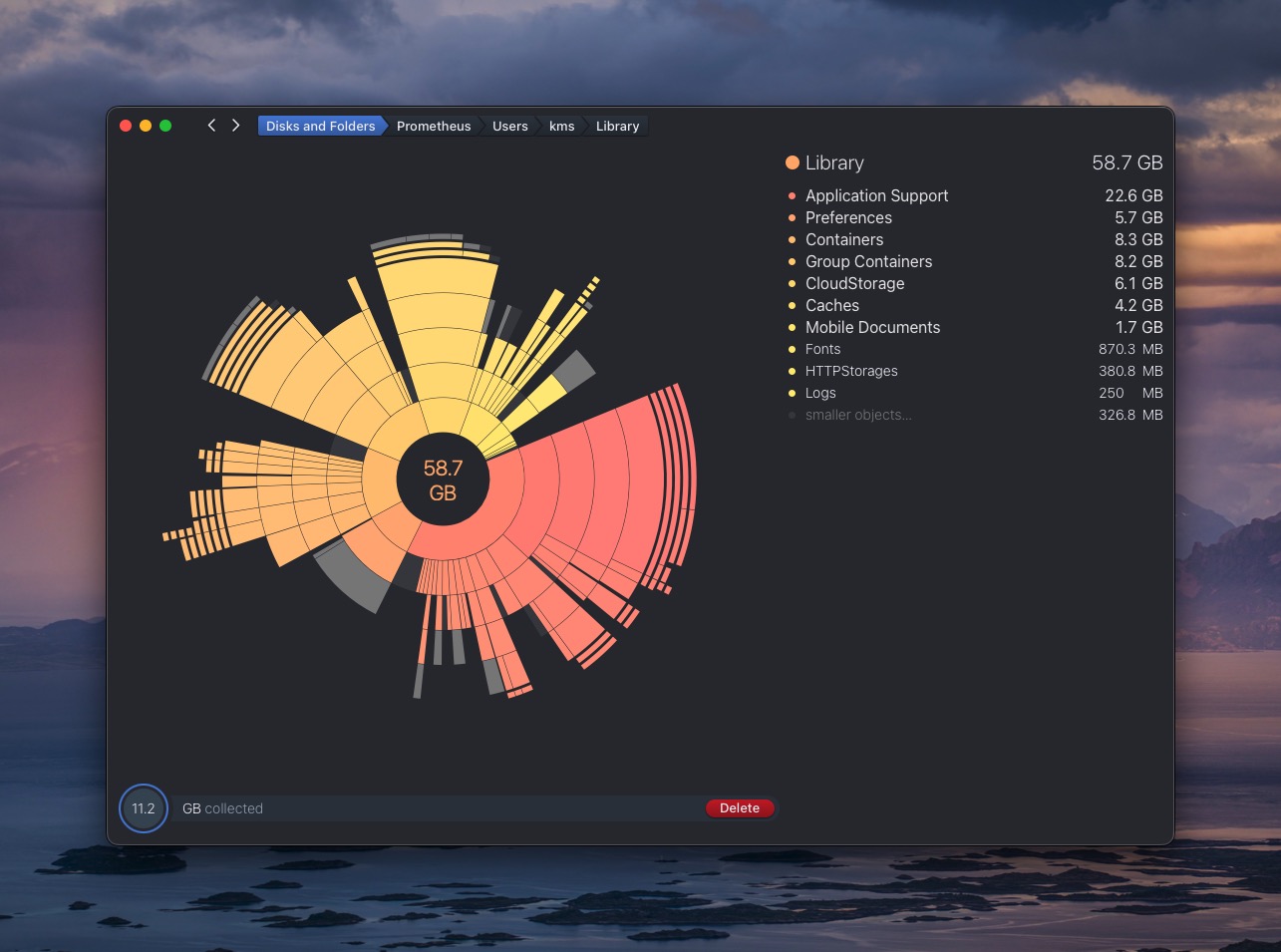
Click on one of the blocks, such as Users, and you can drill further into all of the folders and files contained therein. The further you drill, the more specificity you’ll get.
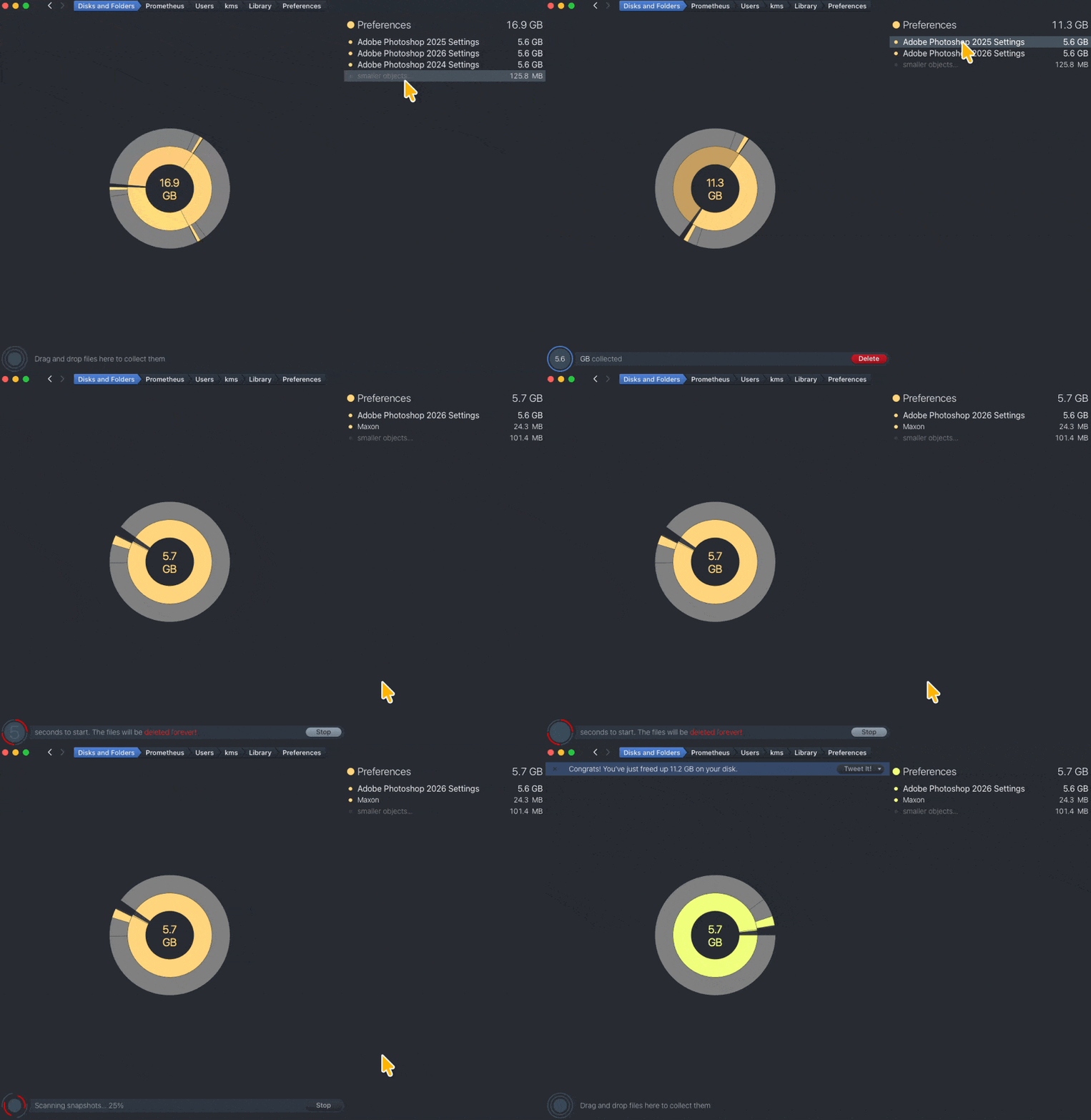
To remove a file, simply select it from the list on the right and drag it to the lower left corner of DaisyDisk’s interface. DaisyDisk will hold all of your selected files until you click the “Delete” button.
DaisyDisk will show visible files and hidden files. Hidden files may include restricted folders, purgeable space (i.e. TimeMachine snapshots, swap files, etc.), and system items (Spotlight index, file system overhead, etc.)
While DaisyDisk is easy to use, it’s designed for Mac users who are more comfortable with their system. But novice Mac users need not worry: DaisyDisk includes protective measures to keep users from trying to delete essential folders, such as the System folder. The rule of thumb, per the documentation, is to delete only the files that you recognize (by location, filename and preview of content).
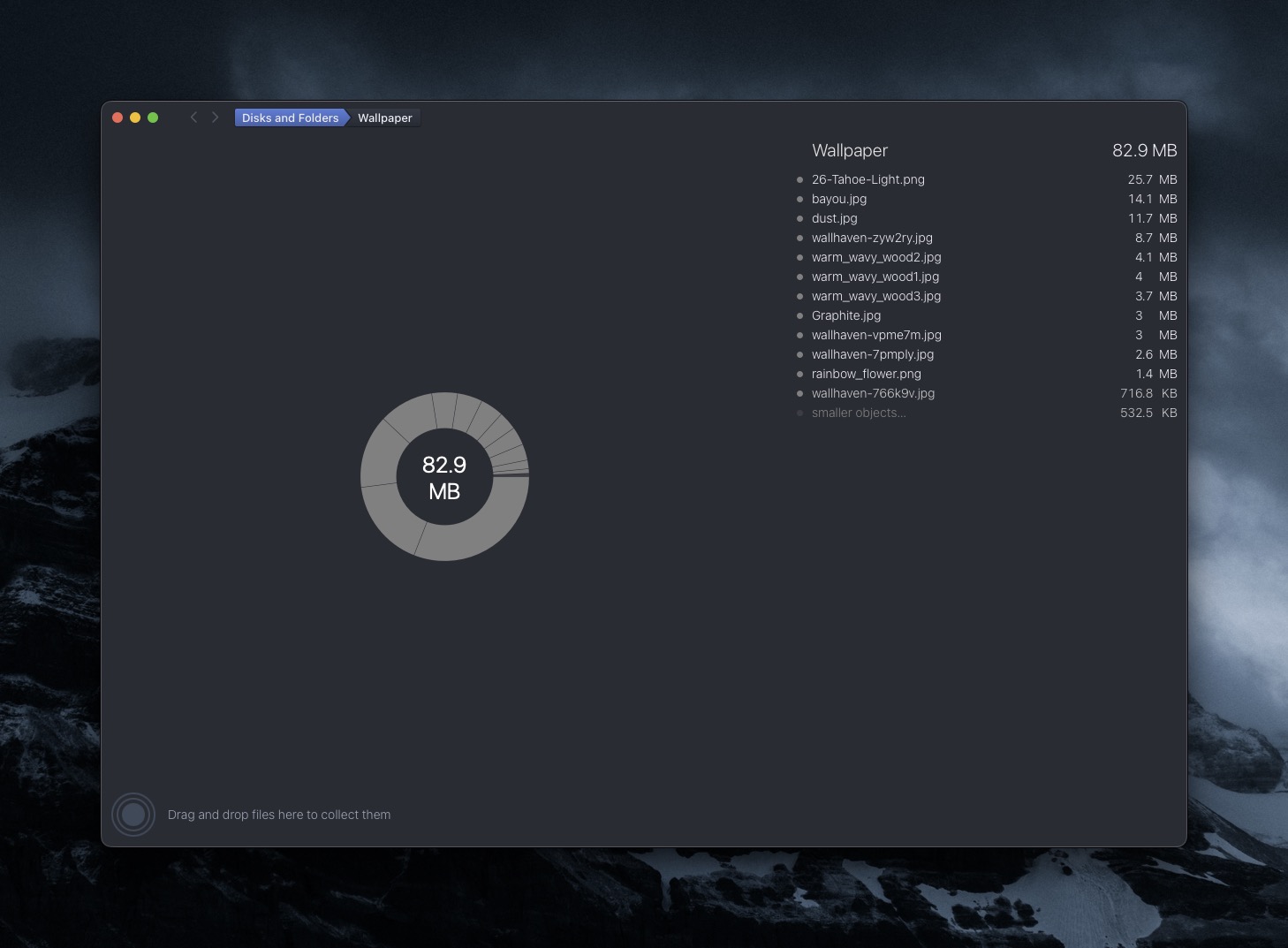
DaisyDisk is not limited to scanning storage volumes: it can also scan individual folders and even cloud based storage. DaisyDisk works with APFS, HFS+, and HFS file systems. It can also operate (in read-only mode) on NTFS, FAT, and exFAT drives.
I really like DaisyDisk’s interface, having used it for the better part of a few weeks now. It’s intuitive to use and very fast and responsive. On solid state drives, scanning a volume takes seconds, and finding large files is easy, thanks to its visual approach. The DaisyDisk User Guide is informative and contains a wealth of information about some of its advanced features.
DaisyDisk offers a free trial, so you can see if it’s right for you. If you decide to buy, DaisyDisk costs $9.99US and comes with a 30 day money back guarantee. As if this writing, DaisyDisk is at version 4.32, and supports macOS 10.13 or newer. It works on both Intel and M series Macs. DaisyDisk has been around since 2009, with regular updates being offered since its inception.
DaisyDisk is a one-time purchase. Buy it once and you get a lifetime license, which can be used on up to 5 personal Macs. It’s a generous deal for the value that DaisyDisk offers. Now, if you’ll excuse me, I’m off to clean my garage.