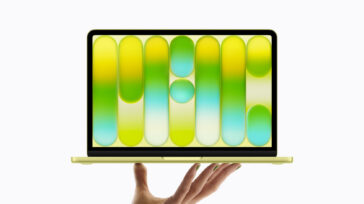
Apple recently released its 26.2 updates across all its major platforms. And while these updates contained important security updates, bug fixes, and continued refinement to the new Liquid Glass design language, Apple also included a new feature for Mac users that is both fun and extremely practical.
After updating to macOS Tahoe 26.2, you’ll have the ability to turn utilize your Mac’s display as a light source to brighten up your environment during video calls. Apple calls the new feature “Edge Light” as the feature wraps what look like a virtual ring light all the way around the edges of your Mac’s display.
While not as effective as a completely separate, true light source, the feature is surprisingly effective in brightening things up a bit. Here’s how to enable it. Check out the video for the full tutorial or read the steps below.
How to enable the Edge Light in macOS
If you’re running macOS 26.2 or later, the Edge Light feature will appear once you’ve started a video call. The feature appears to work with any app that uses your Mac’s camera.
- Start a video call in an app like FaceTime, Microsoft Teams, Zoom, Google Meet, etc.
- Once your camera turns on, click the green camera icon in your Mac’s menu bar.
- In the drop down menu click Edge Light.
- To make the Edge Light larger or smaller (increasing or decreasing the brightness) or to change the color temperature of the light, click the arrow to the right of the Edge Light option in the camera menu in the Menu Bar.
Other Topics You Might Like:
 Folder Peek: Instantly Access Your Most-Used Mac Files and Folders—Right from the Menu Bar
 InfiniteMac: A Browser-Based Journey into classic MacOS and NeXTStep Operating Systems
 First Wave of Apple Intelligence Features Now Available on Mac, iPhone, and iPad