“The more things change, the more they stay the same.” Jean Baptiste Alphonse Kerr, a French critic and novelist wrote this phrase in his journal in 1849. But he may as well have been making a statement about the macOS Dock.
From the beginning, I’ve never been a fan of the Dock. Introduced with Mac OS X, the Dock was created to launch apps and hold frequently used items. And while it does serve those use cases, I view the Dock as a case of “Form over Function”. I avoid using the Dock whenever I can, only using it begrudgingly when I have to.
Over the past two decades, the Dock has received multiple visual overhauls. But despite these changes, the Dock really hasn’t changed too much. This wouldn’t necessarily be an issue if the Dock gradually improved on its shortcomings. (Spoiler: It hasn’t.)
In my opinion, the idea behind the Dock is a good one, but its execution leaves a lot to be desired. As a Mac power user, I have no time to wait for the Dock to animate a minimized window into view. While the animated flourishes are nice, they are yet another distraction that pulls focus away from my tasks.
I value my time; I’m not here for a show.
As an app launcher, the Dock is not practical unless you use the same handful of apps time and time again.
And a Dock populated by dozens of apps can get cluttered – to the point where it becomes very difficult to differentiate tiny app icons and windows from each other.
The macOS Dock is ok, not great.
Thankfully, there are options. Over the past few months, I’ve been testing Sidebar, which is billed as a “modern, customizable Dock replacement for your Mac.”

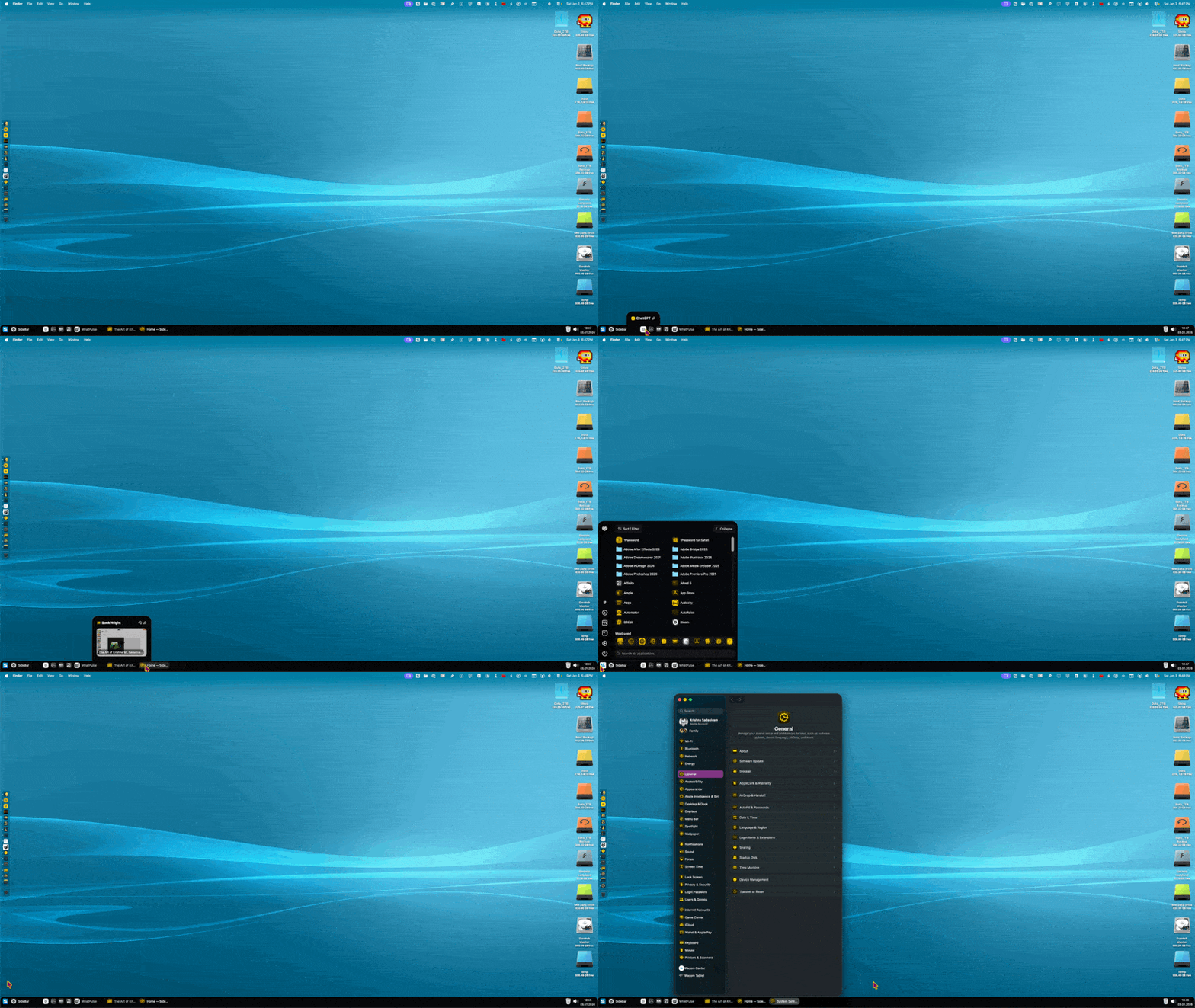
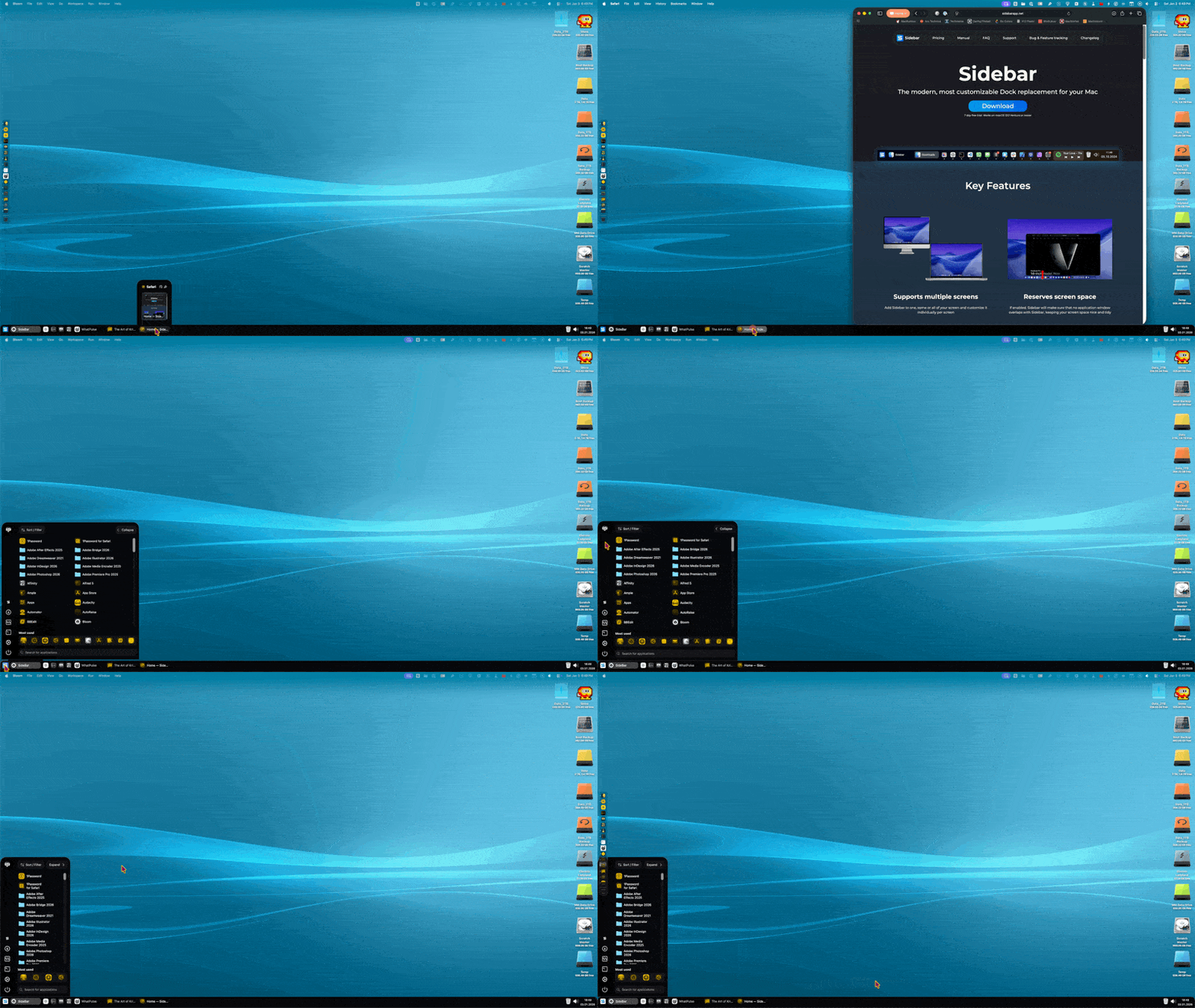
I’ll start by saying that Sidebar includes a really excellent onboarding when you first install the app. You’ll be guided through your Sidebar setup in a manner that gets you up and running right away. (Other Mac developers, take note!)
Sidebar supports multiple displays, meaning you can have Sidebar on each of your computer displays if you prefer. Sidebar offers multimedia controls in the Dock itself, so you can play, pause, fast forward or rewind your Spotify playlist directly from Sidebar. Hovering over any application will show a preview of all of its open windows.

Sidebar offers features not available in the macOS Dock, many of which are available on Windows. Notably, Sidebar includes an optional Start menu that can be fully customized to provide quick access to your favorite apps and folders.


Sidebar thrives when it comes to customization. Just about every aspect of Sidebar can be customized within Sidebar’s settings. Users can select from one of four styles of Sidebar Docks. Two Mac-like Docks and two Windows-like Docks are available. There’s even a vertical Dock option included, if that’s your cup o’ tea.

Users can change the color of their Sidebar Dock, while also controlling its opacity. Margins and app icon size / spacing can be easily adjusted using Sidebar’s sliders. Even the Start menu icon can be changed, if you feel like it.

Sidebar supports Liquid Glass aesthetics as an option, and also includes an Icon Designer to easily create and manage your customized Sidebar icons. Sidebar also includes the ability to assign customized keystrokes for showing / hiding Sidebar, revealing the Application list, and more. Sidebar also supports WindowSnap. With this feature, each application window’s size and position can be remembered. It’s those little details that make Sidebar feel truly well-thought-out.
After dealing with macOS’s Dock for what seems like an eternity, I honestly prefer using Sidebar’s Windows style Dock, which takes up less real estate than Apple’s Dock. Sidebar also shows me the text label next to each icon, which is super handy.
With Sidebar installed, what happens to Apple’s Dock? You can still run it alongside Sidebar, or disable Apple’s Dock altogether. (Fear not: The Apple Dock can be disabled and re-enabled in Sidebar’s settings.)
Sidebar works smoothly, taking up under 500MB of resources. It can be customized as you see fit. It’s fast and stable, working flawlessly on both of my Apple silicon Macs. The developer is actively updating the app, adding new features with each new release.
Sidebar comes with a 7-day trial to see if it’s right for you. If you decide to buy it, Sidebar costs $21US for a lifetime license. Subscription options are also available if you’re on the fence.
So, the million dollar question is: Who is Sidebar for? I would say it’s for users who want a powerful, customizable Dock that gets out of your way. If you’re frustrated with the Dock as I am, Sidebar might be for you. Sidebar can also be a great utility for Windows users coming over to the Mac. If Jean Baptiste Alphonse Kerr was a Sidebar user, he’d be impressed.