In its latest platform-wide OS update Apple appears to have quietly unlocked faster Wi-Fi performance for certain Wi-Fi 6E Macs and iPads—and it matters most on the 5GHz band, which is still the one most of us use every day.
What changed?
The update that enables this Wi-Fi performance boost In macOS and iPadOS 26.2, is 5GHz channel bandwidth support has doubled from 80MHz to 160MHz on Wi-Fi 6E Macs and iPads.
That means your device can potentially use a wider “lane” on 5GHz Wi-Fi than it could before. Wider channel width can translate to higher throughput—especially noticeable for things like large file transfers, big uploads, and high-bitrate streaming—assuming the rest of your network can keep up.
Why 5GHz still matters in the Wi-Fi 6E era
The Wi-Fi 6E standard added the 6GHz Wi-Fi band, and yes, 6GHz can be great—less congestion, more clean spectrum, and more room for wide channels. But in the real world, 5GHz is still the fast Wi-Fi band being used in a lot of homes, offices, and public spaces.
So, this update effectively means some Wi-Fi 6E devices can get throughput approaching peak 6GHz performance even while connected to a 5GHz network, as long as your router supports the wider channel.
Which Macs and iPads get the speed boost?
The key requirement on the device side is Wi-Fi 6E support. Wi-Fi 6E Mac models include:
- M2 to M4 MacBook Air models or later
- M2 to M5 MacBook Pro models or later
- M3 iMacs or later or later
- M2 to M4 Mac mini or later
- M2 to M4 Mac Studio or later
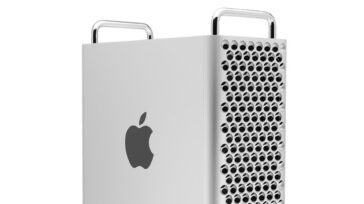
- M2 Mac Pro or later
Wi-Fi 6E iPad models include:
- M3 and M4 iPad Pro models or later
- iPad Air 11-inch (M2), iPad Air 13-inch (M2), or later
- iPad mini (A17 Pro) or later
But your router has to support 160MHz on 5GHz
This update doesn’t magically upgrade your Wi-Fi hardware. To see a real benefit, you also need:
- A Wi-Fi 6 or Wi-Fi 6E router that supports 160MHz channel width on 5GHz, and
- A 5GHz network configuration that actually allows 160MHz (some routers default to 80MHz for compatibility/stability).
If your router only supports 80MHz on 5GHz—or it’s configured to stay there—your Mac or iPad won’t show much difference, because it can’t “stretch out” into the wider channel.
How to tell if you’re actually using 160MHz on your Mac
After updating to macOS Tahoe 26.2, you can do a quick speed check:
- Option-click the Wi-Fi icon in the menu bar and look for details like your Channel and channel width (the exact label can vary, but you’re looking for 160MHz).
Then test with something meaningful:
- A large file copy to a NAS or another computer on your network will often show the difference more clearly than an internet speed test, since your ISP plan can become the limiting factor.
What about checking iPad speeds?
iPadOS doesn’t expose as many Wi-Fi details in a user-friendly way, so the easiest approach is practical:
- Run the same download/upload or file-transfer test you’ve used before (especially big files), and see if your real-world throughput improves after updating.
One more note: 6GHz still has advantages
Even with the 5GHz upgrade, 6GHz can still be better in many environments because it tends to be less congested and has more available spectrum. So if you have a Wi-Fi 6E (or Wi-Fi 7) router and a clean 6GHz signal where you use your devices most, you may still prefer it.