Ordering something online offers two moments of peak excitement for me. Let’s say it’s a new Mac. The first wave of excitement is when I finally hit the “submit” button to place my order. The second is when the item actually arrives at my doorstep.
But there’s a lot that happens during that interval. Many companies offer free tracking for shipments. Usually, when an order ships, a tracking number is provided.
In the “before times”, if I needed a shipping update, I’d be forced to visit the carrier’s website in order to track my package. Many times, I’d forget my tracking number, necessitating a search through Apple Mail to find it. Finally, after finding said tracking number, I would paste it into the carrier’s tracking system (like an animal).
That’s a lot of work!
Thankfully, I found a very useful app called Parcel. (Here’s the App Store link.) Parcel tracks my shipments every step of the way, right from my Mac. Parcel supports over 300 carriers, including DHL, FedEx, UPS, USPS, Amazon and more. You can use Parcel to track packages you’ve shipped, or packages you’re expecting to receive. The application is available for both macOS, watchOS, iPadOS and iOS; I’ll be discussing the macOS version for this article, but it’s important to note that if having a package tracking app available across the entire Apple ecosystem it’s important to you, Parcel fits the bill.
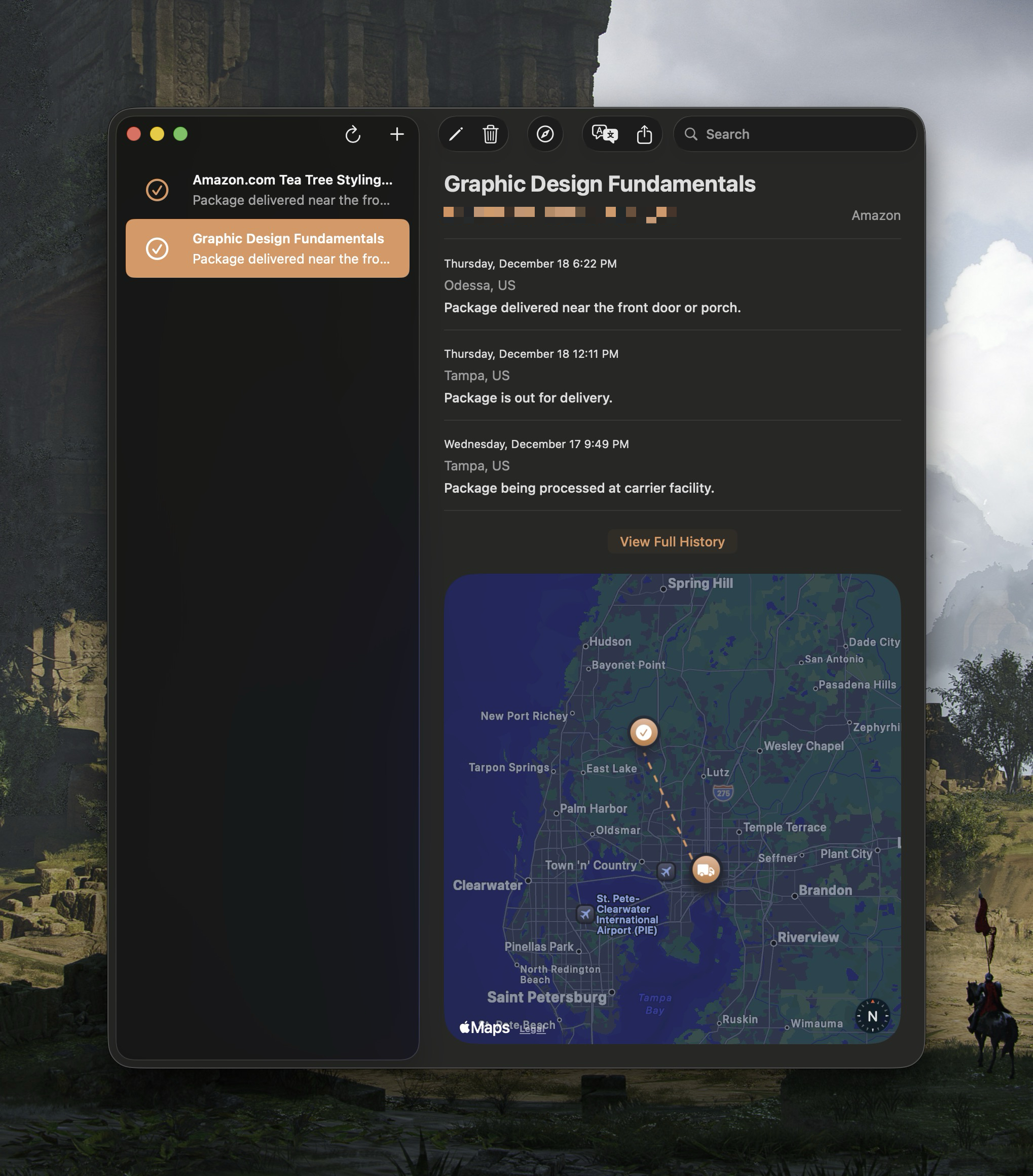
Parcel provides a clean and intuitive interface, just as one should expect from a top quality Mac app. On the left sidebar are individual shipments you’re currently tracking. Click on any item in your shipment list, and Parcel will show you the shipment details. These details include any delivery stops, an estimated delivery time, and even a built-in Apple map so you can visually “see” your package at each stop along its travels.

To add a new shipment into Parcel, simply click the + (plus) button on the left sidebar. You’ll be immediately greeted with a dialog box to enter your shipping number, carrier and (optionally) a description for the shipment itself. Parcel automatically detects your carrier based on the tracking number.
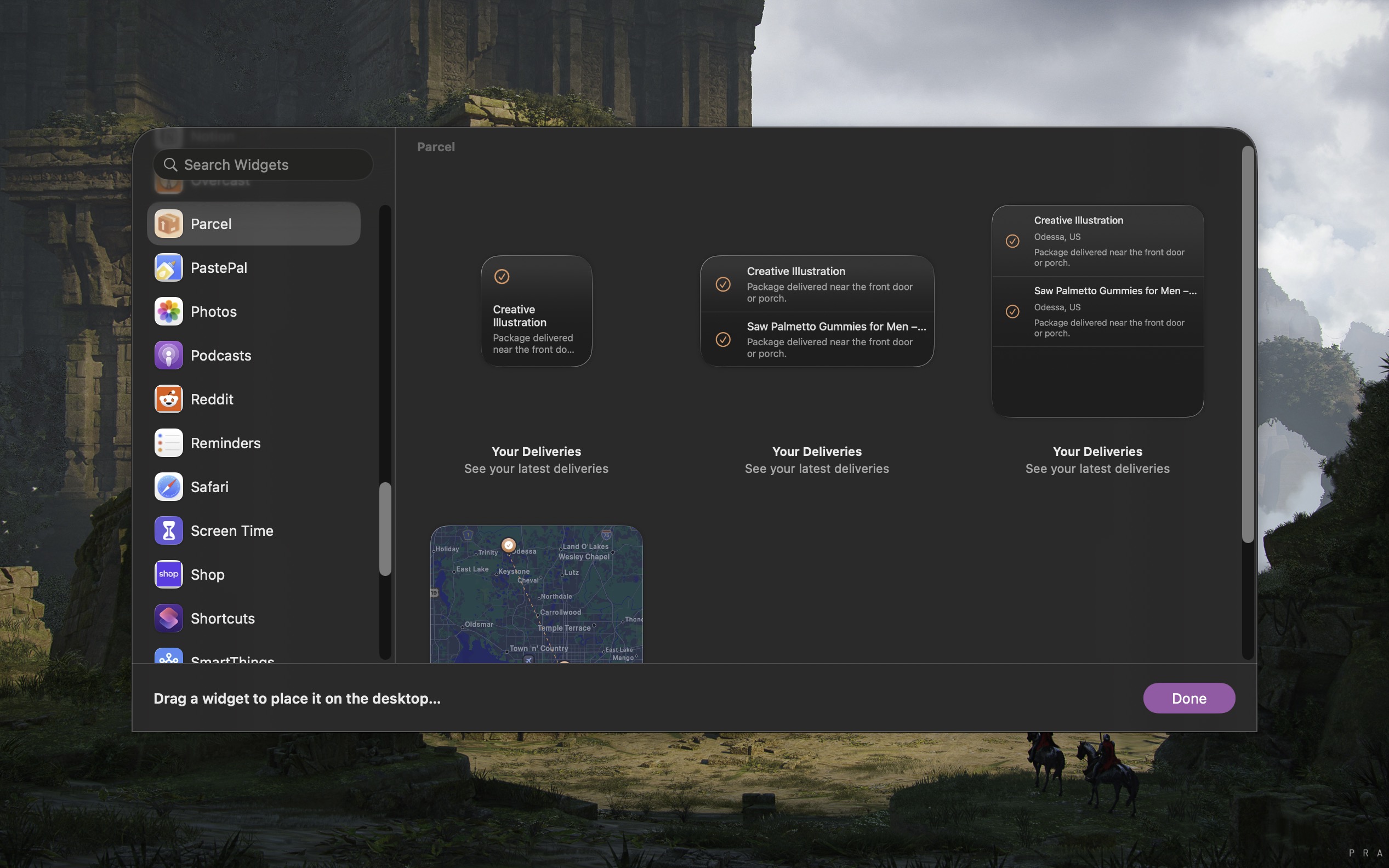
In addition to the app itself, Parcel can live in your Mac’s menu bar or as a widget floating on your Mac’s desktop. I find the Parcel widget to be most convenient, allowing me to glance at expected deliveries as I work. (Clicking on the Parcel widget will launch the Parcel app.)
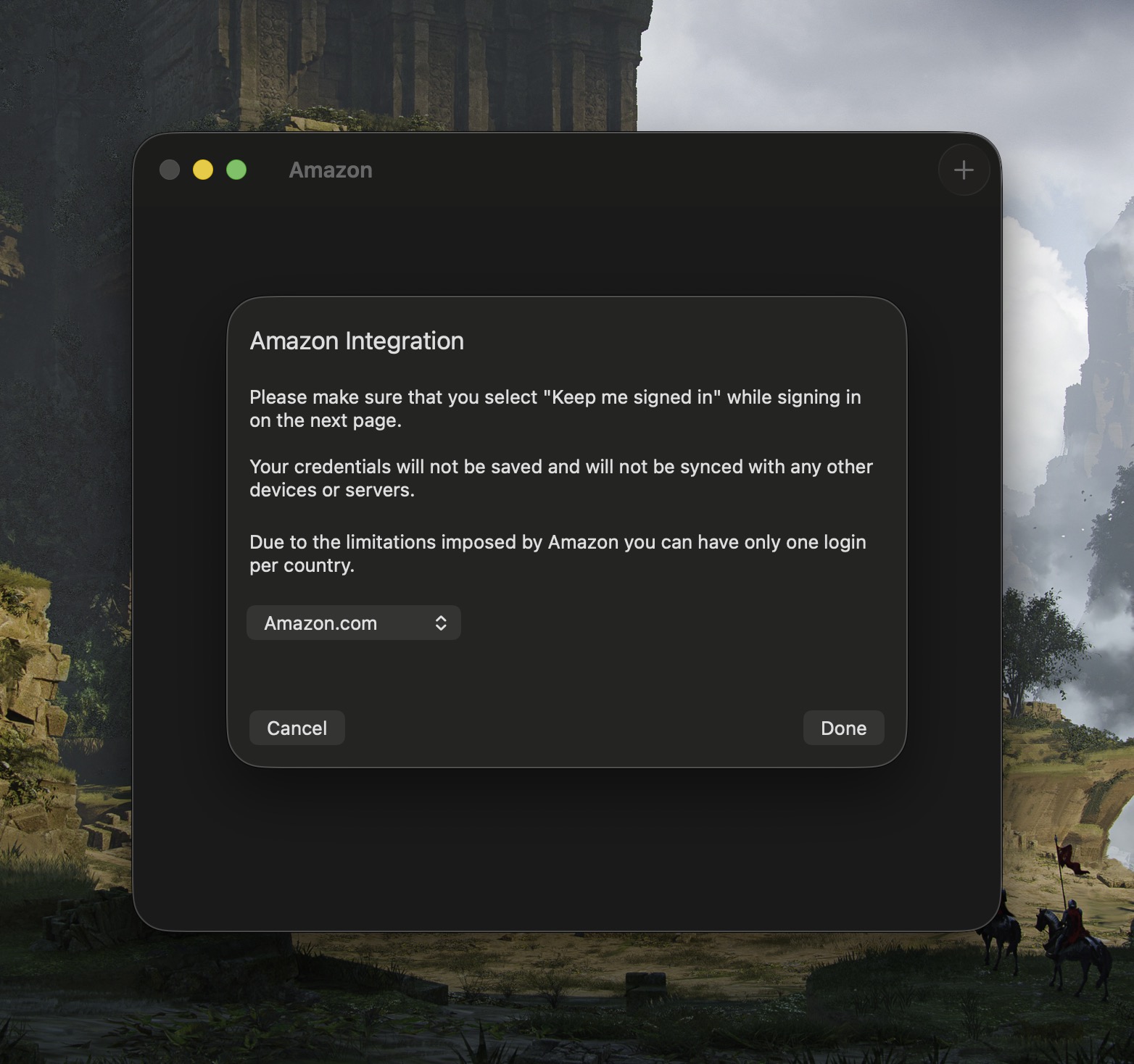
Parcel supports Amazon shipments, without the need of supplying a tracking number. To take advantage of this feature, you’ll have to enable it from Parcel’s menu (Parcel > Amazon Integration). As a frequent Amazon customer, this is quite handy.
I’ve used Parcel for free for many years, and recently registered the app to show the developer my support. If you frequently ship and/or receive packages, it’s a must-have app.
Parcel is available from the Mac App Store. It’s free forever. The free version includes the ability to track up to 3 items. The paid version ($4.99 per year) allows for unlimited package tracking. In my opinion, the pricing is very fair for what it does.
Parcel saves me so much time and effort when it comes to tracking packages. I can’t imagine using my Mac without it.