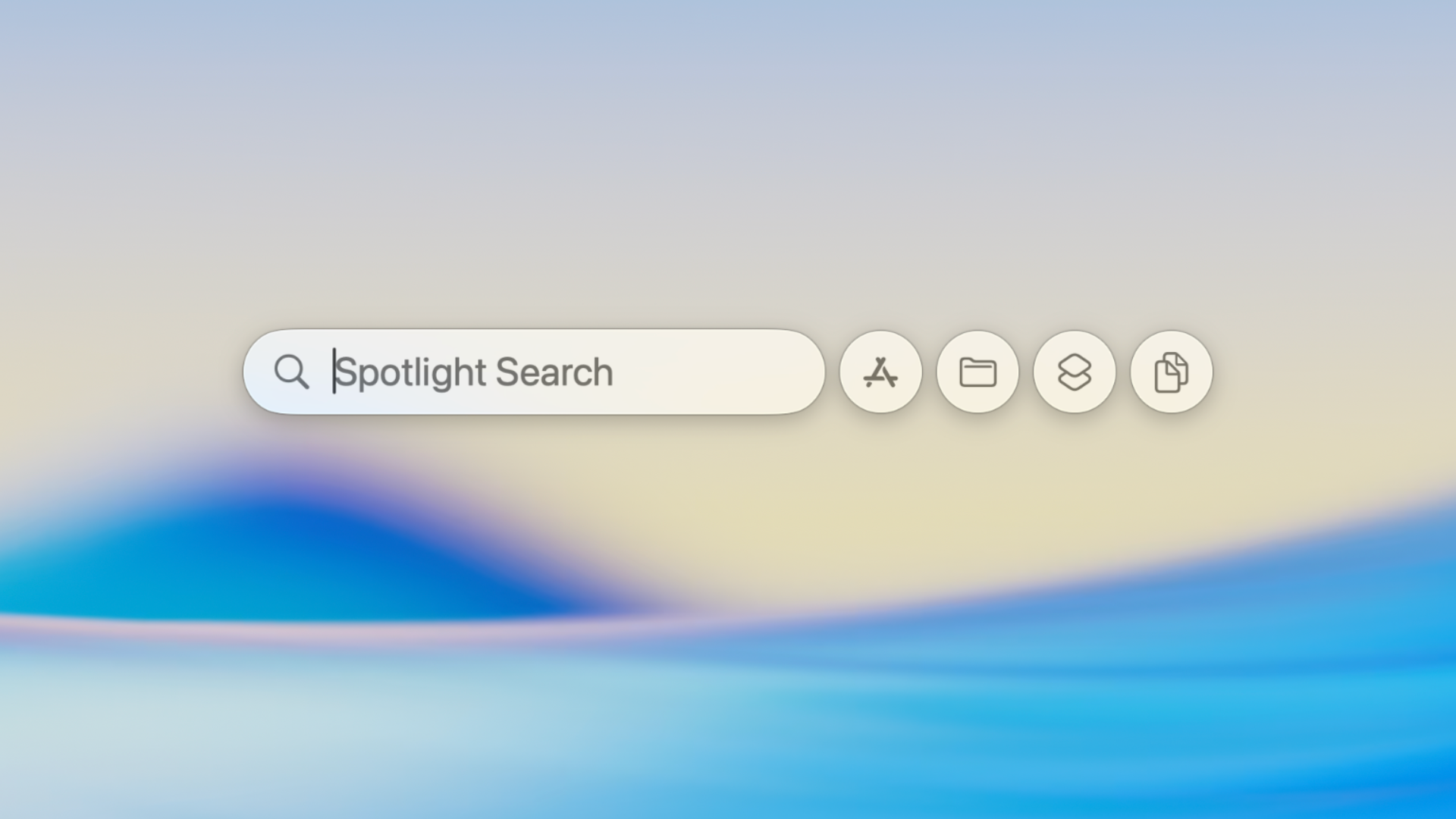
Apple calls the latest version of its Spotlight launcher utility in macOS 26 Tahoe, “the biggest Spotlight update ever,” and for once, the marketing hyperbole might actually be justified. After years of watching power users flee to third-party launchers like Raycast and Alfred, Apple has finally given Spotlight the overhaul it desperately needed.
With macOS Tahoe, Spotlight has transformed from a simple type-to-find app and file launcher into a genuine productivity powerhouse that can finally hold its own against the competition. If you’ve dismissed previous versions of Spotlight as just another way to open apps, it’s time to take another look. Here’s everything you need to know about the new Spotlight and how to squeeze every drop of productivity from it.
What’s New: The Four Pillars of Spotlight
The new Spotlight operates on four distinct modes, each accessible via click or keyboard shortcuts that should quickly become muscle memory:
Command-1: The Apps Browser
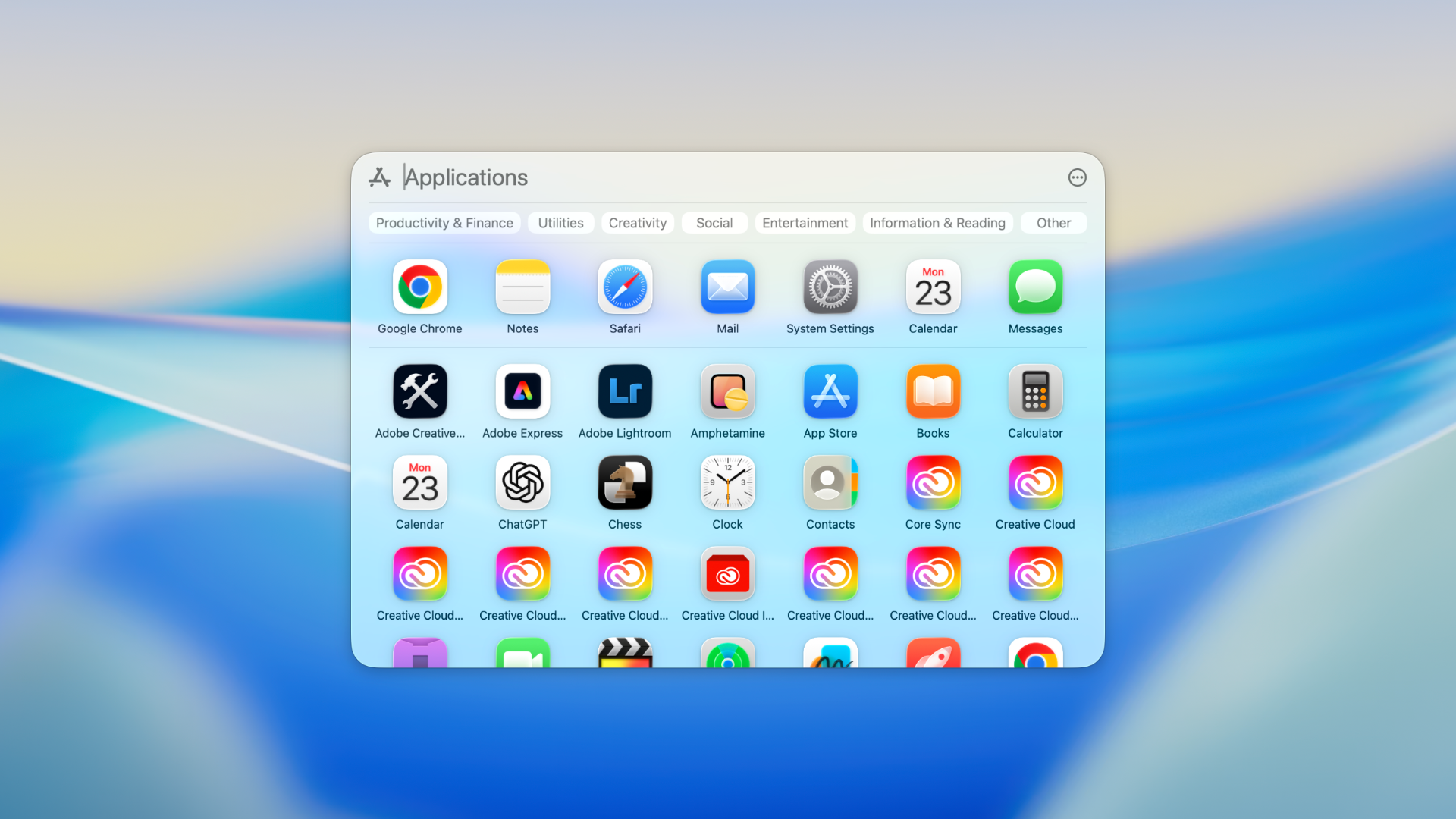
Press Command-Space followed by Command-1, and Spotlight transforms into a Launchpad-style app grid (RIP Launchpad). Your Mac apps appear alphabetically with category filters along the top (Productivity, Creativity, Games, etc.), and thanks to iPhone Mirroring integration in Tahoe, you’ll also see your iOS apps listed separately. Type a few letters to filter results instantly, and hit Return to launch.
What makes this particularly clever is how it handles app discovery. Forgot what an app is called but remember it’s for photo editing? Browse by category. Need to open a specific iOS app without picking up your phone? It’s right there in the same interface.
Command-2: The File Browser
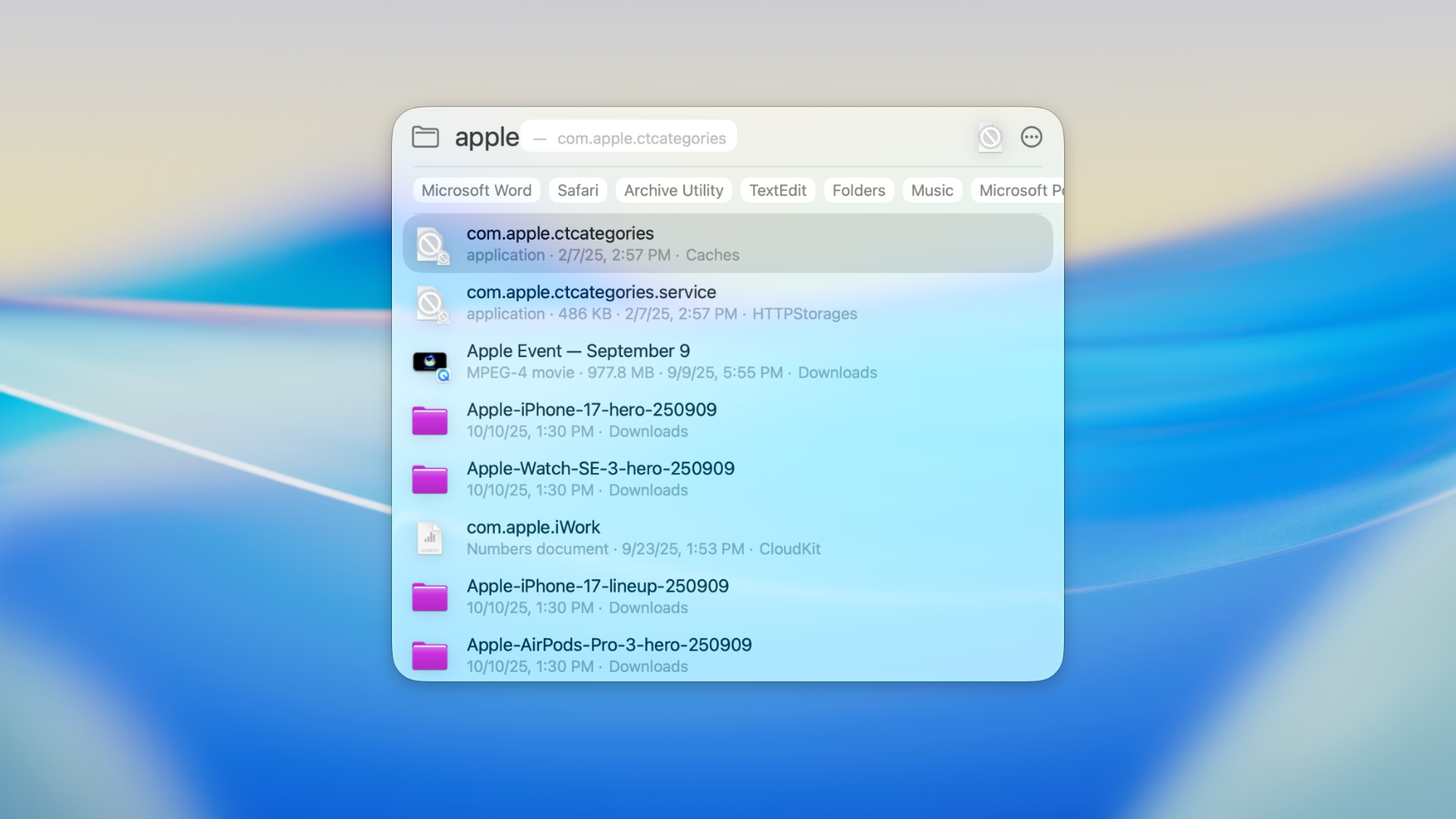
This is where Spotlight starts feeling like a genuine Finder replacement for quick file access. Command-2 gives you a dedicated file browser with intelligent suggestions and recent file access. Type part of a filename and watch Spotlight surface it instantly, with filtering options by file type (Documents, Screenshots, PDFs) and by application.
The real power move here is location-based filtering. Type “Downloads” followed by Tab, then your search term, and Spotlight restricts results to just that folder. This works for Desktop, Documents, Applications, and even third-party cloud services like Google Drive, Dropbox, and OneDrive. It’s not as flexible as Finder for complex searches, but for everyday file retrieval, it’s blazingly fast.
Command-3: The Actions Hub
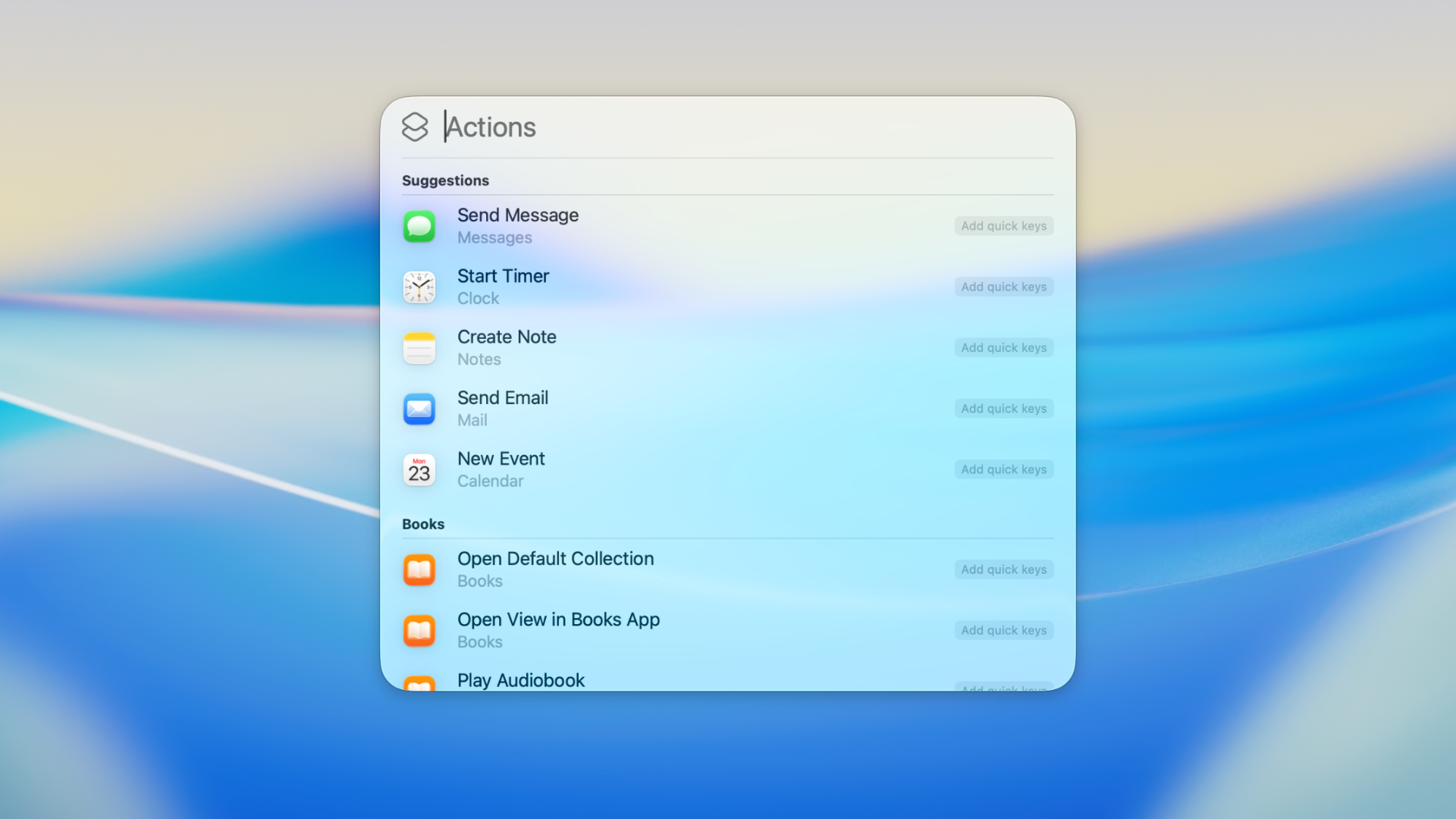
Here’s where Spotlight becomes legitimately game-changing. Press Command-3 to access hundreds of built-in actions that let you control apps without opening them. Want to send a message, create a reminder, start a FaceTime call, or trigger a specific Shortcut? It’s all here, keyboard-accessible and lightning-fast.
The genius of the Actions system lies in Quick Keys—customizable text shortcuts that trigger specific actions. Type “sm” and it expands to “Send Message.” Type “anr” to quickly add a new reminder. These shortcuts learn from your usage patterns, and you can customize them to match your workflow. For frequent tasks, this eliminates multiple clicks and app switches entirely.
Better yet, the Actions panel isn’t just for Apple apps. Third-party developers can expose their app’s functionality through App Intents, and the ecosystem is growing rapidly. Check your available actions by opening Spotlight and pressing Command-3—you might be surprised what’s already there.
Command-4: Built-in Clipboard History (Finally)
This is the feature that clipboard manager apps have been dreading. Launch Spotlight and then press Command-4 and you’ll see everything you’ve recently copied—text, images, links, files—in a searchable list.
The first time you open the clipboard view, you’ll be asked to give Spotlight permission to save your clipboard history. Hit allow if you want to enable the feature.
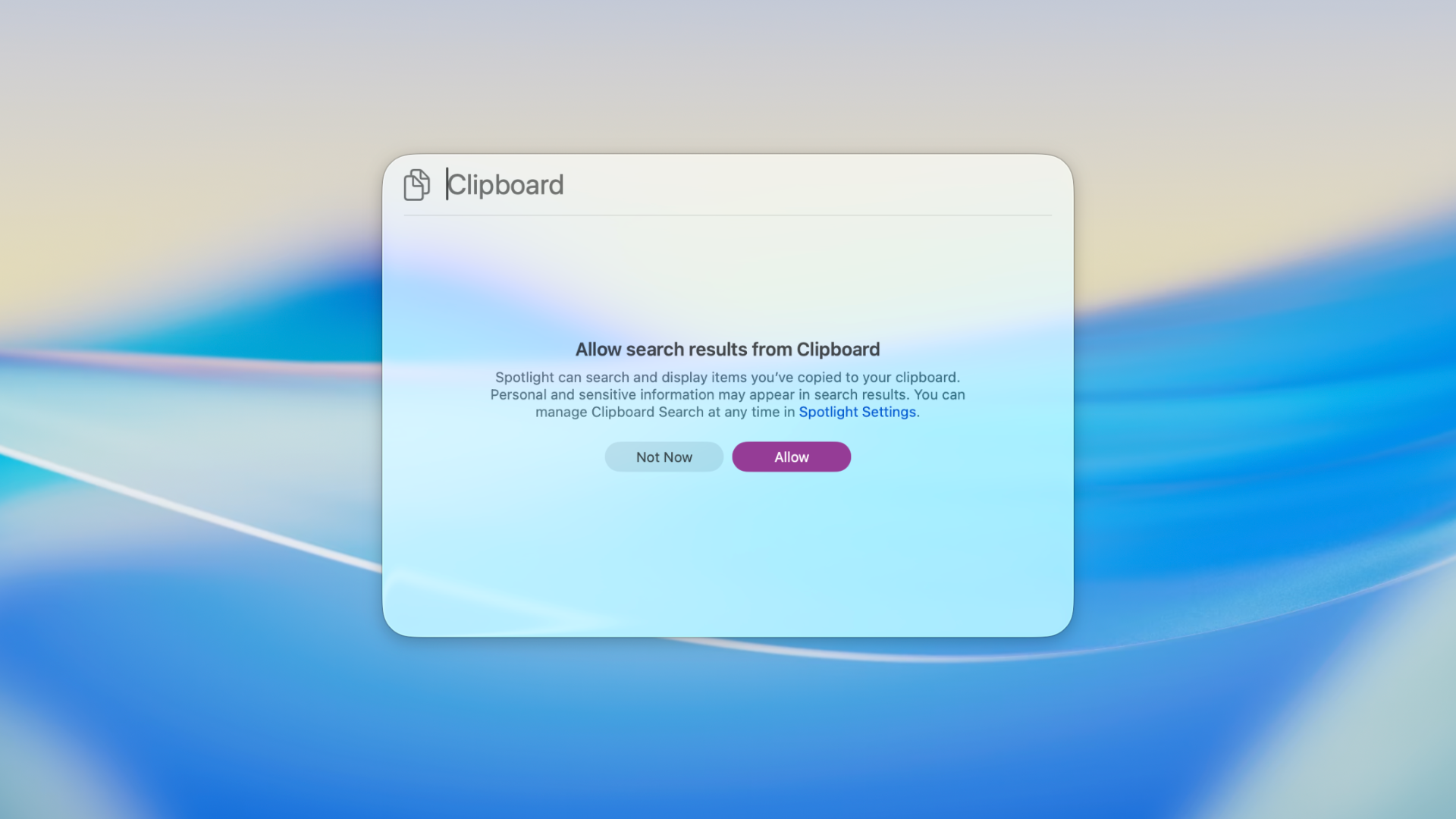
From here on out, after launching Spotlight and then entering the clipboard view, you can search your clipboard history by typing and then click to copy an given entry again, or select and press Return to paste immediately.
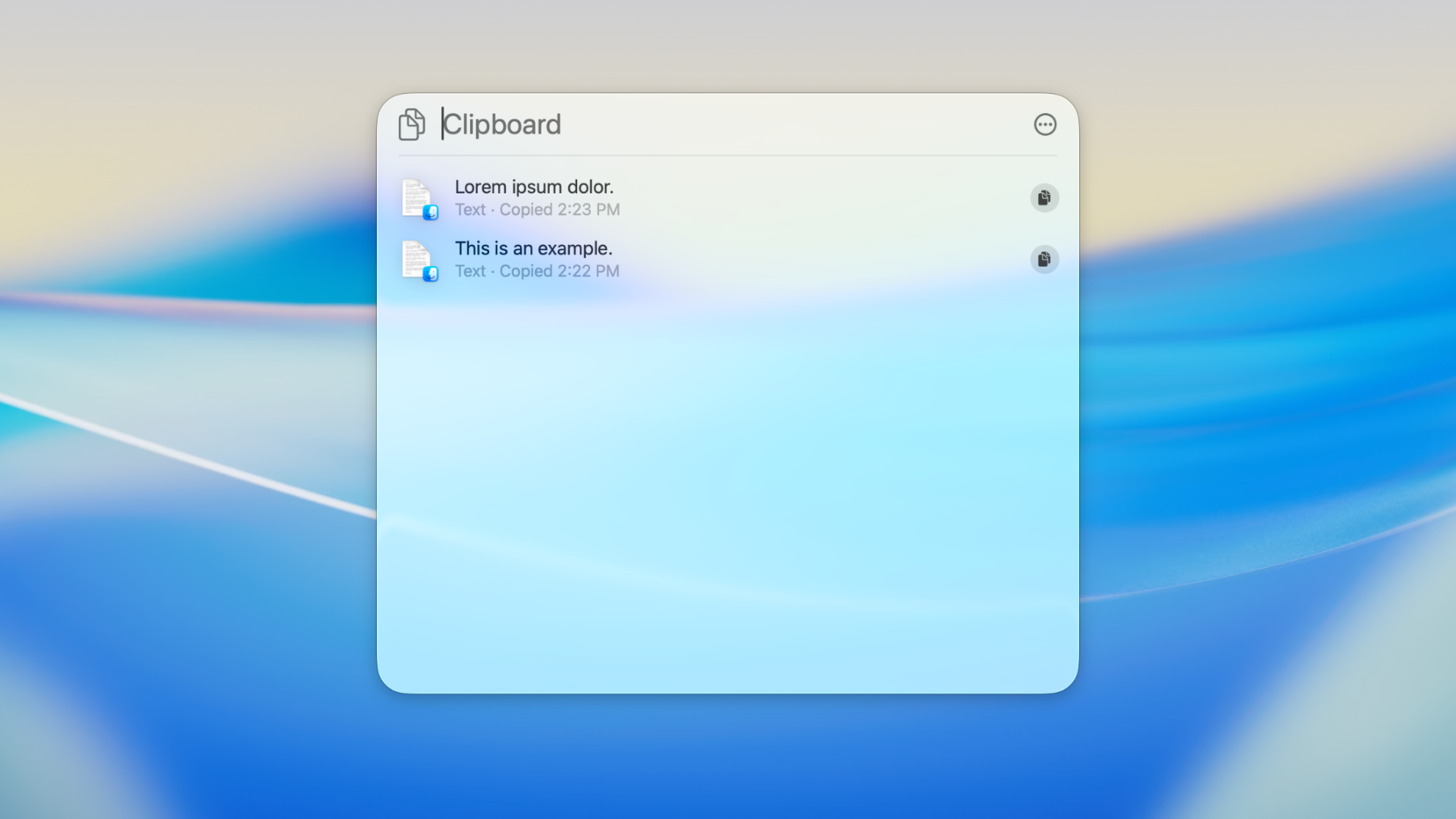
By default, clipboard history persists for 8 hours, though macOS 26.1 added options for 30 minutes or 7 days, depending on your security comfort level. You can also manually clear history or disable the feature entirely in System Settings > Spotlight.
Fair warning: Spotlight remembers everything you copy, including passwords. Dedicated clipboard managers like Paste or Copied offer more sophisticated features like pinning favorites, cross-device sync, and the ability to exclude sensitive content automatically. But for most users, Spotlight’s clipboard history is good enough—and it’s free and built-in.
Pro Tips for Power Users
Beyond the four browsing modes, Spotlight in Tahoe has several tricks worth mastering:
Smart Auto-Complete: Start typing and Spotlight attempts to predict your intent. Type “App” and it might auto-complete to “Apple Configurator” in white text. Keep typing to override, or hit Return to accept the suggestion.
Natural Language Input: Spotlight supports conversational queries. Ask “weather tomorrow” or calculate “15% of 234” without any special syntax.
Menu Search: While using any app, invoke Spotlight and start typing a menu command. Spotlight will find and execute it instantly—great for those buried preferences you can never remember how to access.
Category Filtering: After performing a search, dynamic category tags appear beneath the search field (Screenshots, System Settings, Folders, etc.). Click any category to filter results instantly.
Quick Preview: Select any file in Spotlight results and tap the spacebar for a Quick Look preview, just like in Finder.
Spotlight vs. Raycast vs. Alfred: The Honest Comparison
Now for the question everyone’s asking: With Spotlight this good, do you still need Raycast or Alfred?
What Spotlight Now Does Well
Spotlight has closed the gap considerably. For basic productivity—launching apps, finding files, triggering shortcuts, managing clipboard history—it now handles the essentials admirably. It’s fast, it’s free, it’s beautifully integrated into macOS, and it requires zero configuration. For casual users and even many productivity enthusiasts, Spotlight has become legitimately good enough.
The native integration means Spotlight “just works” with Apple’s ecosystem. iPhone Mirroring apps appear automatically. Shortcuts integrate seamlessly. Updates and new features arrive with macOS releases. There’s something to be said for this level of polish and zero-friction experience.
Where Raycast and Alfred Still Dominate
But “good enough” isn’t the same as “best.” Third-party launchers still offer capabilities that Spotlight simply can’t match:
Extensibility: Raycast’s extension store and Alfred’s workflow system allow for deep customization that Spotlight’s Action system can’t touch. Need to control Spotify, check your Gmail inbox, query your Jira backlog, or search your company’s Notion workspace? Third-party launchers can do all of that and more through their plugin ecosystems.
Window Management: Both Raycast and Alfred offer robust window management. Snap windows to screen halves, thirds, or quarters with simple keyboard commands. Spotlight can’t do this at all.
Advanced Clipboard Features: Professional clipboard managers in Raycast and Alfred support pinning frequently-used items, searching clipboard history by date or content type, excluding sensitive content automatically, and syncing history across devices. Spotlight’s clipboard is functional but basic.
Deep Customization: From custom themes to hotkey remapping to workflow variables, power users can bend Raycast and Alfred to their exact specifications. Spotlight is what it is.
Web Search Integration: Type “g” followed by a query in Alfred or Raycast, and it searches Google directly. Want to search Amazon, Wikipedia, YouTube, or your company’s internal documentation? Create custom web searches with prefixes. Spotlight offers basic web results but nothing this flexible.
File Operations: Raycast and Alfred let you move, copy, rename, and manipulate files directly from the launcher. Spotlight only lets you open them.
Text Snippets: Both third-party launchers offer text expansion. Type “;email” and it expands to your full email address. Spotlight has no equivalent feature.
The Verdict
Spotlight in Tahoe has evolved from a glorified app launcher into a genuinely capable productivity tool. For many Mac users—perhaps even most—it will now be enough. The zero cost, zero configuration, and seamless integration are compelling advantages.
But for power users who need advanced automation, extensive customization, window management, or deep integration with third-party services, Raycast (free with optional Pro features) and Alfred (free with paid Powerpack upgrade) remain indispensable. The good news is you don’t have to choose—many users run Spotlight alongside a third-party launcher, using each for its strengths.
Think of it this way: Spotlight is now a very good Swiss Army knife. Raycast and Alfred are full toolboxes. Most people need the knife. Some people need the toolbox. A few people want both.
The Future: Gemini-Powered Siri and What It Means for Spotlight
Here’s where things get really interesting. Apple has announced a multi-year partnership with Google to power the next generation of Siri using Gemini AI technology, with the first improvements expected as early as spring 2026 (likely in macOS 26.4).
While this partnership focuses on Siri rather than Spotlight directly, the implications for Spotlight are significant. Here’s what we know and what it might mean:
What’s Coming to Siri
The Gemini-powered Siri will reportedly be able to:
- Answer complex factual queries conversationally: Instead of “Here’s what I found on the web,” Siri will provide detailed, natural language answers similar to ChatGPT.
- Understand personal context better: Using information from Mail, Messages, Calendar, and other apps, Siri will handle queries like “When is my mom’s flight landing?” by synthesizing information across apps.
- Execute multi-step tasks: Rather than just opening apps, Siri will be able to plan and execute workflows that span multiple applications.
- Provide deeper app integration: Siri will control apps at a more granular level, similar to what Spotlight Actions currently do but with natural language instead of keyboard shortcuts.
How This Could Enhance Spotlight
While Apple hasn’t explicitly detailed how Gemini will affect Spotlight, several logical extensions seem likely:
Integrated Chatbot and Natural Language Actions: Rather than relying on a third-party chatbot in a dedicated app like ChatGPT, imagine being able to get this same functionality from Spotlight. Plus, with natural language commands, you could be able to type conversational commands into Spotlight instead of having to memorize Quick Keys or keyboard shortcuts.
Smarter Search Results: AI-powered understanding could help Spotlight surface more relevant results based on context, recent activity, and personal patterns rather than just keyword matching.
Intelligent Suggestions: Spotlight could proactively suggest actions based on your schedule, location, and habits. Open Spotlight in the morning and see suggested files for your 9 AM meeting or one-tap access to start your daily standup Shortcut.
Cross-App Queries: Rather than searching apps individually, you could ask Spotlight to find information scattered across multiple apps: “Where did Sarah send me that restaurant recommendation?” and have it surface the relevant message, email, or note.
Timeline and Expectations
The Gemini-powered Siri improvements are expected to begin rolling out at some point in the first half of 2026, though reports of more delays have unfortunately surfaced.
Just don’t expect revolutionary changes overnight. Apple’s approach tends toward iterative improvement, and the initial Gemini integration will likely focus on making Siri more reliably useful before extending those capabilities to other parts of the system.
Over the next year or two, Spotlight could evolve from a keyboard-driven launcher into a truly intelligent assistant that understands natural language, personal context, and complex multi-step workflows.
Spotlight in macOS Tahoe represents Apple finally taking this feature seriously. After years of playing catch-up to Raycast and Alfred, Apple has delivered something genuinely competitive—not just good enough, but actually good.
For longtime users of third-party launchers, it’s worth spending a day with the new Spotlight before dismissing it. You might be surprised. For users who’ve never tried a launcher beyond Spotlight, you’re about to discover a whole new way of working with your Mac.
And with Gemini-powered AI enhancements on the horizon, Spotlight’s trajectory looks even more promising. The humble Command-Space shortcut is evolving from a simple search box into one of the most powerful productivity interfaces on macOS.
What Spotlight features are you most excited about? Have you ditched Raycast or Alfred for the new Spotlight, or are you sticking with your third-party launcher? Share your experience in the comments.
Other Topics You Might Like: