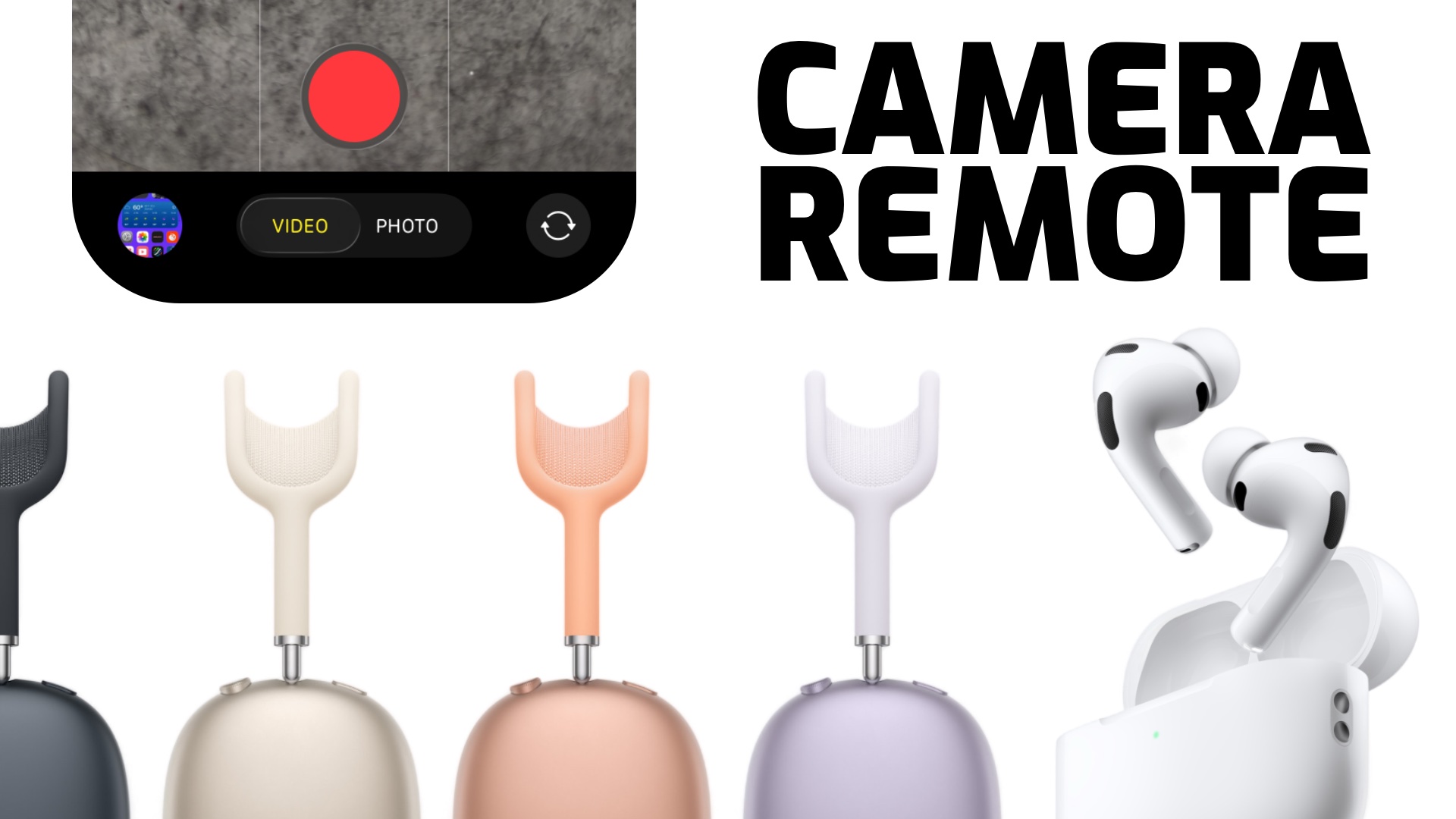
One of the most useful features of the Apple Watch has long been the ability to control your iPhone’s camera remotely. The Watch’s Camera app even let’s you see a preview of the shot so that you can frame things up and it allows you to monitor video recordings.
Now with iOS and iPadOS 26, Apple has added another way for users to control their iPhone and iPad cameras from afar with a click of an AirPods stem or, in the case of the new AirPods Max 2, a press of the Digital Crown.
Apple calls the new feature Camera Remote and it should come in handy for those taking large group selfies, content creators setting up the perfect shot, and more. The feature basically turns your AirPods stem/Digital Crown into a remote shutter button, allowing you to take a photo or start and stop a video with a squeeze/press.
Let’s take a look at how to enable this feature on your AirPods.
What do I need to enable the AirPods Camera Remote feature?
There are a few requirements to be aware of in order to get up and running with Camera Remote.
- Camera Remote requires an iPhone or iPad running iOS 26 or iPadOS 26, respectively.
- The feature doesn’t just work in the default Apple Camera app. In fact, it should work in most camera apps, but some might not support the feature. Your mileage may vary.
- The feature currently only works with AirPods 4, AirPods Pro 2, AirPods Pro 3, and AirPods Max 2.
How do I enable the AirPods Camera Remote feature?
Before you try to use the feature, you need to make sure it’s enabled in the Settings app.
- Wear your AirPods and make sure they’re connected to the iPhone or iPad you want to control.
- Go to the Settings app.
- Near the top of the main Settings screen, just under your name/iCloud information you should see your AirPods name. Tap there.
- Scroll down and tap Camera Remote.
- Choose how you want to activate the Camera Remote. Press once will activate the camera shutter with one press, while press and hold will require you to press and hold. According to Apple Support, “If you select Press Once, media control gestures are temporarily unavailable while you use a supported camera app. If you select Press and Hold, listening modes and Siri gestures are temporarily unavailable while you use a supported camera app.”
How to use Camera Remote to Take a Photo or Video
- Wear your AirPods and make sure they’re connected to the iPhone or iPad you want to control.
- Open your preferred camera app.
- To take a photo: Press or press and hold the stem/Digital Crown of your AirPods.
- To take start/stop a video: Swipe over to a Video mode then press or press and hold the stem/Digital Crown of your AirPods to start the video recording. Press/press and hold again to stop the recording.
Don’t Forget! You Can Also Use Your AirPods as a Microphone in Videos
Not only can you now control your camera with your AirPods, once you start a video, they can also act as a high-quality microphone in videos. Check out our previous blog post to learn how to set this feature up.
Other Topics You Might Like: