






With macOS Monterey, you can customize the outline and fill color of the mouse pointer. This makes it easier to recognize when the pointer moves or changes to an insertion point, crosshair, hand, or another shape. Here’s how:
- Go to the Apple menu bar () and open System Preferences.
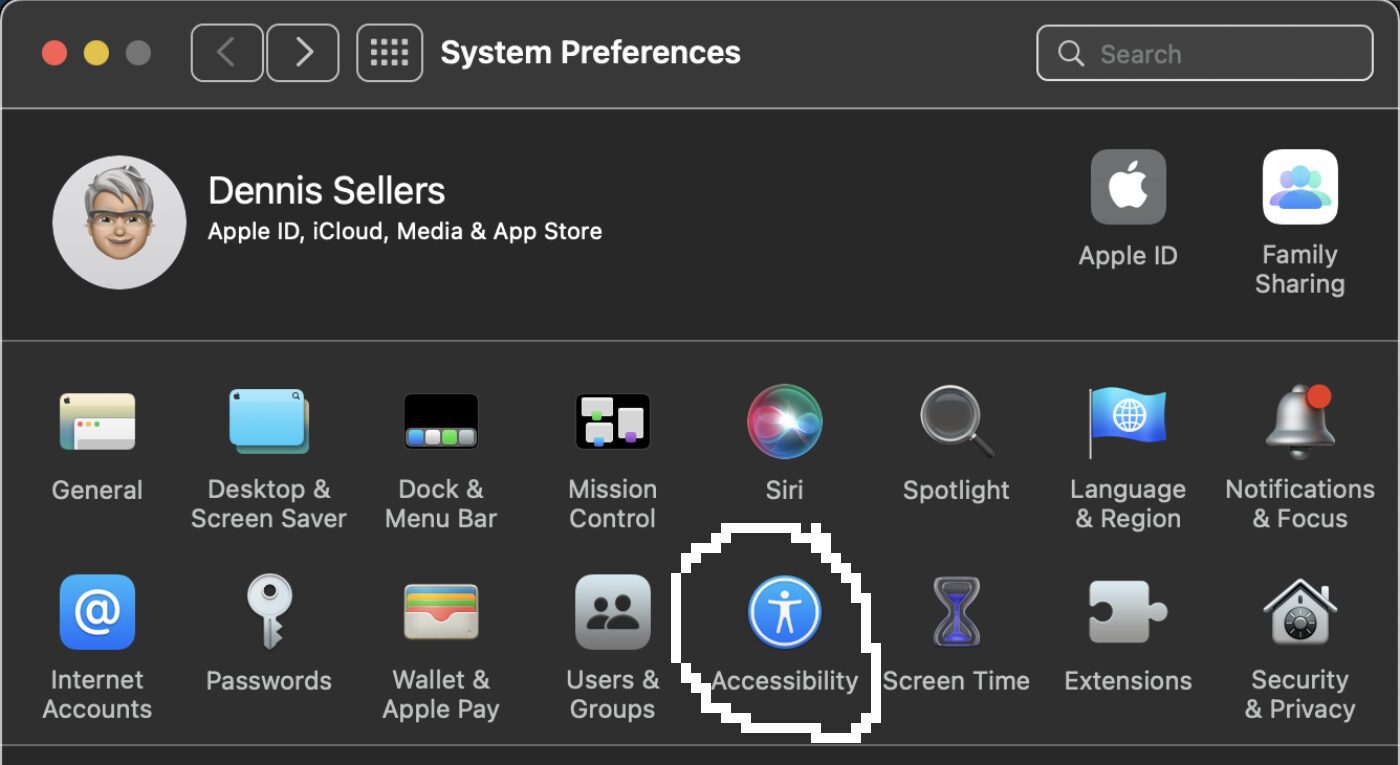
- Click the Accessibility preference pane.
- Click Display.
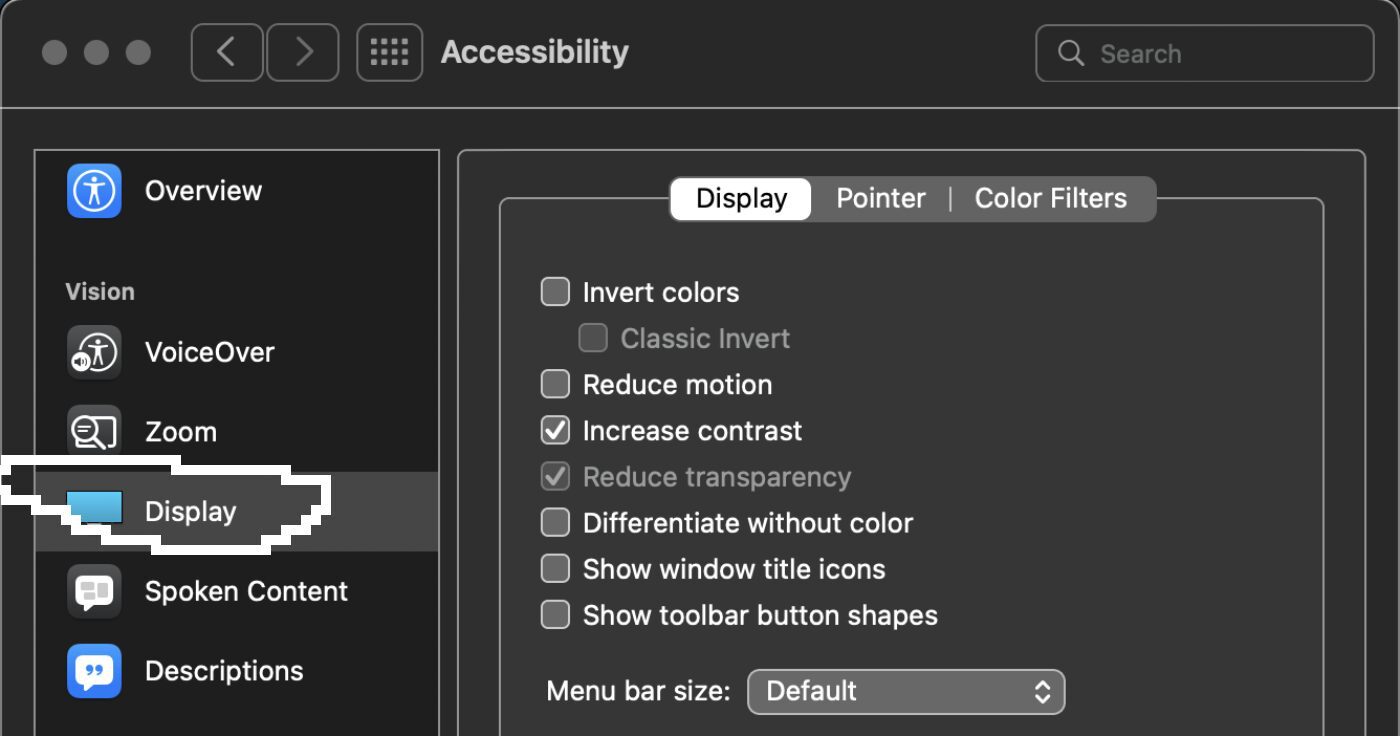
- Click the Pointer tab in the window of options.
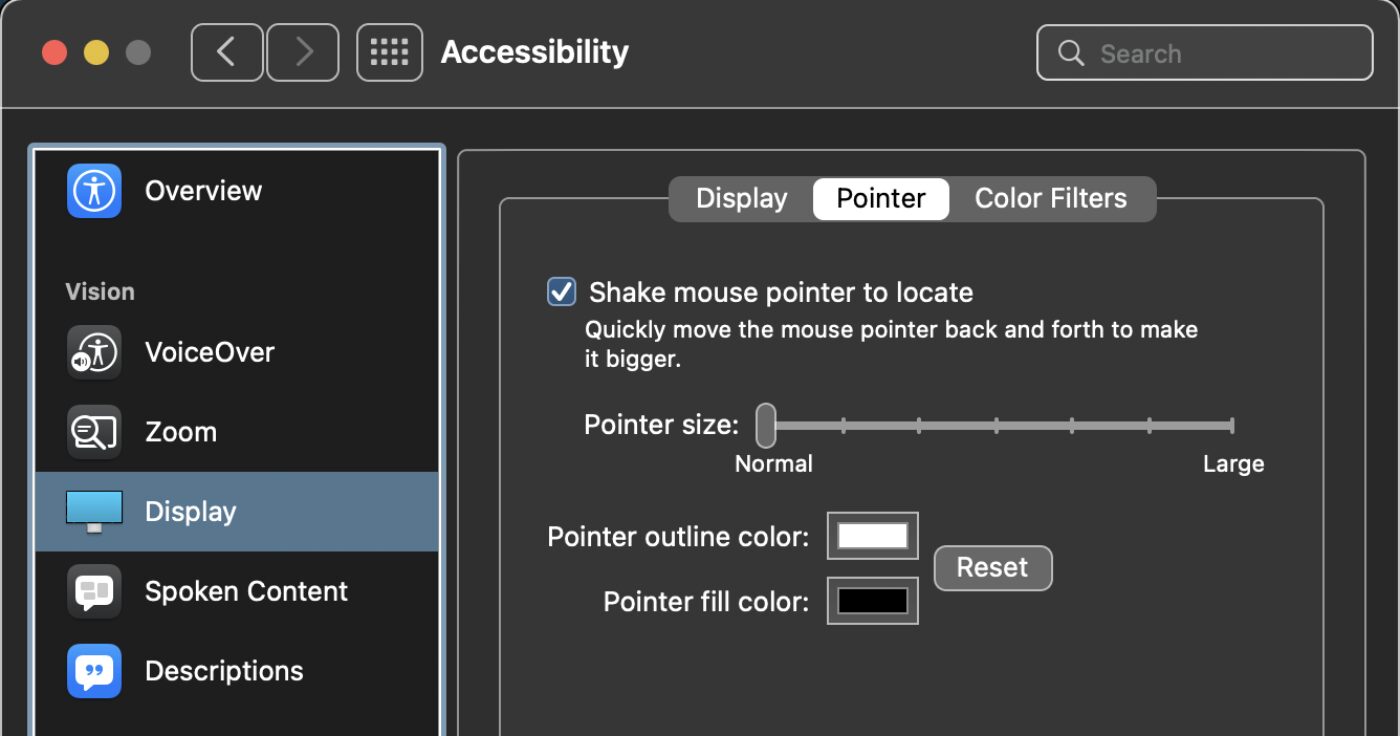
- Click the color swatches next to the Pointer outline color and Pointer fill color settings. This allows you to select a custom color from the palette that appears.
You can also adjust the pointer size of the mouse from “normal” to “large.” Plus, you can enable the option to “Shake mouse pointer to locate.”
I’d recommend playing around with the various options to find which mouse settings best suit your particular needs.
And, of course, you can always go back to the default settings by:
- Going to System Preferences > Accessibility > Display.
- Choosing the Pointer tab.
- Click the reset button to never to the default colors.
You may also like:



I set my cursor to light green outline and darker green fill. This makes it look neon and really stands out. I don’t lose my cursor anymore.