There are lots of changes in macOS 26 Tahoe. Many of those changes are visual while others update core features of the operating system that a lot of users have come to rely on for efficiently navigating their Mac over the years. One surprisingly controversial change in macOS Tahoe has been Apple’s decision to replace Launchpad.

Launchpad was introduced in 2011 with the release of Mac OS X Lion. It placed an icon in the dock that when clicked would pull up a full-screen grid of all your Mac apps in an interface similar to an iPad home screen. In macOS Tahoe, Launchpad has been replaced with a new Apps icon.
When clicked, the Dock’s Apps icon opens up a small window centered in the middle of the display. The new Apps window not only shows you a scrollable grid of all your apps, it also allows you to search for an app similar to how you might search in Spotlight, while also showing a recommended row of apps based on your usage.

For many, this new Apps window represents an upgrade from Launchpad. In fact, when it was clear months ago that Launchpad was going the way of the Dodo, there was hardly any reaction from early upgraders and power users, many of whom never used Launchpad in the first place, preferring to launch apps from the Dock, Spotlight, or a Spotlight alternative like Raycast. But now that the official release of Tahoe has hit the rest of the Mac-using public there has been quite the outcry from many frustrated users who miss Launchpad.
If you miss that big icon grid (and judging by early reactions, you are certainly not alone), rest easy. You’ve got a couple of solid ways to recreate the experience.
Quick fix: Put the Applications folder in your Dock
Beyond just trying to get used to the new Apps window, the easiest option to replicate most of Launchpad’s functionality is to simply add your Applications folder to the dock from Finder. With this method, you can get a simple, scrollable grid of every app—no extra software or tinkering required.
- Open a Finder window.
- In the sidebar, right-click Applications → Add to Dock.
- In the Dock, right-click the new Applications icon → View content as → Grid.

This takes advantage of macOS’ ability to display folders in the Dock for easy access and gives you an instant, alphabetized and large windowed grid from the Dock. A couple of caveats are worth noting with this method. In Tahoe, you can’t drag this new Applications icon to a different spot in the Dock, and it opens as a pop-up rather than full-screen like old Launchpad. Also, the icon that displays in the Dock for this apps grid is whatever the app that is first in your Applications folder. Still, it’s quick, tidy, and built-in.
Closer to Launchpad: Third-party app launchers
If you want folders, reordering, and a true Launchpad-like layout, try one of these dedicated launcher apps:
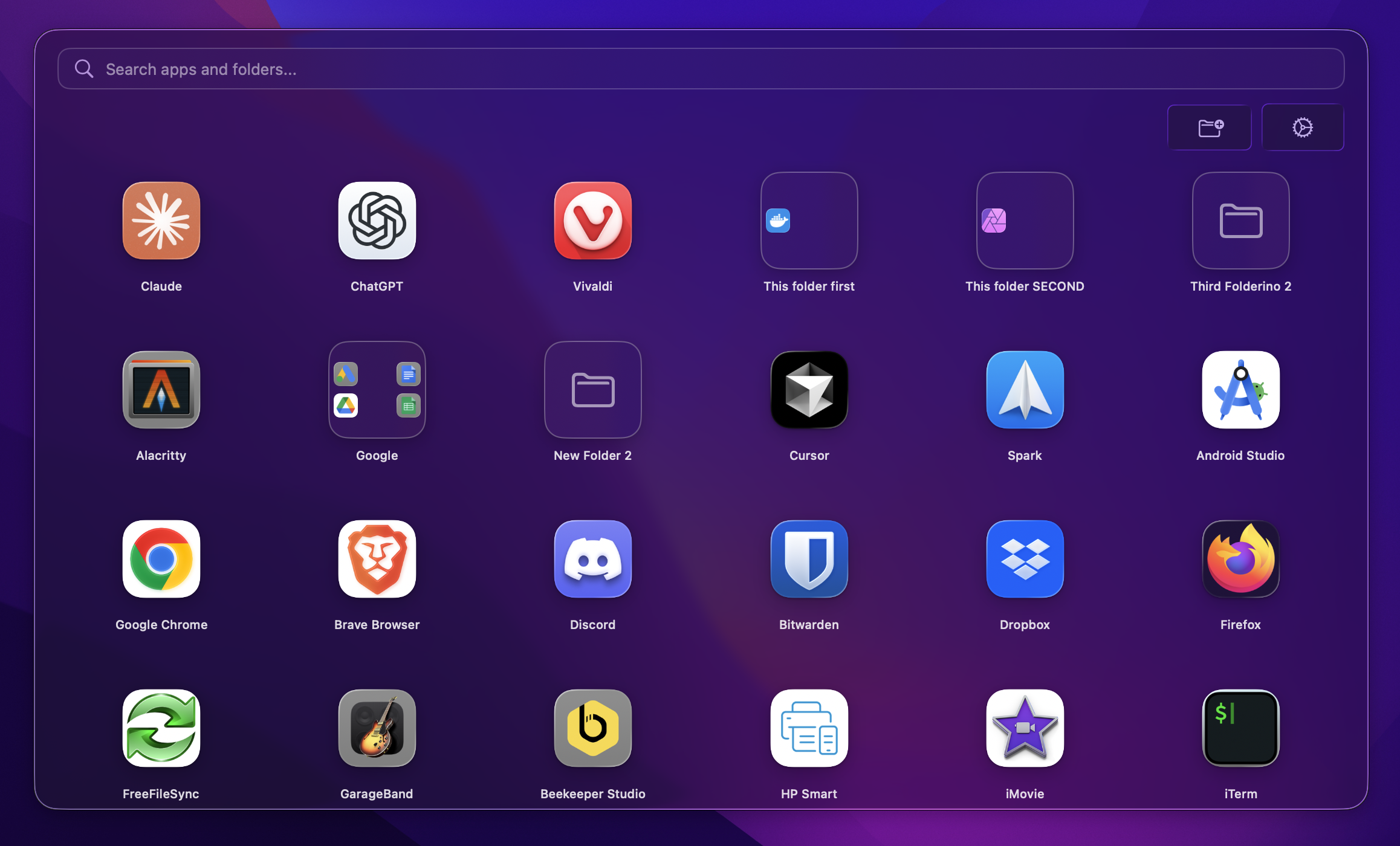
Launchie — Free, Apple Silicon-only, and purpose-built for Tahoe. It restores drag-and-drop reordering, custom folders, and a fast search bar, with optional custom hotkeys (e.g., ⌘K). A clean, focused choice if you just want Launchpad back with a few quality-of-life upgrades.
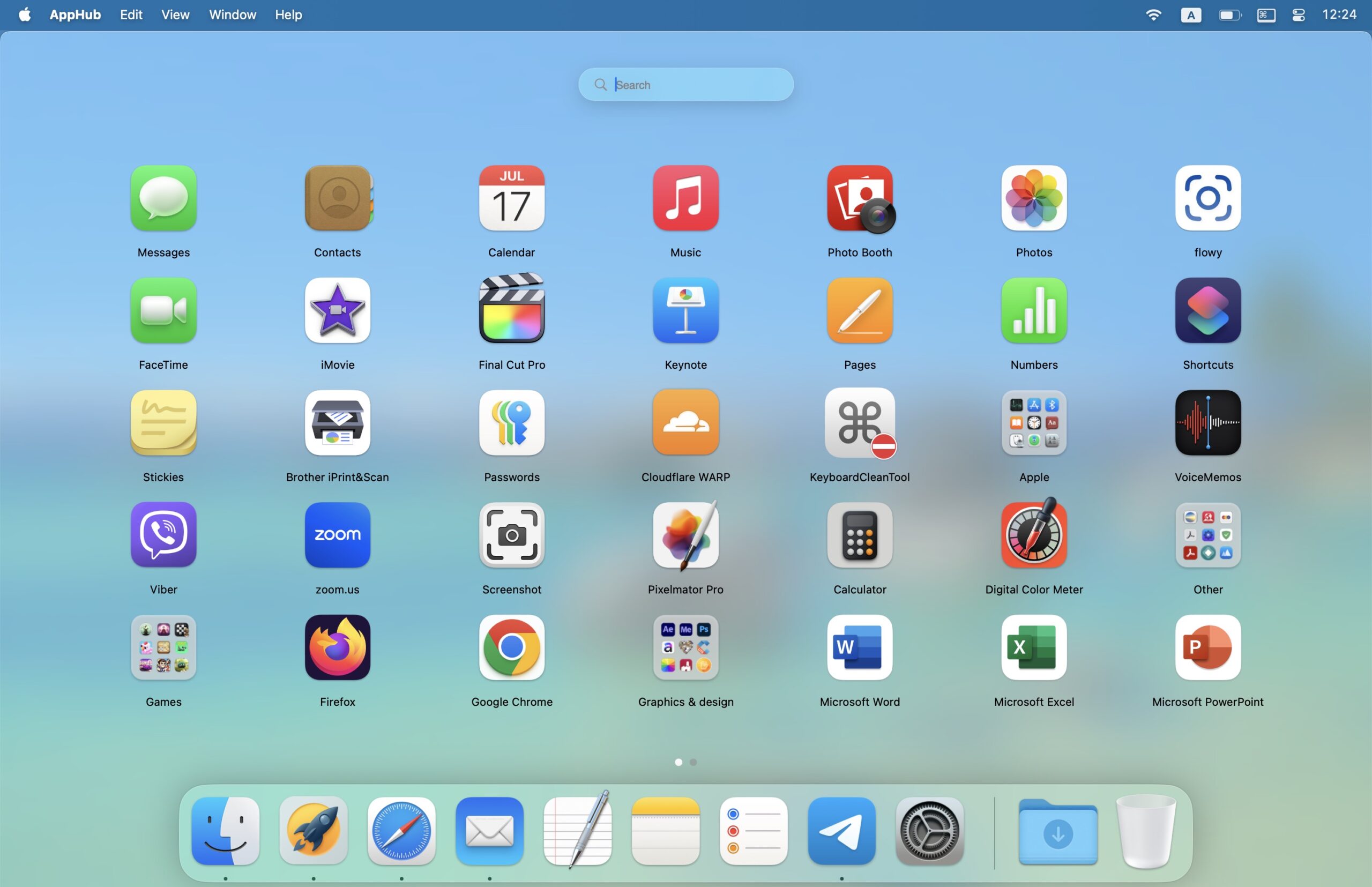
AppHub — A polished, highly customizable grid with smooth animations, keyboard controls, dark mode, and advanced grid settings. Its design hews closely to the classic Launchpad, but with deeper layout controls for power users.
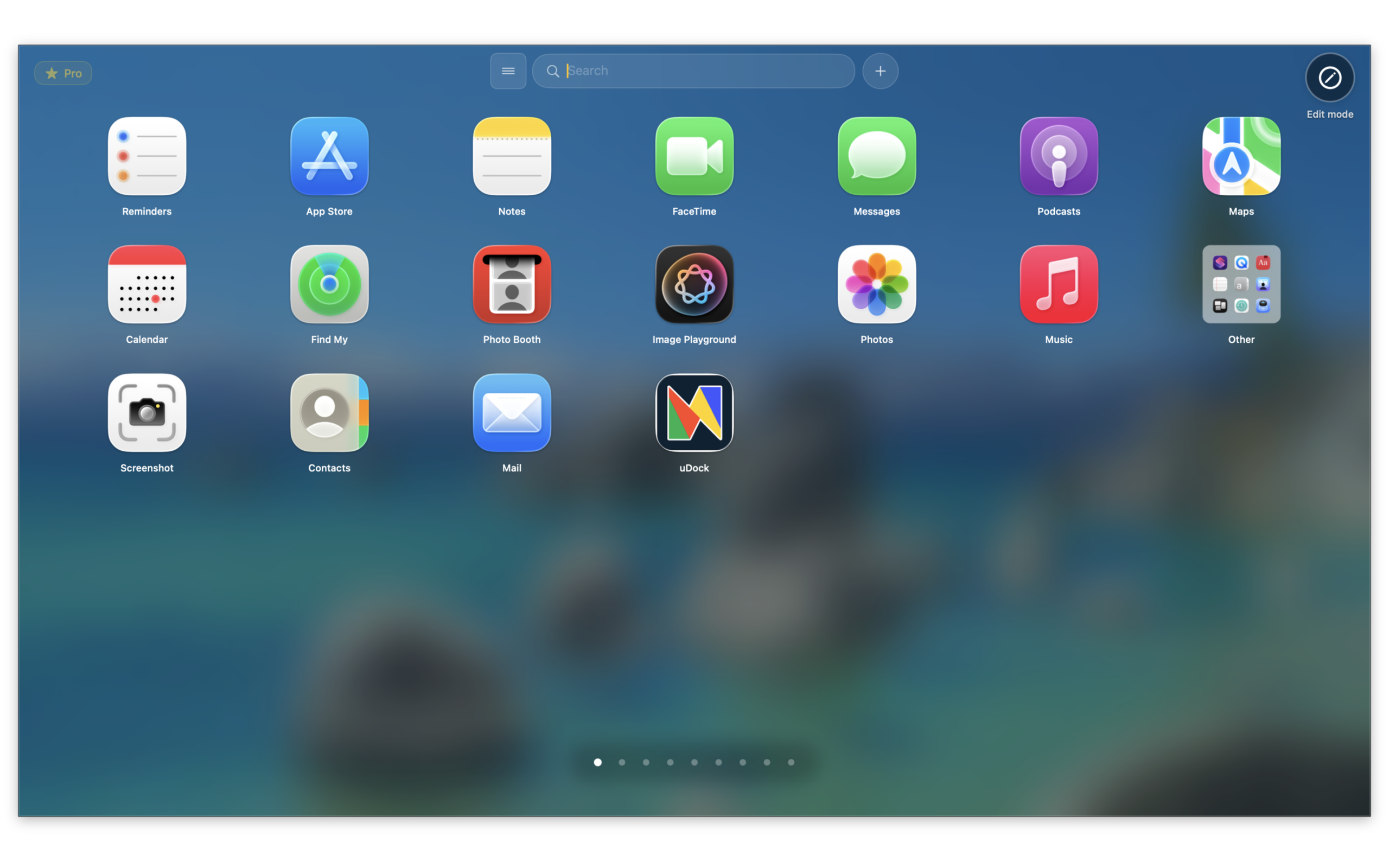
AppGrid Launcher — A free core version that can import your old Launchpad layout, rename apps, and sort pages; a Pro upgrade adds bulk drag-and-drop, grouping, and “sort everything” tools. It’s optimized for Tahoe and aims squarely at restoring the pre-Tahoe workflow.
Which route should you take?
- Keep it simple: Adding Applications to the Dock is perfect if you just need a quick, system-native grid and don’t care about folders or custom order.
- Recreate Launchpad: If you relied on Launchpad’s organization, one of the third-party launchers above will feel instantly familiar—often more flexible than the original.
Whichever path you choose, you don’t have to abandon the grid. With a couple of clicks—or a lightweight utility—you can bring that Launchpad-style app launcher back to your Mac on Tahoe.
Other Topics You Might Like: