Gimmicks are attention-grabbing, superficial tricks used in marketing to increase a product’s appeal. Whether it’s “New Coke” or the annual “Going Out of Business Sale” at the local furniture store, gimmicks are seemingly inescapable.
Don’t get me wrong. Novelty has its place. When employed sparingly, it can delight. But too much of anything can bring on feelings of frustration and fatigue.
When it comes to gimmicks, macOS Tahoe’s Liquid Glass comes to mind. Increasingly, it screams form over function, with the needle firmly pointing towards form.
One can argue that there are other areas within macOS that also feel gimmicky; where form is prioritized over function. Before I truly understood it, Control Center was one of those features I could have honestly done without.
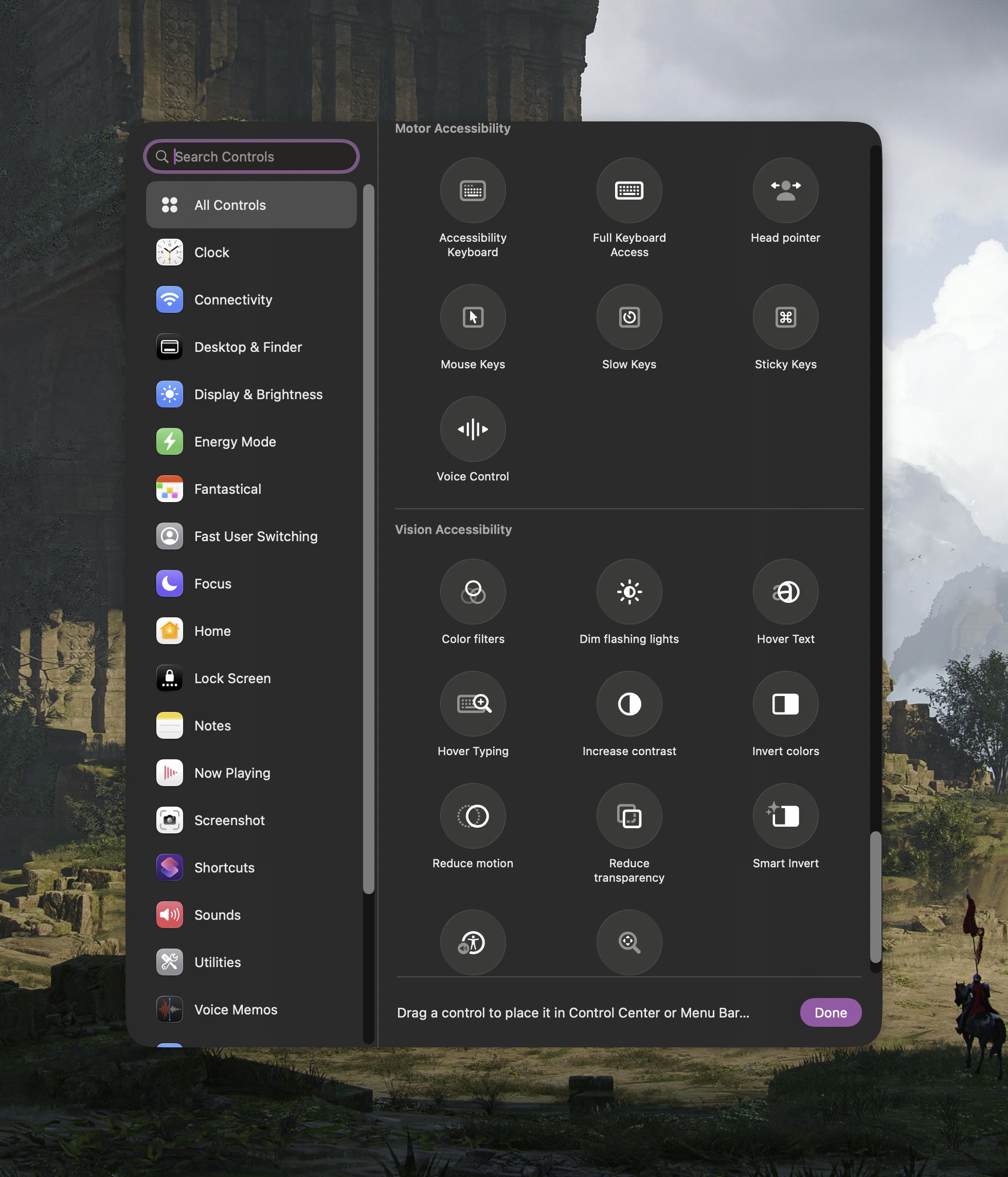
But, over time, I’ve come around to Control Center. It’s no longer a novelty because I clearly understand what its purpose is, and, more importantly, I have harnessed this feature in a way that actually makes it useful. To get started, visit the Control Center in the menu bar and click “Edit Controls”. From here, you can a comprehensive list of available Control Center options. Click on the ones you want to add, and they will appear in your Mac’s Control Center menu bar.
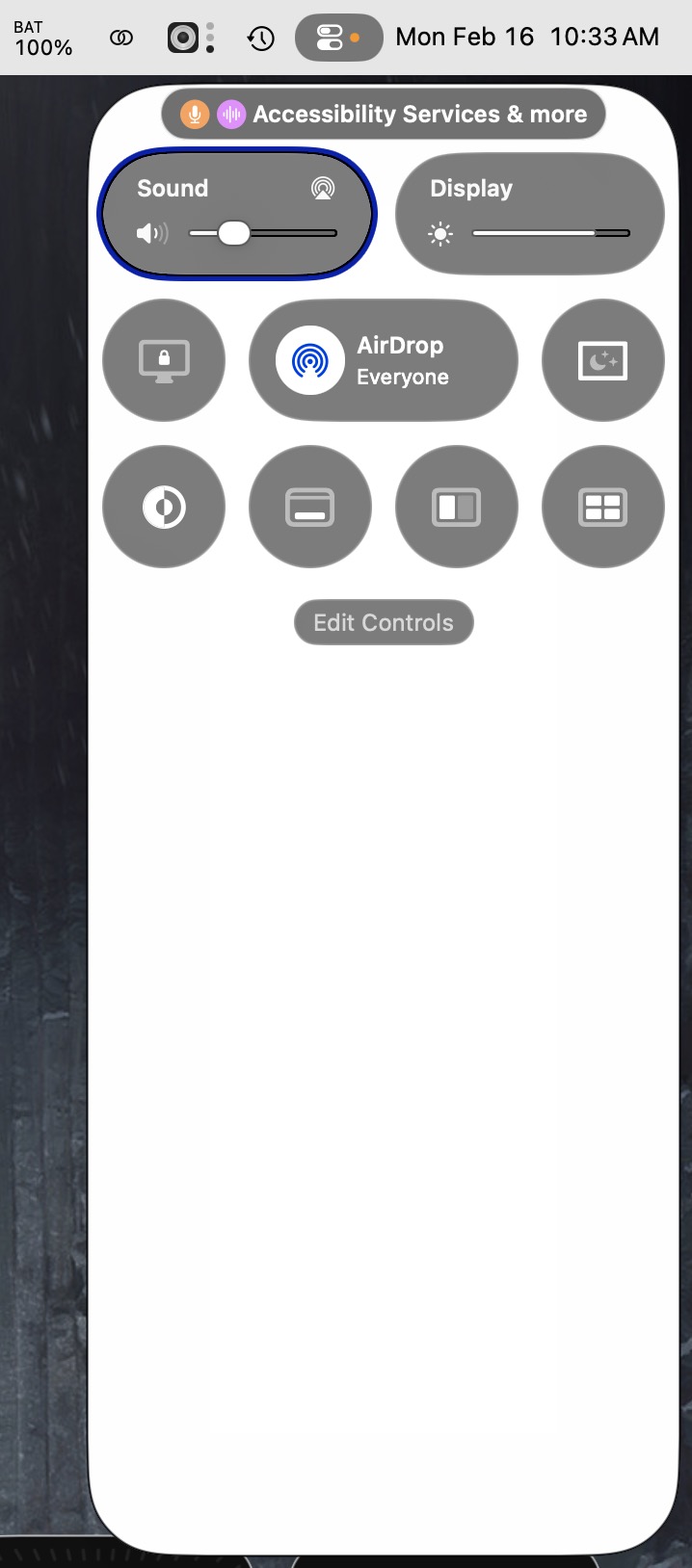
Here’s the blow by blow:
On the top level of my Control Center stack are sliders to control Audio level and Display brightness, respectively.
The mid-level stack includes, from left to right, Screen Lock, AirDrop, and Screensaver activate.
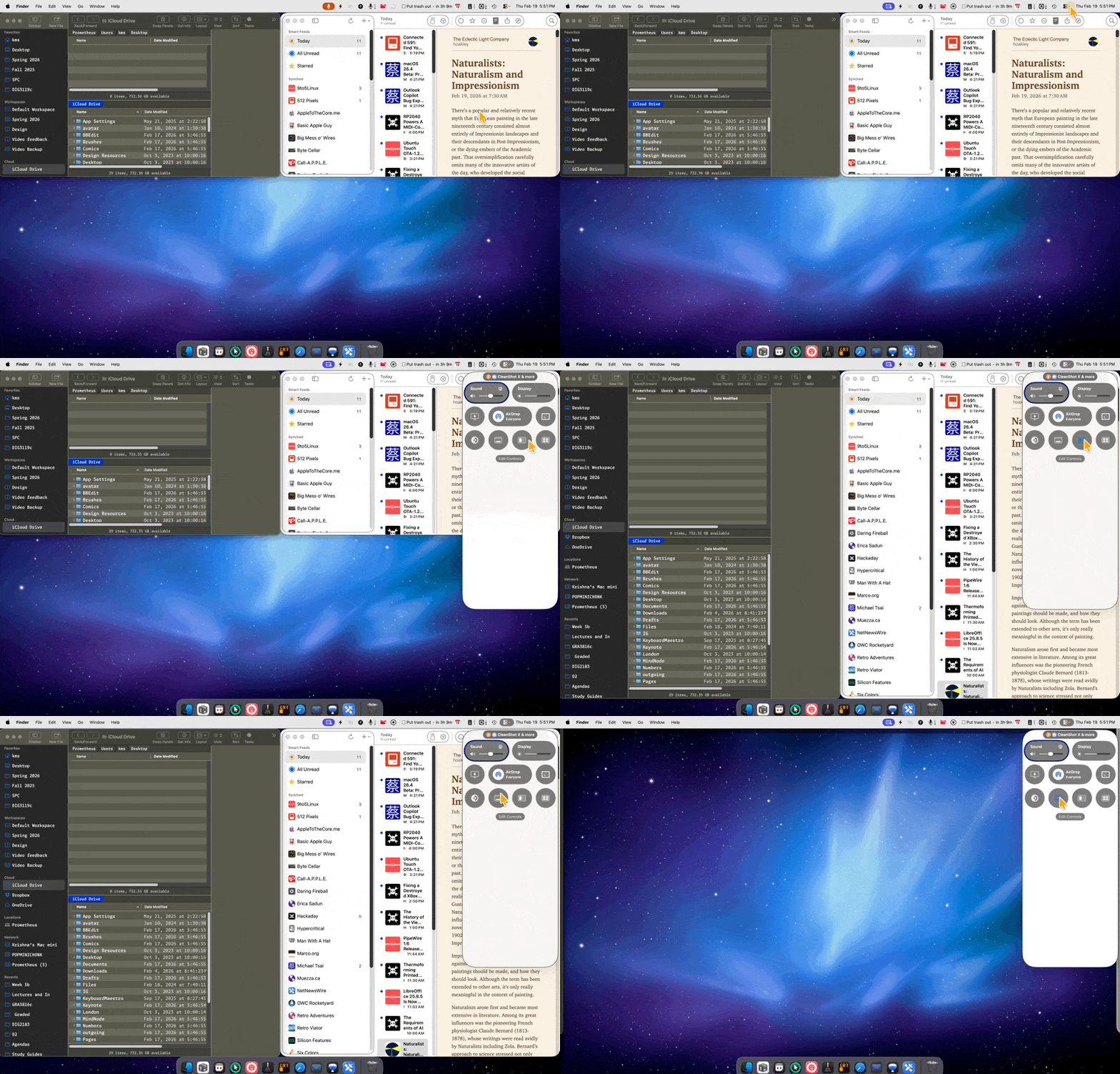
The bottom stack, from left to right, includes a Light/Dark mode toggle, View Desktop, side-by-side window arrangement, and quad window arrangement.
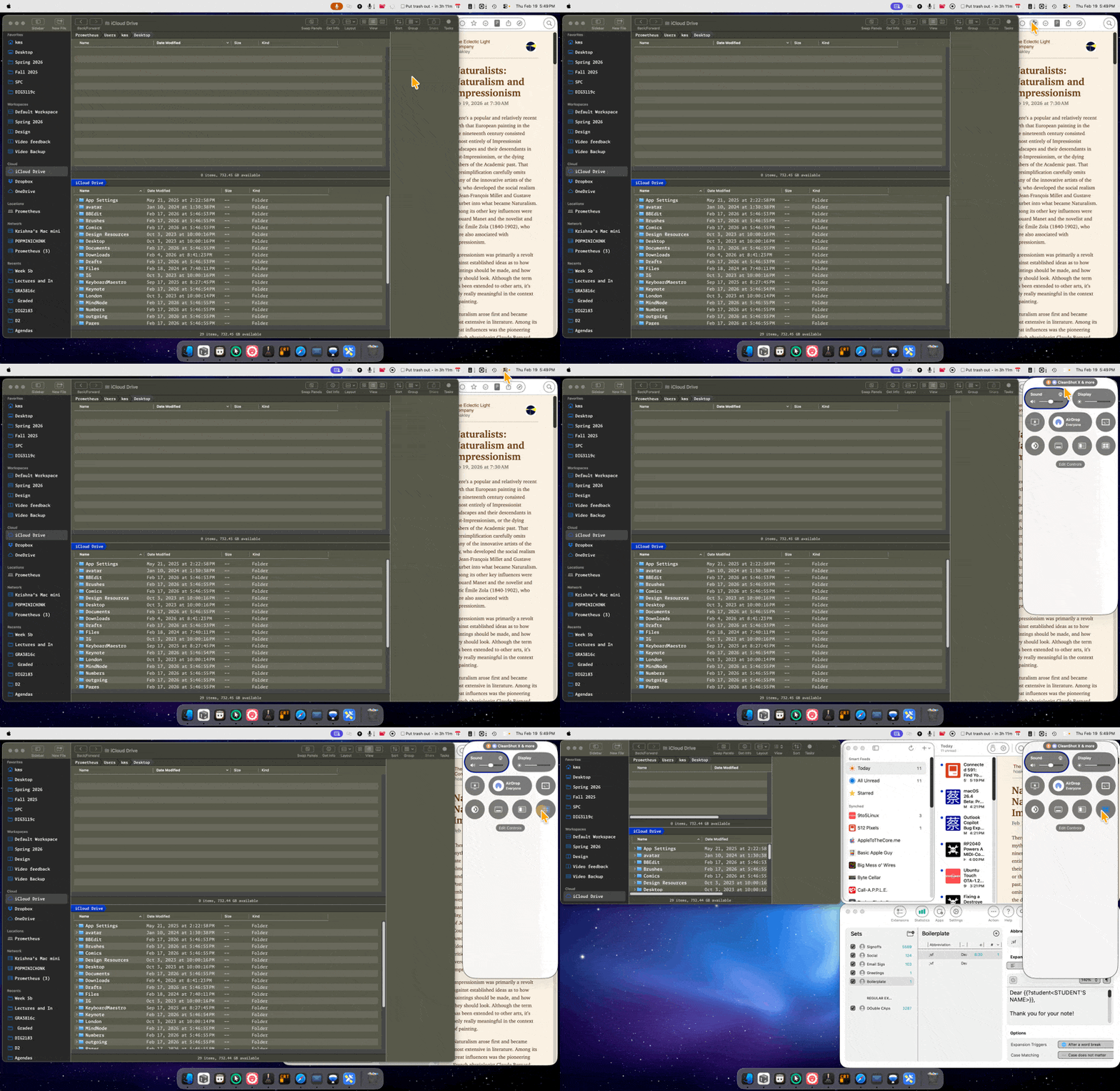
Of the options in Control Center, I find myself using the Quad window arrangement the most. With this option, my Mac will neatly organize up to 4 active windows into a 2 by 2 grid. No more juggling multiple windows separately, like an animal.
No doubt, there are other useful items one can add to the Control Center. But, by keeping the Control Center minimal, I am reducing visual clutter. This, in turn, reduces my cognitive load.
Now if only I can say the same about Liquid Glass…