As much as I enjoy discovering and writing about new Mac software, I also enjoy sharing how I use my Mac software. I’m a firm believer in the adage “work smart, not hard”. In that spirit, I use a wide assortment of automation tools on my Mac to help me streamline my workflow.
For this article, I’m focusing on how I use Keyboard Maestro, an application I have reviewed previously.
The best thing about using Keyboard Maestro is how easy it is to use. Once a macro has been correctly set, it can be used over and over again. Nearly all of the Keyboard Maestro macros I have set up on my Mac involve assigning a hotkey (keyboard shortcut) to trigger a specific action.
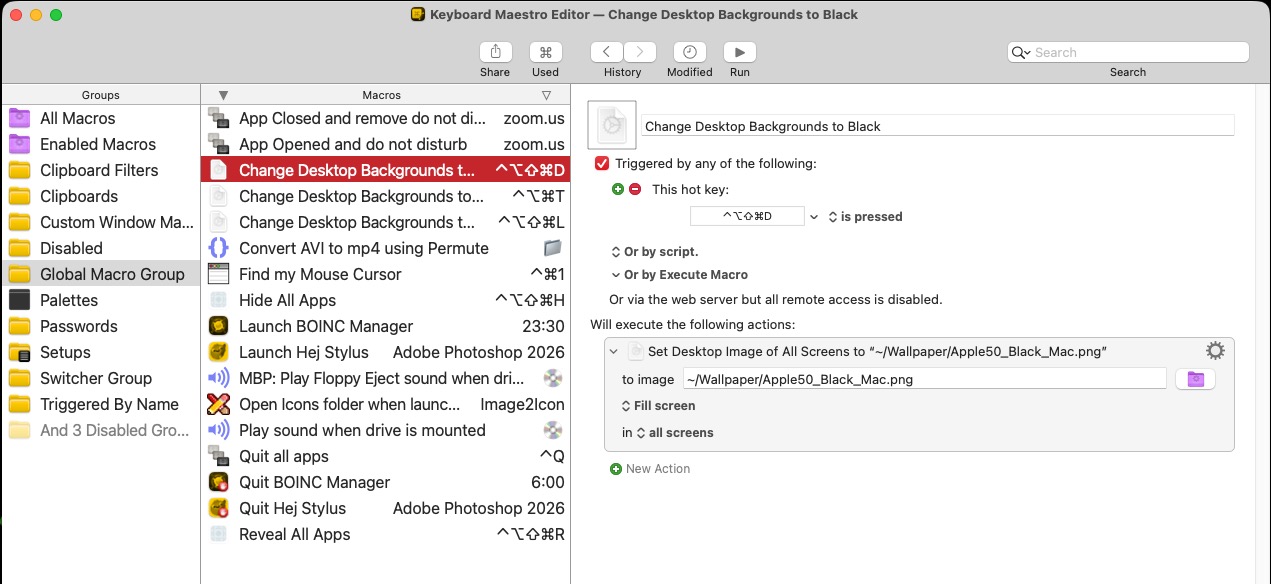
For example, if I’m preparing to record my screen, I can press a keyboard shortcut (Control Option Shift Command D) to trigger Keyboard Maestro to change my Mac’s wallpaper to a black background.
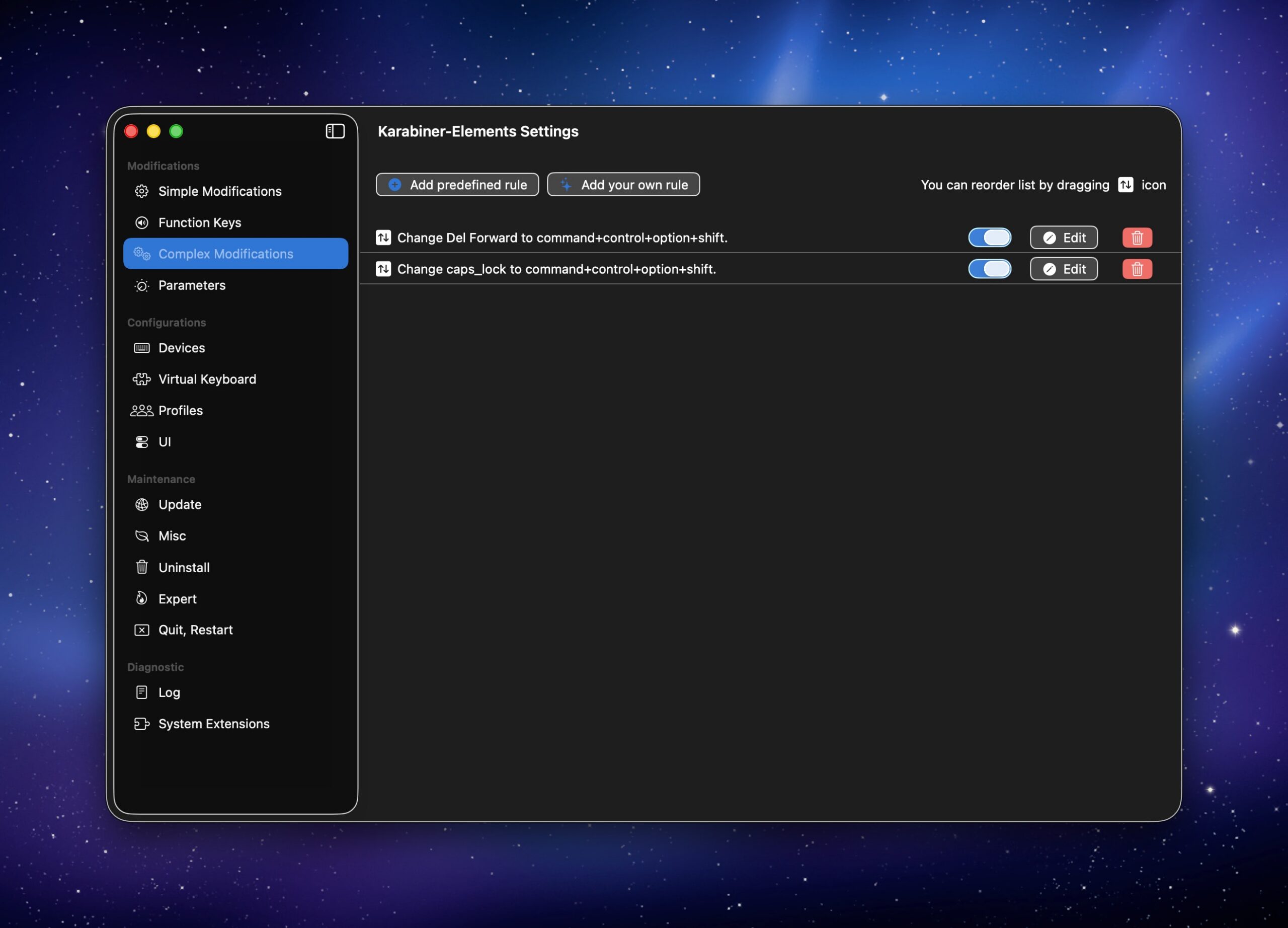
(Incidentally, I do not have to press all of those keys at once on my keyboard. Using another application called Karabiner Elements, I have remapped my Mac’s Caps Lock key to Command Control Option Shift. Some Mac users refer to this Caps Lock reassignment as the “Hyper” key.)
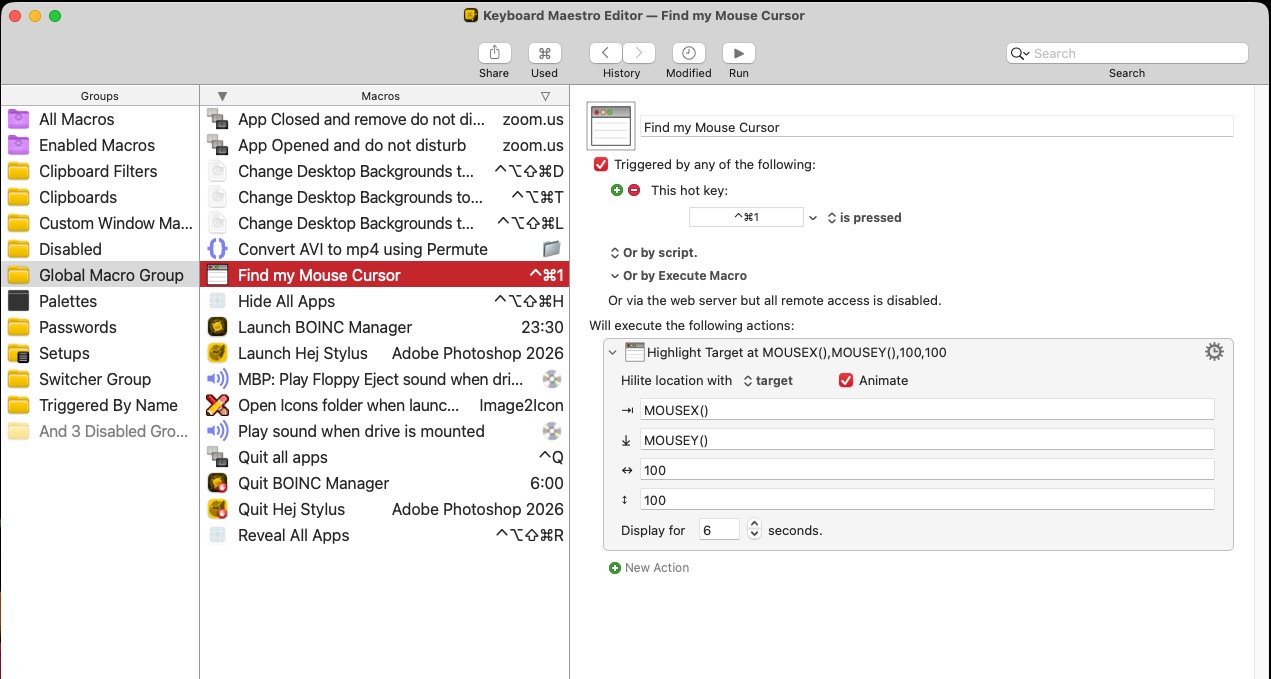
With the multi-monitor setup I have on my Mac, it can be difficult to find my Mac’s cursor arrow. To quickly find it, I created a Keyboard Maestro macro: pressing Control Command 1 will trigger the visibility of a red bulls-eye, showing me exactly where my cursor is.
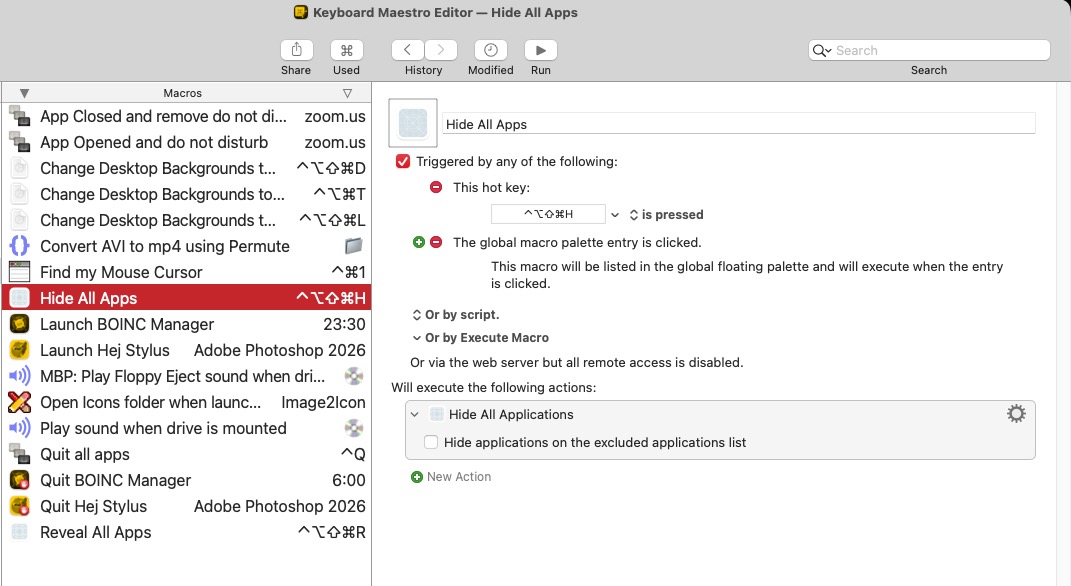
Another macro I use frequently is “Hide All Apps”. Pressing Hyper H causes all applications to hide. This is often quite useful when I need quick, unfettered access to my Desktop.
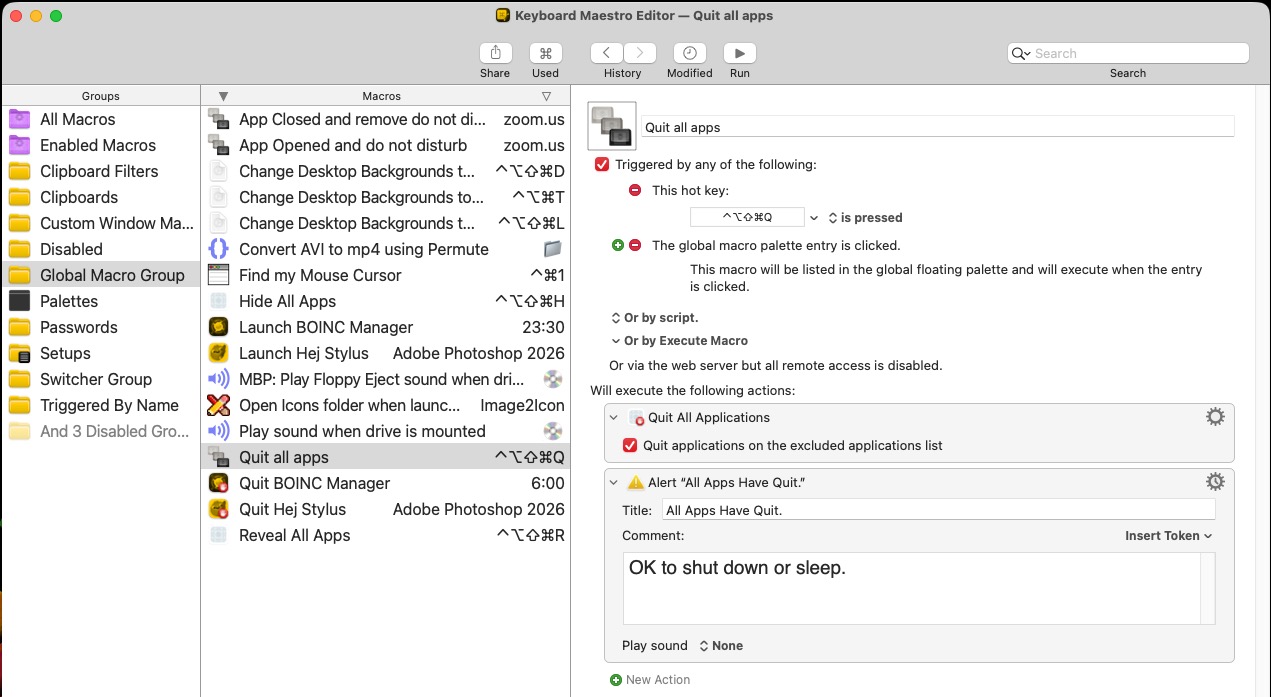
Similarly, I have another macro “Quit All Apps” that I use at the end of my work day. Pressing Hyper Q quickly quits all of my active Mac apps.
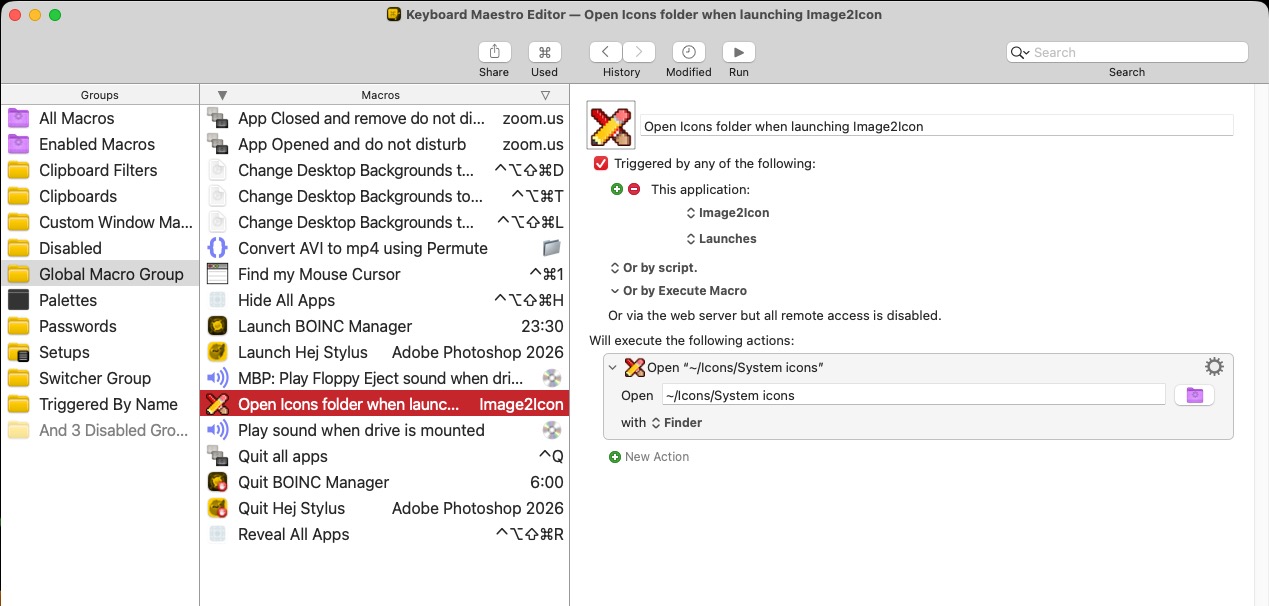
Keyboard Maestro can also open up specific Finder windows when certain applications are launched. For example, when I launch Image2Icon (an icon editing app), Keyboard Maestro will automatically open the folder containing my favorite custom System icons.
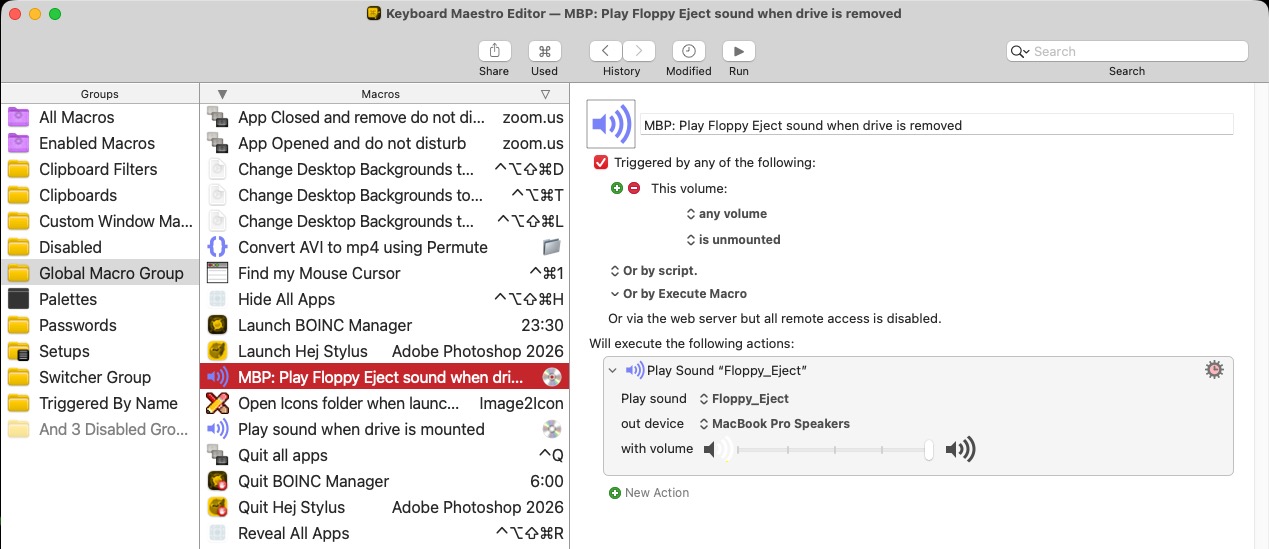
Not everything is about productivity. Sometimes I like to have my Mac behave like a classic Mac. When a drive is plugged in, Keyboard Maestro automatically plays a custom Mac sound. And when unmounting any drive from my Mac, Keyboard Maestro will automatically play a “Floppy Eject” sound file. (For those who are wondering, “Floppy Eject” features an authentic recording of an Apple 3.5” drive ejecting a disk from a Mac SE/30.) Totally unnecessary, but totally fun!
It’s very well possible that some of the automation tasks I’ve outlined above can also be completed using Apple’s Shortcuts. The bottom line is this: your Mac was meant to help you stay efficient and productive. Learning automation tools can pay dividends each time you sit at your Mac.