Free shipping available on orders $99 & up!
  • Business Icon For Business & More icon arrow
    • Creative, Production & PostCreative, Production & Post
    • Corporate & EnterpriseCorporate & Enterprise
    • Higher EducationHigher Education
    • State, Local & K-12 EducationState, Local & K-12 Education
    • House of WorshipHouse of Worship
    • Systems IntegratorSystems Integrator
    • HealthcareHealthcare
    • Federal, State & Local GovernmentFederal, State & Local Government
    • Join Today!

      Already registered? Sign In

  • Region: US/Intl icon arrow
    • Select your preferredcountry / region:

    • USA RegionUSA + International
    • Canada RegionOWC Canada

    • Experience local shipping options and optimized product inventory for your region.

  • Phone Icon1-800-275-4576
  • Intl: 1-815-338-8685
MacSales.com Powered By OWC
Site Search
  • Blog
  • Support
  • Account
    • Hello, Sign In
    • My Account
    • Order Status
    • Write A Review
    • Warranty & Returns
  • Cart
MacSales.com Powered By OWC
  • Support
  • Chat Contact
  • Account
    • Hello, Sign In
    • My Account
    • Order Status
    • Write A Review
    • Warranty & Returns
  • Cart
  • Specials & Featured
  • Rocket Yard Blog
  • Chat
  • Support
      • Shop All
        • Internal Drives
        • External Drives
        • Apple & Macs
        • Docks & Connectivity
        • Cards & Readers
        • Batteries
        • Software & Apps
        • Cables & Adapters
        • Memory
        • PCIe Expansion
        • Specials & Featured

        What's coming in OS X Lion

        An OWC Mac Operating System Transition Guide
        Apple Family
        Full Disk Encryption

        FileVault Full Disk Encryption

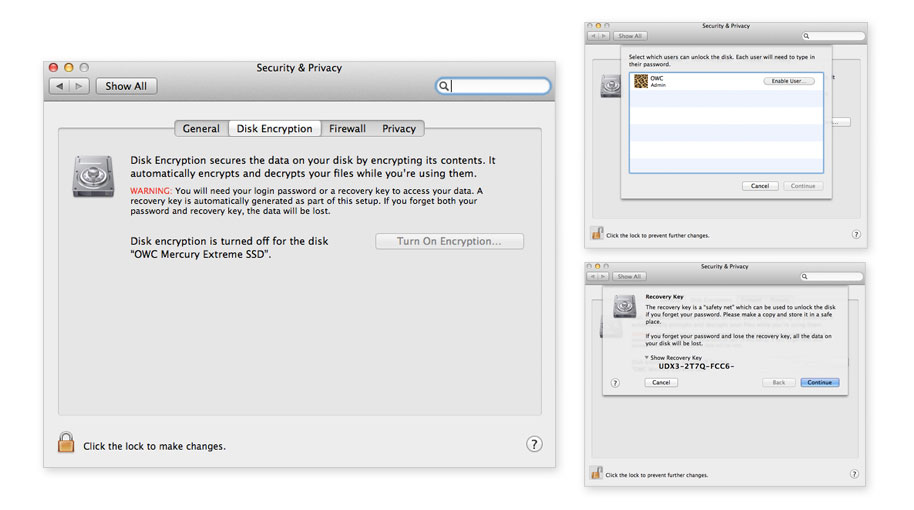
        Full disk encryption is a new addition to FileVault in Mac OS X 10.7 Lion. In previous versions of FileVault, it had the ability to encrypt only your user home folder; In 10.7 it can encrypt the entire driveʼs contents. To use FileVault, you will need to have a password set on the user account. Prior to the encryption starting, you will receive a recovery key which you should definitely take a screenshot of and print out because if you do not have the master password or forget it, there is no way to get the data back. Once FileVault is started, it will take a while to complete the initial encryption process and your computer may feel sluggish. After the initial encryption is completed, there will not be any noticeable slow downs with your computer's performance.

        To activate FileVault: Open System Preferences by clicking on the Apple Menu and selecting System Preferences.
        Click on the Security & Privacy preference pane.
        From within the Security & Privacy preferences, click the lock in the lower left corner of the window to unlock preference options.
        Click the "FileVault" tab.
        From within the FileVault section, click the "Turn On FileVault…" button to start the encryption process.

        Previous Next
        OS X Lion Home
        Feature List
        • Mission Control
        • Dashboard
        • Launchpad
        • Finder
        • AirDrop
        • About This Mac
        • Full Disk Encryption
        • Migration Assistant
        • "Natural" Scrolling
        The information contained on the OWC OS Update Guide page is provided as a resource and does not include any implicit or implied guarantee. Usage environments are all slightly different and results may vary from what has been reported. Every effort is made to provide the most accurate information possible, however it is upon your sole judgment as to whether the information and content is applicable to your situation.

        By use of this page, you agree to indemnify and hold Other World Computing, Inc., its parent operating company, New Concepts Development Corporation, and its officers, directors, shareholders, predecessors, successors in interest, employees, agents, subsidiaries and affiliates, harmless from any demands, loss, liability, claims or expenses (including attorneys' fees), made against OWC by any third party due to or arising out of or in connection with your use of the Site.

        YOU FURTHER AGREE THAT THE SITE AND ITS CONTENT, INCLUDING, BUT NOT LIMITED TO THE OWC OS UPDATE GUIDE PAGE, ARE DELIVERED ON AN "AS-IS" AND "AS-AVAILABLE" BASIS. ALL INFORMATION PROVIDED ON THE SITE IS SUBJECT TO CHANGE WITHOUT NOTICE. OWC DISCLAIMS ALL WARRANTIES, EXPRESS OR IMPLIED, INCLUDING ANY WARRANTIES OF ACCURACY, NON-INFRINGEMENT, MERCHANTABILITY AND FITNESS FOR A PARTICULAR PURPOSE. OWC DISCLAIMS ANY AND ALL LIABILITY FOR THE ACTS, OMISSIONS AND CONDUCT OF ANY THIRD PARTIES IN CONNECTION WITH OR RELATED TO YOUR USE OF THE SITE AND/OR ANY OWC SERVICES. YOU ASSUME TOTAL RESPONSIBILITY FOR YOUR USE OF THE SITE AND ANY LINKED SITES. YOUR SOLE REMEDY AGAINST OWC FOR DISSATISFACTION WITH THE SITE OR ANY CONTENT IS TO STOP USING THE SITE OR ANY SUCH CONTENT.

        For the full Site Terms, please visit: http://eshop.macsales.com/service/terms
        Helpful Links
        • About Us
        • DIY Install Videos
        • Join our Affiliate Network
        • Where to Buy
        • Accessibility Statement
        • Sustainability is Good Business
        • Join the OWC Team
        • Media+Newsroom
        • Privacy Promise
        • MacSales.com for Business
        Join the OWC Newsletter

        Join hundreds-of-thousands of tech enthusiasts across the planet and gain access to specials, clearance, and holiday savings on the OWC upgrades, drives, and docks everyone loves.

        Newsletter Subscription

        Please enter a valid email address.

        • bbb
        © 2000-2026 Other World Computing, Inc., All Rights Reserved. Site Terms Guest ID:
        Your Privacy Choices
        This item has been added to your cart