Alpesh Patel on OWC RADiO

OWC RADiO: Alpesh Patel – Creating a World Where Cell Phones Pay You

Smartphones may never be the same. Alpesh H. Patel, CEO of ZmBIZI, is an award-winning global entrepreneur with yet another ground-breaking idea. His latest revolutionary project is an Android-based smartphone that pays you when you use it and comes with its own rewards wallet and debit card. Cirina Catania, the host of OWC RADiO talks to this very special guest...
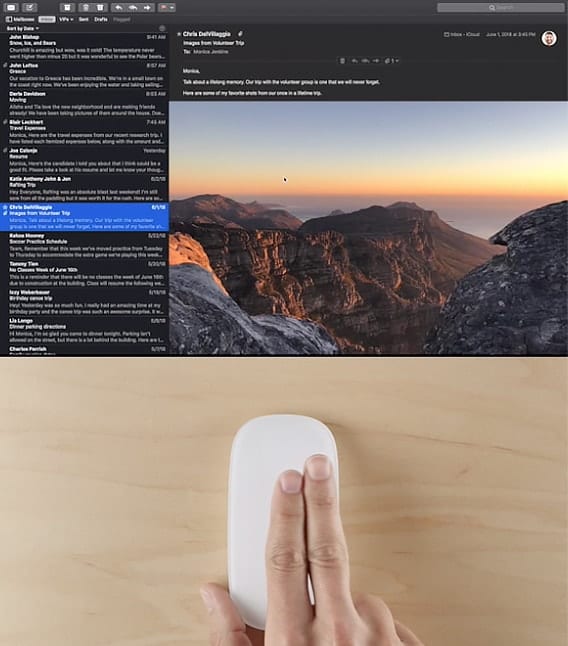

apple magic mouse doing a two-finger swipe

How to Use Gestures in Mail in macOS Catalina

Starting with Mac OS X El Capitan, the Mail app added support for more gesture controls than before. Add your accounts to Mail and you’ll be able to access all your email from one place, then use swipe gestures to...

CR 2032

What to Do When Your Mac Tells You the Date and Time Are Incorrect

As a longtime tech writer, I'm sometimes asked how I get ideas for articles. Some of them come from readers who ask questions that intrigue me. The other day, an email arrived asking “I have an iMac running 10.13.6 and somehow when I start my Mac it tells me that my date and time is incorrect, but it’s not so I was wondering would you be able to explain to me in an easy way that I can understand: what’s going on?” Here's what the problem is, along with a solution.

Purple mac smart folder icon with yellow lightbulb on light purple background

Smarter Smart Folders

Smart Folders have been around in one form or another since OS X Tiger. For a while, the Finder’s sidebar included a dedicated Search For section, with predefined Smart Folders that displayed apps and documents you used "Today," "Yesterday," or "Past Week." There were also Search For entries for "All Images," "All Movies," and "All Documents." These smart searches were a popular feature and served as an introduction to what Smart Folders could do. Now it's time to dig a little deeper and discover some of our favorite saved searches.

Safari icon with a sunburst background

How to Print a Webpage Without Ads and Backgrounds on a Mac

We recently received a comment from a reader regarding the difficulty he had printing articles from the Rocket Yard blog. Well, it wasn’t difficult in the sense that hitting ⌘P was too much work. The problem was that there were all sorts of extraneous unwanted junky-things that would print right along with what he really wanted – the content. Ads, menus, backgrounds, and footers are but a few of the offending items that get in the way of a good, clean read. Not only can they make for a messy read later on, but they are also ink-hogs. And nobody likes ink-hogs.

Hey, Siri with "What can I help you with?"

How to Enable ‘Hey, Siri’ in macOS Catalina

To use Siri, Apple’s “personal digital assistant,” on your Mac, you can click on the icon in the upper right corner of your screen to activate it. But wouldn’t it be nice if, like on an iPhone and Apple Watch, you could simply say “Hey, Siri” to fire it up? You can, though it takes a few steps.

1 292 293 294 1,008
Page 293 of 1008