
El Gato’s Stream Deck is a useful accessory that provides Mac users with extra buttons for assigning custom keystrokes, actions, launching apps and more. Instead of memorizing a complex keyboard shortcut, for example, one could simply assign it to a button on the Stream Deck. Press the button, and the keyboard shortcut runs. Neat!
Up until now, I’ve been using my Stream Deck as a glorified control board for managing Zoom calls and launching a few specific applications. For Zoom calls, I’ve configured my Stream Deck’s buttons to quickly mute / unmute my microphone, increase / decrease my Mac’s speaker volume, and toggle my webcam on or off. It’s super convenient for those tasks.
But the Stream Deck is capable of so much more.
Could I use it with Moom?
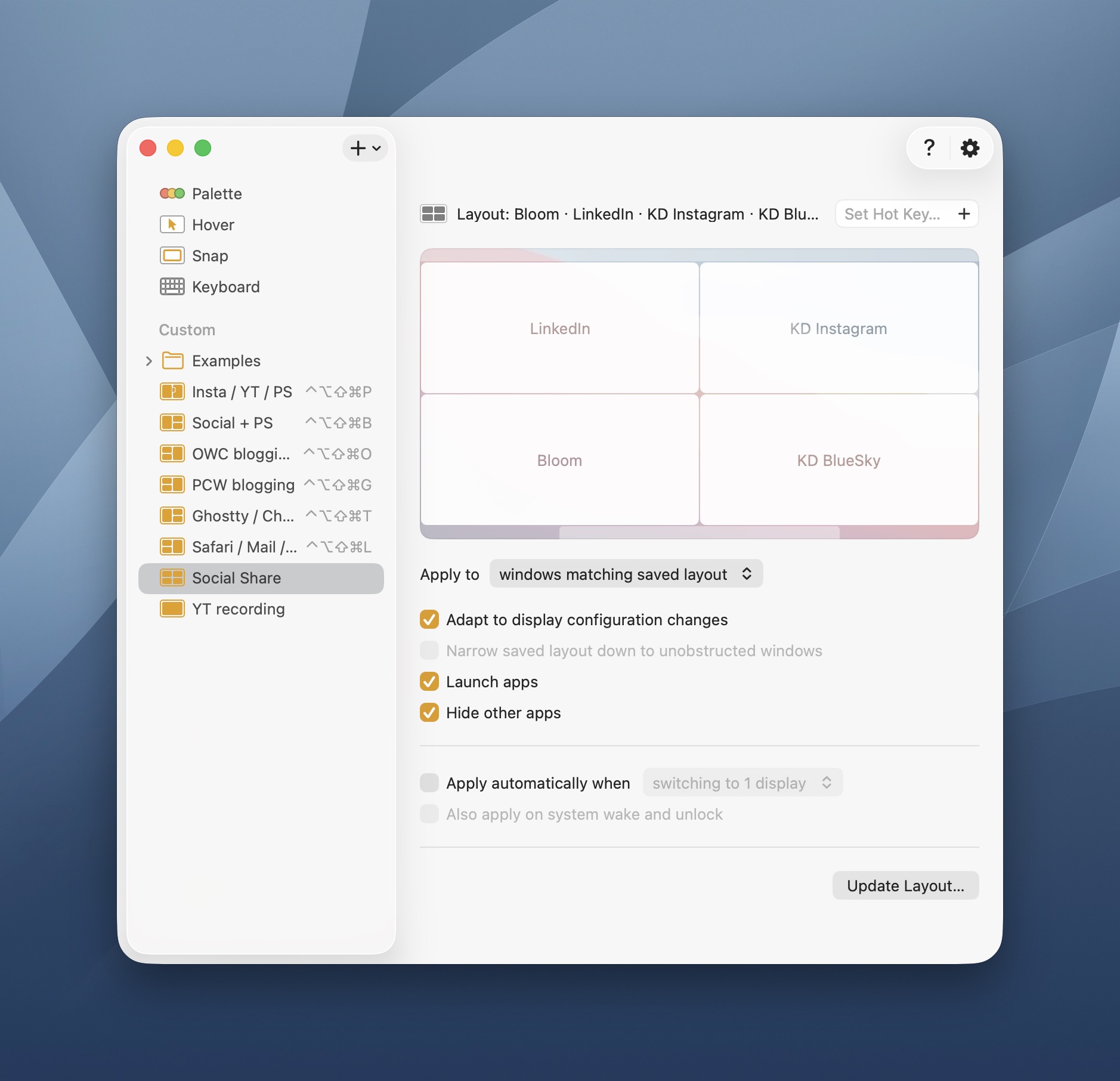
As a refresher, Moom is a powerful window management tool for the Mac. For me, its chief strength is Moom’s ability to save custom window layouts. For example, when I’m writing articles for OWC’s Rocket Yard blog, I have a saved Moom window layout which includes BBEdit, Bloom, and a Safari window. And when I’m recording videos for my YouTube channel, I have another Moom window layout which includes Recordly, Photoshop and KeyCastr. In total, I have 7 such window layouts within Moom that I switch between on a regular basis.
Prior to the Stream Deck, switching between my saved Moom layouts required a visit to the menu bar or remembering each layout’s assigned keyboard shortcut. Remembering the keyboard shortcut for each layout was difficult. And visiting my Mac mini’s already overcrowded menu bar introduced just enough friction to be a minor pain.
So I looked into solutions that would let me use my Stream Deck with Moom. And I found one.
Before I spill the beans, let me share a list of the items you’ll need to pull such a feat.
- El Gato Stream Deck 15-Key Control Panel ($149US)
- Moom ($15US)
- Moom Profile Activator Plugin for Stream Deck (free)
Key to this operation is the Moom Profile activator, which is freely available on GitHub. Download the plugin, right-click on the file and open it with El Gato’s Stream Deck software.
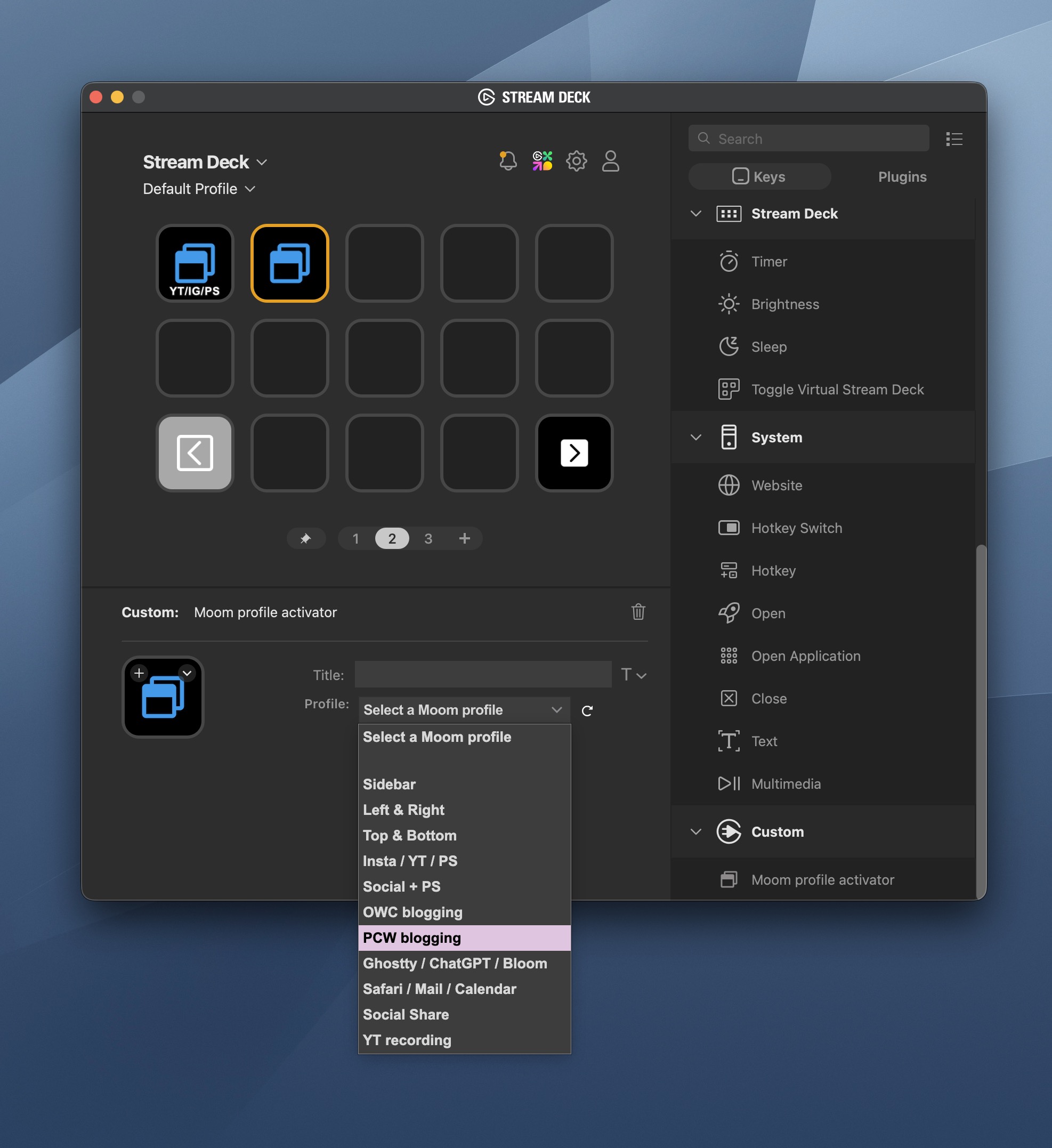
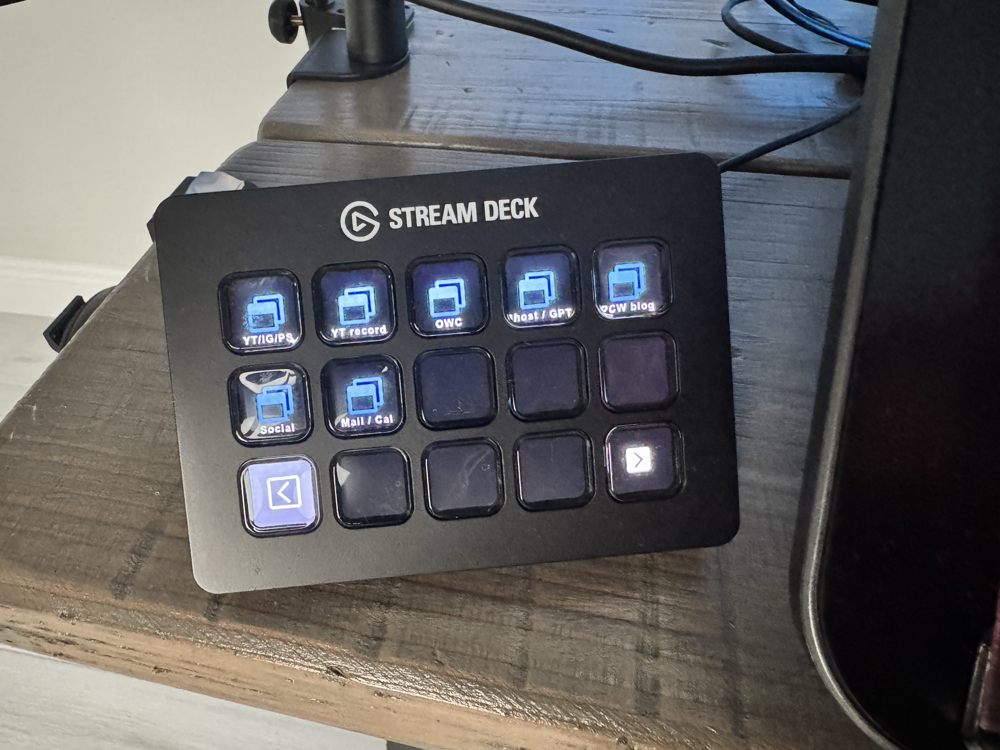
Next, select the Moom Profile plugin (which appears in Stream Deck’s “Custom” menu), and drag it over to one of your Stream Deck’s unused buttons. Finally, select the saved window layout (profile) that you want to assign to the button you’ve created. Your new buttons are automatically reflected on the Stream Deck hardware. To make the buttons easier to interpret at a glance, I’ve given each of them a custom icon, using Stream Deck’s software.
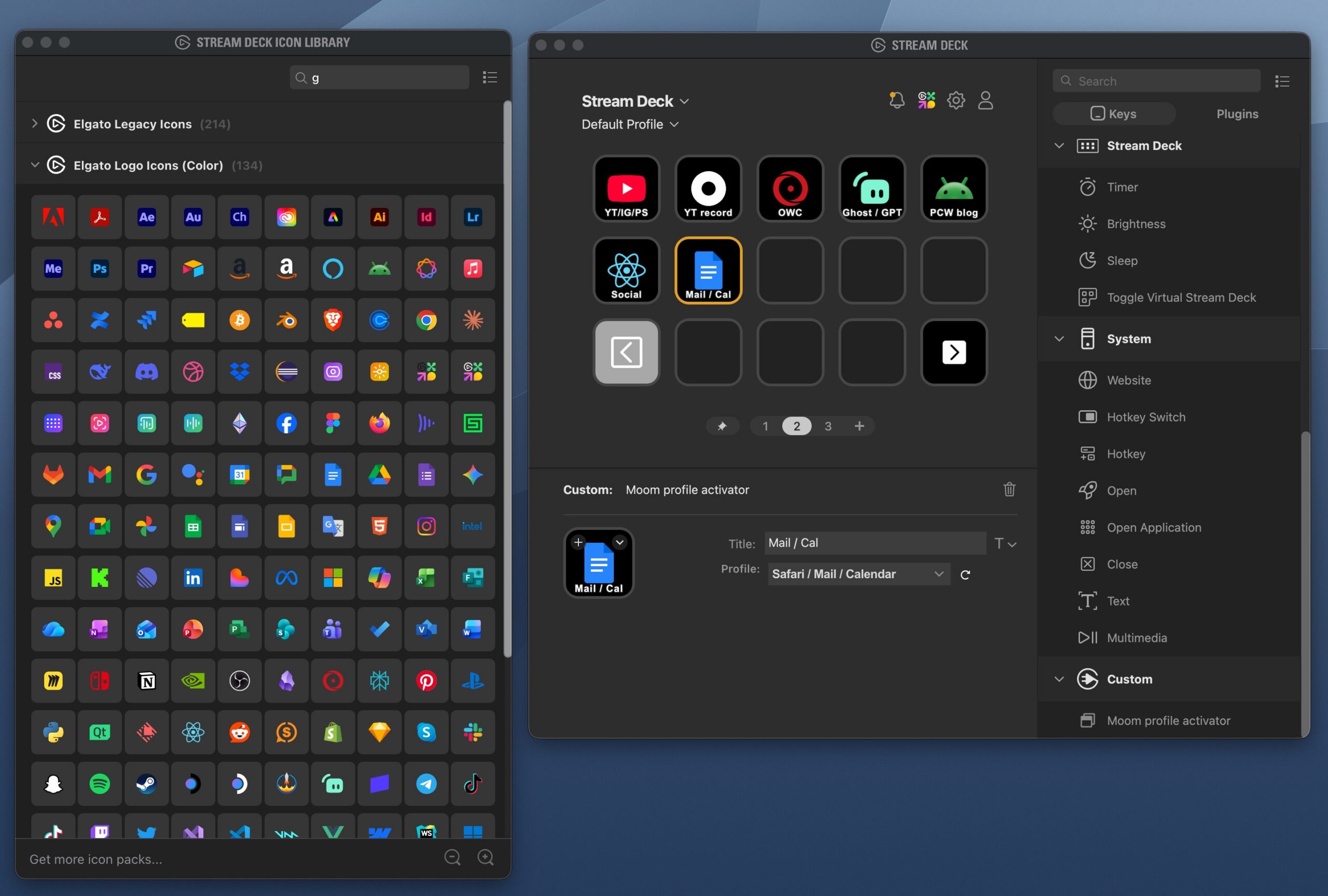
Being able to switch between each of my saved window layouts has given my productivity a tremendous boost. I no longer have to spend time rearranging my windows before starting any given task.