One of the perks of owning a Mac is Time Machine. While Windows users have long wrestled with a patchwork of built-in file and system image tools, third-party backup software, and complicated restore processes, Apple provides an elegant, automatic, and comprehensive backup solution baked right into macOS. Time Machine combines the convenience of set-it-and-forget functionality with granular restore capabilities. It runs quietly in the background, keeps a rolling history of your files, and makes recovering a lost document as simple as turning back a clock. If you’ve never set it up, it takes about five minutes and there’s no better time than the present to get started on keeping your data secure.
But before we get too far ahead of ourselves, here’s the thing: Time Machine alone isn’t enough.
That’s not a knock on the software itself. The real problem—one that Time Machine alone can’t solve—is a lack of redundancy. Your Time Machine drive sits right next to your Mac. It’s one physical device, in one location. That means one event like a drive failure, theft, or a house fire could take out both your Mac and its backup in one fell swoop. When that happens, no amount of software can help you.
The solution is a strategy that professionals have relied on for decades: the 3-2-1 backup rule. It’s a simple framework that ensures no single disaster can wipe out all of your data at once. The awesome part is that Time Machine is the perfect foundation to build it on—and for Mac users, the whole plan comes together more easily than you might think.
In this post we’ll take you through how to build a proper backup strategy on top of Time Machine, what drives are perfect for Time Machine backups, and we’ll even get into drives that support RAID and what role RAID plays in a backup strategy.
What Is the 3-2-1 Backup Rule?
The 3-2-1 rule works like this:
- 3 total copies of your data
- 2 stored on different types of media or drives
- 1 stored offsite (or in the cloud)
The beauty of 3-2-1 redundancy is that no single failure can touch all three copies at once. It’s the backup philosophy used by IT departments, professional photographers, filmmakers, and anyone who has ever experienced the gut punch of real data loss. And with Time Machine as your starting point, you’re already one-third of the way there.
Copy 1: How to Set Up Time Machine the Right Way
Time Machine is your first line of defense and the natural starting point for any Mac backup strategy. Built into macOS, it automatically backs up your entire Mac—documents, photos, apps, settings, and system files—to an external drive. It keeps hourly backups for the past 24 hours, daily backups for the past month, and weekly backups for all previous months, automatically cycling out the oldest snapshots when the drive fills up.
Setting Up Time Machine
- Connect an external drive to your Mac.
- Open System Settings > General > Time Machine.
- Click Add Backup Disk and select your drive.
- Optionally enable Encrypt Backup—highly recommended, especially for laptops.
- Time Machine will begin its first backup immediately. Subsequent backups run automatically in the background.
How Big Should Your Time Machine Drive Be?
Apple recommends your Time Machine drive be at least twice the size of your Mac’s internal storage. A 2–3x ratio gives you a more comfortable buffer of historical snapshots to roll back through. If your Mac has a 1TB internal SSD, aim for a 2TB minimum.
The Best Drives for Time Machine
For desktop setups, the OWC Mercury Elite Pro is a proven workhorse. Available in large HDD capacities up to 24TB, it gives you plenty of room for deep backup history at a very reasonable cost per terabyte. If you’re a Mac Studio or Mac mini user, the OWC StudioStack is worth serious consideration: it stacks neatly on top of or underneath your machine, adds up to 32TB of hybrid NVMe + HDD storage, and expands your connectivity with three Thunderbolt 5 and three USB-A ports. It comes pre-formatted APFS and is ready for Time Machine right out of the box.
The OWC Gemini is another strong desktop option, housing two 3.5” drives in a Thunderbolt 3 enclosure with a built-in hardware RAID controller. Configure it as RAID 1 for a mirrored pair that keeps running even if one drive fails, or use both bays independently for maximum flexibility.
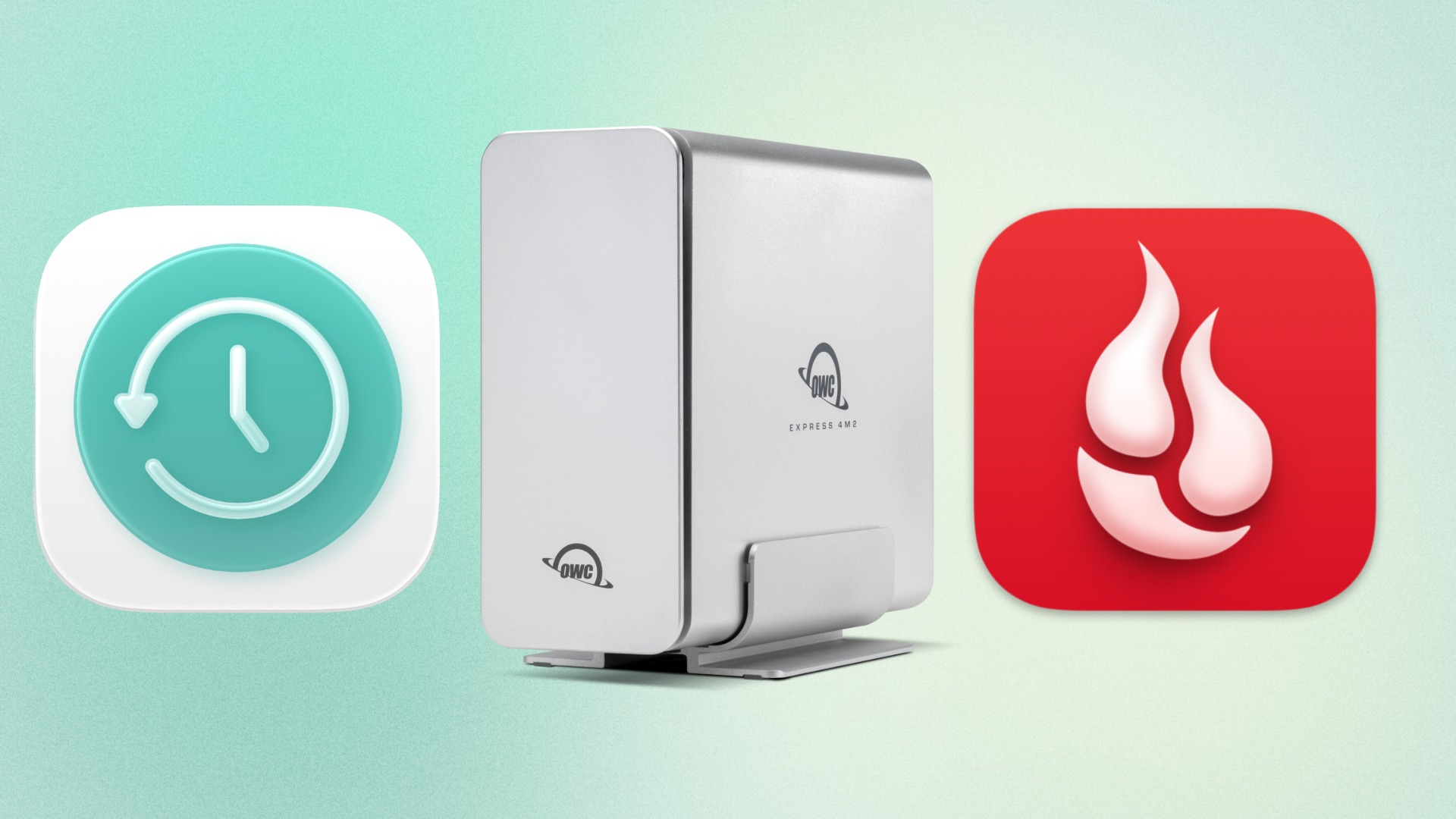
For portable or space-conscious setups, the OWC Express 1M2 and OWC Express 4M2 bring NVMe SSD performance in compact enclosures. The single-bay 1M2 is an excellent cost-effective option, while the quad-bay 4M2 is built for users who need serious capacity and speed in a relatively small footprint. And both the Express 1M2 and Express 4M2 are DIY ready. They can be purchased as empty enclosures and used with M.2 blades that you already own and easily upgraded to higher capacities in the future.
Copy 2: A Redundant Physical Copy
In the event your Time Machine drive fails—and drives do fail—that backup is gone, with no native macOS path to recover it. And what good is a backup that’s not protected? This is why the second copy in your 3-2-1 plan needs to be a separate physical drive from your primary Time Machine drive. You have two solid options for this second copy of your system:
Option A: A Second Time Machine Drive
The simplest approach is to grab a second external drive and designate it as an additional Time Machine destination. macOS supports multiple Time Machine drives and will rotate between them automatically. Just plug in a second drive and add it in Time Machine settings the same way you added the first. Voila: you now have two copies of your system backup.
Option B: A Bootable Clone
A bootable clone is a complete, exact copy of your Mac’s internal drive: files, the full operating system, apps, and settings. In a worst-case scenario where your Mac won’t start, a bootable clone means you can plug the drive into another Mac and be up and running in minutes. Tools like Carbon Copy Cloner and SuperDuper make this straightforward and can be scheduled to run automatically on a regular basis.
Whichever route you choose, keep this second drive physically separate from your first. Ideally this means in a completely different physical location to protect against environmental threats.
OWC Drives for Your Redundant Copy
For a portable second copy, the OWC Envoy Pro Elektron is a standout choice. This little tank is crushproof, dustproof, and waterproof, with USB 3.2 Gen 2 speeds up to 1,011 MB/s in a tiny, bus-powered form factor. It’s the kind of drive you can toss in a bag or a desk drawer without a second thought. For something even more compact, the OWC Envoy Pro mini offers reliable portable SSD performance in an impressively small package, making it easy to keep a second copy tucked away or rotated offsite periodically.
A Note on RAID
If you own a RAID-capable drive like the OWC Gemini or Express 4M2, you might be wondering where a drive with built-in redundancy fits into this strategy. The answer is important: RAID is not a true backup. To get a better understanding of why, let’s take a look at each RAID level and what it provides. Note: OWC Gemini supports RAID 0 and RAID 1 while Express 4M2 supports RAID levels 0/1/4/5/ and 1+0 (10).
RAID 0: This is the striped configuration that combines two or more drives into one, allowing for a maximization of speed and capacity. However, RAID 0 offers no redundancy whatsoever because the unit acts as a single drive. A failure of any single drive in a RAID 0 array destroys the entire volume.
RAID 1: This is a mirrored configuration where two drives maintain identical copies of your data. While this is redundancy, it still doesn’t technically quality as a backup. While it’s true that if one drive in the array fails, the other keeps running, RAID 1 doesn’t protect you from accidental file deletion, software corruption, theft, or something like a fire that takes out everything on your desk at once. Both drives in a mirrored array are exposed to all of those threats simultaneously, which means a RAID 1 array counts as one copy in your 3-2-1 plan, not two.
The Express 4M2’s support for RAID 4, RAID 5, and RAID 1+0 adds more sophisticated layers of drive-failure protection.
RAID 4 dedicates one drive in the array entirely to parity data, allowing the volume to survive the failure of any single drive.
RAID 5 improves on RAID 4 by distributing parity across all drives rather than concentrating it on one, eliminating the dedicated parity drive as a performance bottleneck.
RAID 1+0 offers a combination of mirroring and striping, delivering both redundancy and speed by mirroring pairs of drives.
All of these configurations are meaningful protections against hardware failure, and for users with demanding workflows and large storage needs, they’re worth considering. But the same rule applies to all of them: none protect against the other ways data gets lost. They all still count as one copy of your data.
Where RAID truly shines is as an upgraded foundation with extra insurance for Copy 1. A Gemini configured as RAID 1, or an Express 4M2 running RAID 5 or RAID 6, makes an exceptionally resilient Time Machine destination because hardware failure becomes far less likely to interrupt your backup history. But you still need to make Copies 2 and 3 for a fully sound strategy. That’s why you should think of RAID as armor for your backup, not a replacement for the strategy itself.
Copy 3: Offsite with Backblaze
Copies one and two are both sitting in your home or office. A single bad event like a fire, a flood, or a burglary could them both out simultaneously. That’s why copy three needs to live somewhere else entirely, and cloud storage is the most practical way to make that happen for most people.
Backblaze is the gold standard for individual Mac users. For a low flat monthly fee, it backs up your entire Mac continuously in the background and keeps your data accessible from anywhere. It requires almost no configuration, runs quietly alongside Time Machine, and maintains 30 days of version history on every file. That means if ransomware corrupts your files or you delete something and don’t notice for a few weeks, you can still recover it.
Two Ways to Use Backblaze in Your 3-2-1 Plan
The simpler approach and the one most readers should use is to let Backblaze back up your Mac directly, independent of Time Machine. Backblaze continuously monitors your files and syncs any changes to the cloud automatically. Your data is protected offsite at all times with no extra manual steps.
The more thorough approach, for those who want a cloud copy of their full Time Machine backup history, is to use Backblaze B2 cloud storage paired with a third-party tool like Arq Backup, which can target your Time Machine volume and sync it to the cloud. This is more complex to configure but gives you a complete offsite mirror of your entire backup catalog.
The Moment of Truth
With this plan in place, here’s how things play out if your Mac crashes, won’t boot, or gets stolen:
You can use your Time Machine backup to restore a repaired or new Mac to the same state as your crashed or stolen Mac. Or you can boot from your clone on a second Mac and keep working while you sort everything out. Lost a critical file? Open Time Machine and restore yesterday’s version in a few clicks. Mac stolen or destroyed in a disaster? Log into Backblaze, download your files, and restore to a new machine.
With the full 3-2-1 plan in place, no single disaster takes you down. Ever.
Looking for the right external drive for your Time Machine setup? Browse OWC’s full lineup of Mac-compatible external drives and SSDs—built for reliability and optimized for macOS.
Other Topics You Might Like: