AirDrop is easily my favorite feature in macOS. With it, I can easily share files between multiple Macs or move files from my iPad or iPhone over to the Mac and back.
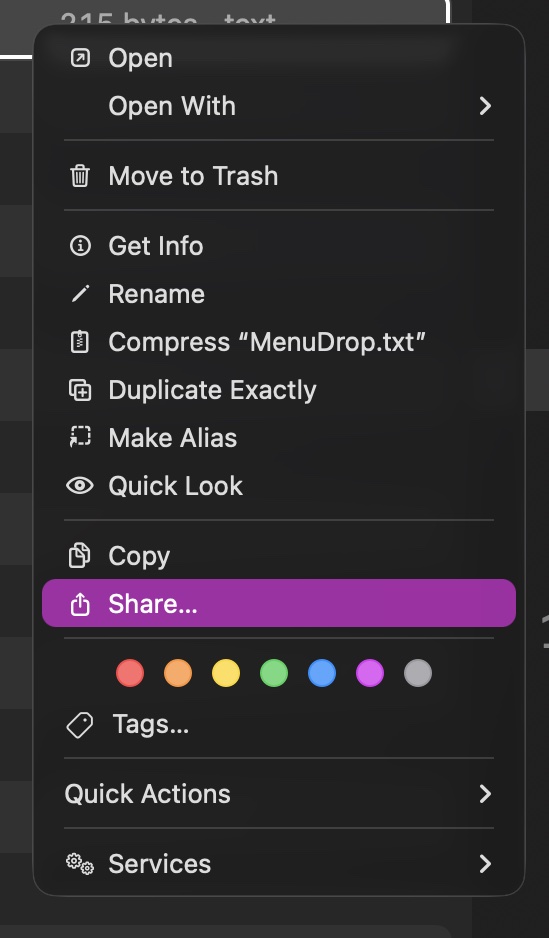
But there’s a catch. To AirDrop a file or folder within the Finder requires a three step process:
- Select the file / folder.
- Right-click the file / folder.
- Choose Share… > AirDrop.
If you only AirDrop files occasionally, it’s not a big deal. But if you use AirDrop multiple times a day, like I do, the three step process to share files is tiresome.
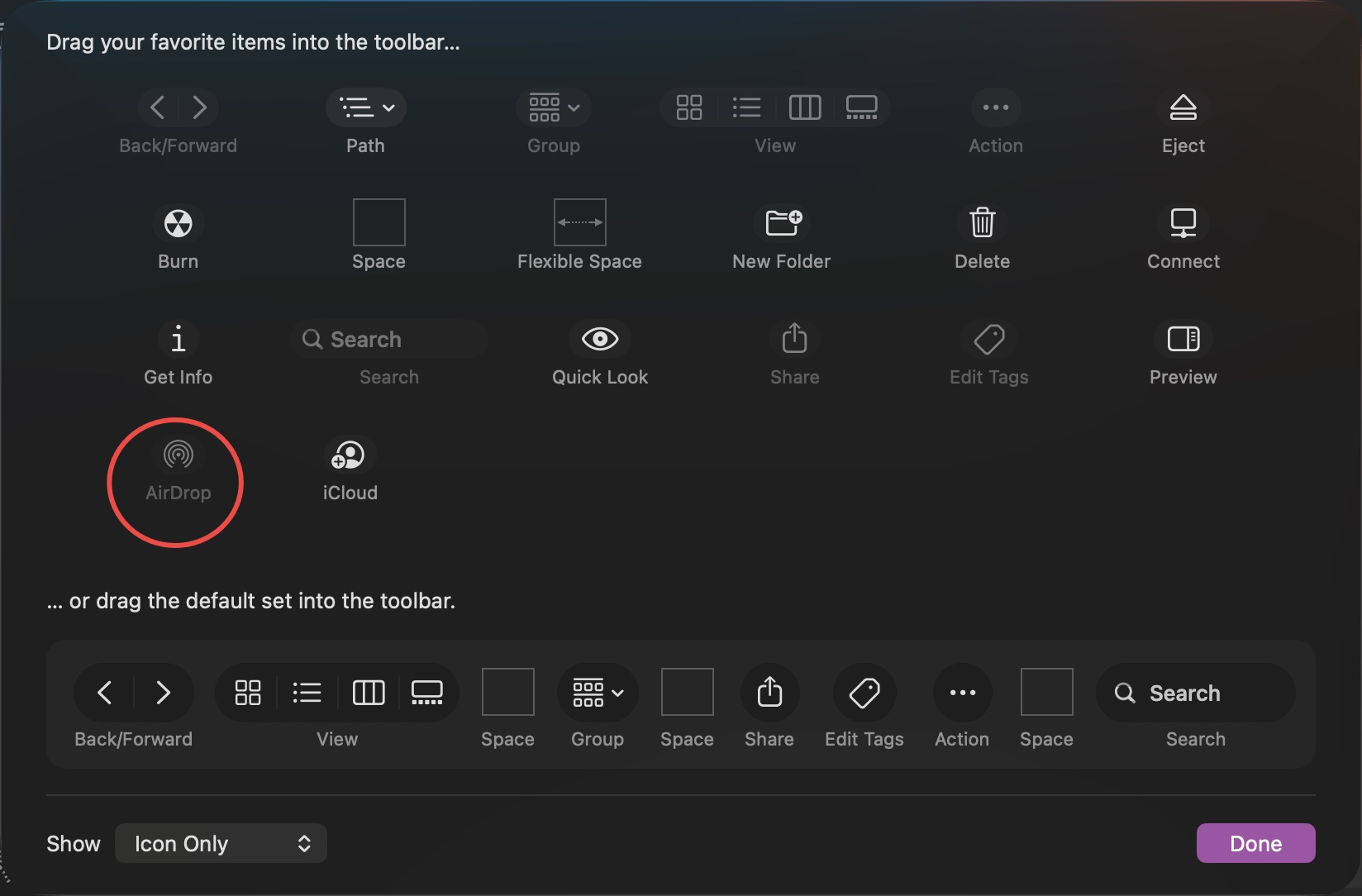
To mitigate the issue, I’ve added AirDrop to my Finder window, via View > Customize Toolbar. It’s better than right-clicking on a file, but somewhat cumbersome if you don’t have any Finder windows currently open.
Which brings me to my point: as useful as AirDrop is, it’s not conveniently accessible. This is where Menu Drop, by developer Sindre Sorhus, comes in.
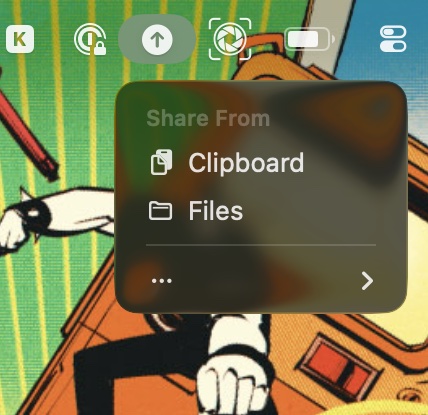
This free utility (available via the Mac App Store) lives in your Mac’s menu bar. To share a file / folder from anywhere on your Mac, simply drag it over the Menu Drop menubar icon. Your AirDrop options will immediately appear, allowing you to send your files with ease.
If dragging files up to the menubar isn’t convenient, Menu Drop supports sharing files via its built-in file picker. Menu Drop also supports sharing clipboard items. This makes it a perfect one-stop shop for moving data from your Mac over to your other Apple devices.
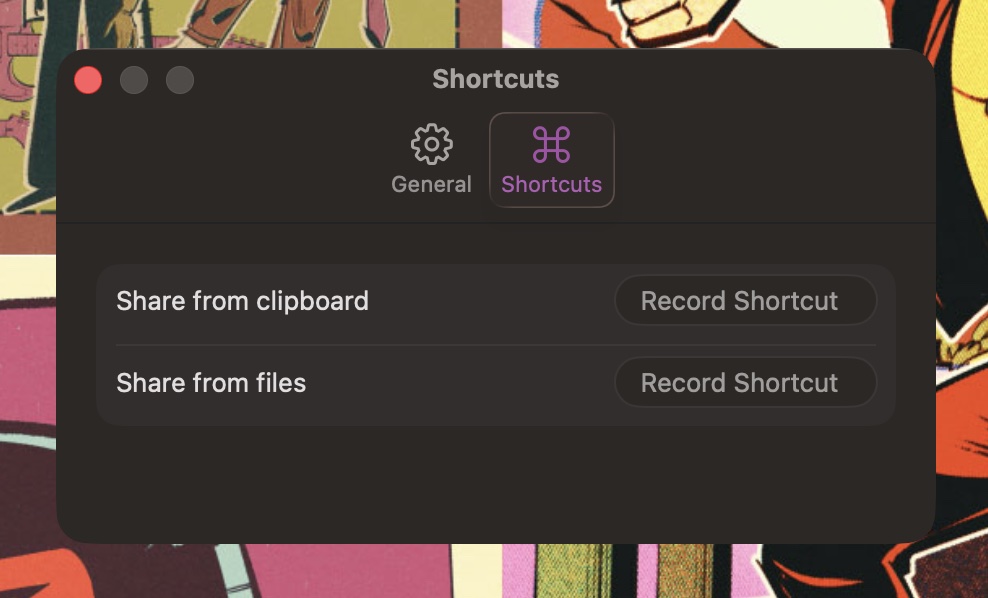
Custom keyboard shortcuts can be assigned in Menu Drop for sharing files or clipboard items.
It’s the little details that make using Menu Bar delightful. Not only can I quickly share my files with abandon, I can also drag a URL from Safari’s address bar onto Menu Drop to share the link to my iPhone. Super convenient!
In my testing across three Apple Silicon Macs, Menu Drop works as advertised. I was able to share files between all three Macs and my other Apple devices without any issues whatsoever.
As mentioned earlier, I use AirDrop multiple times a day, both at home and at work. Menu Drop takes the friction away from sharing files. It make AirDrop convenient… and it’s free!
Menu Bar is built with privacy in mind, so you don’t need to give it any special permissions. Menu Drop requires macOS 26 or later. If you want quick, convenient AirDrop access and you’re running macOS Tahoe or later, look no further—Menu Drop is your answer.