When something is simple (or obvious), it’s easy to remember. Such is the case with Mac keyboard shortcuts. The obvious ones that most Mac users are probably familiar with are Copy (Command + C) and Paste (Command + V).
While those are easy to recall (partially because they are universally used across the operating system), some are more specific to a singular Mac application.
Such shortcuts are useful, but difficult to remember. Take for example making a screenshot of a specific region on your Mac. This keyboard shortcut requires simultaneously pressing three keys (Command + Shift + 4). Other application keyboard shortcuts require the use of modifier keys like Option and Control, in conjunction with the Command and Shift keys. Command + Shift + Option + Control + 8 inverts the color of your Mac’s display, for example.
Not only are keyboard shortcuts like these more difficult to remember, they are also more cumbersome to execute. Your fingers must twist and contort to hit them. For a rarely used keyboard shortcut, it’s okay. But if it’s a keyboard shortcut used multiple times a day, it can create physical fatigue.
Let’s now consider that there are one or more keys on your Mac keyboard that users almost never use. For me, it’s Caps Lock. While its placement on the keyboard is convenient, I never need to use Caps Lock for its intended purpose.
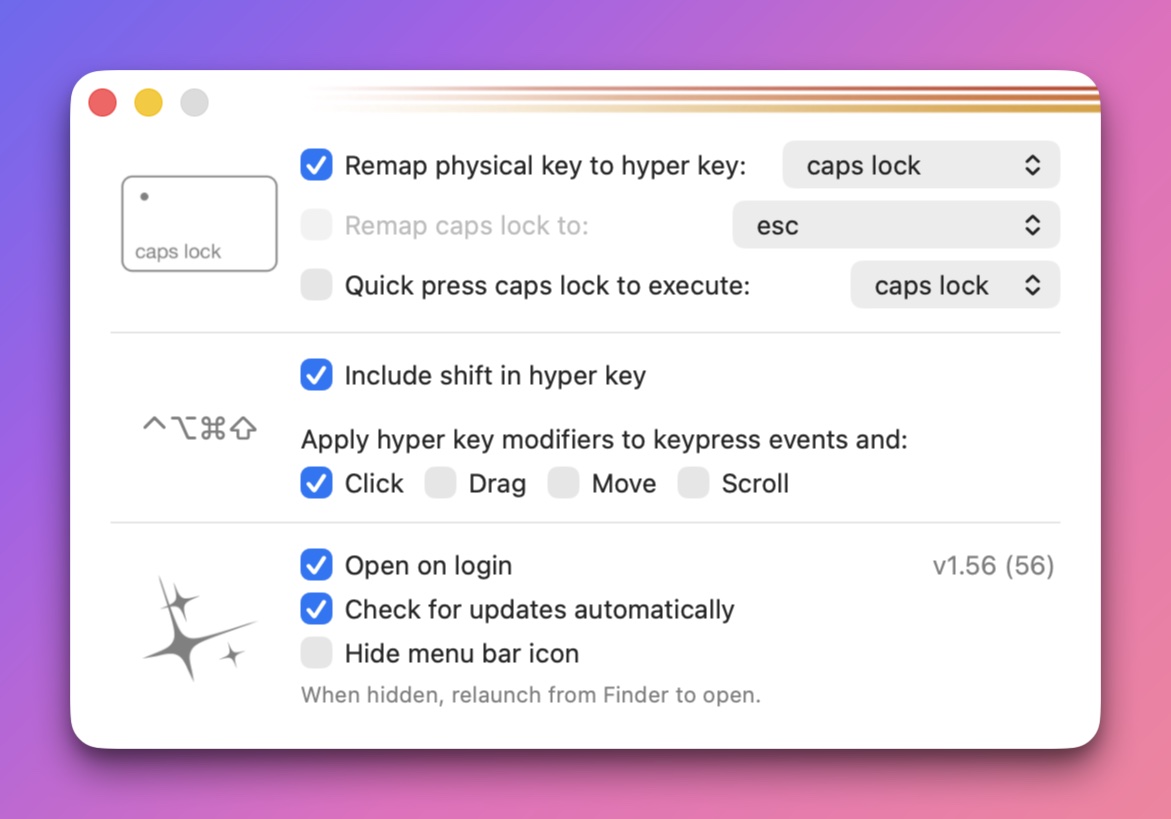
HyperKey, by Ryan Hanson, attempts to solve the issue of complex keyboard shortcuts by taking an unused key on your Mac (such as Caps Lock) and giving it the equivalent functionality of pressing Command, Option, Control and Shift keys. Instead of reaching for four separate keys, you’re only pressing one HyperKey. (To differentiate between the app and the function, I’ll refer to the app as HyperKey and use Hyper to represent the functionality.)
With HyperKey active, I simply press Caps Lock 4 (i.e. Hyper 4) to capture a screenshot region. I also use Hyper S to trigger a CleanShot X screen recording session. HyperKey opens up new productivity gains by providing a conflict-free “layer” to trigger custom keyboard shortcuts. In other words, I don’t have to worry about keyboard shortcut conflicts.
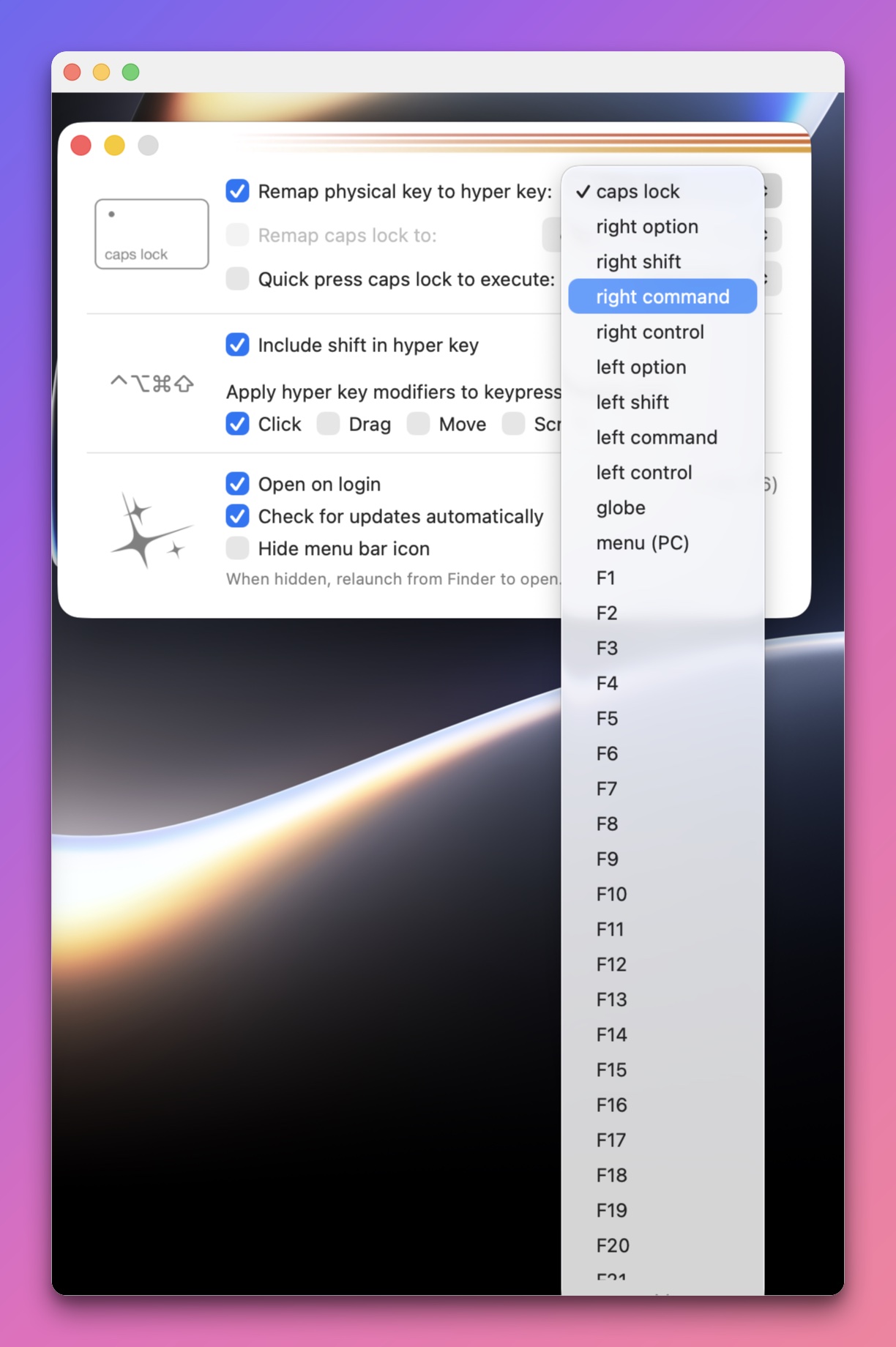
If you prefer another HyperKey instead of Caps Lock, the application provides numerous options, including Right Option, Right Command, Globe, function keys and more. HyperKey can also let your Caps Lock key act as the Esc key, if you’re tired of stretching your left pinkie. If you have an occasional need to use the Caps Lock as Caps Lock, HyperKey provides an option where a quick press of the aforementioned key can serve as Caps Lock instead of the Hyper functionality.
HyperKey can be used with any Mac application that supports custom keyboard shortcuts. Its real power can be unlocked when HyperKey is paired with applications like Rectangle (window management) or Keyboard Maestro (robust Mac automation). With the latter, I’ve assigned Hyper H to hide all my Mac apps immediately. Hyper Q is assigned to quit all my Mac apps. And that’s just scratching the surface of possibilities.
HyperKey is free from the developer’s website. HyperKey brings efficiency and purpose to my Caps Lock key, while simplifying my cognitive load. And that’s a win in my book.