
Just over a month after announcing the new Siri AI and its latest operating systems, Apple is officially opening the doors to iOS 27 and iPadOS 27 to everyone. The public betas for iOS 27 and iPadOS 27 are now available to anyone enrolled in the Apple Beta Software Program, giving you a first look at Siri AI, a refined Liquid Glass design, and a long list of performance and productivity upgrades months before the official release this fall.
If you’ve been on the fence about jumping into a beta, here’s a rundown of what’s new in both operating systems, why it might be worth trying, and exactly how to get it installed on your iPhone or iPad.
What’s New in iOS 27 and iPadOS 27
Before we get into the new features, this is one of the few betas that I would wholeheartedly recommend installing. I’ve had iOS 27 installed on my main iPhone and iPadOS 27 on my iPad since the first developer beta and haven’t had a single issue. Obviously, your experience may vary, but Apple has done such a great job with performance optimizations on each of the OS 27 updates, that I’ve not only not had any hiccups, I’ve actually seen performance improve on each device I’ve installed the beta on.
As we’ll detail below, Siri AI is the headline feature of these new operating systems, but close behind it is optimization. The Liquid Glass design looks better and everything feels so much snappier compared to OS 26 across devices. If you’re even the least bit curious about these betas, I’d say they’re worth checking out.
Siri AI Is the Headline Feature
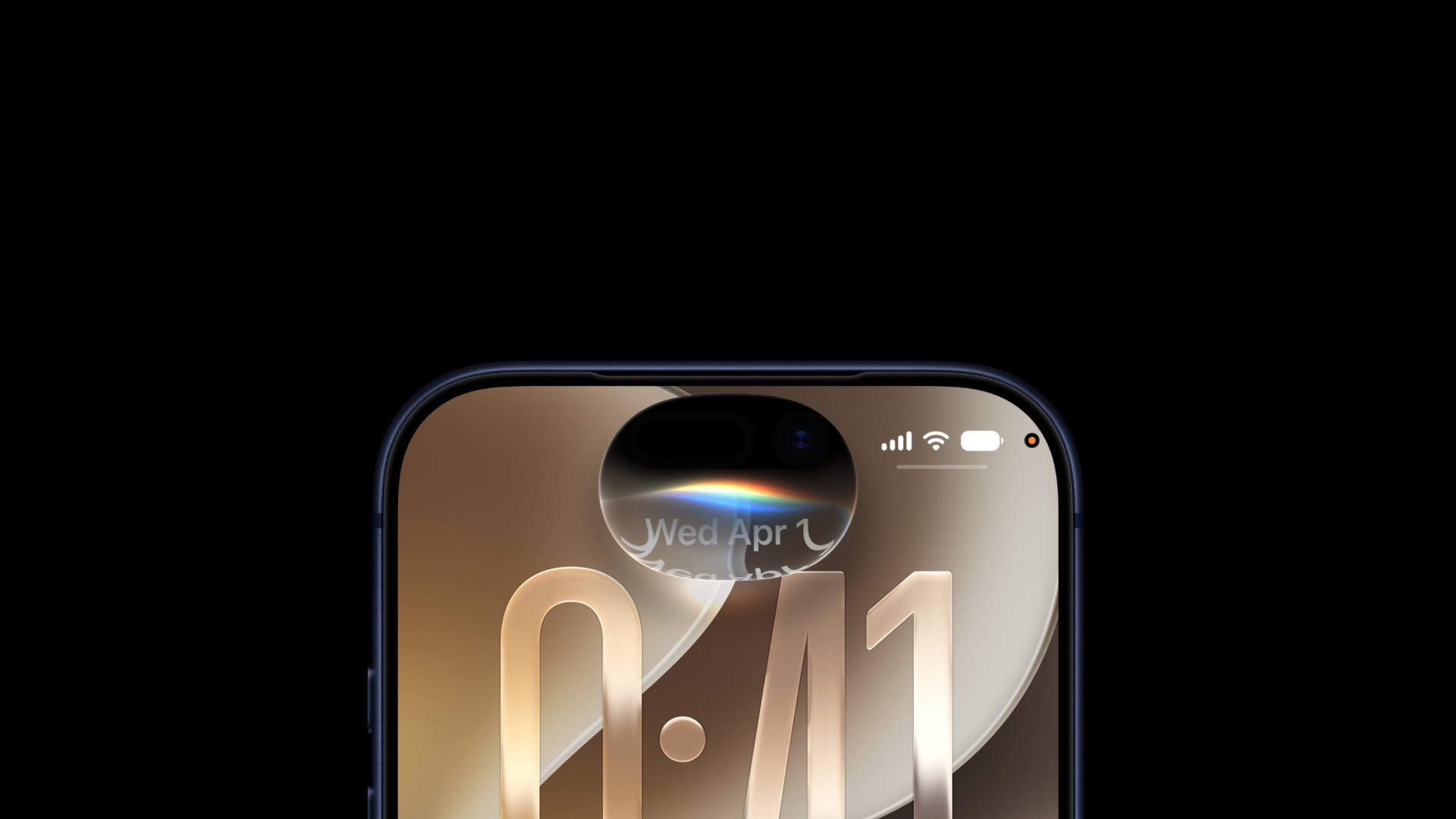
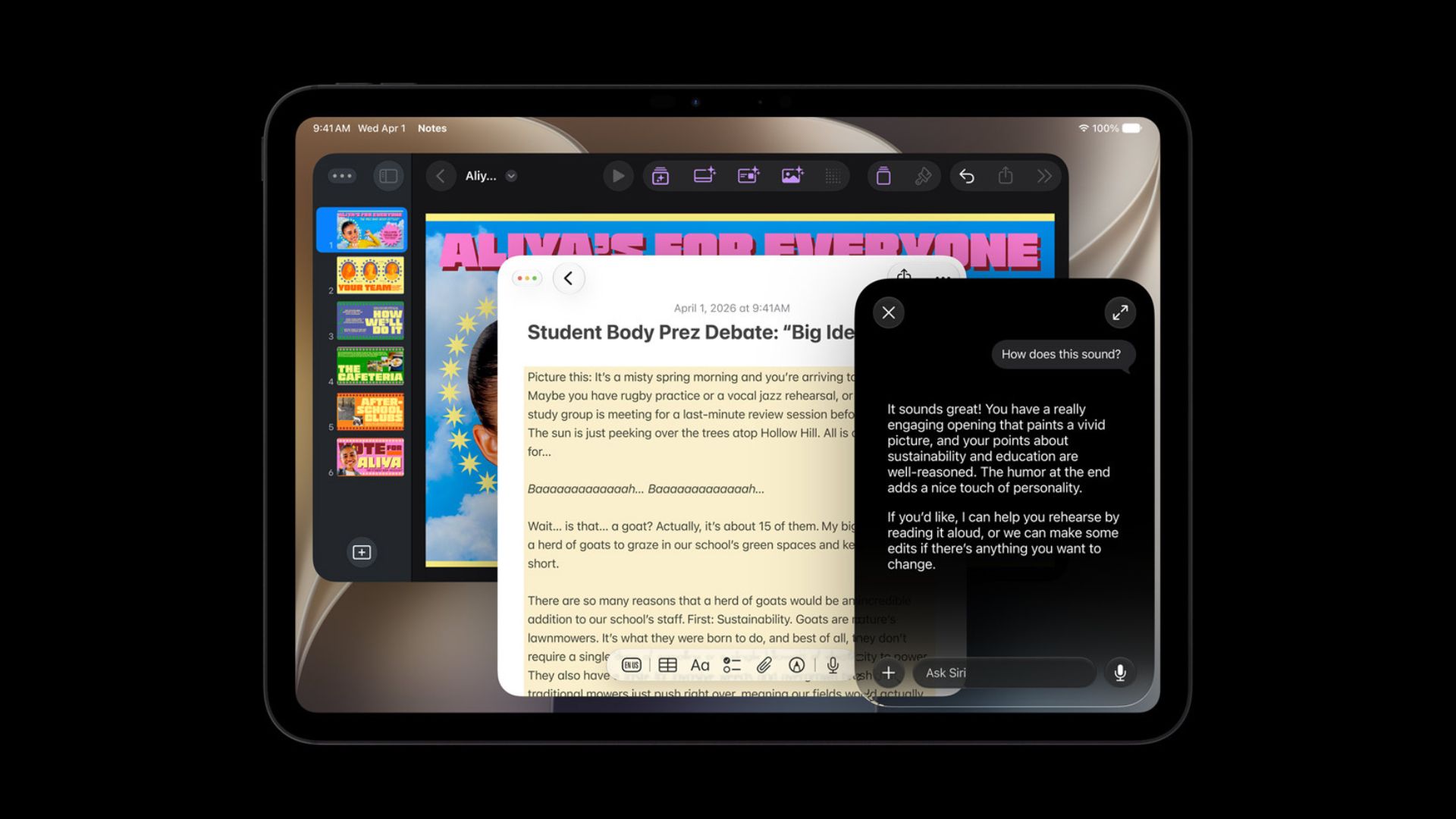
The biggest change in both operating systems is a completely rebuilt and dramatically more helpful Siri. Apple has reworked its voice assistant around a next-generation Apple Intelligence system that can hold an ongoing conversation, search your personal information across Mail, Messages, Notes, Reminders, and Calendar, understand what’s on your screen, and take actions inside apps. Responses now surface from the Dynamic Island on iPhone, and a dedicated Siri chat app keeps a running history of your conversations, synced privately through iCloud.
In my month of use with the new Siri, I’ve come away very impressed. Apple’s reworked voice assistant is so helpful that I actually think to ask Siri first rather than immediately opening a new Google search. And while integration with third-party apps hasn’t yet fully arrived, Siri’s ability to look for data within Apple’s first-party apps like Mail, Messages, Calendar, and Home is extremely helpful. If I have a question about the details of an email, message, meeting, or event time/place I can just ask Siri rather than digging through these apps.
Siri AI also picks up new voice controls that allow you to adjust its pace and expressivity under Settings > Siri > Voice. Plus, the Camera app gains a Siri-powered mode for Visual Intelligence, letting you do things like photograph a barcode and turn it into a Wallet pass.
A few caveats worth knowing: Siri AI requires an Apple Intelligence-compatible device (iPhone 15 Pro or newer for iOS, and an M1 iPad or the iPad mini with A17 Pro for iPadOS), some of the most advanced features are limited to the newest chips, and the new Siri initially supports only select English variants with no EU launch at first.
Apple Intelligence Spreads Across More Apps
Beyond Siri itself, both operating systems bring AI-powered upgrades to apps you already use every day:
- Photos gains three new editing tools: Clean Up for removing larger distractions, Extend for generating content beyond the original frame, and Spatial Reframing for adjusting the apparent camera angle after the fact.
- Safari can automatically organize tabs by topic, group bookmarks, and build a browser extension from a plain-language description. A new Notify Me feature can also watch a webpage for changes, like an item coming back in stock.
- Shortcuts can build an entire automation from a natural-language request instead of the old step-by-step editor.
- Passwords can automatically replace weak or compromised passwords for you.
A More Customizable Liquid Glass
iOS 27 and iPadOS 27 don’t abandon last year’s Liquid Glass design, but they do make it more flexible. A new slider under Settings > Appearance lets you dial the effect anywhere from ultra-clear to fully tinted, and Apple has improved contrast so buttons and text stay readable against busy backgrounds.
Beyond the customization, Apple has done a great job making elements of the operating systems more legible and more cohesive.
Real, Noticeable Speed Improvements
Apple says apps can launch up to 30% faster, AirDrop transfers can complete up to 80% faster, and new photos can appear in the Photos app up to 70% faster. These optimizations reach all the way back to iPhone 11, so even older hardware should feel snappier — a rare case of a beta that’s genuinely pleasant to use day-to-day rather than just a features preview.
A Major Screen Time and Parental Controls Overhaul
Families get a redesigned Screen Time dashboard with one-tap access changes, new Time Allowances for categories like Games and Social Media, and Schedules that can set different rules for school days versus weekends. An Ask to Browse feature extends the familiar Ask to Buy flow to websites, and Communication Safety now intervenes on gore and violent content in addition to nudity.
iPad-Specific Improvements
iPadOS 27 includes everything above, plus a few tricks of its own. External drive performance is dramatically improved — Apple says file transfers between an iPad and an SSD are up to five times faster, putting it on par with Finder on the Mac. There’s also a persistent menu bar option, an active app name in the status bar, resizable iPhone apps, and extra-large widgets for the Today view.
Why the Betas Are Worth Trying
If you’ve got a spare iPhone or iPad, or you’re comfortable with the occasional bug on your primary device, this is one of the more stable and rewarding betas Apple has shipped in recent years. The performance gains alone are noticeable immediately, and Siri AI represents the most significant change to Apple’s assistant in over a decade. Siri AI is definitely worth experiencing early if you’re curious how Apple is approaching AI system-wide. If you rely heavily on your device for work, though, it’s probably still wise to wait for the second or third release of the public beta, or simply install it on a secondary device.
How to Enroll and Install the Public Betas
Getting started with the public betas is free and doesn’t require a developer account. Before you begin, back up your device to iCloud or a computer as beta software can introduce bugs, reduced battery life, and app compatibility issues. NOTE: Before you decide to install the beta to your primary device, you should read the section below on how to downgrade should the beta not work out for you. It’s a much more involved process than installing the beta so you’ll want to know what you’re in for before you decide.
- Visit the Apple Beta Software Program website and choose Sign Up or Sign In.
- Sign in with the same Apple Account you use on your iPhone or iPad, then accept the program terms to enroll your device.
- On your device, open Settings.
- Go to General > Software Update > Beta Updates.
- Select iOS 27 Public Beta or iPadOS 27 Public Beta, depending on the device.
- Return to the Software Update screen and tap Update Now once the beta appears.
iOS 27 supports every iPhone that runs iOS 26 — iPhone 11 and later, plus the iPhone SE (2nd generation and newer). iPadOS 27 has a similarly broad compatibility list, though Siri AI and other Apple Intelligence features require newer hardware as noted above.
If you hit a bug along the way, use the built-in Feedback Assistant app to report it directly to Apple. Both operating systems will continue to receive beta updates throughout the summer ahead of their public release this fall.
How to Downgrade from the iOS 27 or iPadOS 27 Public Beta
If the beta isn’t working out, you can go back to iOS 26 or iPadOS 26. However, as we noted above, the process for downgrading is decidedly more involved than installing the beta. The process requires erasing your device and restoring it with a computer, so plan for this before you’re in a bind rather than in the middle of one.
Before you start:
- Make sure you have a backup from before you installed the beta. If your only backup was made after installing the beta, restoring from it will bring the beta right back with your device. iCloud backups made while running the beta can also be incompatible with the older OS, so a computer backup taken beforehand is your safest bet.
- You’ll need a Mac or PC with Finder (or Apple Configurator on Mac, or iTunes on Windows) and a cable to connect your device.
How to downgrade from the OS 27 Betas:
1. On your computer, download the current public release IPSW file for your device — for example, the iOS 26 or iPadOS 26 restore image — from a trusted source such as ipsw.me.
2. Connect your iPhone or iPad to your computer with a cable.
3. On a Mac, open Finder and select your device in the sidebar. On Windows, open iTunes or Apple Devices.
4. Put your device into recovery mode: force-restart it (press and quickly release Volume Up, press and quickly release Volume Down, then hold the Side button until you see the recovery mode screen).
5. When Finder (or iTunes) detects the device in recovery mode, it will prompt you to Restore or Update. Choose Restore.
6. Hold the Option key (Mac) or Shift key (Windows) and click Restore, then select the IPSW file you downloaded in step 1.
7. Let the restore process finish. Your device will erase completely and reinstall the public release version of the OS.
8. Once setup begins, restore from your pre-beta backup to get your data back.
A few things to keep in mind:
Downgrading always erases the device, Apple only signs the current shipping version of iOS/iPadOS at any given time (so once a new public release ships, you can’t go back to an older beta build), and Face ID/Touch ID along with any Apple Pay cards will need to be set up again after the restore. If you decide beta testing isn’t for you going forward, unenrolling your device at beta.apple.com will stop it from receiving further beta updates once you’re back on the public release.