When it comes to keeping my Macs safe and secure, I’d like to think I’m pretty savvy. But this morning, while working on my Mac mini, I received a rather unusual alert from Notification Center.
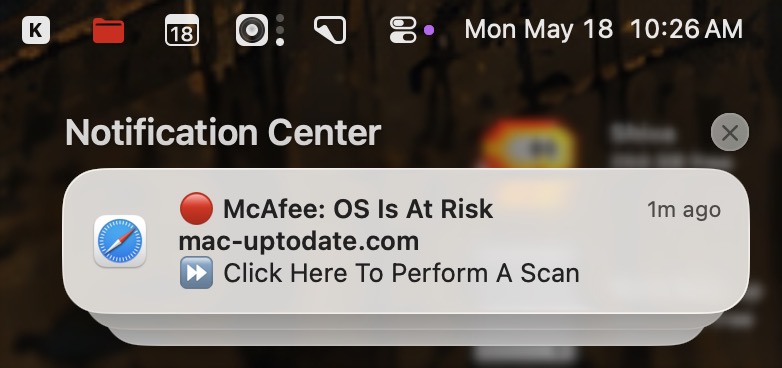
The alert warned of a potential malware infection and prompted me to perform a scan because my OS was “at risk.” In moments like these, there is a tendency to panic. But I know better than to react instinctively. What you don’t want to do in a situation like this is click the nefarious looking notification, which could then actually end up downloading something to your Mac that is malware. After all, scammers prey on our sense of urgency with these types of attacks.
So, with a cup of coffee in my hand, I took a sip and did some research.
The culprit, as it turns out, was NOT malware. As you can see in the screenshot above, the alert was a notification from Safari. But why was I getting this notification in the first place? To find out, I opened up Safari’s Settings, hit the Privacy tab and clicked Manage Website Data.
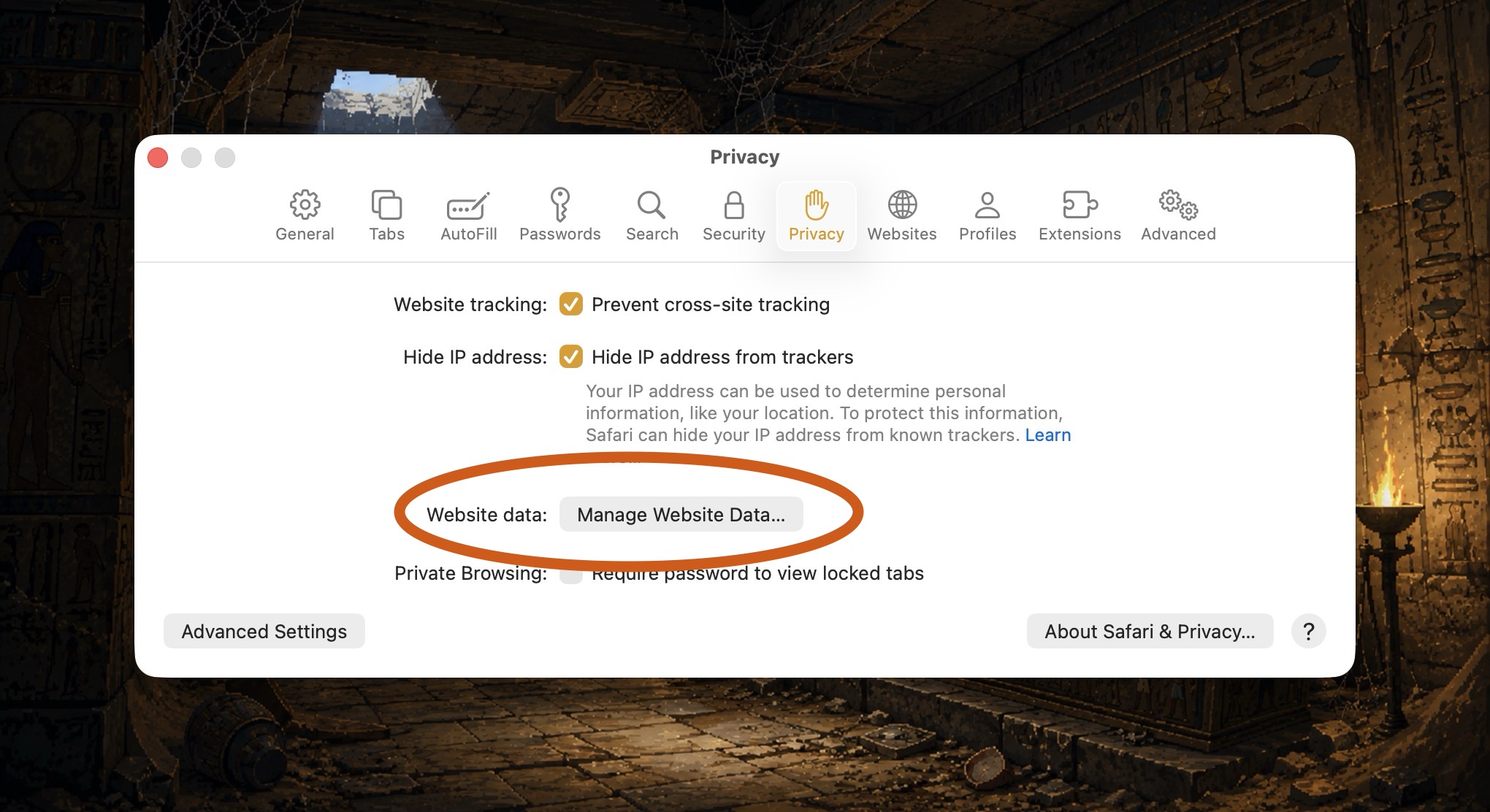
Think of this area as a closet containing little pieces of information from the websites you visit. This information can include login sessions, shopping cart contents, site settings, cached images and files and, crucially, tracking cookies.
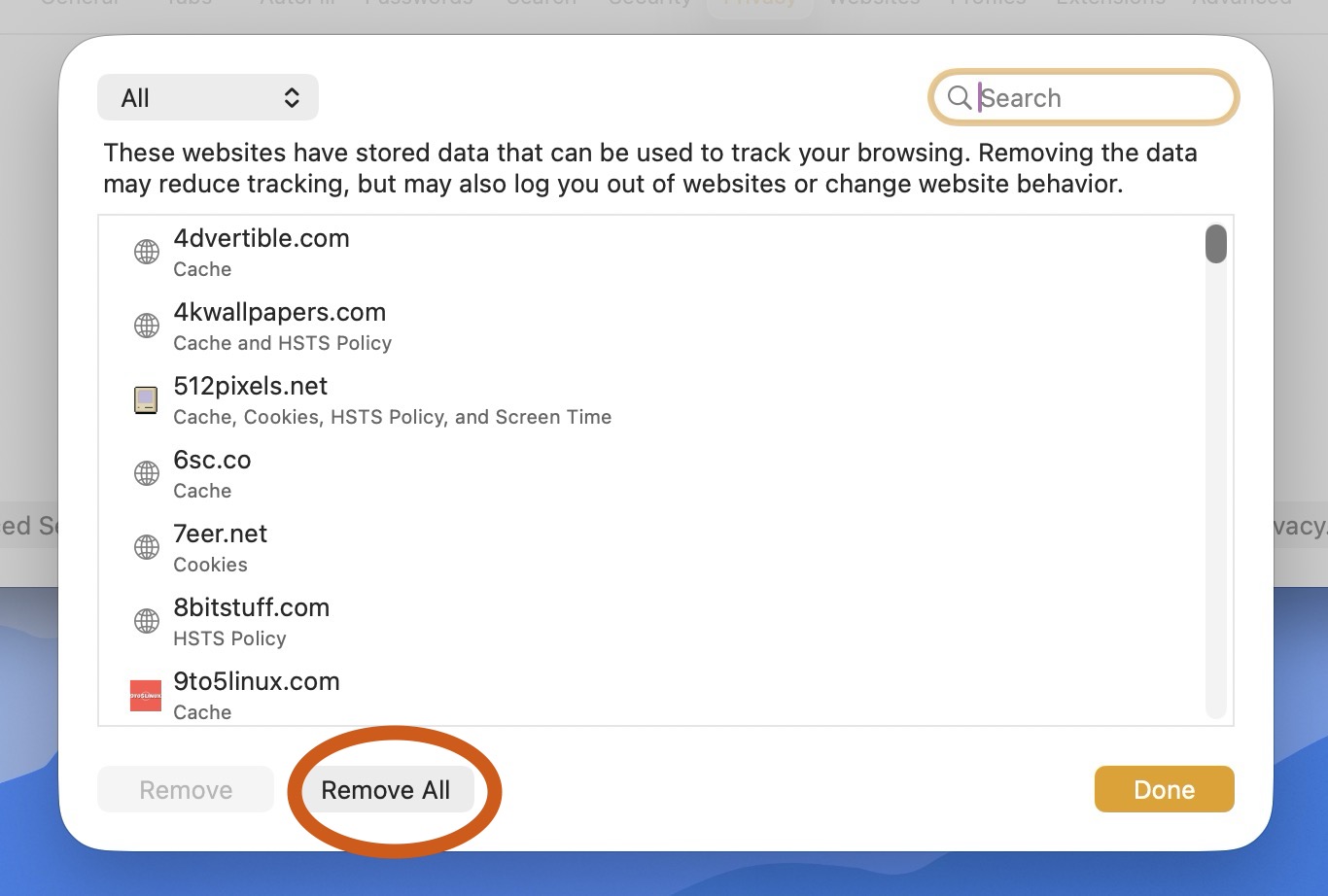
In my case, over 2000 website entries were stored in Safari, accumulated from at least five years of web browsing. Examining each of the entries to find which one was causing this spammy notification would be tedious. Instead, I opted for the brute force measure: I removed all stored sites. Doing this clears all local information Safari stored for them.
Removing website data comes with some minor annoyances. First and foremost, I was signed out of any websites I had previously visited. Second, some of my personalized settings were probably reset. But, in my view, that’s a very small price to pay for the peace of mind that the offending cookies and trackers will be removed. Besides, my passwords are safely stored in both 1Password and Apple Passwords which will make signing back into my usual sites a non-issue. (Just one more reason you should definitely be using a secure password storage app like the aforementioned 1Password or the built-in Apple Passwords app.)
The net result of removing all stored website data was two-fold. First, it fixed the malware notification issue. Second, it resulted in a measurable performance boost. Safari feels much more responsive and nimble. I was so impressed, I performed the same task on my five year old 14” MacBook Pro.
Removing stored website data is worth considering because modern browsers quietly accumulate years of tracking cookies, outdated login sessions, broken site settings, advertising identifiers and more. Over time, that buildup can contribute to weird browser behavior, sluggish websites, and even fake notification spam (like the one I received).
After going through this process, my only big quibble is with Apple themselves. One cannot view all stored website entries without having to scroll. It would be incredibly convenient if one could output the stored website data to a file, for clearer viewing.