Many Mac users will never use the Terminal. The common stereotype is that one must be a programmer or have elaborate “wizard-like” computing skills in order to work with it. Let’s break that stereotype now. I am not a programmer, but I am a geek who likes to learn and tinker. For certain tasks, I find working inside the Terminal to be faster and focused.
Whether it’s renaming 100’s of files, logging into a server, or automating repetitive tasks, the Terminal scratches an itch that a GUI sometimes can’t reach. This isn’t to argue that GUIs are inferior to text-based command entry; it’s more about using the right tool for the job.
The Terminal is fine for casual use, but it can feel sluggish under heavier workflows. If you use the command line regularly, there are better, more powerful options compared to Apple’s default. One of those options is Ghostty.
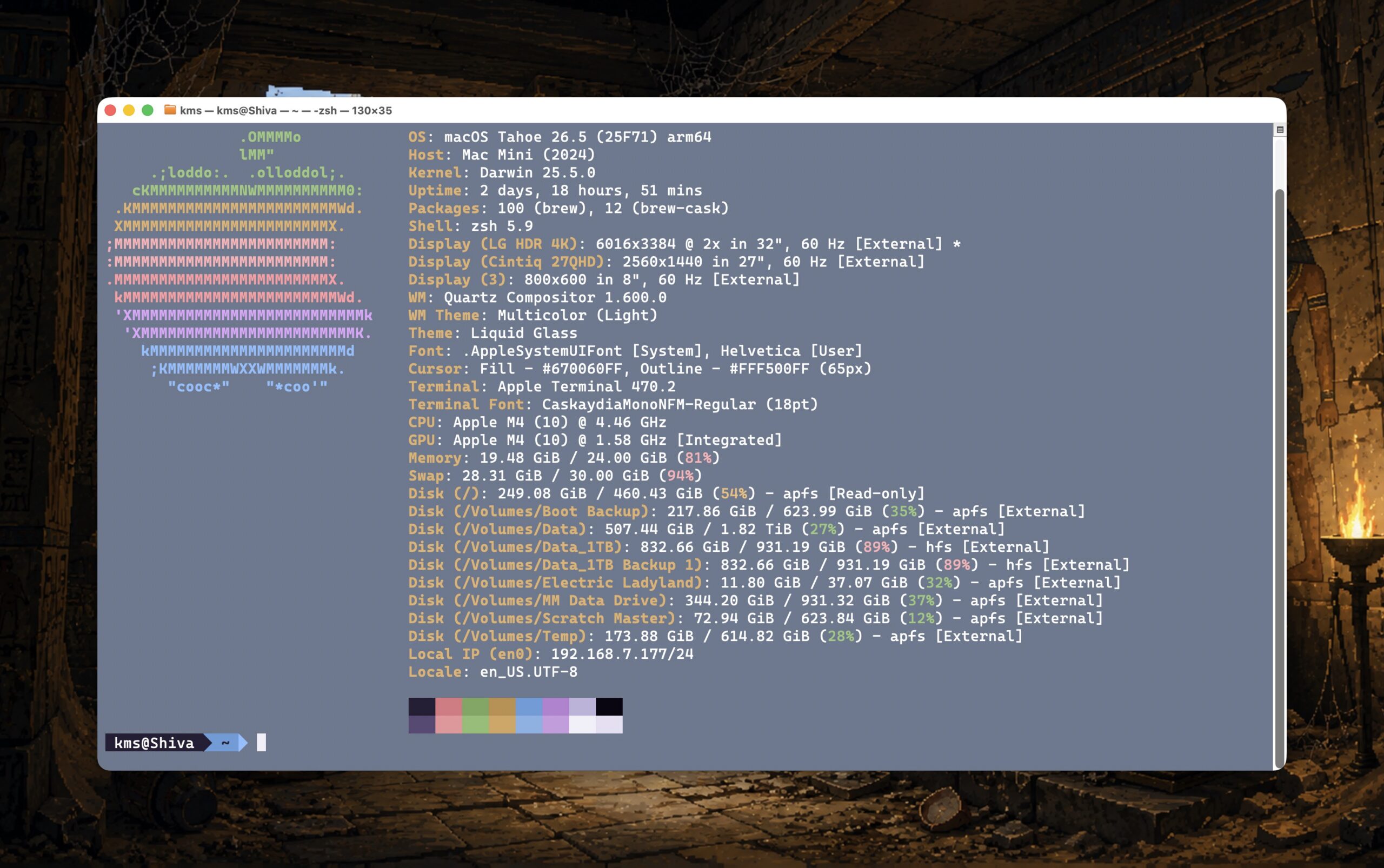
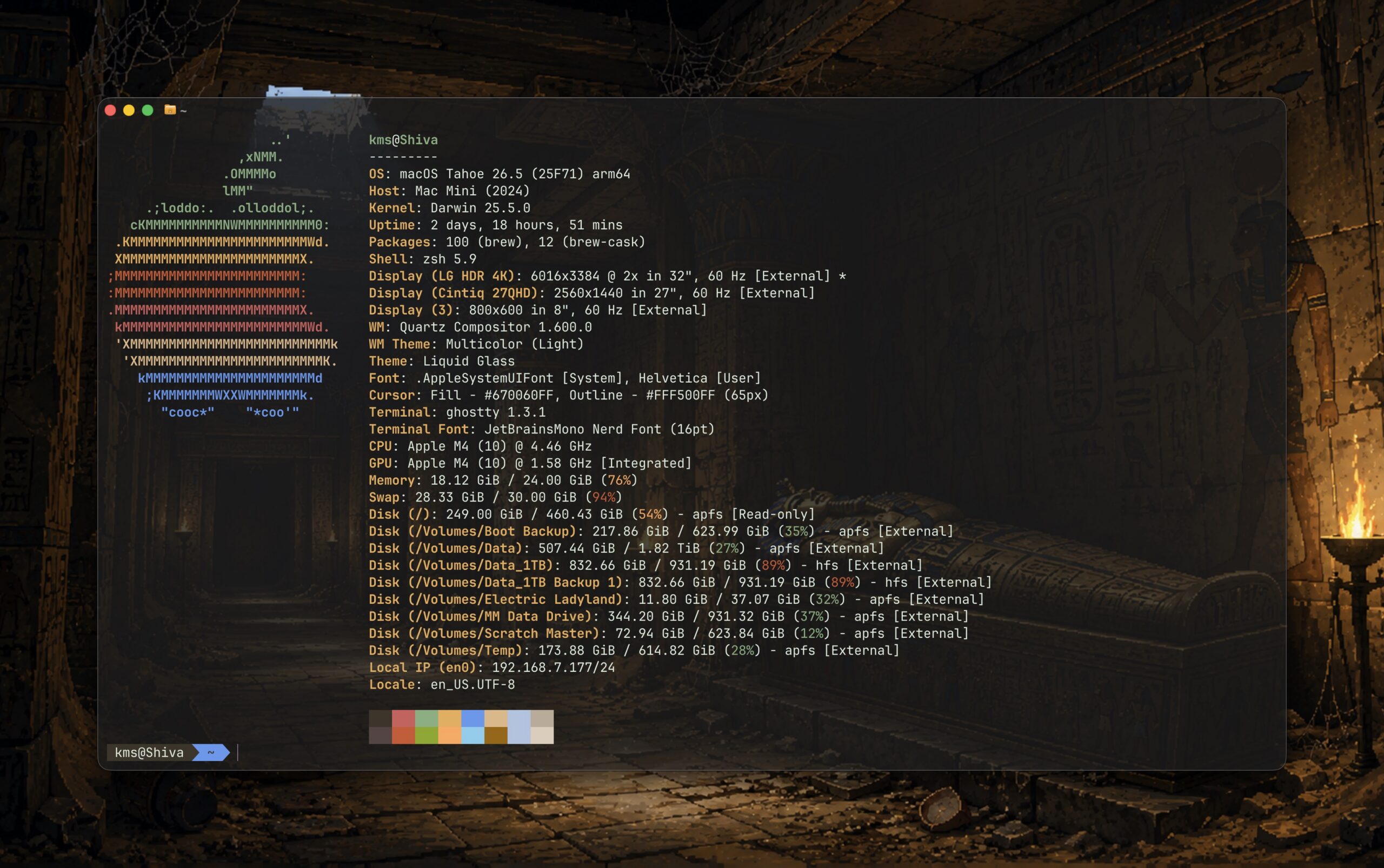
Ghosty is a free, cross platform, and open-source terminal emulator. It’s main pillars are speed, flexibility and clarity. Out of the box, Ghostty is highly performant because it uses GPU rendering. This means scrolling log files feels smoother and terminal redraws are faster. Whether you compile code, use SSH to remote login into a server, or use multiple Text User Interface (TUI) utilities inside the terminal window, you’ll appreciate Ghostty’s speed.
Ghostty also sports better text rendering, which is a must if you’re staring at a command line interface for a period of time. Text appears sharp and clear, even at smaller sizes. The Terminal’s text rendering feels older and less refined by comparison.
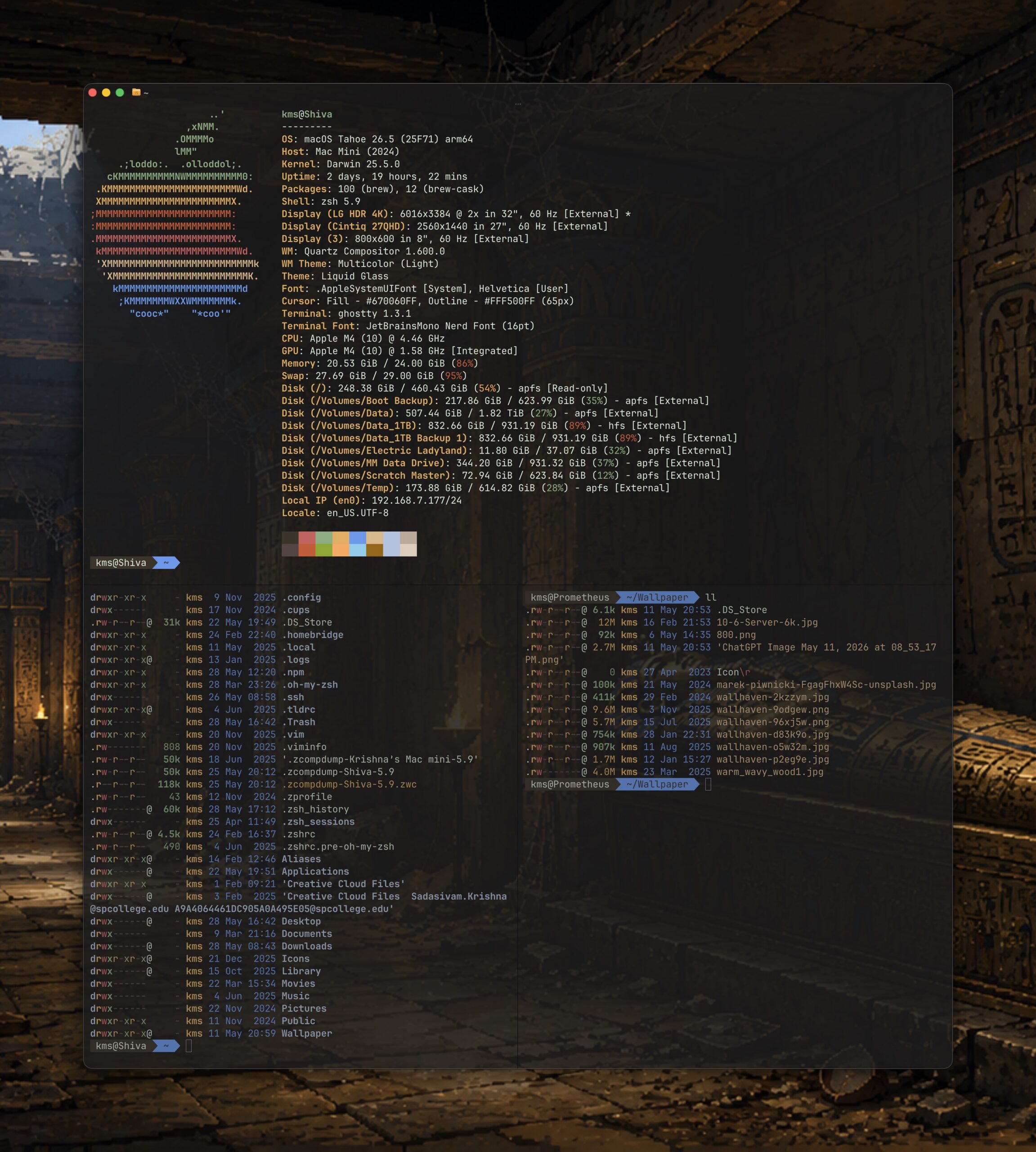
Unlike Terminal, Ghostty supports native split panes. This means that one Ghostty window can contain two or more sub-panes, stacked horizontally or vertically, or both. I find this feature to be tremendously useful when I’m working with files between two machines.
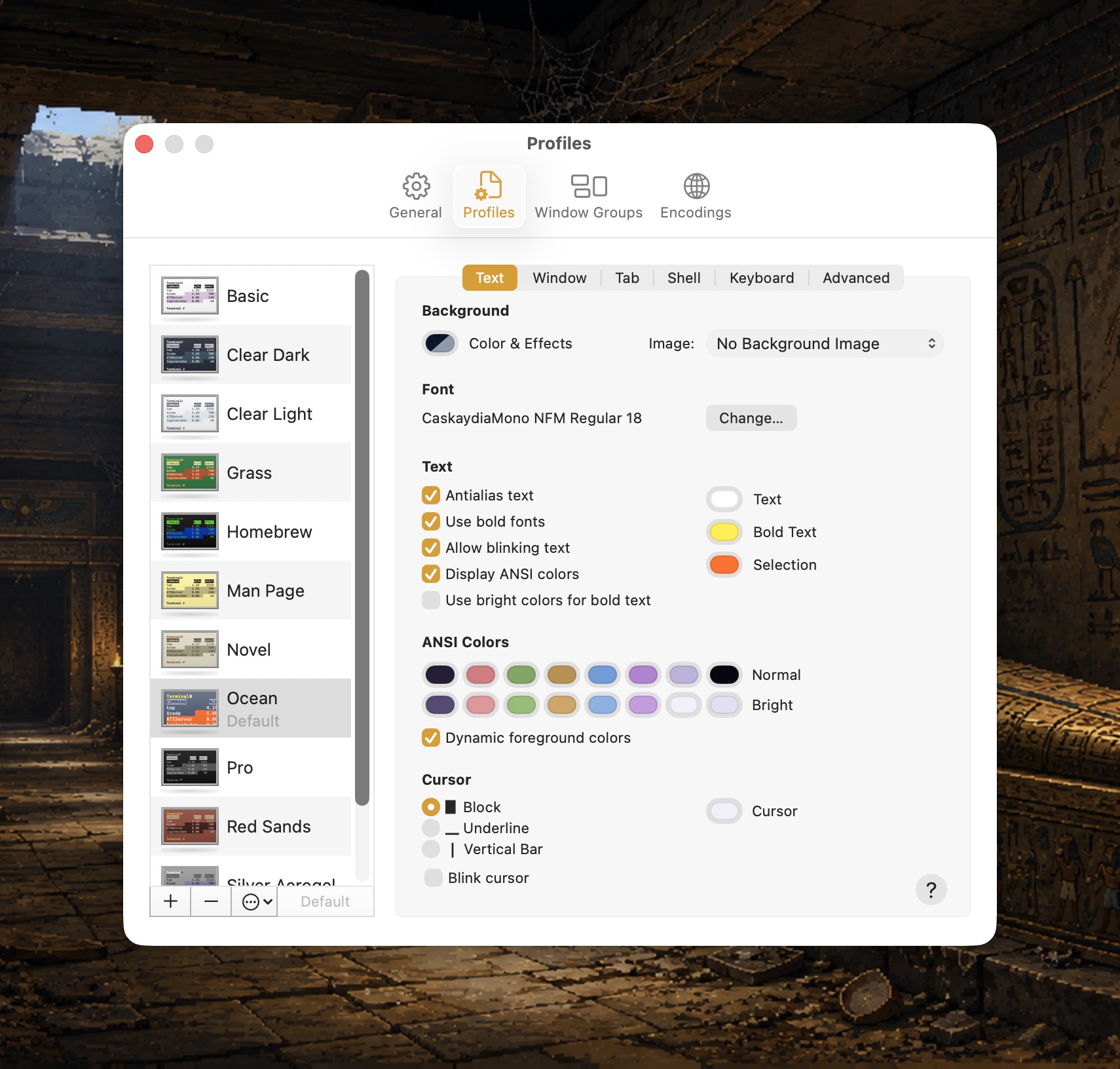
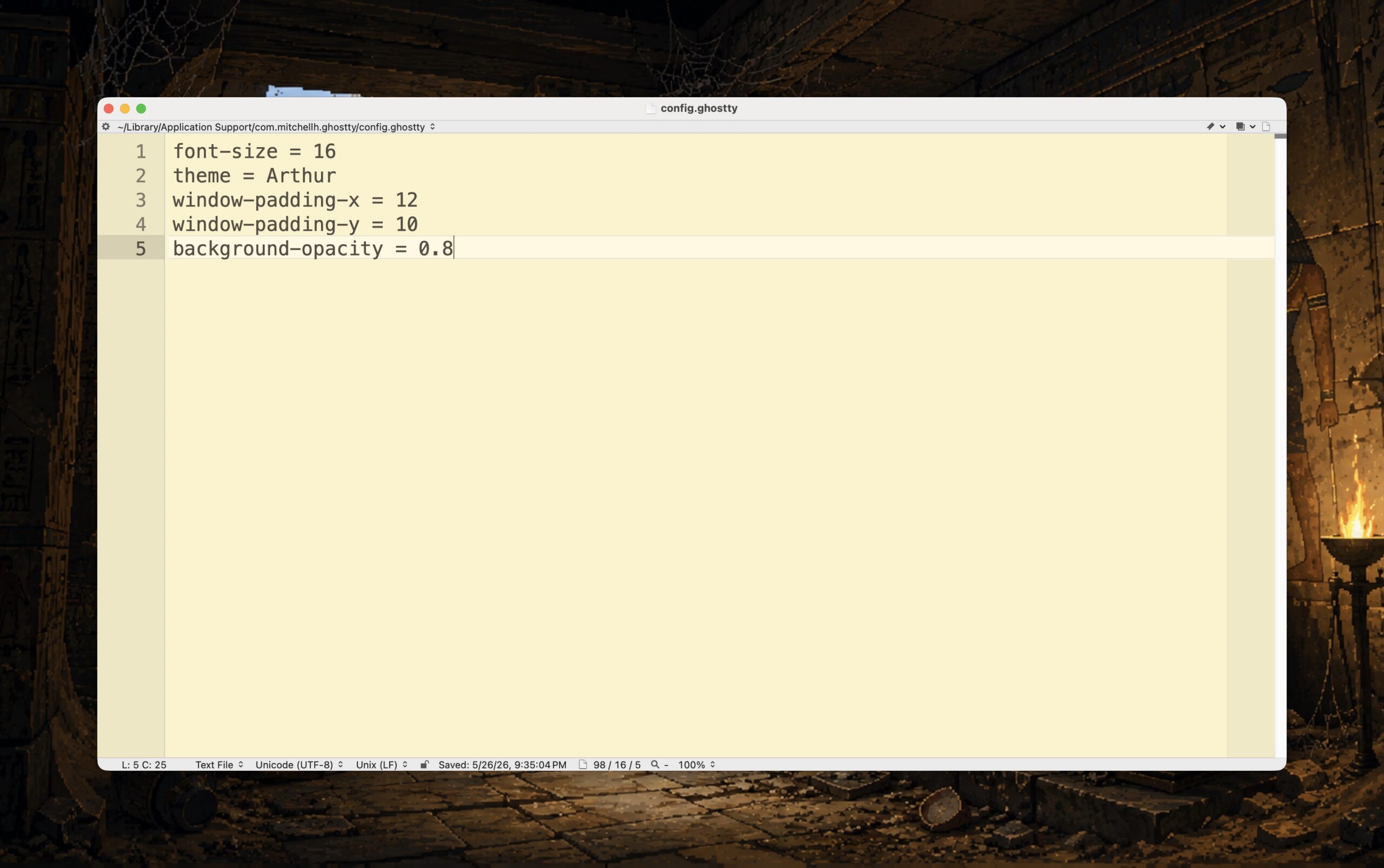
Apple’s Terminal app relies on using a GUI for configuration, which can be clunky. By contrast, Ghostty’s terminal customizations exists within one text file. Pressing Command , (comma) brings up a blank text file that you can add parameters to change Ghostty’s look and feel. Ghostty supports powerline glyphs, which displays a small icon next to each file and folder in the command line shell. Ghostty comes with hundreds of built-in themes. Pick one and enter it into Ghostty’s configuration file. Save the configuration file and reload it to see your updated theme.)
Ghostty is free, but its developers encourage users to donate to sustain development efforts. If you’re curious about the terminal, check out my recent post on my top three terminal command line tools.
Ghostty isn’t for everyone. But if you spend hours in shell environments, Ghostty is a far superior choice over Apple’s Terminal app. You’ll get better font rendering, faster scrolling, pane management with a modern feel. And you don’t need to be a geek to appreciate that.