
Updated August 31, 2026 to include the new M6 and M5 Ultra chips.
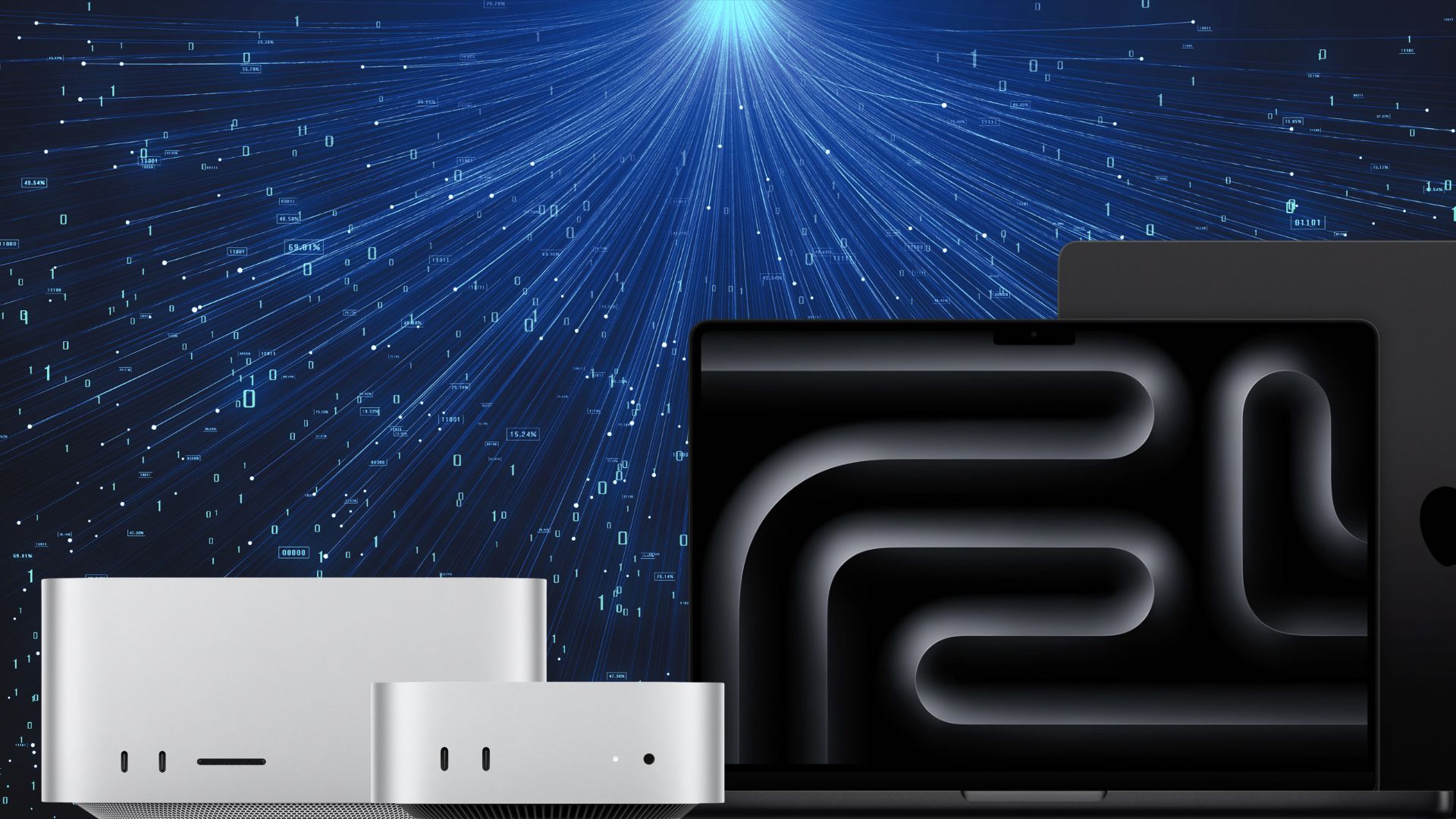
As AI large language models (LLMs) continue to become more capable and more useful for aiding in multi-step tasks, a growing number of Mac users are including AI capability and performance as one of their top considerations when buying and spec’ing out their next Mac.
If you’re considering the purchase of a Mac to run local AI models on, this guide is here to give you a basic understanding of what local AI models are and how to spec out a Mac to support what you’d like to accomplish with one. As you’ll learn, local models can do just about everything the prominent cloud-based models from companies like OpenAI and Anthropic offer, from chatbot use, assistance with document or image generation, or use in tandem with an autonomous agent like OpenClaw.
But before we get into those things, let’s talk briefly about why you might want to use a local model in the first place.
A Quick Note Before We Begin
The challenge with creating a guide like this one is that because work on LLMs is moving so rapidly, advice and recommendations on specific models and even model weights can become outdated quickly. For instance, there are lots of projects right now working on allowing you to run larger weight models with less and less RAM. Suffice it to say, a lot of the knowledge on LLMs right now is… fluid.
So, rather than create a guide aimed a helping you pick “the best LLM” or weight, we’ve instead tried to give you a framework of understanding around tiers of model weights as a reference for their capability and the specs currently required to run them. The goal is that once you’ve read this, you should have a basic understanding of local models and their advantages, and roughly know what Mac you’ll need to get started. You should be well on your way to running your first LLM, but more research will be required.
Why Run AI Locally Instead of in the Cloud
Cloud AI tools like ChatGPT and Claude are excellent and getting better every day, but running a model locally on your own hardware offers a few distinct advantages:
- Privacy: Your prompts, documents, and conversations never leave your Mac. For legal, medical, financial, or proprietary business work, this alone can be the deciding factor in running a local model.
- Cost: Once you’ve bought the hardware, local models are free to run indefinitely. There’s no monthly subscription and no worrying about cost per token.
- Offline access: Because it runs completely on-device, a local model works on a plane, during an internet outage, or anywhere else you don’t have an internet connection.
- Control: You choose the exact model, version, and configuration. Plus, you can fine-tune it for your own use case through custom training.
The primary tradeoff is that local models generally trail the biggest cloud models in raw capability. And the fact that you’re responsible for ensuring your own hardware and setup are capable. For a lot of everyday tasks, that tradeoff is well worth it.
What You Can Do With a Local Model
Once you have a model running locally, the use cases look a lot like what you’re already doing with cloud AI tools:
- General chat and writing assistance: Brainstorming, editing, summarizing.
- Coding help: Many mid-sized open models are capable coding assistants.
- Speech-to-text: Many AI users employ models to provide on-device speech-to-text that is more accurate and proficient than the speech-to-text tools built into most operating systems.
- Document Q&A and Batch Work: Point a tool at a folder of PDFs or notes and ask questions grounded in your own files, often called retrieval-augmented generation, or RAG. Or tell a model to transcribe an archive of audio files or classify/tag a large batch of existing files.
- A local API: Tools like Ollama expose an OpenAI-compatible API on your Mac, so other apps and scripts can call your local model just like they would call a cloud service.
- Autonomous agents: Tools like OpenClaw (more on this below) can use a local model to reason about tasks and then actually execute them by running scripts, reading files, or browsing the web. In other words: you can automate complex tasks on your Mac.
Where Do These Local Models Come From?
Unlike Claude, ChatGPT, or Gemini, which only run on their proprietary cloud servers, the models you run locally are open weight models. A company trains the model and then publishes the finished, trained parameters for anyone to download and run on their own hardware.
Hugging Face has become the de facto library and distribution hub for these models, allowing anyone to pop in and download a model. And these are the companies and labs that account for the most commonly used models:
- Alibaba: Maker of the Qwen family, which has grown into one of the most downloaded and widely used open model families available today.
- DeepSeek: A Chinese lab whose releases have repeatedly matched or challenged closed frontier models on coding and reasoning benchmarks.
- Google: Maker of Gemma, a smaller, locally-focused open-weight sibling to Gemini, now with vision and audio support at the small end.
- Meta: Maker of the Llama family, which kicked off the modern open-weight movement and remains widely used.
- Mistral: A French AI lab whose models are popular for their efficiency and mostly permissive licensing.
- Microsoft: The Phi family, built specifically to be small and efficient enough to run on modest hardware.
- Moonshot AI: Another Chinese lab whose Kimi model is making waves similarly to those from DeepSeek.
- OpenAI: Makers of the gpt-oss models. OpenAI’s open-weight release have become a common pick for constrained machines.
For those considering using these models commercially, licensing varies quite a bit between model families. Some, like DeepSeek and much of Mistral and Qwen, use permissive licenses (Apache 2.0 or MIT) with essentially no usage restrictions. Others, like Meta’s Llama and Google’s Gemma, use a community license that allows free commercial use but adds conditions once you cross a certain company size. You can find those licensing details on Hugging Face when downloading a particular model.
Are Local Models as Good as Cloud Models?
We briefly brought this up before, but the short answer to the question of local model capability vs. closed cloud-based models is: it depends on the task and the model we’re comparing, but on the lower to mid-tier of capability, we’ve seen the gap narrow drastically.
As of mid-2026, the best open-weight models generally land within roughly 5 to 15 points of the top closed models like Claude, GPT, and Gemini on most standard benchmarks. For everyday work, writing, summarizing, general coding help, and document Q&A, a well-chosen local model in the 14B to 70B range is pretty competitive with what you’d get from a cloud subscription. (We’ll get more into model size and how that impacts hardware specs down below, but 14B means 14 billion parameters.)
Where the frontier cloud models pull ahead is at the end of the spectrum: the most complex multi-file coding tasks handled with no human oversight, cutting-edge scientific and abstract reasoning, and the newest multimodal capabilities. If you’re doing that kind of frontier-level work, you’re still going to need a cloud subscription. But for the bulk of what most people use AI for day to day, local models have become a very capable, private, and free alternative.
How To Run a Local Model
So now that we’ve covered the basics of local AI models, let’s talk about how you actually get one of these models onto your Mac. The good news is you don’t have to write any code from scratch. A small ecosystem of free, open-source tools handles downloading and running models for you:
- Ollama: A command-line tool that’s become the standard for developers running local models. One command downloads a model, another runs it, and it exposes a local API automatically. Its Apple Silicon backend now runs on Apple’s own MLX framework rather than the older llama.cpp, which is faster on Mac hardware.
- LM Studio: A polished, point-and-click desktop app for anyone who’d rather browse and click than type commands. It can also run headless in the background as a server, similar to Ollama.
For most people getting started, LM Studio is the easiest entry point, and Ollama is the better choice if you plan to connect a local model to other tools or agents.
Why Macs are Well Suited to Running LLMs: Unified Memory
The thing about Macs that makes them such great AI machines is unified memory. Unlike a Windows PC, where a graphics card has its own separate, fixed pool of VRAM, Apple Silicon shares one pool of memory across the CPU, GPU, and Neural Engine. (The Neural Engine is the part of an Apple chip dedicated to running AI and machine learning tasks.) That means just about all of your Mac’s RAM effectively is its VRAM for AI purposes, and a Mac with enough memory can run models that would otherwise require a dedicated high-end graphics card.
Of course, not all of your RAM is handed over to the GPU. Between what is dedicated to the operating system, system reserves, and the apps running on your Mac at any given time, roughly 70-75 percent of your total RAM will be available for an LLM and its context. On a 32GB Mac, that would be roughly 22 to 24GB for an LLM to work with.
The Best Mac for AI: What Specs Do You Need?
When it comes to running local models, there are two primary aspects of the way M-Series Macs work that determine how well a given Mac will run a model: the amount of RAM on your Mac and how much memory bandwidth your Mac has. Your Mac’s memory capacity determines how large of a model will fit on your Mac. And because memory bandwidth is how fast data can move between a Mac’s RAM and its M-Series chip, memory bandwidth determines how quickly a model will run. How much memory bandwidth you have depends on which M-Series chip you have.
Before we get into specifics on which chip and how much RAM you need to run a given model, we need to address model weights. Model weights describe the size and/or capability of an LLM measured in billions of parameters. The more parameters a model has, the greater its logical capacity and the more space its going to take up within your Mac’s RAM. But there is a bit of wrinkle in model size to be aware of: mixture of experts (MoE) models.
Browse model listings and you’ll come across two different naming patterns. Some models will end with one suffix containing number/letter combination like “Qwen3.6-27B”. Meanwhile, others will end with two suffixes like “Qwen3.6-35B-A3B”. A model name ending in a single suffix means the model is dense: each of the model’s parameters are called upon to work on its responses. When you install a 27B parameter model on your Mac, it occupies about 16GB of RAM and your Mac has to read all 16GB everytime you query the model.
But when you see two suffixes in a model name like “Qwen3.6-35B-A3B,” that means the model is a mixture-of-experts or MoE model. MoE splits a model into subnetworks or groups of “expert” parameters on particular topics. If there are 100 people in a room and only five are doctors, why would you waste time asking all 100 people a medical question when you could just ask the five doctors? That’s the logic behind MoE models. Choosing a subnetwork of “experts” allows the model to work faster. In the name “Qwen3.6-35B-A3B” the suffix “35B” is how large the model is while “A3B” tells you that 3 billion out of the total 35 billion parameters are active during a request. All 35 billion stay in mrmory but only about 2GB of the model gets read per word the model generates.
What this means is that MoE models can be a great way to make a model your Mac has enough RAM to hold run faster than a similarly sized dense model. In other words, it’s a great way to make up for lower memory bandwidth.
Which M-Series Chip Should You Get?
Your Mac’s M-Series chip determines how much memory bandwidth you have. And where memory bandwidth really comes into play when running local models is inference. In a dense model, the chip has to read the entire model out of memory for every single token it generates. In an MoE model, it only polls the expert parameters. Regardless, that means a local model’s efficiency scales closely with memory bandwidth and not a chip’s raw clock speed or core count.
Base M-series chips (such as the plain “M4” or “M5”; not Pro/Max/Ultra) have much lower memory bandwidth than their Pro, Max, and Ultra siblings. The Pro tier roughly doubles the bandwidth of the base chip, the Max tier roughly doubles it again, and the Ultra tier doubles it once more. In practice, that means a Mac with enough RAM to technically load a 14B model will still feel meaningfully slower generating responses if it has a base M-Series chip rather than a Pro chip running the same model.
The table below shows approximate token generation speed estimates for 4-bit quantized models at modest context lengths. Real-world results will vary with quantization, context size, and which runtime you use.
“Won’t fit” means the model exceeds what that chip’s maximum memory configuration can hold at 4-bit quantization, after accounting for macOS overhead. “Compute-limited” means bandwidth stops being the bottleneck: past roughly 550GB/s, an MoE model reads so little memory per word that the GPU becomes the constraint instead, and these speed estimates no longer scale linearly.
Also note that these figures assume the maximum memory configuration for each chip. A 16GB M4 Mac mini can’t run a 27B model even though the M4 row shows a speed for it.
For a reference point on what these numbers mean: most people read at roughly 5 to 6 tokens per second. Anything above about 10 tok/s feels like a normal conversation. Anything above 30 tok/s feels instant. Below about 5 tok/s, you’re waiting, which can be fine for batch work or requests you can let work in the background.
| Chip | Max RAM | Bandwidth | Dense 8B | Dense 14B | Dense 27–30B | Dense 70B | 30B-A3B MoE |
| M1 | 16GB | 68GB/s | ~9 tok/s | ~5 tok/s | won’t fit | won’t fit | won’t fit |
| M2 | 24GB | 100GB/s | ~14 tok/s | ~8 tok/s | ~4 tok/s (24GB only) | won’t fit | won’t fit |
| M3 | 24GB | 100GB/s | ~14 tok/s | ~8 tok/s | ~4 tok/s (24GB only) | won’t fit | won’t fit |
| M4 | 32GB | 120GB/s | ~17 tok/s | ~10 tok/s | ~5 tok/s | won’t fit | ~35 tok/s |
| M5 | 32GB | 153GB/s | ~21 tok/s | ~12 tok/s | ~6 tok/s | won’t fit | ~45 tok/s |
| M6 | 32GB | 170GB/s | ~23 tok/s | ~14 tok/s | ~7 tok/s | won’t fit | ~50 tok/s |
| M1 Pro | 32GB | 200GB/s | ~28 tok/s | ~16 tok/s | ~8 tok/s | won’t fit | ~55 tok/s |
| M2 Pro | 32GB | 200GB/s | ~28 tok/s | ~16 tok/s | ~8 tok/s | won’t fit | ~55 tok/s |
| M3 Pro | 36GB | 150GB/s | ~21 tok/s | ~12 tok/s | ~6 tok/s | won’t fit | ~45 tok/s |
| M4 Pro | 64GB | 273GB/s | ~38 tok/s | ~22 tok/s | ~11 tok/s | ~4 tok/s | ~75 tok/s |
| M5 Pro | 64GB | 307GB/s | ~43 tok/s | ~25 tok/s | ~13 tok/s | ~5 tok/s | ~85 tok/s |
| M1 Max | 64GB | 400GB/s | ~55 tok/s | ~32 tok/s | ~17 tok/s | ~6 tok/s | ~110 tok/s |
| M2 Max | 96GB | 400GB/s | ~55 tok/s | ~32 tok/s | ~17 tok/s | ~6 tok/s | ~110 tok/s |
| M3 Max | 128GB | 400GB/s | ~55 tok/s | ~32 tok/s | ~17 tok/s | ~6 tok/s | ~110 tok/s |
| M4 Max | 128GB | 546GB/s | ~75 tok/s | ~44 tok/s | ~23 tok/s | ~9 tok/s | compute-limited |
| M5 Max | 128GB | 460–614GB/s | ~85 tok/s | ~49 tok/s | ~26 tok/s | ~10 tok/s | compute-limited |
| M1 Ultra | 128GB | 800GB/s | ~110 tok/s | ~64 tok/s | ~34 tok/s | ~13 tok/s | compute-limited |
| M2 Ultra | 192GB | 800GB/s | ~110 tok/s | ~64 tok/s | ~34 tok/s | ~13 tok/s | compute-limited |
| M3 Ultra | 512GB | 819GB/s | ~113 tok/s | ~65 tok/s | ~35 tok/s | ~13 tok/s | compute-limited |
| M5 Ultra | 512GB | 1.2TB/s | ~165 tok/s | ~96 tok/s | ~51 tok/s | ~20 tok/s | compute-limited |
A few things worth pointing out:
The base tier is more capable than it looks, if you pick the right models. A base M6 running a 30B-A3B MoE model should feel snappy. The same machine running a dense 27B would not.
Watch the M6’s memory configuration. The M6 delivers 170GB/s only on the 24GB and 32GB configurations. The base 16GB Mac mini stays at 153GB/s, the same as M5. If bandwidth matters to you, the memory upgrade buys you speed as well as capacity.
The M3 Pro took a step backward with lower bandwidth than the M2 Pro before it, because Apple narrowed the memory bus that generation. If you’re shopping used, an older M2 Pro can be the better local-AI buy than a newer M3 Pro.
The Max tier is where used machines shine. M1 Max, M2 Max, and M3 Max all share the same 400GB/s bandwidth, so a used M1 Max with enough RAM remains a legitimate and much cheaper way into the 30B tier. The real jump doesn’t arrive until M4 Max.
On the Ultra tier, M1 Ultra and M2 Ultra both run 800GB/s and M3 Ultra only nudges that to 819GB/s, so a used M1 Ultra Mac Studio stays competitive for 70B token generation. The new M5 Ultra is the first meaningful bandwidth jump at this tier in four years, at 1.2TB/s, alongside a memory ceiling of 512GB.
How Much RAM?
By now, you’re hopefully getting a clearer picture of the give and take when running local models on your Mac. While memory bandwidth determines how quick a model feels, total memory capacity determines which models will actually fit on your Mac.
Below is a quick and dirty reference chart for the amount of RAM your Mac will need to run a given size of LLM and a quick explainer of what those models can actually accomplish.
| Model Size | Unified Memory Needed | Example Mac | Example Models | Good For |
| 7B–9B dense | 16GB (tight) | M6 Mac mini, base MacBook Air | Qwen3.5 9B, Mistral 7B | Everyday chat, drafting and editing, summarizing, basic coding help, simple document Q&A. |
| 12B–14B dense | 16–24GB | M6 Mac mini (24GB) | Gemma 4 12B, Mellum2-12B | Noticeably better reasoning and coding accuracy. The first dense tier that handles multi-step agent tasks with any reliability. |
| 20B–35B MoE | 24–32GB | M6 Mac mini (32GB), M5 Pro Mac mini | gpt-oss 20B, Qwen3-Coder 30B-A3B, Qwen3.6-35B-A3B | The value sweet spot. Near-30B capability at speeds a base chip can deliver comfortably. Best all-round pick for agents and interactive use on a base-tier Mac. |
| 24B–32B dense | 32–48GB | M5 Pro Mac mini, M5 Max Mac Studio | Qwen3.6-27B, Devstral 24B, Gemma 4 31B | Professional-grade coding, vision and multimodal work, complex reasoning that starts closing in on cloud quality. Slow on a base chip; comfortable from Pro tier up. |
| 70B dense | 64–128GB | M5 Max or M5 Ultra Mac Studio | Llama 3.3 70B | The most capable dense tier you can run at home. Best for in-depth analysis, research, and writing where quality matters more than speed. |
| 100B+ MoE | 128GB+ | M5 Ultra Mac Studio | gpt-oss 120B | Highest local capability available, and the only tier where open models get close to frontier cloud quality. Requires a top-tier Mac. |
A key point to understand when it comes to model size is that there is real inconsistency when it comes to performance or capability jumps as model size grows. For instance, going from an 8B to a 14B model does tend to bring a substantial jump in coherence and reliability. 14B is really the level that can consistently be trusted with multi-step prompts. The jump in capability from 14B to 30B is smaller but still noticeable, mainly in reasoning depth and coding accuracy. By the time you go from 30B to 70B, the improvement is real but more modest; you’re paying for a lot more memory and speed for a comparatively smaller quality gain. In practical terms: 14B is a reasonable minimum if you plan to run tool-using agents like OpenClaw, while 7B to 8B models are perfectly fine for straightforward chat, writing, and summarizing.
And don’t forget about your MoE options. A 30B-A3B model lands close in capability to a dense 30B model while generating text as fast as an 8B, which used to be a tradeoff you couldn’t make.
Lurk or ask around forums like Reddit’s r/LocalLLM subreddit and you’ll be advised that if you’re serious about running LLMs locally rather than just experimenting, you should treat 64GB as your practical floor when spec’ing RAM, not 32GB. That advice is based on a couple of things: 1) how much of your Mac’s total RAM is actually usable by a model, and 2) the fact that you can’t upgrade your RAM later.
When you equip your Mac with, for example, 64GB, macOS and other apps on the Mac are going to use anywhere from 8-12GB of that total. That means a local model will be able to access around 52-56GB. If you’re looking into a model that requires a full 64GB to fit, that means you actually need more than 64GB of RAM. You also need to consider if you want the headroom to grow into a larger model down the line. Equipping a Mac with 32GB gets you comfortably into the 13B–14B tier, but leaves no real room to grow into 30B+ models, run larger context windows, or keep other memory-needy apps open alongside your model. And since Apple Silicon memory can’t be upgraded after purchase, buying for where you’ll want to be rather than where you are today is usually the better call.
Remember: context competes with weights for the same amount of memory. While a model might fit based on its size, you can still run out of memory as the model generates context. This note matters most for agentic work, where tools consume context aggressively as they read files and accumulate output. A 32GB machine running a 30B model with a 100,000-token context window will run out of memory. The same machine running a 20B model with a 30,000-token window will be fine. Just be sure to budget your RAM for context as well, not just weights.
Dense or MoE at your tier? Once you know your memory budget, this is the choice you’ll face on roughly half the models you consider. MoE models run faster than their dense counterparts, but you pay for it in response quality per gigabyte. Pick based on whether memory or patience is your binding constraint. One footnote: if you’re pushing to 3-bit quantization to squeeze a model into a smaller Mac, dense models tend to degrade more gracefully.
So how much RAM should you actually buy? Lurk around LLM forums on sites like Reddit and you’ll quickly learn that the common recommendation is that if you have any serious thoughts about running a model locally, you should treat 64GB of RAM as the practical floor.
Our current take:
- 16GB is enough to dip your toe in and try out running a local model and to run useful background work like embeddings and transcription.
- 32GB is the spec that changed most in the last year. With MoE models, it now reaches 30B-class capability at comfortable speeds, a tier that used to require far more machine.
- 64GB remains the right answer if you want dense 70B models, large context windows for agentic coding, or the ability to run a model alongside memory-hungry apps like video editing software.
- 128GB and up is for the largest open-weight MoE releases or running multiple models at once.
What the M6 and M5 Ultra Change
The M6 is Apple’s first 2-nanometer chip and the first M-series chip with three CPU core types: two super cores, four performance cores, and six efficiency cores. Apple claims up to 1.2x faster multithreaded CPU performance than M5 and nearly 30 percent more peak GPU compute for AI.
For running local AI on an M6 Mac mini, the most relevant improvements aren’t the CPU numbers. They’re these:
- A Dual 16-core Neural Engine, delivering up to 2x the peak compute of previous generations, with system frameworks able to use both engines at once.
- Neural Accelerators in every GPU core, which is what drives Apple’s claim of up to 4.8x faster LLM prompt processing versus the M4 Mac mini.
In general, this means that the M6 doesn’t suddenly open up the ability to run more capable models. What the M6 brings are performance improvements when running the same size model on an M6 mini vs. the previous generation M4. Specifically, the the Neural Engine and Neural Accelerators come into play when loading a model with a long prompt, such as asking it to read a large document. That means the M6 mini should be noticeably faster at ingesting longer prompts while putting its 10-percent gain in memory bandwidth to use in marginal improvements to response generation.
The M5 Ultra is Apple’s first quad-die chip, built by connecting two dual-die M5 Max chips. It offers up to a 36-core CPU, an 80-core GPU with Neural Accelerators in every core, 512GB of unified memory, and 1.2TB/s of memory bandwidth, which is 50 percent higher than the M3 Ultra it replaces at the top of the lineup.
For local AI, this is the most capable machine you can buy from Apple, and it’s the only configuration where dense 70B models generate text at comfortable speeds. The 512GB ceiling also puts a class of very large MoE models within reach that no other single machine can hold.
What About OpenClaw?
At this point if you’re even remotely tuned into the conversation around AI, you’ve probably heard about OpenClaw. It’s an open-source, self-hosted AI agent, originally released under the names Clawdbot and then Moltbot before settling on its current name, that went viral for effectively acting as a personal AI assistant that can carry out real tasks on your Mac: reading and editing files, running terminal commands, automating workflows, and even controlling a web browser. It also maintains persistent memory across sessions, connecting to messaging apps like Telegram, WhatsApp, Slack, and Discord so you can trigger it remotely from your phone.
But OpenClaw is not itself a model. In fact, it doesn’t even require a local model to run on your machine. OpenClaw is model-agnostic. You can point it at a cloud model using your own API key from a provider, or you can connect it to a model running locally on your Mac through Ollama, LM Studio, or any other tool that exposes an OpenAI-compatible API. In practice, you configure OpenClaw to talk to your local server (Ollama’s default address, for example) the same way you’d configure it to talk to a cloud provider.
But if you do decide to run OpenClaw against a local model, you get the same benefits we outlined before: no API costs, no data leaving your network, and full offline capability. The tradeoff is capability. Because the whole point of OpenClaw is agentic work—doing multi-step reasoning and tool use—it needs a reasonably capable model to work reliably. Most guidance on this points to models in the 14B-parameter range or larger for dependable agent behavior as smaller models tend to fumble multi-step tool calls.
A common and sensible pattern is hybrid: route the hard reasoning to a cloud API and keep a local model for the high-volume, low-stakes work like embeddings, classification, and simple summarization. You get most of the privacy benefit on the data that matters and most of the capability benefit where you need it.
Other Topics You Might Like: