

Mac Pro (Early 2008)
FB-DIMM Installation Instructions
Thank you for choosing Other World Computing for your Mac Pro memory needs. Please read over these instructions to ensure proper installation and maximum performance with your new memory
Memory Information
Your Mac Pro has two memory cards with four memory slots on each card (in four banks of two each). Your Mac Pro comes with a minimum of 2 GB of memory, installed as a pair of 1 GB fully buffered dual inline memory modules (FB-DIMMs) in two of the DIMM slots. You can install additional pairs of 1 GB, 2 GB, or 4 GB FB-DIMMs in the open DIMM slots on the memory cards, for a total of 32 GB of memory.
DIMMs must be installed in matched pairs and fit these specifications:
- 800 MHz, DDR2, FB-DIMMs
- 72-bit wide, 240-pin modules
- Error-correcting code (ECC)
It’s important to install FB-DIMMs in matched pairs of equal size and equal specification. Use the table below as a guideline for DIMM placement.
| If you have… | Install |
|---|---|
| Two DIMMs (standard configuration) | One on the top memory card and one on the bottom card |
| Four DIMMs | One pair on the top memory card and one pair on the bottom card |
| Six DIMMs | Two pairs on the top memory card and one pair on the bottom card |
| Eight DIMMs | Two pairs on the top memory card and two pairs on the bottom card |
Step 1:
Shut down your Mac Pro, open it, and remove the side panel. You should let your Mac Pro cool down for 5 to 10 minutes before you touch the internal components as the components on the memory cards may be very hot.
Step 2:
Using the two finger holes on each memory card, pull on them gently to remove, and then place them on a soft, clean cloth with the DIMMs facing up.
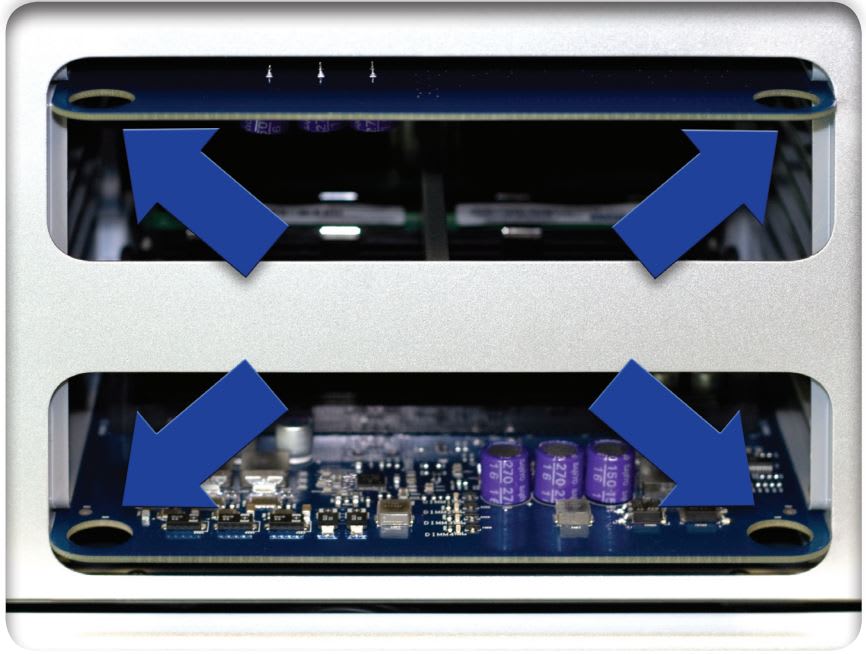
Video installation instructions can be found on the OWC Web Site http://eshop.macsales.com/how_to_install/Apple/Mac_Pro_Memory_800Mhz_2008
Step 3:
On the bottom memory card, open the ejectors on the DIMM slot and push them out to the sides, and then remove the DIMM from slot 1.
Important: When installing or removing DIMMs, don’t touch the gold connectors on the DIMMs or the memory cards.
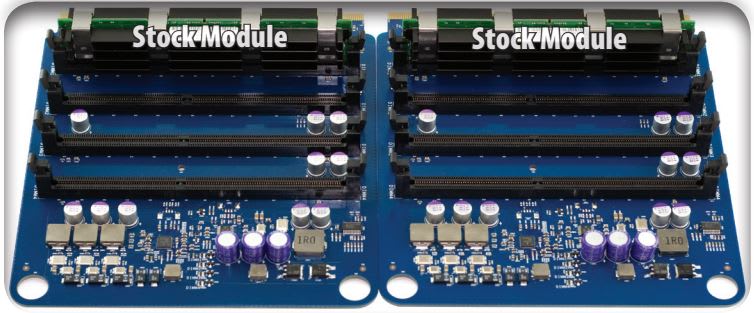
This is the stock 2GB RAM arrangement, one on each memory riser card
Step 4:
Reinstall the DIMM you removed on the top memory card by aligning it in DIMM slot 2 and pushing both ends of the DIMM down until the tabs are vertical and the ejectors snap into place.
Step 5:
Install the first pair of additional DIMMs on the bottom memory card in DIMM slots 1 and 2, the slots closest to the card’s gold connectors.
Important: Always install DIMMs as matched pairs and in the order listed. (See front page for installation order.)
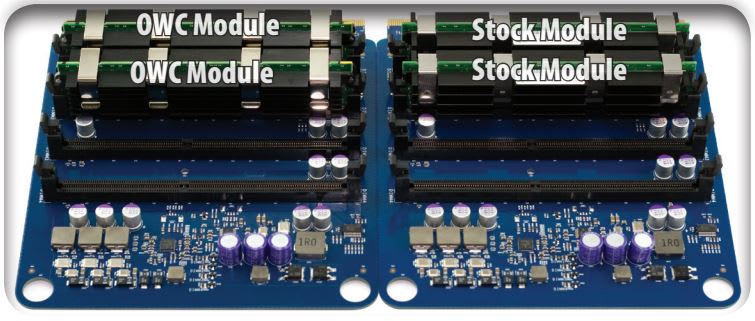
Move original RAM from one riser card to make a matched pair and add 2 new memory chips to the other card.
Step 6:
If you add a second pair of additional DIMMs, install them on the top memory card in DIMM slots 3 and 4, the last two slots.
Step 7:
If you add a third pair of additional DIMMs, install them on the bottom memory card in DIMM slots 3 and 4.
Step 8:
Lay your Mac Pro down on a soft, clean cloth on the desk or work surface to avoid scratching the work surface or your Mac Pro.
Step 9:
Reinstall each memory card, pushing it straight down until it’s seated in the memory slot.
Step 10:
Stand your Mac Pro up and replace the side panel.
Step 11:
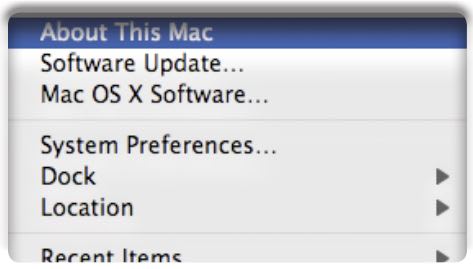
Plug in and restart your Mac Pro. You should be able to see your new RAM by going to the Apple menu and selecting “About this Mac.”
If the RAM does not show up properly, try removing and reseating the RAM. There have been reports of some of the Memory slots requiring several inserts before recognizing a new RAM module.
Free Support Chat
Our free award-winning support team is ready to answer all of your questions. Technical support is available Monday - Friday: 9AM - 6PM. Customer Support & Sales is available Monday - Friday: 9AM - 6PM. Support is unavailable on U.S. Federal holidays. Talk to a human today.